

By default, when someone adds their business to your directory, they are assigned the free plan and taken to a page prompting them to upgrade to a premium listing. If you prefer to redirect them to a custom URL instead, follow these steps:
Let's look at the steps:
Step 1: Open Free Plan Settings
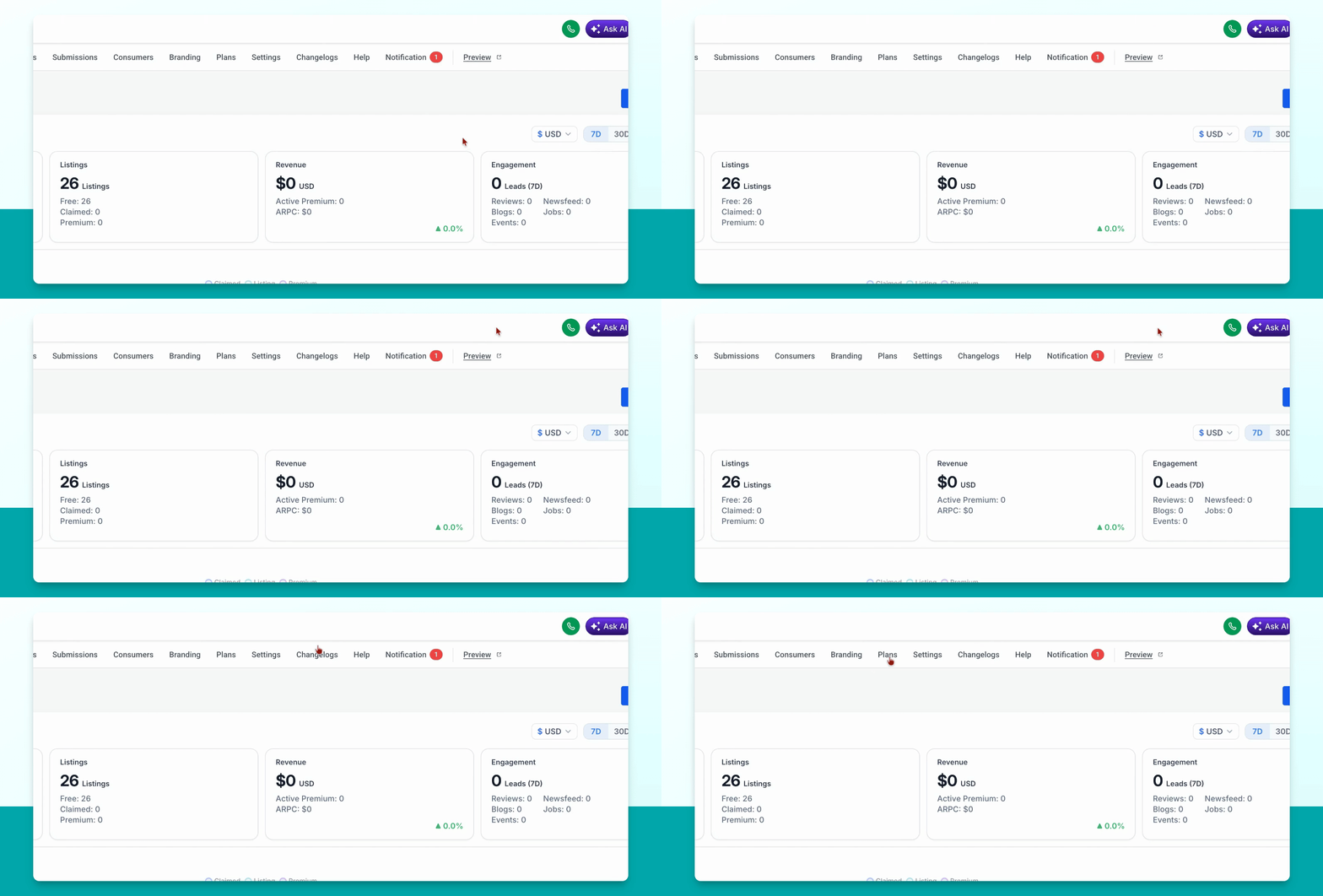
Go to Plans in your Smart Directory AI Dashboard. Find your free plan, then click the Edit pencil icon.
Step 2: Enable Custom Redirect
Toggle on the Custom Redirect option.
This feature only works if your site is integrated with Stripe.
You cannot use Custom Redirect and custom payment links together.
Step 3: Enter Redirect URL and Save
Enter your desired URL in the Custom Redirect box. Scroll down and click Submit Now to save your changes.
Now, when someone adds their business using the Add Business button, they will be redirected to the URL you specified.