

SmartDirectoryAI’s Leads feature allows you to search for businesses by keyword and location and build targeted lead lists directly inside your account.
Each search can return business information including the business name, phone number, email address when available, and location. Your searches are automatically saved so you can return to them later for enrichment, verification, or export.
How to Run a Lead Search
From your SmartDirectoryAI dashboard:
Click Leads in the top navigation.
Make sure the Search tab is selected.
Select Search For New Leads.
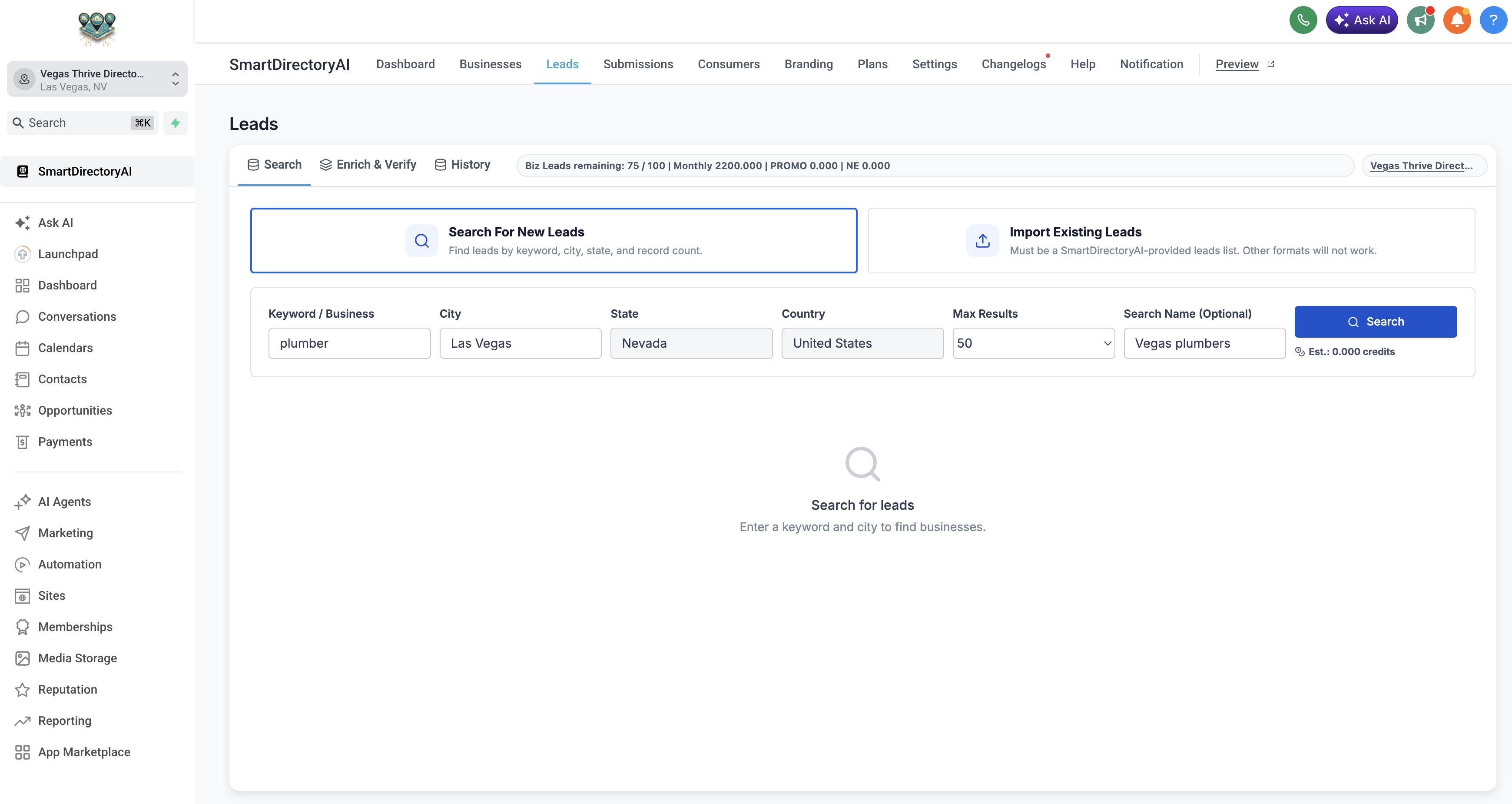
Enter the details for your search:
Keyword / Business – Enter the type of business you want to find, such as
plumber,dentist, orrestaurant.City – Enter the city you want to search.
State – Select or enter the state.
Country – Select the appropriate country.
Max Results – Choose the maximum number of leads you want the search to return.
Search Name (Optional) – Give your search a descriptive name so it is easy to identify later. For example,
Las Vegas Plumbers.
Click Search.
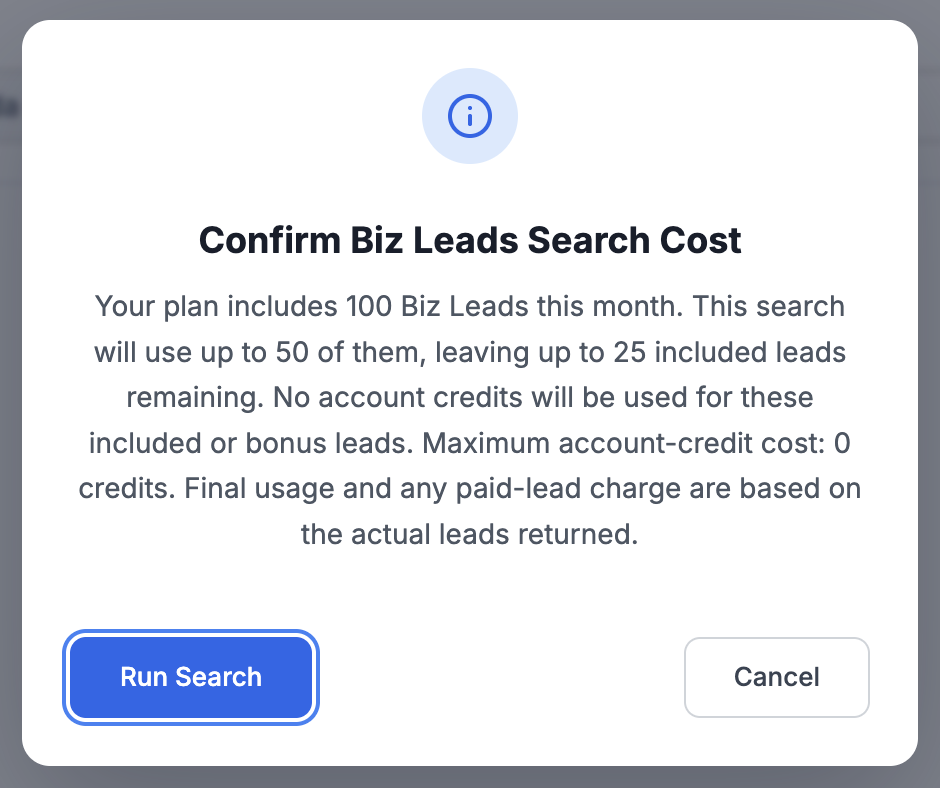
Before the search begins, SmartDirectoryAI will display a confirmation showing the maximum number of Biz Leads the search may use.
Your actual usage is based on the number of leads returned by the search. Review the information and click Run Search to continue.
Wait for Your Search to Complete
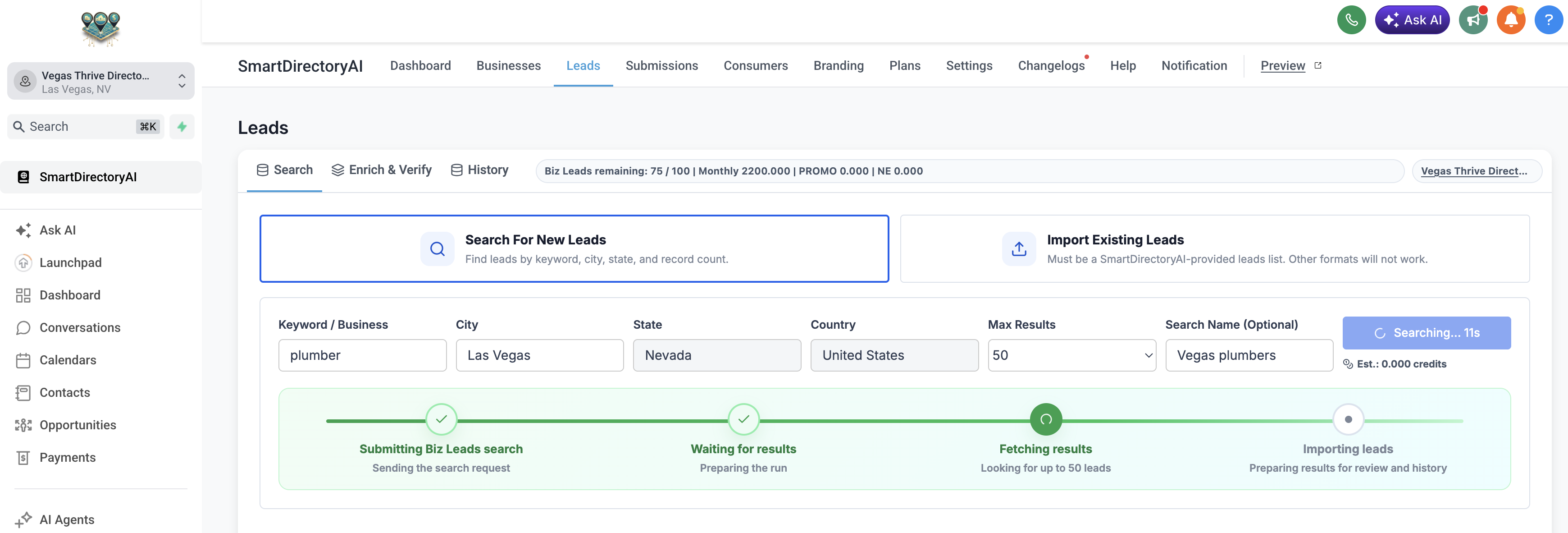
Once the search begins, SmartDirectoryAI will automatically work through several steps:
Submitting Biz Leads search → Waiting for results → Fetching results → Importing leads
You can follow the progress directly from the Leads page.
Depending on the size of your search, it may take a little time for all results to be returned and processed.
When the search is finished, you'll see a Search completed confirmation.
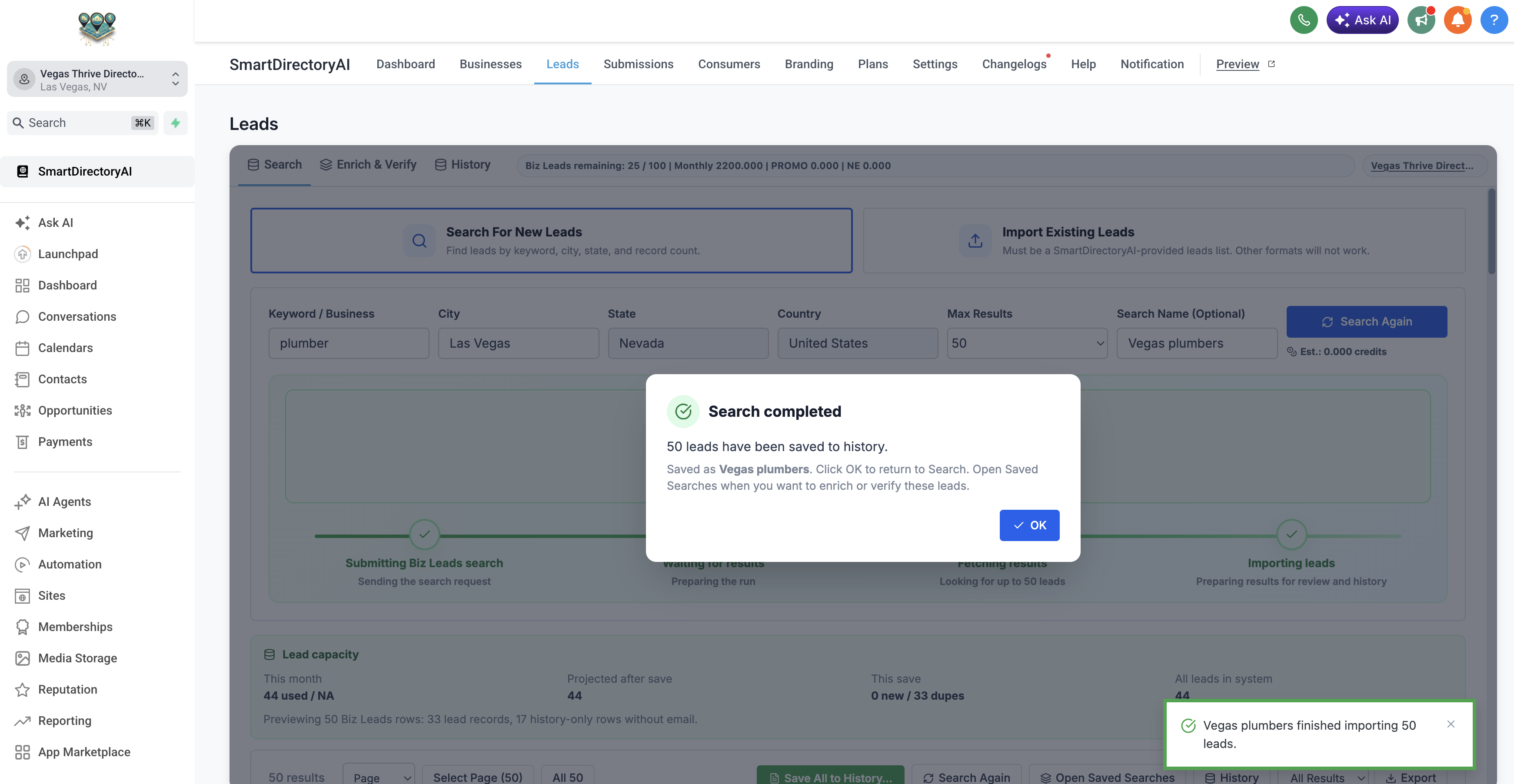
Your leads are also automatically saved to your Search History, so you can return to the search later without having to run it again.
Review Your Search Results
Once the search is complete, scroll down to view the businesses returned.
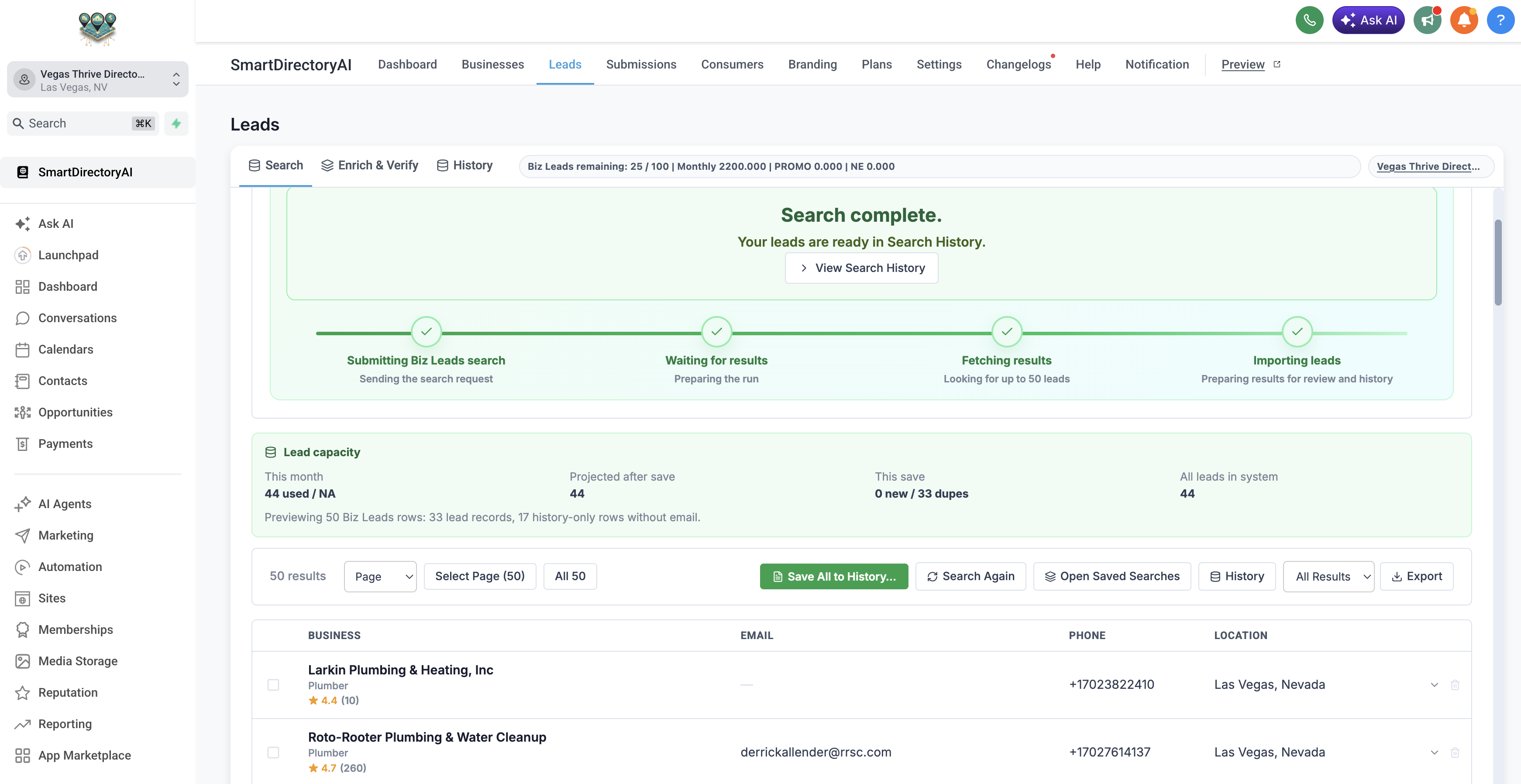
Depending on the information available for each business, results may include:
Business name
Business category
Rating and review count
Email address
Phone number
City and state
SmartDirectoryAI will also identify duplicate businesses that are already in your Leads system. This helps prevent the same business from unnecessarily counting toward your lead capacity multiple times.
The Lead capacity section gives you a quick overview of your search, including your current lead usage, the number of new leads found, duplicates identified, and the projected number of leads after saving.
What Happens Next?
Running a lead search is the first step in building your lead list.
After your search is complete, you can use the other tools available within the Leads section to work with your results, including opening saved searches, viewing your search history, enriching and verifying lead information, or exporting your leads.
Tip: Use specific business keywords and locations when searching. Instead of searching broadly for contractors, for example, separate your searches into categories such as roofing contractor, plumber, or HVAC contractor. This can make your lead lists easier to organize and use in targeted outreach campaigns.