

Once you've found the businesses you want to add to your directory, SmartDirectoryAI makes it easy to turn your leads directly into directory listings.
Instead of manually creating each listing, you can select multiple leads and send their business and contact information into SmartDirectoryAI in a single batch.
Select the Leads You Want to Add
From your SmartDirectoryAI dashboard:
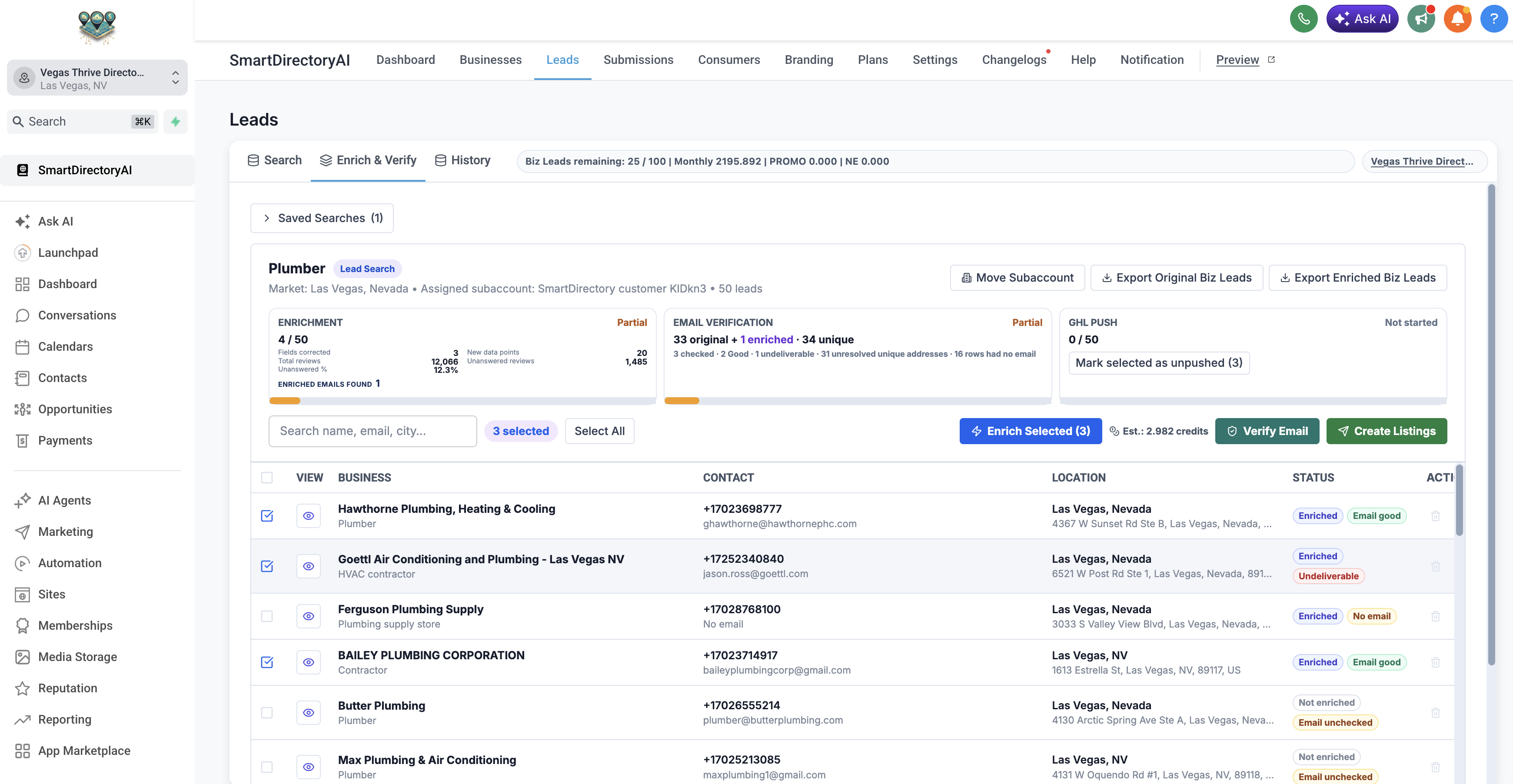
Click Leads in the top navigation.
Select the Enrich & Verify tab.
Open the saved search containing the businesses you want to add.
Select the individual leads you want to use, or click Select All.
Select to add the business tag to your new contacts.
Click Create Listings.
You can create listings from your original lead data, but enriching your leads first can provide more complete business information before the listings are created.
Review Your Selected Leads
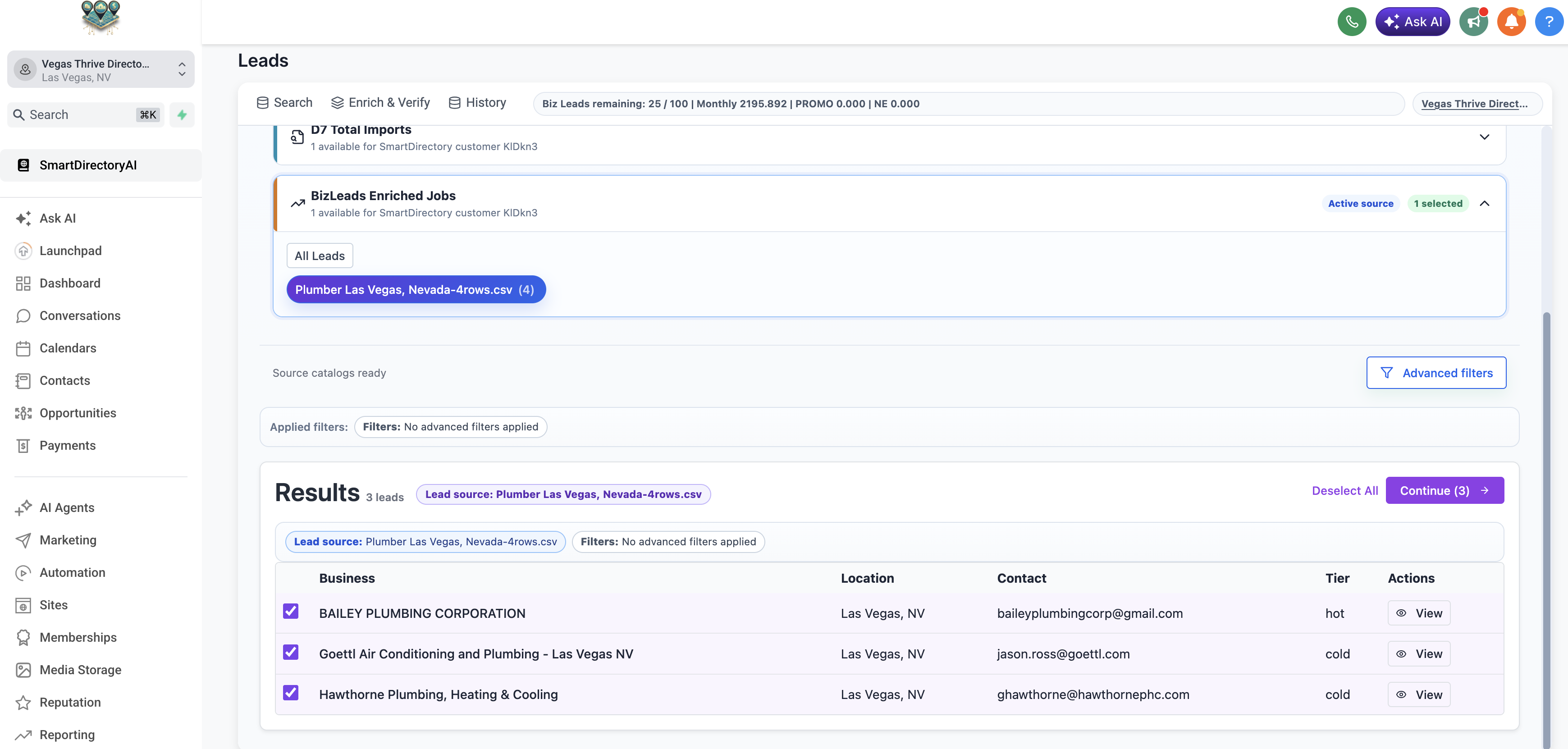
SmartDirectoryAI will display the available lead sources associated with your account.
Select the lead source you want to use. You'll then see the individual businesses included in that source.
By default, the available leads will be selected. Review the businesses and deselect any that you don't want to turn into listings.
When you're ready, click Continue.
Choose a Listing Label
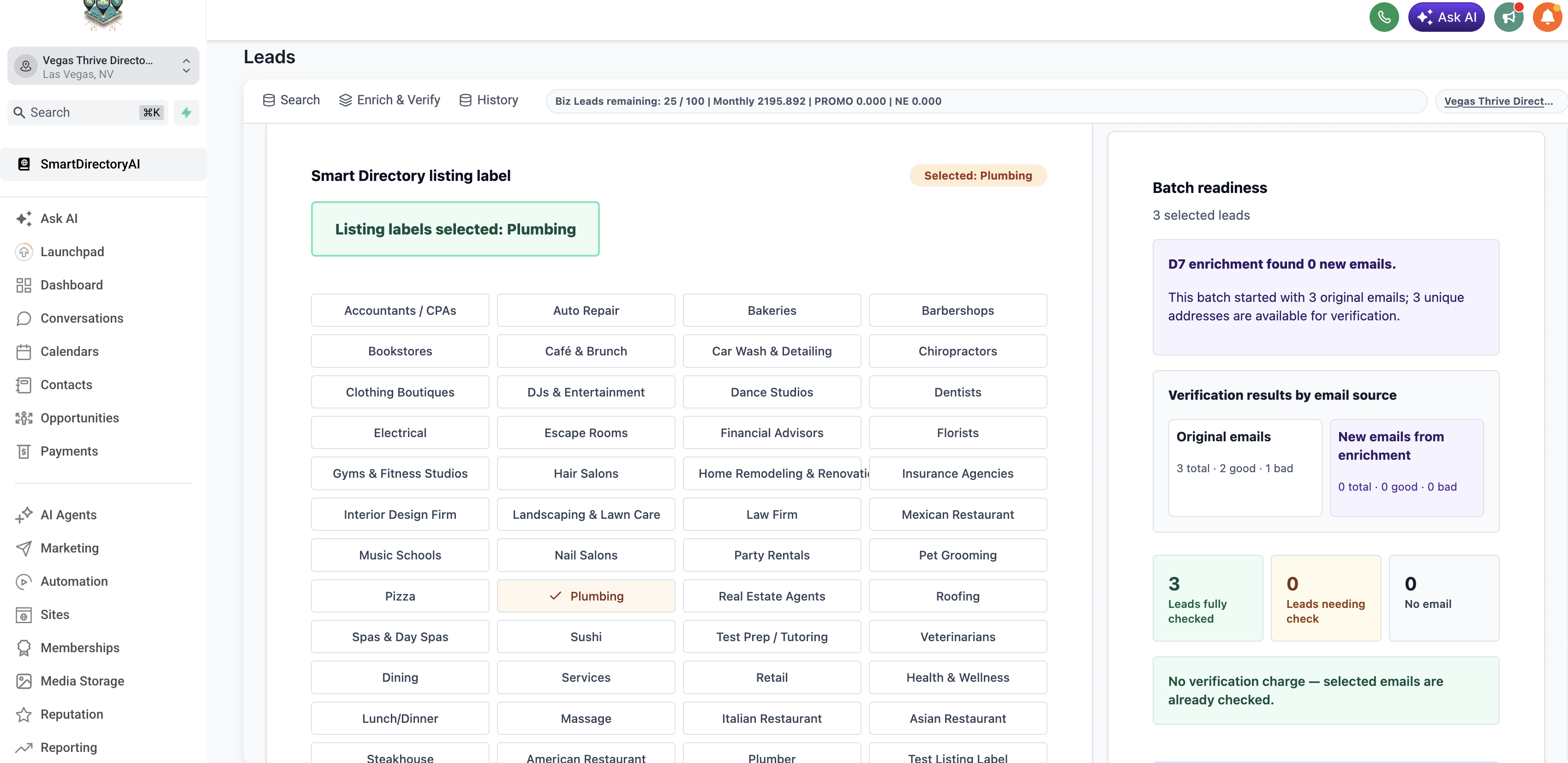
Next, select the Smart Directory listing label that should be applied to the businesses.
Listing labels determine how listings are categorized and displayed within your directory, so choose the label that best matches the businesses you're adding.
SmartDirectoryAI may automatically suggest a label based on the type of businesses included in your lead search. You can accept the suggested label or select a different one.
A listing label is required before you can continue.
Review Email Readiness
SmartDirectoryAI will also show the email readiness of the leads in your batch.
You'll see how many selected businesses have:
Emails that are already verified
Emails that still need to be checked
No email address available
If your selected email addresses have already been verified, no additional verification is required.
This is especially useful if you plan to use SmartDirectoryAI's workflows to contact businesses after their listings are created.
Add Organization Tags
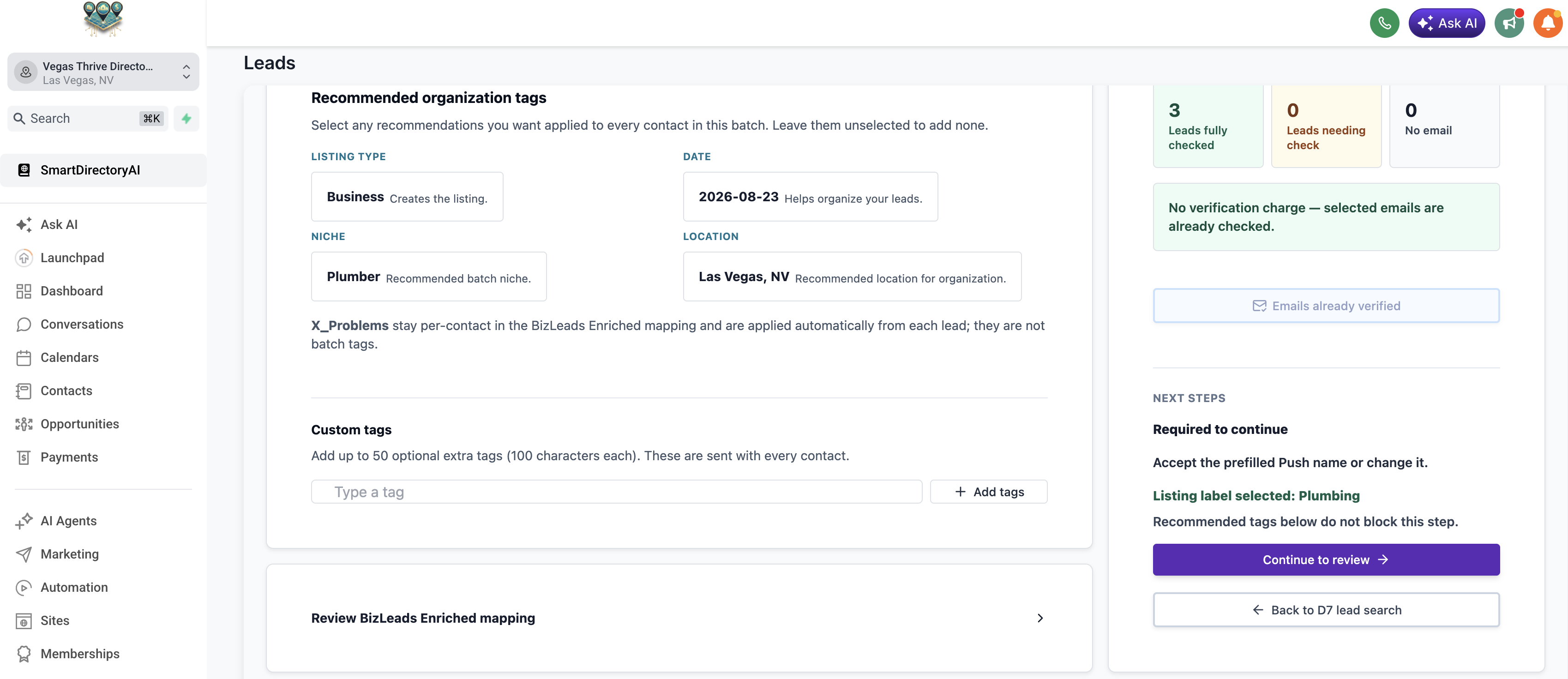
You can also apply tags to the contacts being created.
In order to create listings on your SmartDirectoryAI site, you MUST choose to add the business tag. The business tag is what causes a contact to be shown as a listing on your site.
SmartDirectoryAI recommends several tags to help organize your new contacts, including:
Listing Type – Identifies the contact as a business/listing.
Date – Records when the batch was created.
Niche – Identifies the business category or niche.
Location – Identifies the geographic market associated with the lead.
These recommended tags are optional.
You can also add up to 50 custom tags that will be applied to every contact in the batch.
Any business-specific problem or opportunity tags discovered during enrichment remain associated with the individual business and are applied automatically. You don't need to add these manually as batch tags.
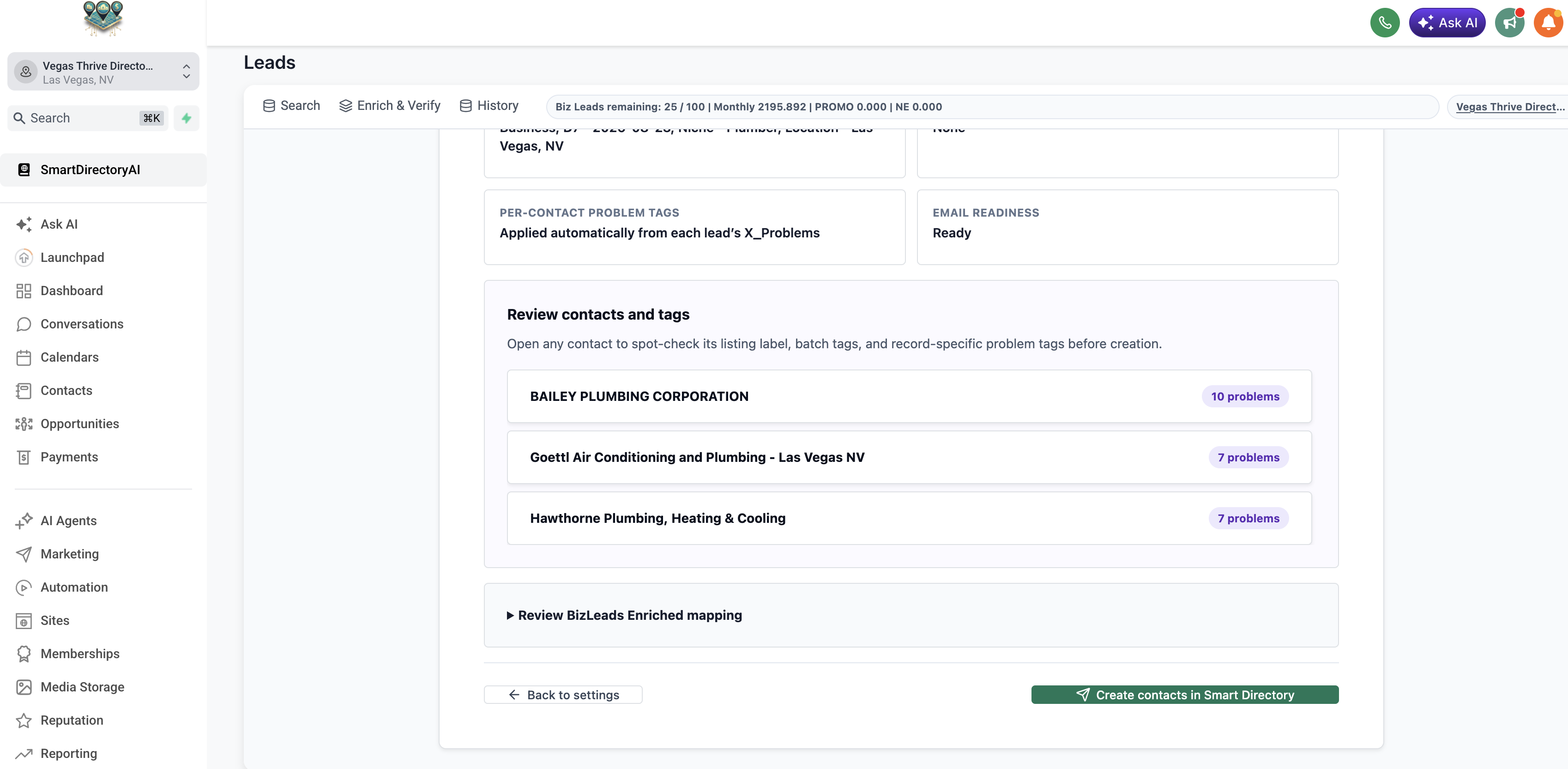
Review Your Listings Before Creating Them
Click Continue to review when your settings are complete.
SmartDirectoryAI will give you one final opportunity to review the businesses and information that will be sent into your directory.
You'll be able to review:
The selected listing label
Batch tags
Individual businesses
Business-specific problem tags
Email readiness
Lead data being mapped into the listing
You can expand individual businesses or the BizLeads Enriched mapping section if you want to inspect the information more closely.
If you need to make changes, select Back to settings.
Create Your Listings
Once everything looks correct, click Create contacts in Smart Directory.
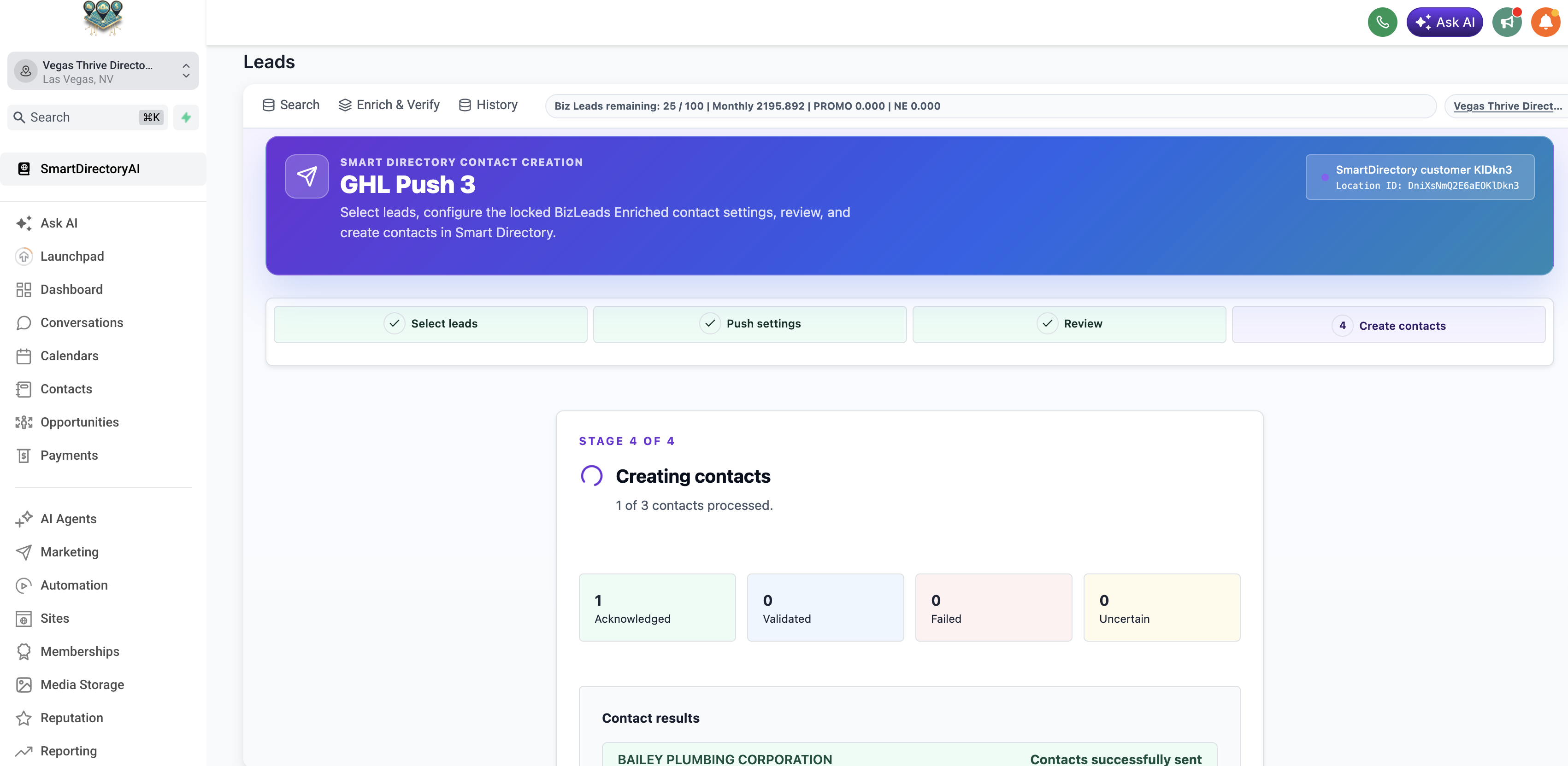
SmartDirectoryAI will begin creating the contacts and listings.
You'll see the progress of the batch as each business is processed, along with the number of contacts that are:
Acknowledged
Validated
Failed
Uncertain
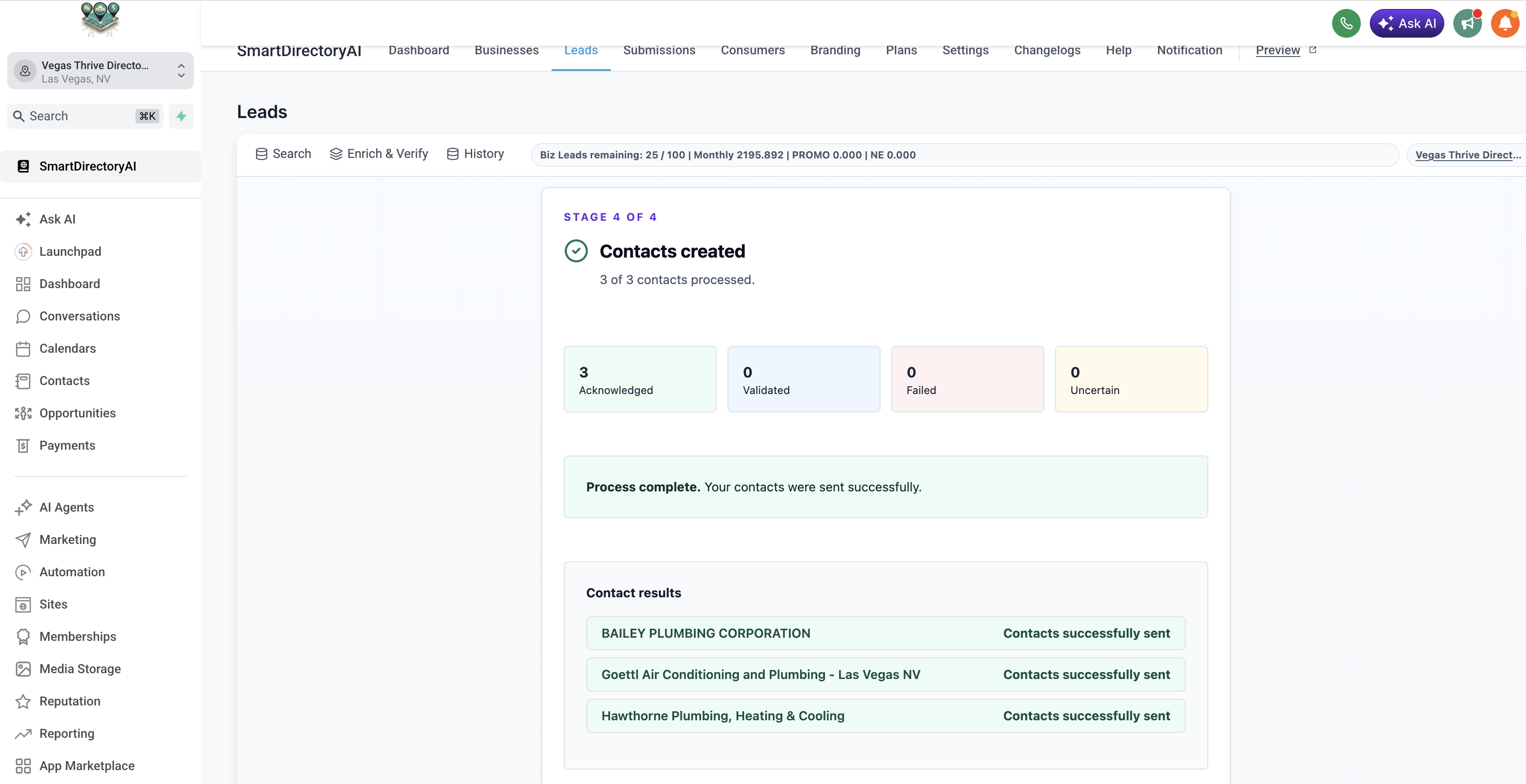
When processing is finished, you'll see a Contacts created confirmation and the status of each business in the batch.
What Happens After Listings Are Created?
The selected leads are now contacts in SmartDirectoryAI and can be used as listings on your directory.
Because SmartDirectoryAI listings are built from contacts, the information collected through your lead search and enrichment can now flow directly into the rest of your SmartDirectoryAI system.
This allows you to go from finding a business → enriching and verifying its information → creating a directory listing without manually entering the business data yourself.
Tip: For the most complete listings, consider enriching your leads before creating them. Enrichment can uncover additional contact information, website and social media data, business details, and opportunity information that can be carried over when the contact is created.