

Let's do it together!
Step 1: Export Categories
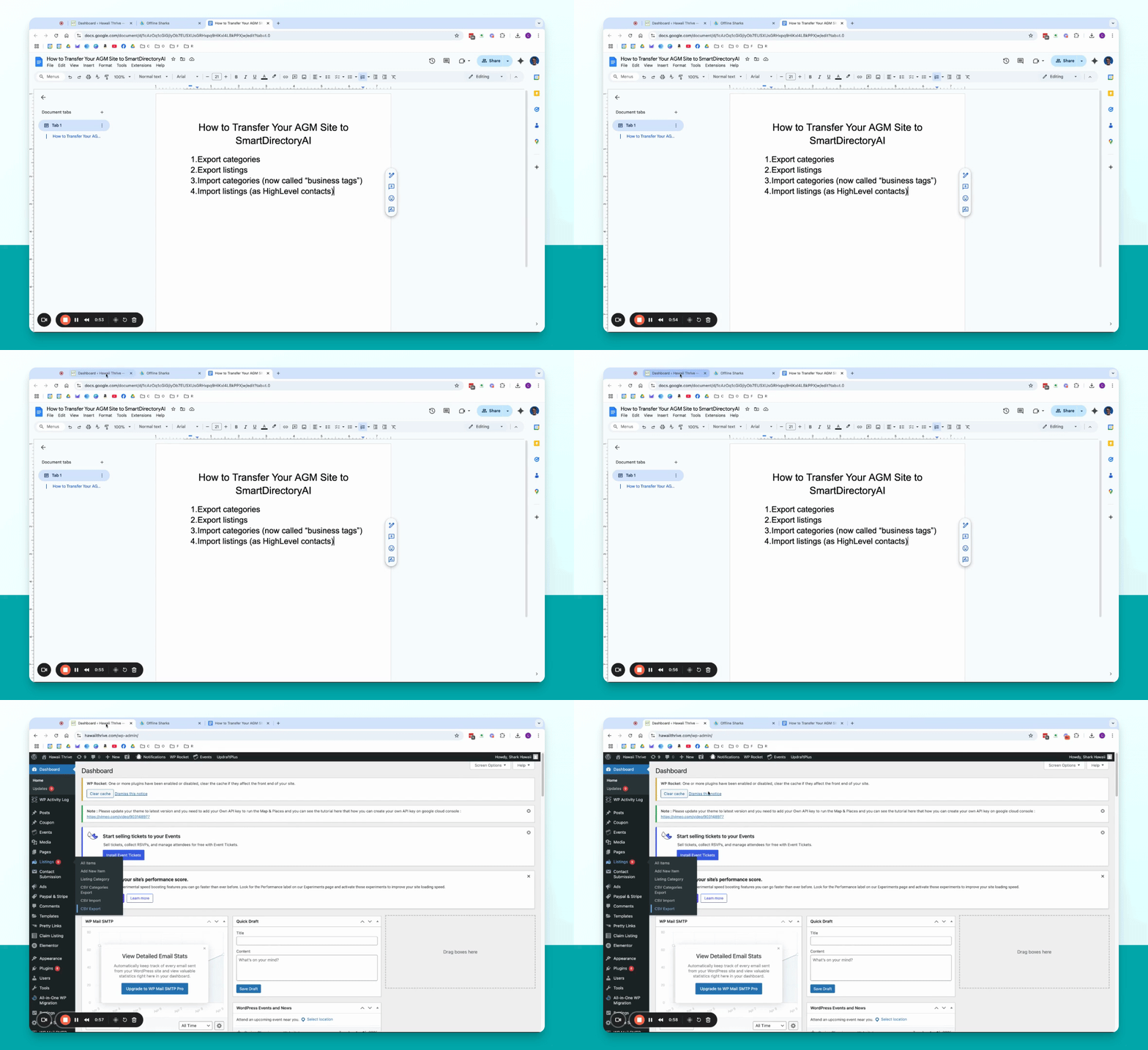
From your AGM dashboard, go to the listings menu and click CSV Categories Export. This will download a CSV file with your categories.
Step 2: Export Listings
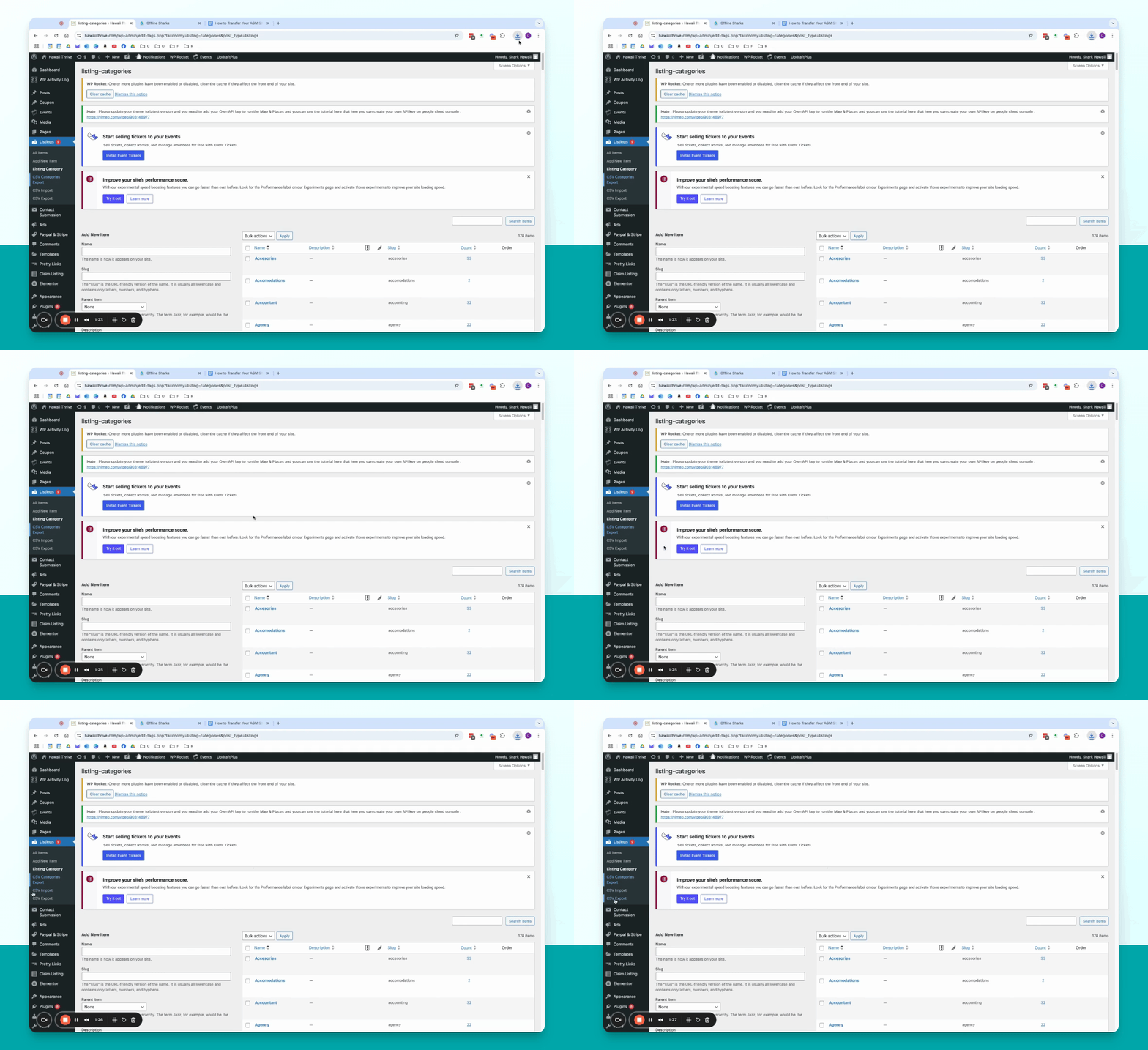
In the same menu, click CSV Export to download a CSV file of your listings. This may take a moment depending on the number of listings.
Step 3: Import Categories
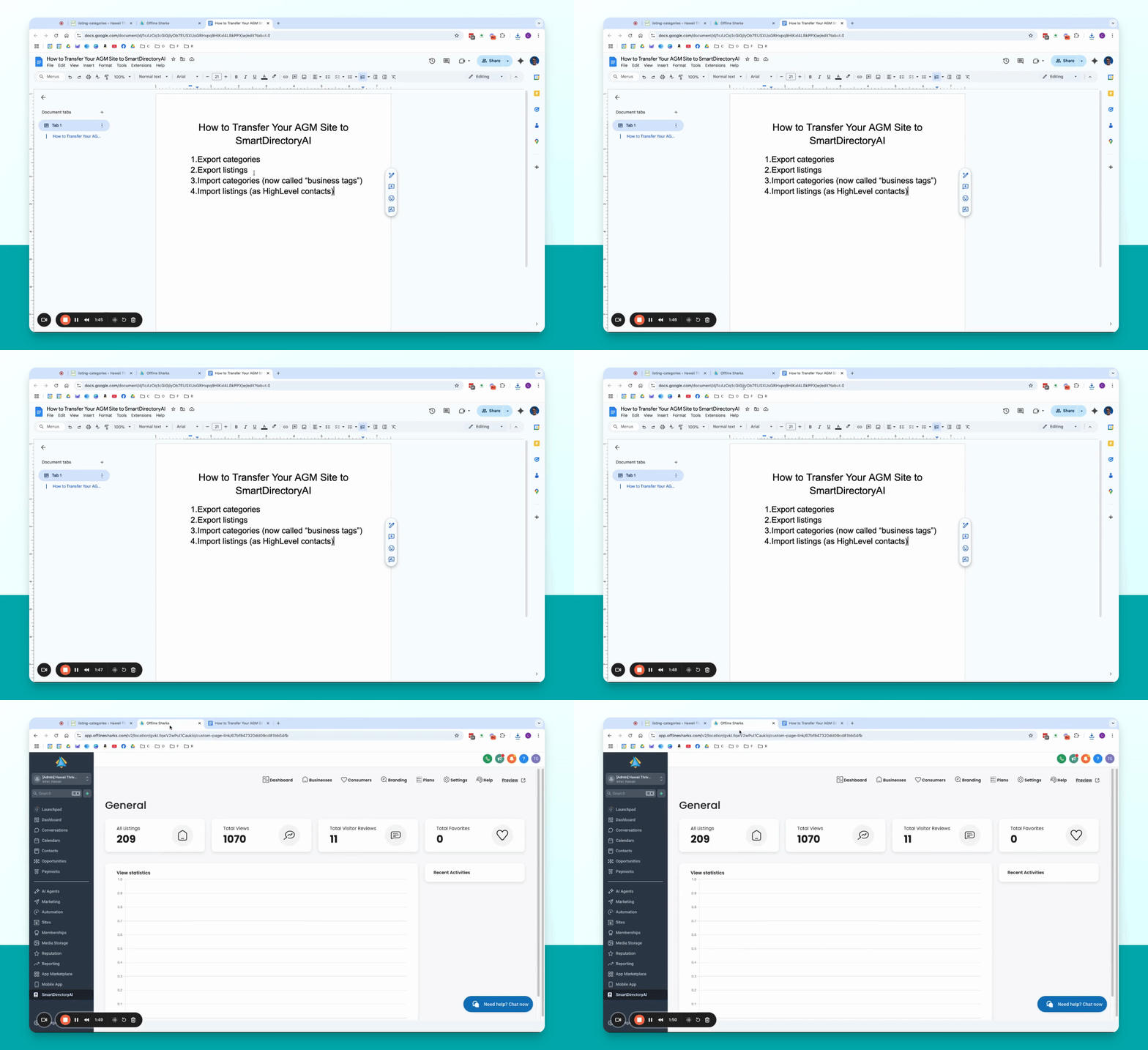
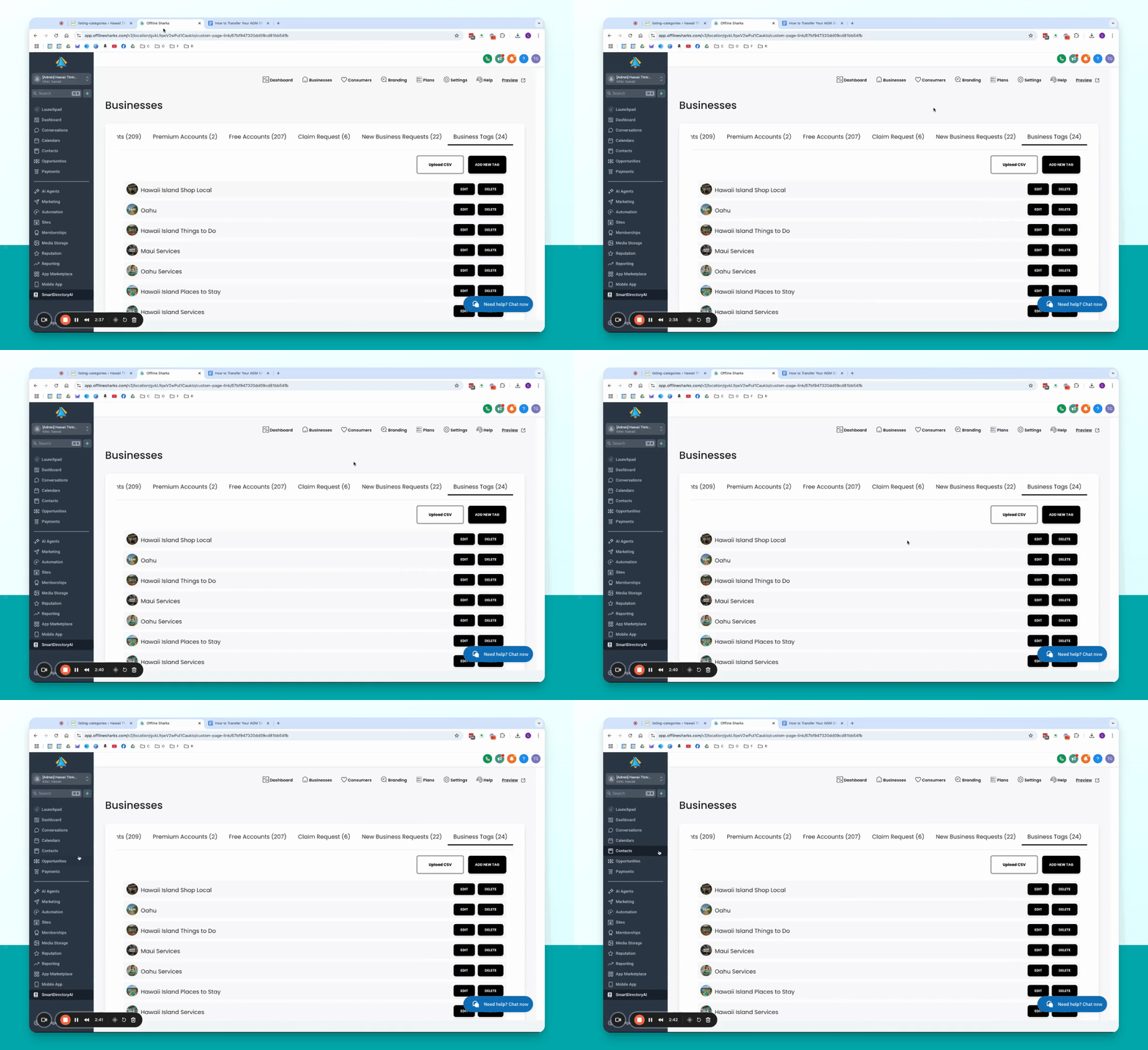
In Smart Directory, go to the Business Tags section and upload the categories CSV file. Click Add to import them.
Step 4: Import Listings
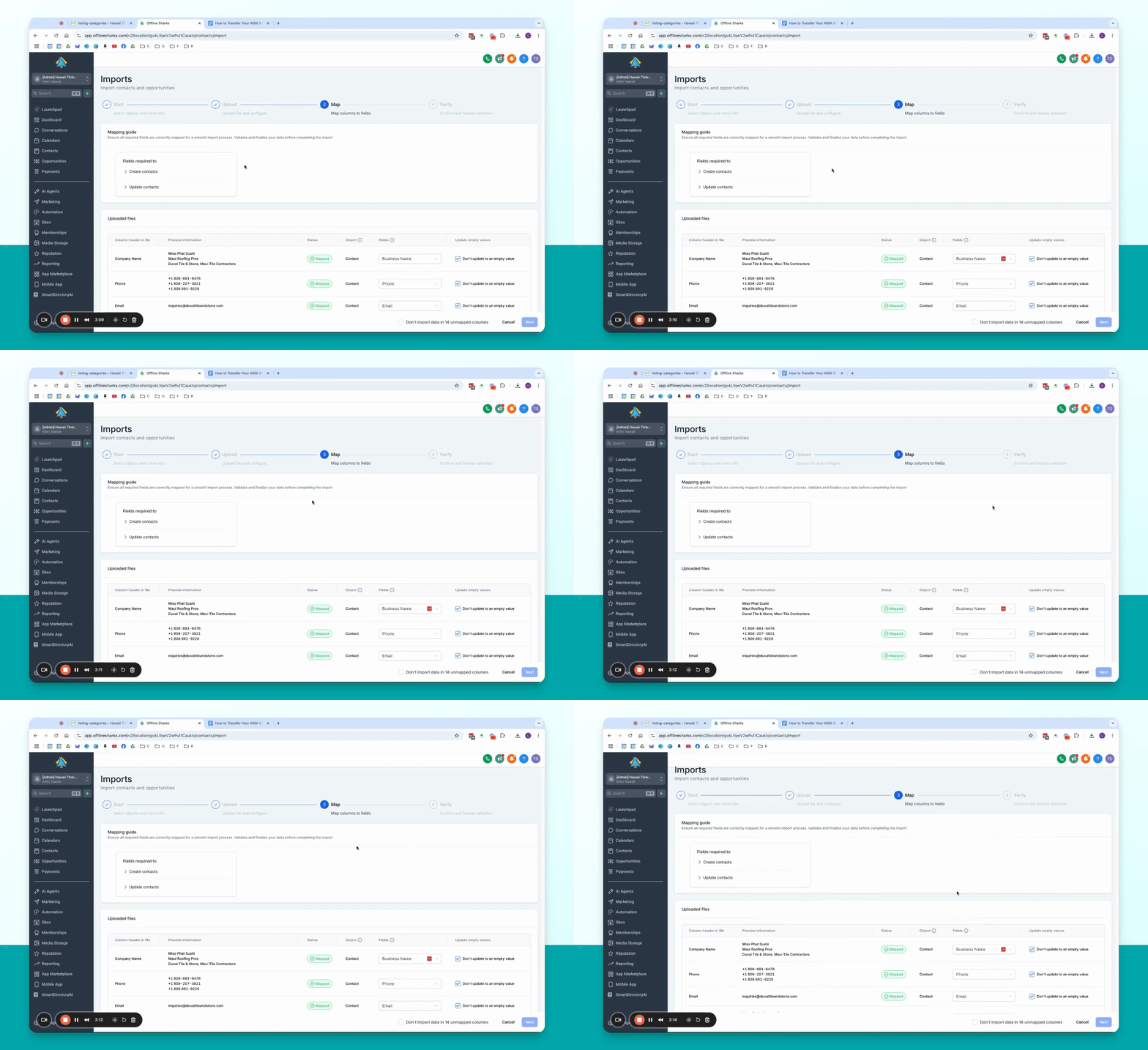
Go to the Contacts section, click Import Contacts, and upload your listings CSV file. Ensure fields are correctly mapped.
Field Mapping Reference Field in listings
export > Field in HighLevel
Company Name > First Name
Phone > Phone
Email > Email
Website > Website
Address > not mapped
Street Address > Street Address
City > City
State > State
Postal Code > Postal Code
Country > Country
Business Tags > Listing Labels
Profile Image > Profile Image
Cover Image > Cover Image
Facebook > Facebook_S
Twitter > Twitter
Instagram > Instagram
LinkedIn > LinkedIn
Tiktok > not mapped
Business Type > Business Type Business Description > Business Description additional_details > not mapped
URL > not mapped
images > not mapped
video_url > not mapped
extra_links > not mapped
schedules_days > not mapped
exp_date > not mapped
g_place_id > not mapped
g_reference > not mapped
lat > not mapped
lng > not mapped
Step 5: Map Fields
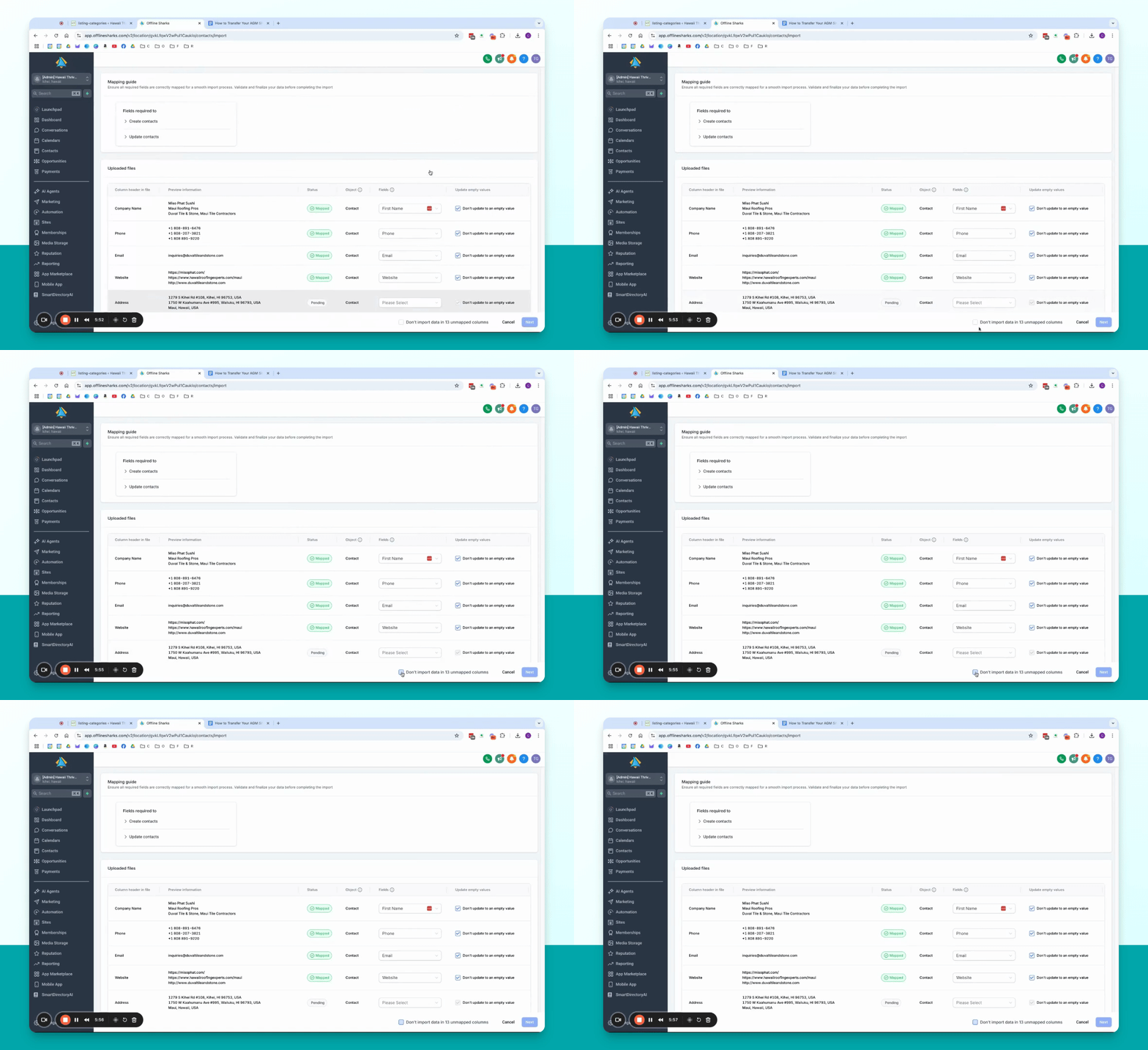
Confirm mapping of fields such as First Name, Phone, and Listing Labels. Adjust any fields that are incorrect.
Step 6: Start Import
Select the checkbox to approve importing data and click Next. This will import all businesses into your Smart Directory account.
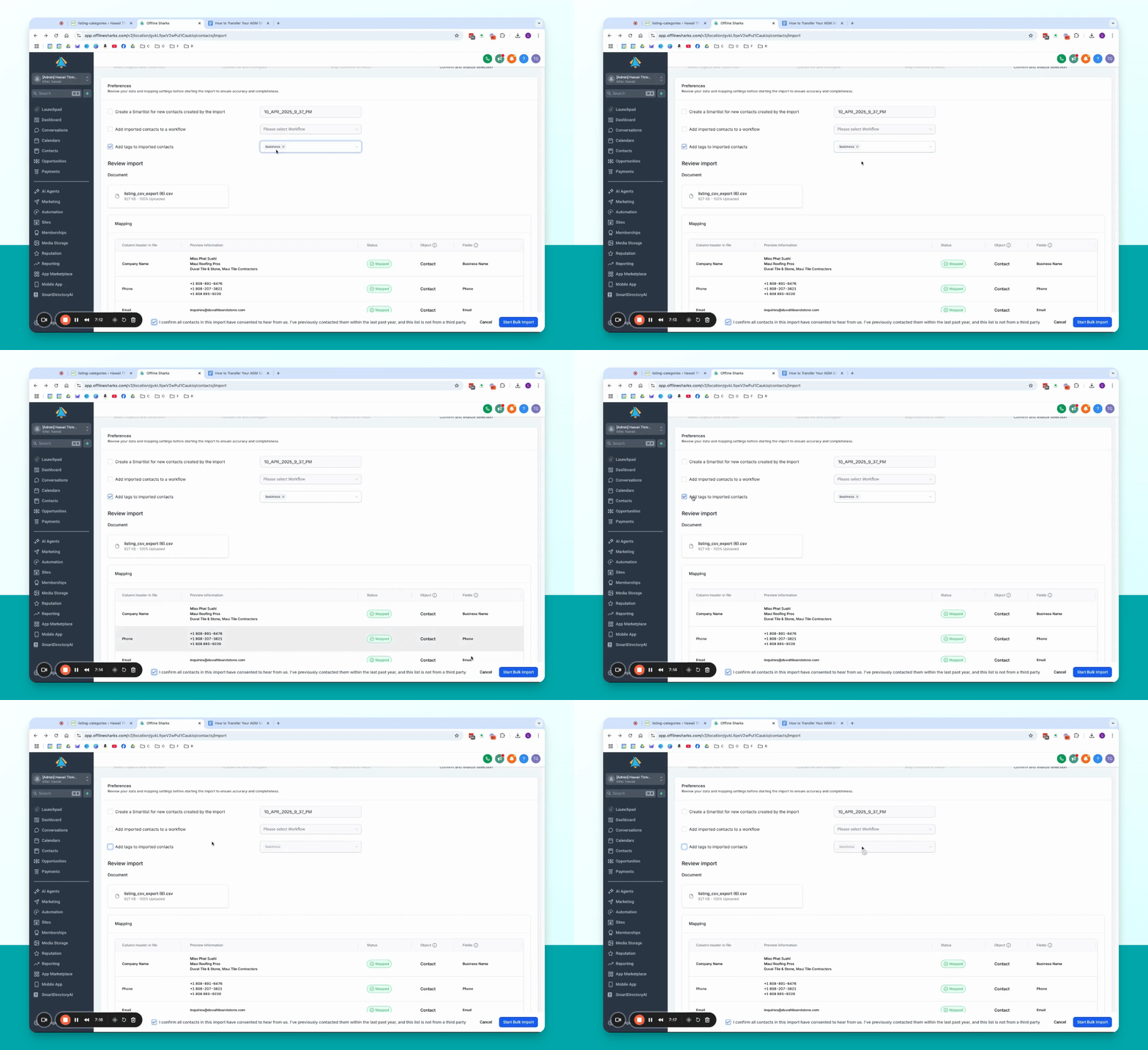
Step 7: Add Listing Labels
To make listings live immediately, add the HighLevel tag business during the import. Confirm and start the bulk import.
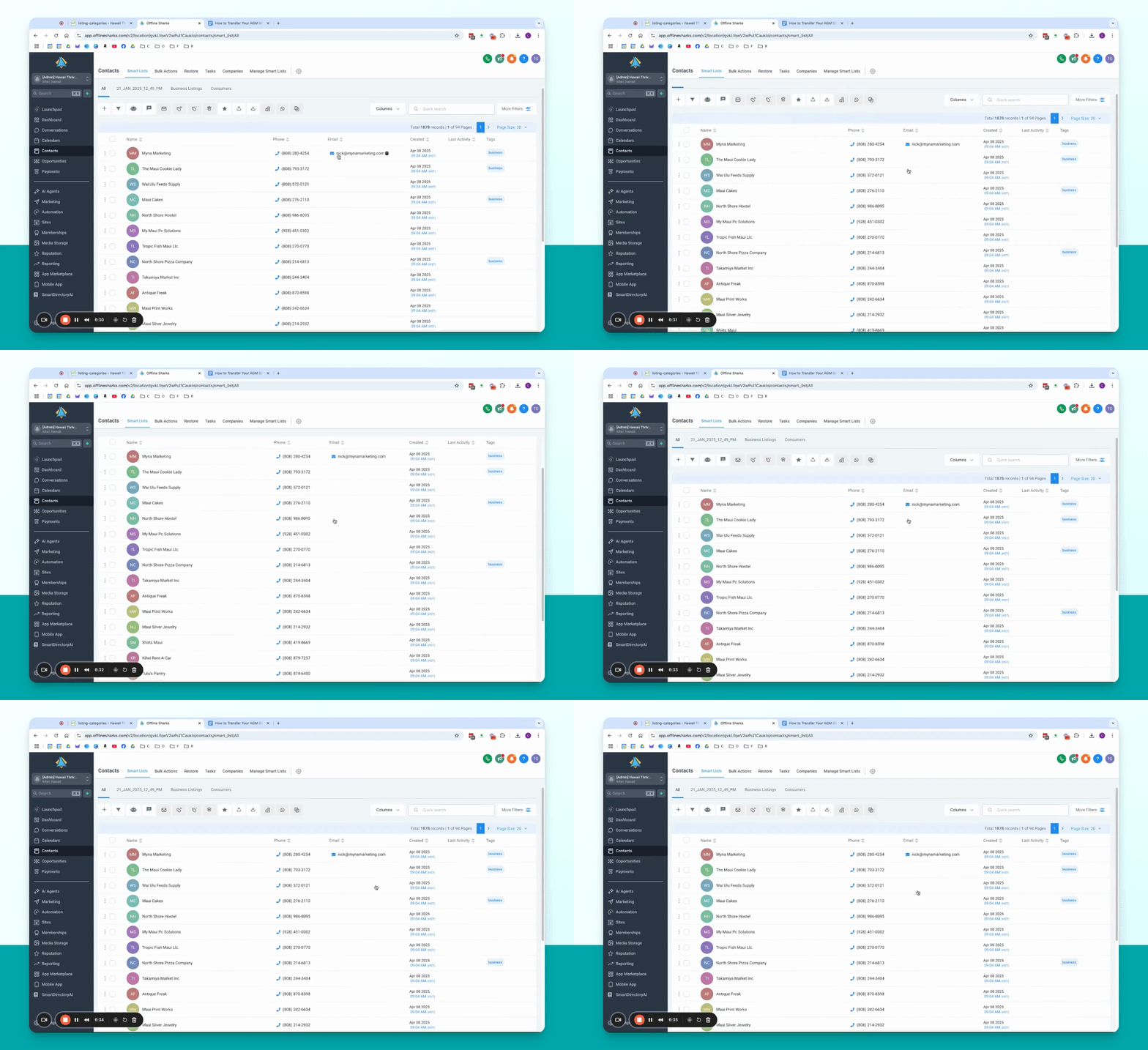
Step 8: Review Listings
If the business tag was not added during import, you can manually select contacts in SmartDirectoryAI and apply the business tag to make them listings.
Step 8: Contact Support to Cancel AGM Subscription
If you have an existing AGM subscription, contact support at smartdirectory.ai/help or use the support button on your SmartDirectoryAI platform.
Troubleshooting
Fields not mapping correctly
Listings not recognized
Billing issues
Contact support for assistance with old AGM billing.
FAQ
Can I import multiple categories?
What if some fields are missing?
How do I make listings live?
What should I do post-migration?
Contact support to cancel your existing AGM subscription.