

Already have a HighLevel account, or prefer to manage SmartDirectoryAI inside your own agency?
Follow the five steps below to import the SmartDirectoryAI snapshot, install the app, and activate your license inside your own HighLevel agency account.
Most customers do not need to complete this process. By default, we provide a ready-to-use sub-account with everything already installed. Follow these instructions only if you want to use SmartDirectoryAI inside your own HighLevel account.
If You Don't Already Have Your Own HighLevel
If you already have your own HighLevel agency account, you can continue to Step 1.
If you don’t have HighLevel yet, use the button below to create your account:
After signing up, log in to your new HighLevel agency account before continuing.
Step 1: Request License Key
First, request the license key you’ll use to activate SmartDirectoryAI inside your HighLevel account.
Click the button below and complete the short request form.
When you submit the form, we’ll send your license key and installation link to the email address associated with your SmartDirectoryAI account, and you'll be redirected back to this page.
Please allow 10-15 minutes for the email to arrive. If you can't find it, check your spam or promotions folder before contacting support.
Please keep your license key handy. You’ll need it during Step 4.
Step 2: Import Snapshot
The SmartDirectoryAI snapshot includes the forms, workflows, custom fields, tags, email templates, and other assets used by the app.
Click the button below while logged in to your HighLevel agency account:
(updated 7/31/26)
When prompted, click Yes, Import Now to start importing the snapshot.
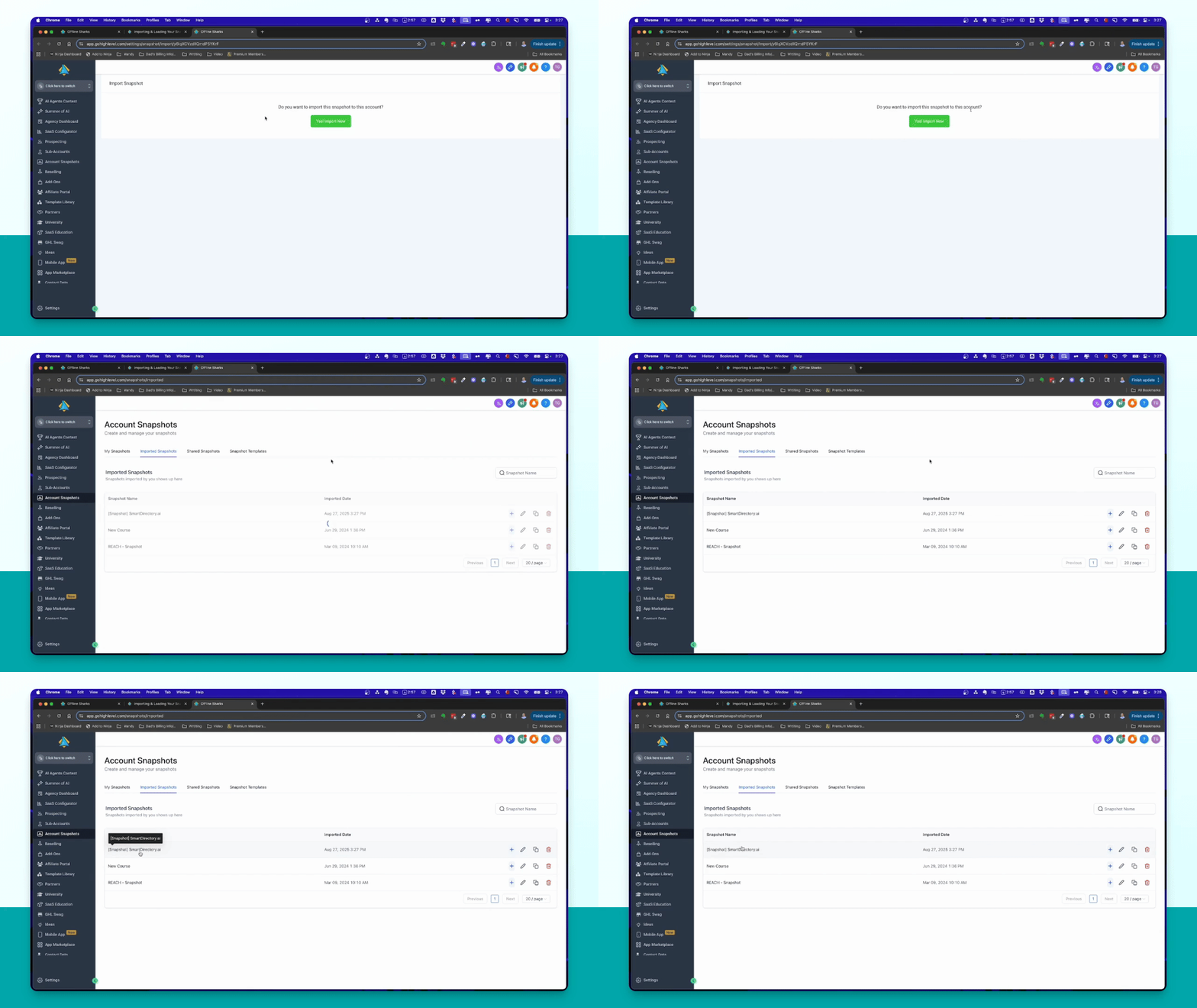
Importing the snapshot does not automatically add its assets to an existing sub-account. You’ll choose where to load them in the next step.
Step 3: Create Sub-Account & Load Snapshot
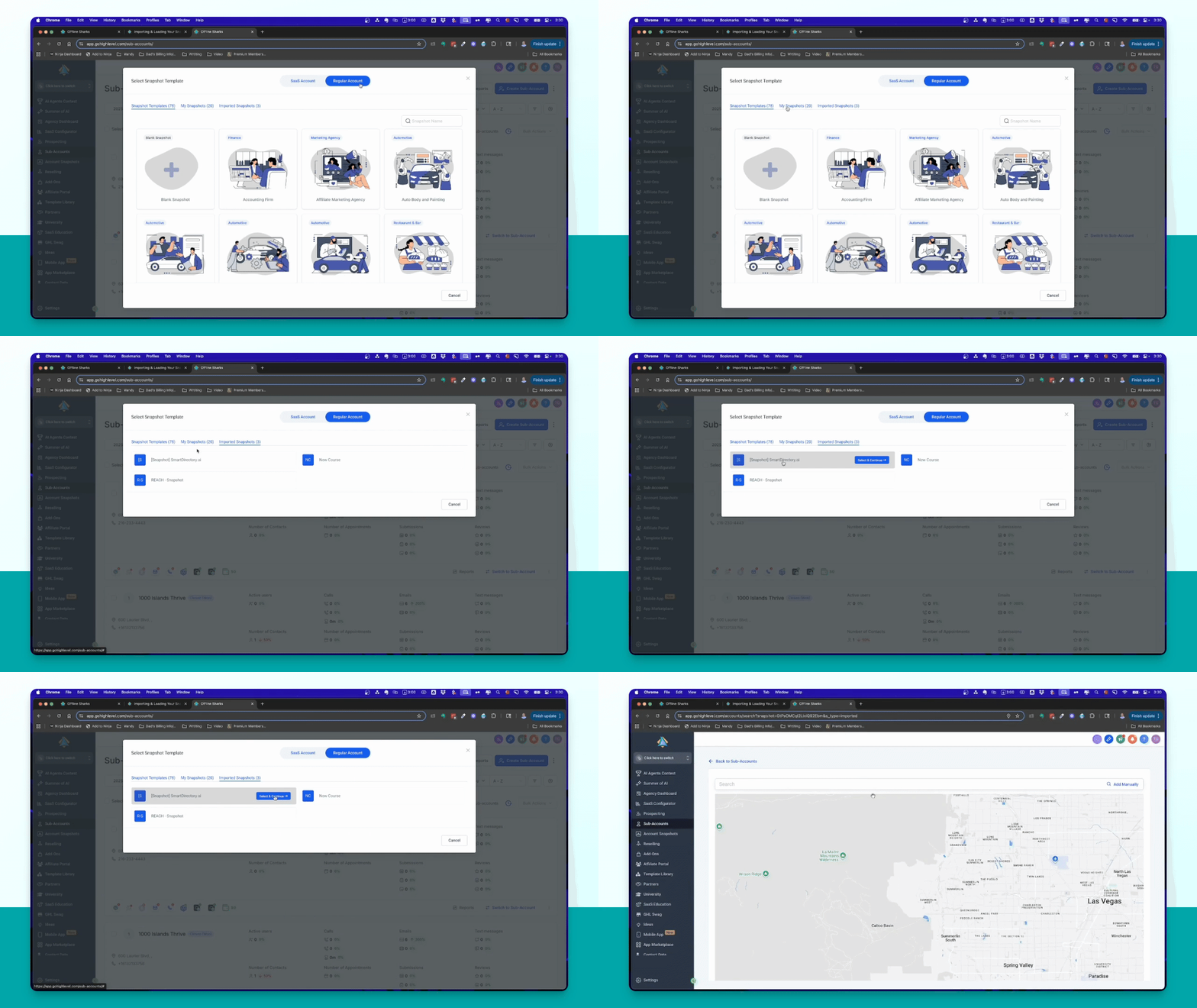
1. Create Sub Account
Click on Sub Accounts and then Create Sub Account to separate SmartDirectoryAI assets.
2. Choose Account Type
Select Regular Account.
3. Select Snapshot
Choose the imported SmartDirectoryAI snapshot and proceed to add your details.
4. Fill Out Information
Complete the form with your name, email, directory name, and other necessary details.
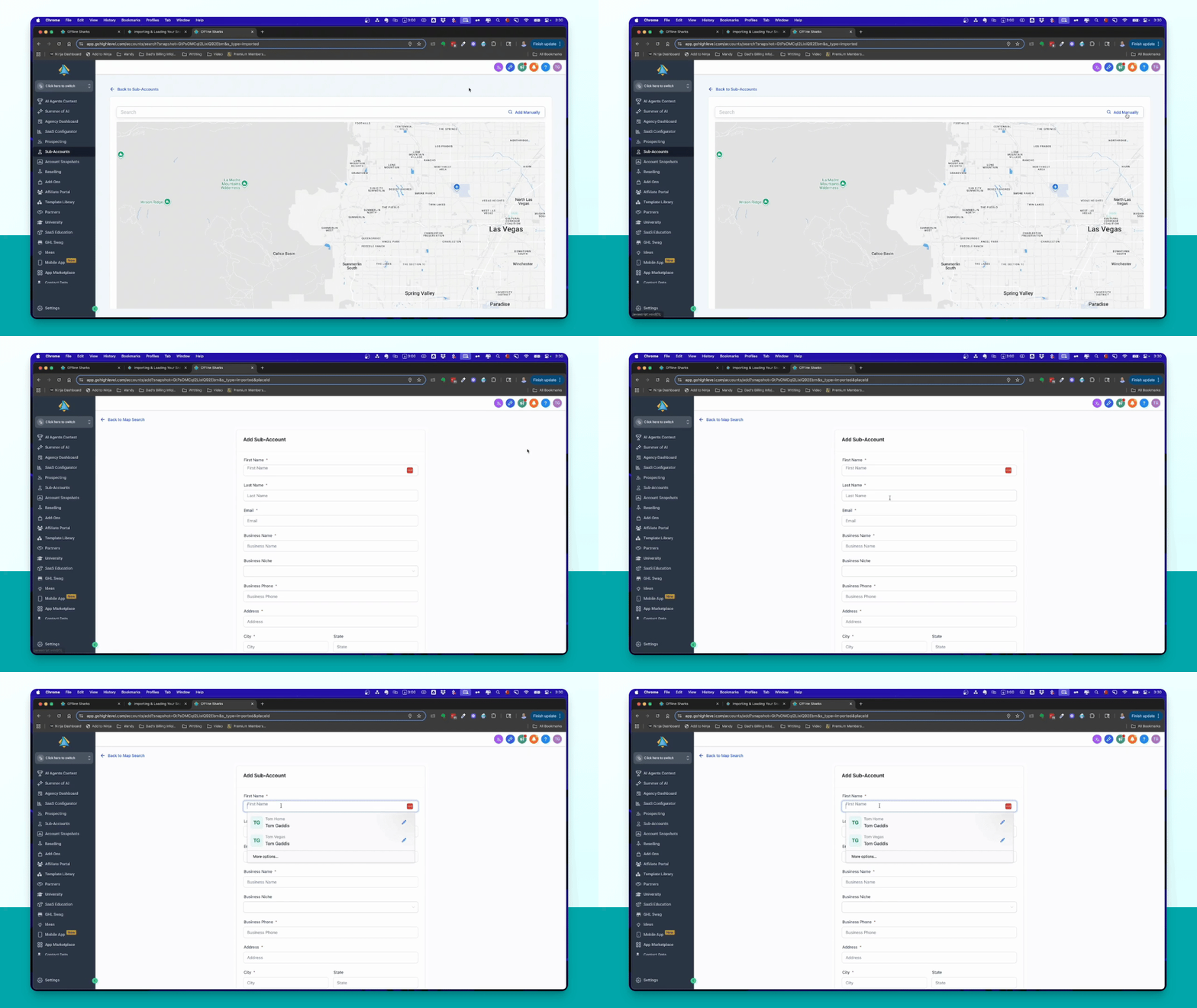
5. Add Sub Account
Click Add Sub Account to create the account and install the snapshot.
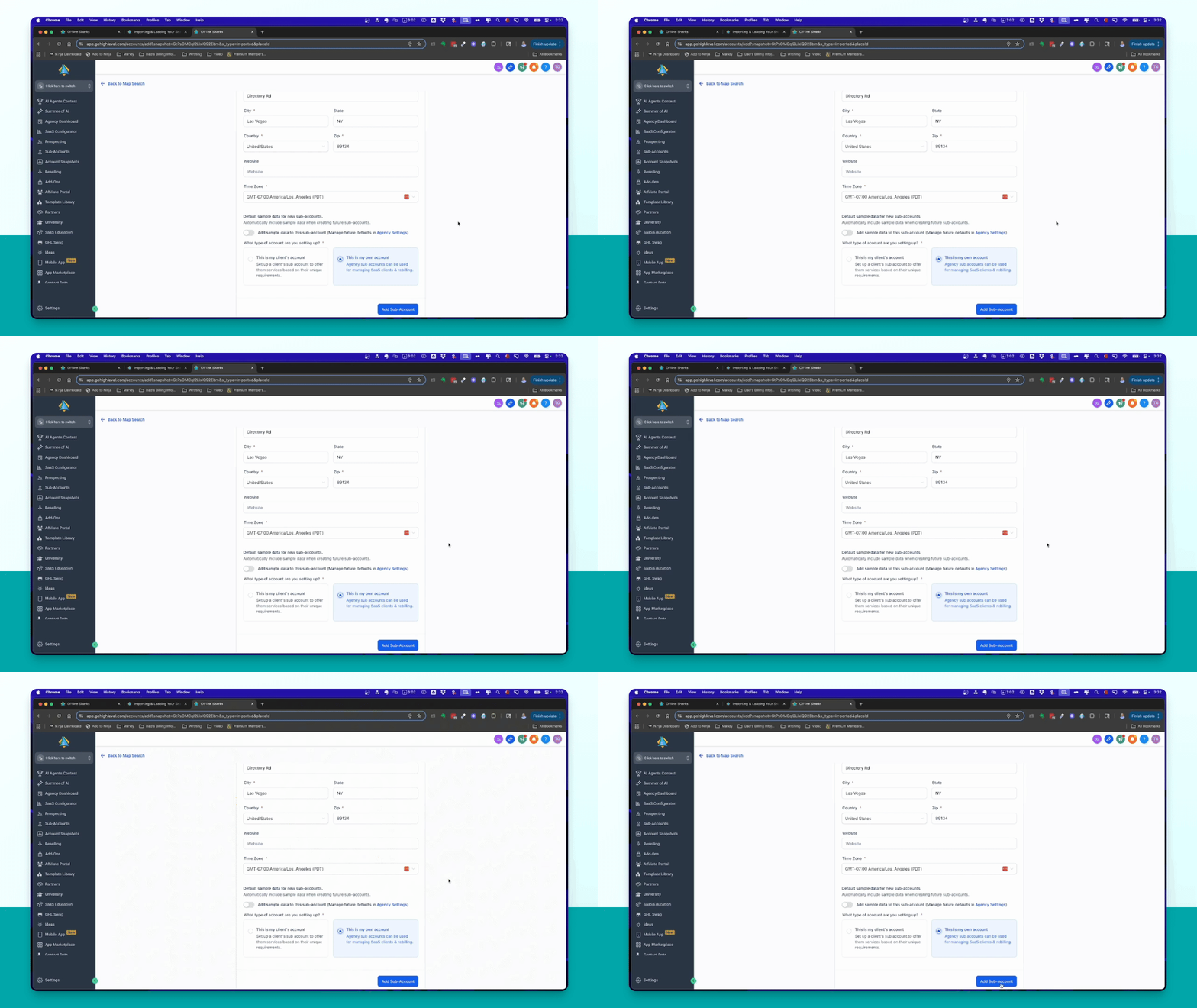
When you load the snapshot into a sub-account, all included workflows will be published immediately.
Load to Existing Sub-Account?
To load the snapshot in an existing sub account, find the account, click Manage Client, and select Load Snapshot.
Select the SmartDirectoryAI snapshot and click Proceed to install it.
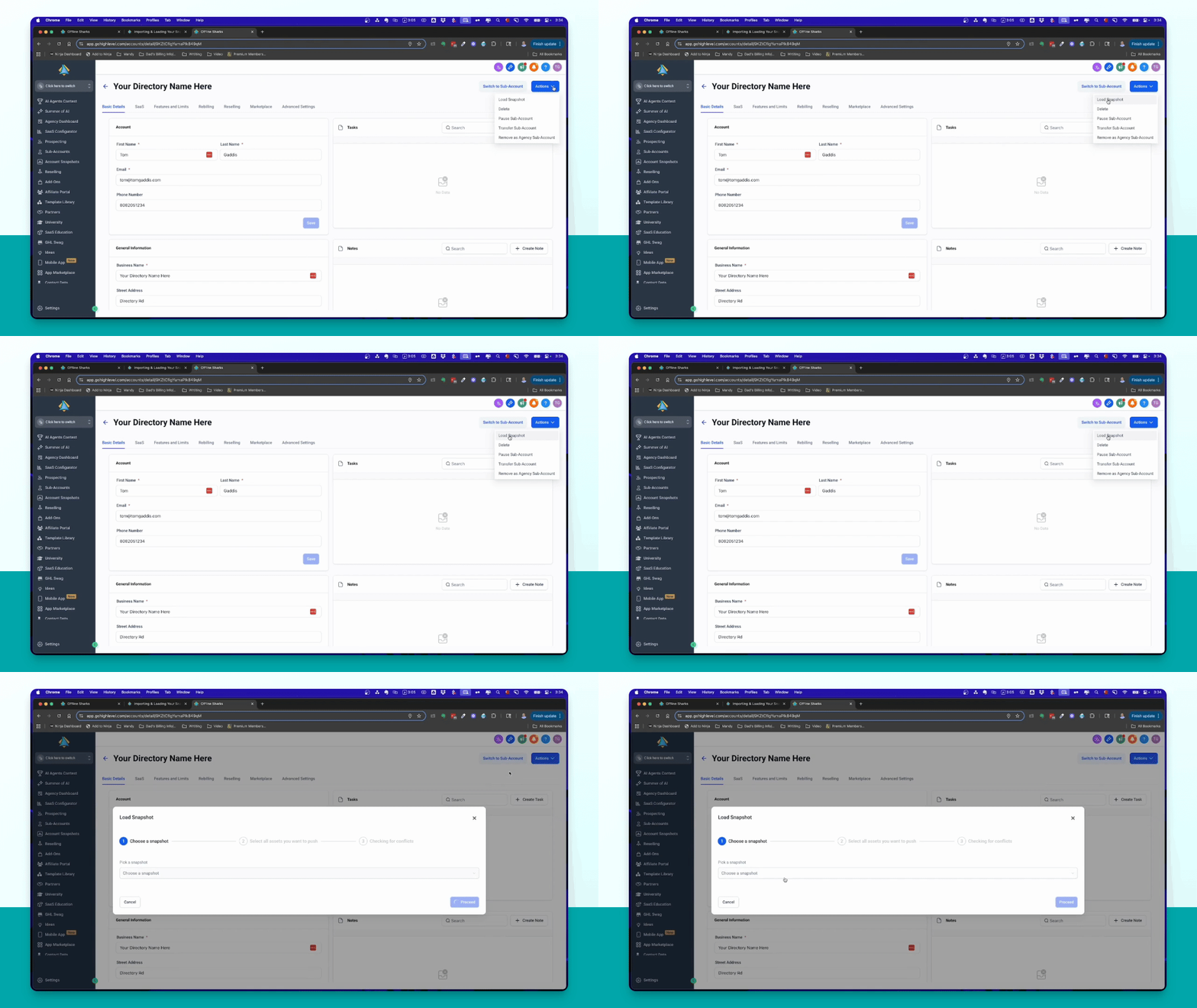
Before continuing, open the selected sub-account and confirm that the SmartDirectoryAI snapshot assets were successfully imported.
Step 4: Install App & Enter License Key
You’re now ready to install the app.
While logged in to HighLevel:
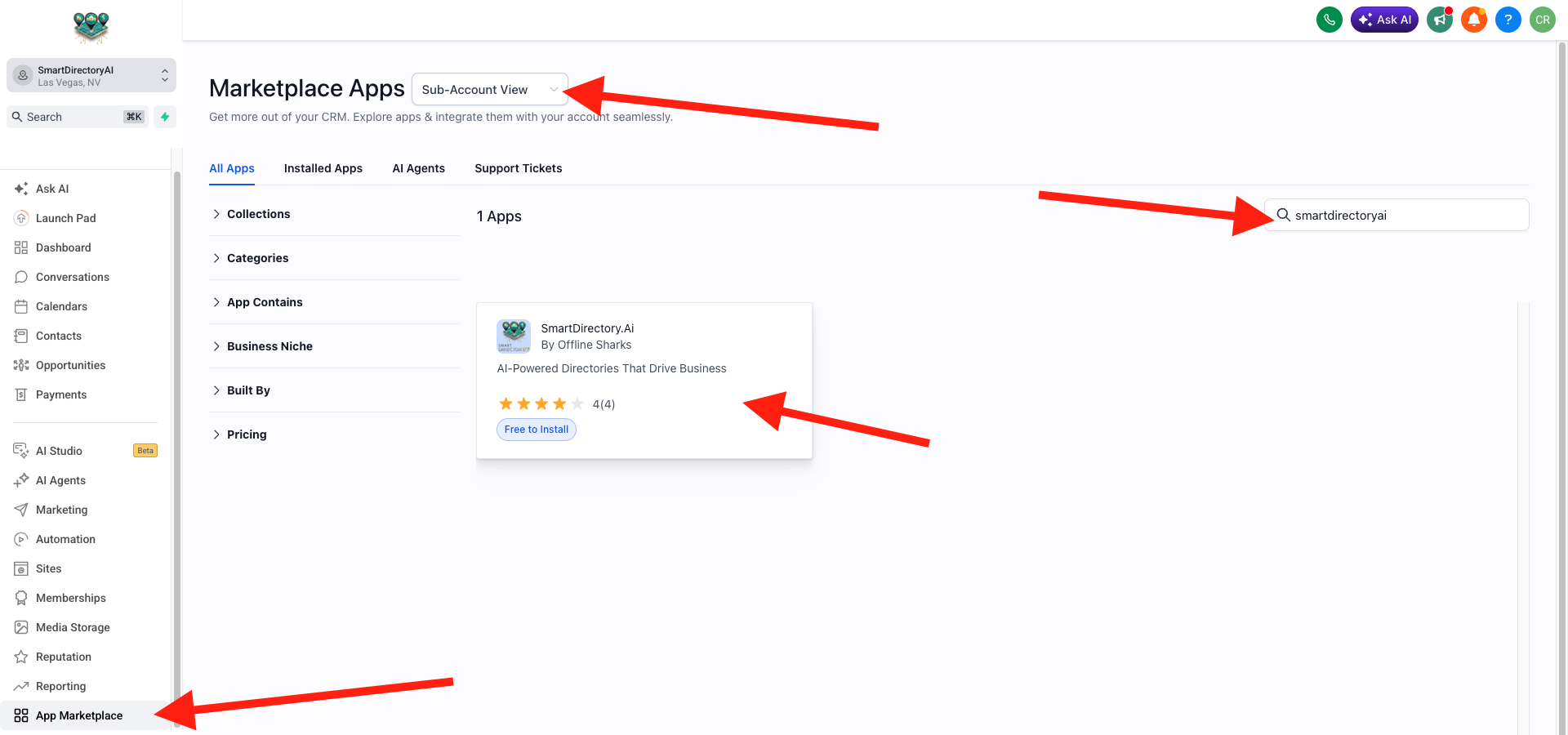
Once your license is accepted, SmartDirectoryAI will be connected to your sub-account and ready for setup.
Which Price Option to Choose When Installing
When you're installing SmartDirectoryAI, you'll see two price options:
Already Purchased: Free
Sign Up Now: $199 / month
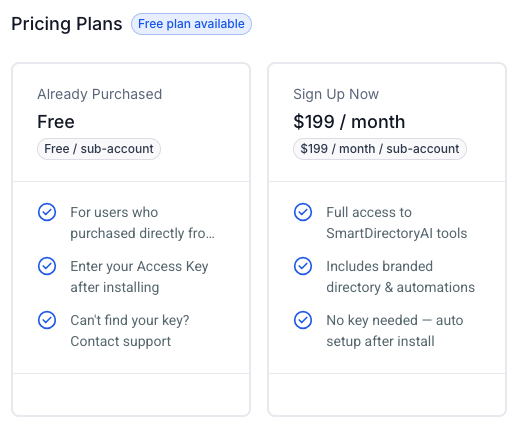
If You Already Purchased SmartDirectoryAI
Choose the Already Purchased: Free option. After installing the app, you’ll be prompted to enter your License Key. (Need your License Key? Contact us here.)
If You Haven't Purchased Yet
You can get SmartDirectoryAI right in the HighLevel App Marketplace, choose the Sign Up Now option and follow the checkout process.
See a Price Higher Than $199? Here's Why
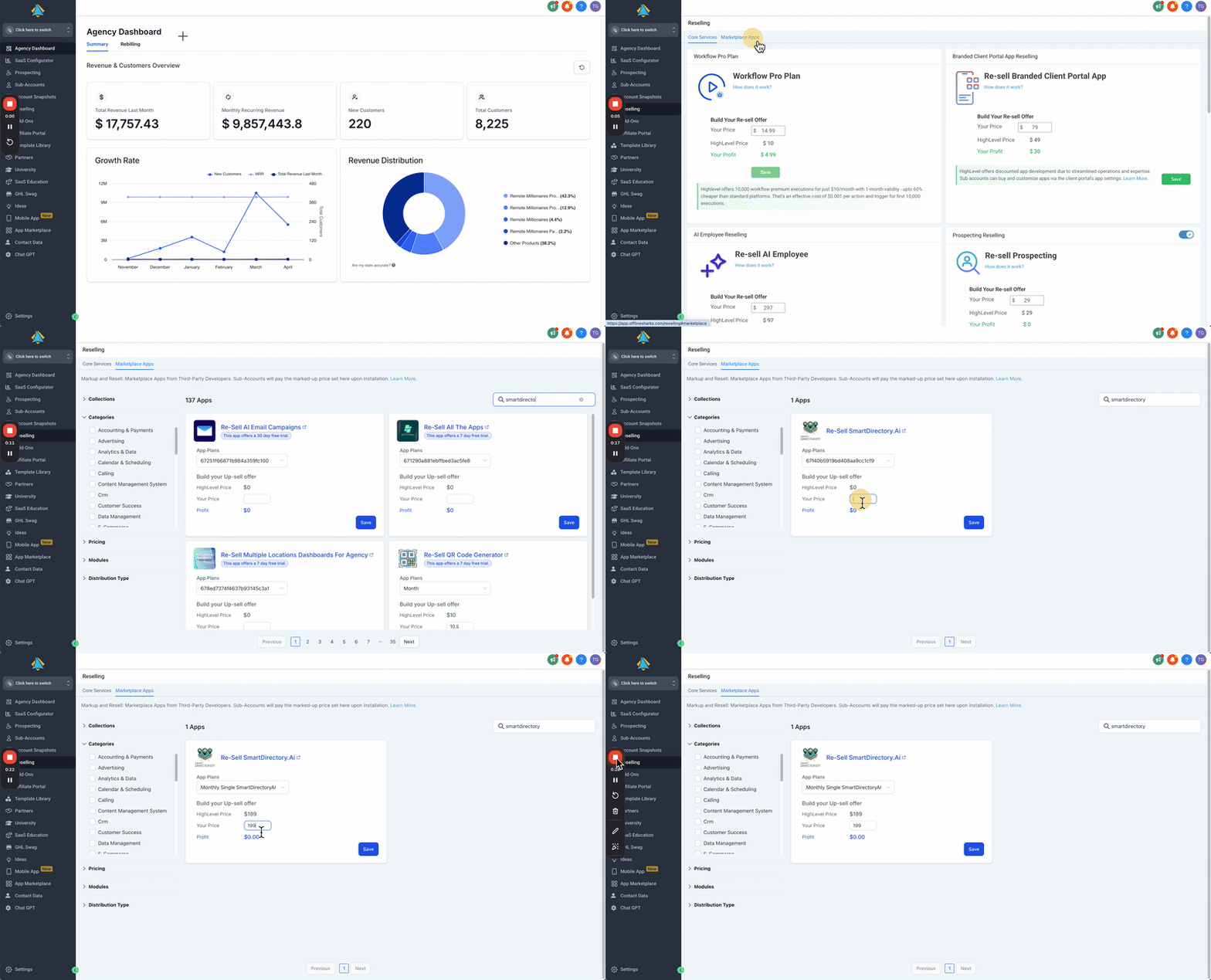
Note: If you see the price as $208.95 (or a price higher than $199 / month), it is due to the Reselling settings of your HighLevel account. To change these settings:
From your HighLevel agency dashboard (not in any sub-account), click Reselling in the left-hand menu.
Click the Marketplace Apps tab along the top.
Search for SmartDirectoryAI.
Choose the Sign Up Now plan, and then enter your desired agency markup. (Note: this option allows you to sell SmartDirectoryAI to sub-accounts within your agency at a profit. If you're installing for yourself, enter a $0.00 markup.)
Click Save.
You're Done
You now have:
SmartDirectoryAI installed in your own HighLevel account
The SmartDirectoryAI snapshot loaded into your sub-account
Your license activated and connected
The assets needed to begin building and operating your directory
Need Help?
If you get stuck during installation, don’t repeatedly reinstall the app or import the snapshot multiple times. Contact our support team and let us know which step you reached.
Please include:
The email address on your SmartDirectoryAI account
A screenshot or Loom recording of the issue
FAQ
Do I need my own HighLevel account to use SmartDirectoryAI?
No. By default, we provide a ready-to-use sub-account. SmartDirectoryAI and its snapshot are already installed for you.
You only need your own HighLevel account if you prefer to manage SmartDirectoryAI within your own agency.
What if I already have a HighLevel account?
You can install SmartDirectoryAI in your existing HighLevel agency. You’ll need to import the SmartDirectoryAI snapshot, load it into a sub-account, install the app, and enter your license key.
Which HighLevel plan do I need?
Any HighLevel plan will work with SmartDirectoryAI.
Can I install SmartDirectoryAI in an existing sub-account?
Yes. However, we recommend using a dedicated sub-account to keep your directory contacts, workflows, forms, conversations, and other assets organized.
If you use an existing sub-account, review its current workflows and assets carefully to avoid conflicts or duplicate automation.
Can I install SmartDirectoryAI in more than one sub-account?
Your license is subject to the site and account limits included with your SmartDirectoryAI plan. Contact our support team if you want to use SmartDirectoryAI in additional sub-accounts.
What is the SmartDirectoryAI snapshot?
The snapshot is a package of HighLevel assets used alongside the SmartDirectoryAI app. It includes items such as forms, workflows, custom fields, tags, and email templates.
Both the app and the snapshot are required for the intended SmartDirectoryAI setup.
Does importing the snapshot install the app?
No. These are separate steps.
Importing the snapshot adds the supporting assets to HighLevel. You must also install the SmartDirectoryAI app in your chosen sub-account and activate it with your license key.
Where do I get my license key?
Use the license-request form in Step 1. Your license key will be sent to the email address associated with your SmartDirectoryAI account.
If you don’t receive it, check your spam or promotions folder before contacting support.
Can I use the same license key in multiple locations?
No. Each license key will only work for one SmartDirectoryAI installation in one sub-account. If you need to move or expand your installation, contact support first.
What happens if I import the snapshot more than once?
Importing it multiple times may create duplicate assets, including workflows, forms, tags, and custom fields. Import it only once into the sub-account you intend to use.
If you’re unsure whether it has already been imported, contact support before importing it again.
Will importing the snapshot overwrite my existing assets?
As long as you create a new sub-account for SmartDirectoryAI, there will be no conflicts. That's why we recommend using a dedicated sub-account whenever possible.
Why isn’t SmartDirectoryAI appearing in the left-hand menu?
First, confirm that you installed the app while inside the correct sub-account and approved all requested permissions. You may also need to refresh HighLevel or log out and back in.
If the app still doesn’t appear, contact support.
Why isn’t my license key working?
Confirm that:
You entered the complete key without extra spaces.
You’re using the correct HighLevel sub-account.
The key hasn’t already been activated elsewhere.
The email on your license request matches your SmartDirectoryAI account.
If the problem continues, send support a screenshot of the error message.
Can I move from the provided sub-account to my own HighLevel account later?
Yes, but moving accounts may require a transfer process to ensure your license and setup are handled correctly. Contact support before installing or rebuilding SmartDirectoryAI in the new account.
Can I move back to the provided SmartDirectoryAI sub-account later?
Contact support. We’ll confirm the available options and help prevent duplicate installations or lost configuration.
Who handles my HighLevel billing?
If you use your own HighLevel account, your HighLevel subscription is billed and managed separately by HighLevel. Your SmartDirectoryAI subscription does not include the cost of your independent HighLevel account.
Who should I contact if I need help?
Contact SmartDirectoryAI support for help with the app, snapshot, license key, or installation process.
For questions about your independent HighLevel subscription, agency settings, or HighLevel billing, contact HighLevel support.