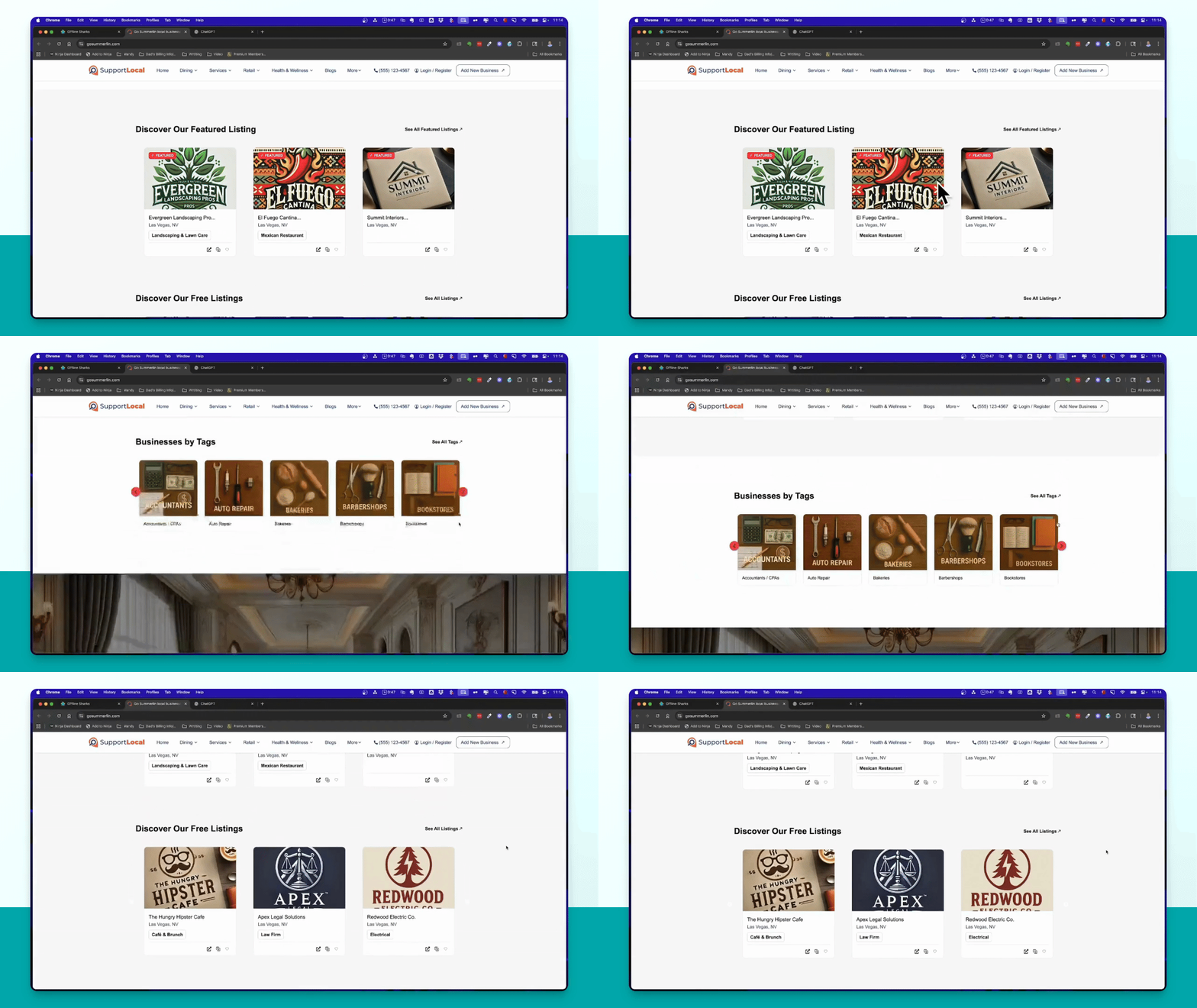
Let's do it together!
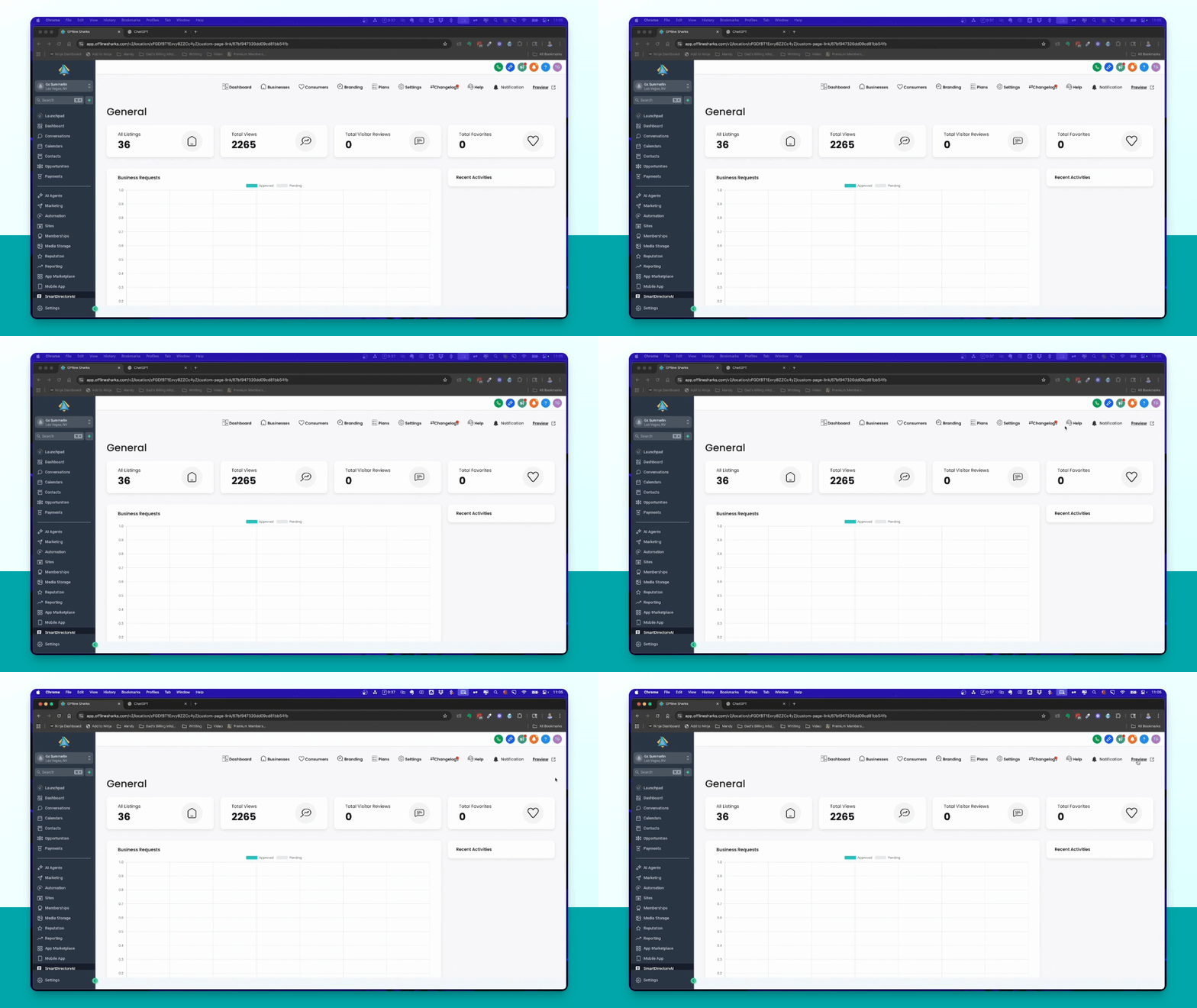
Step 1: Preview Current Site
Click on Preview to view your current Smart Directory AI site setup.
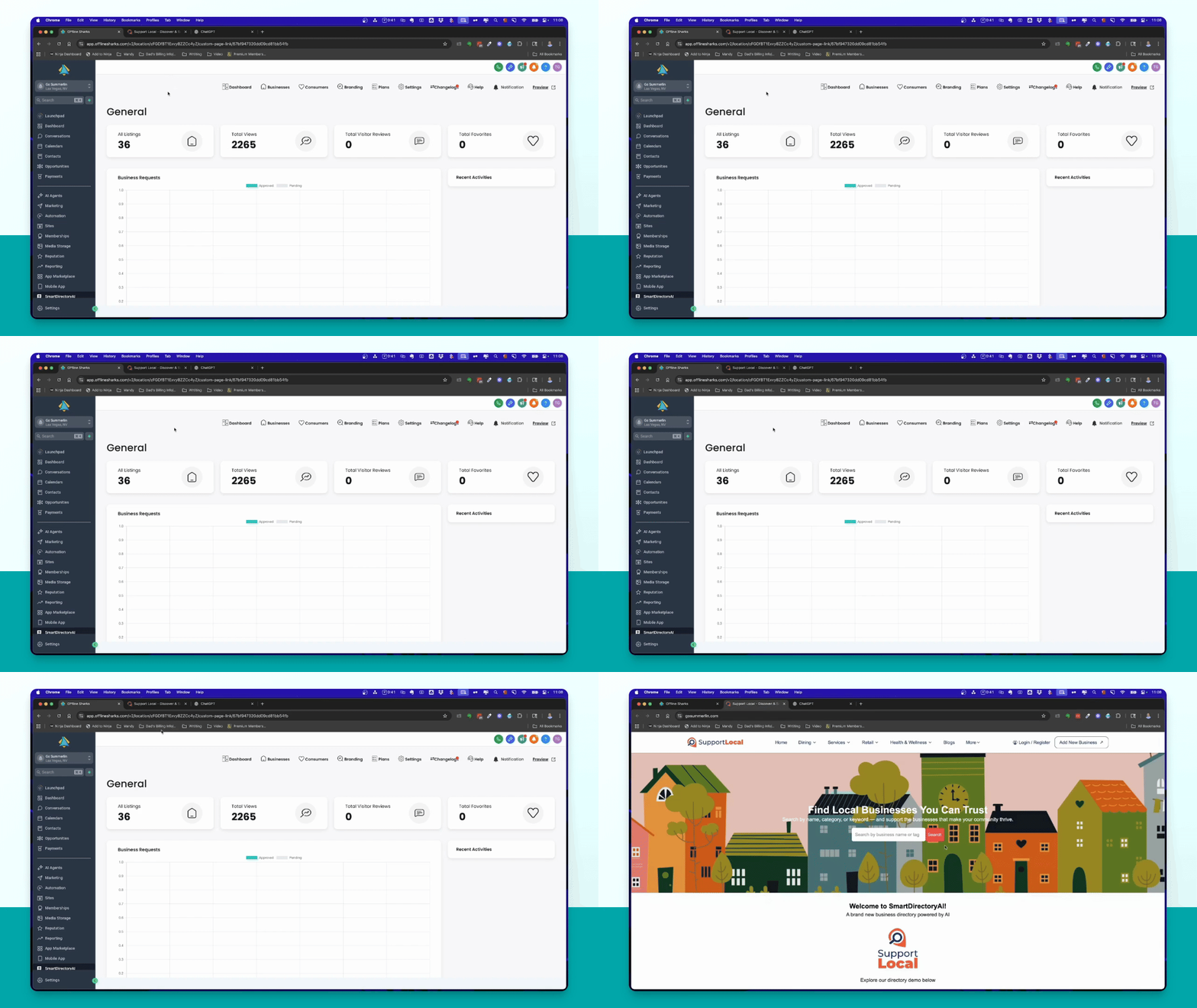
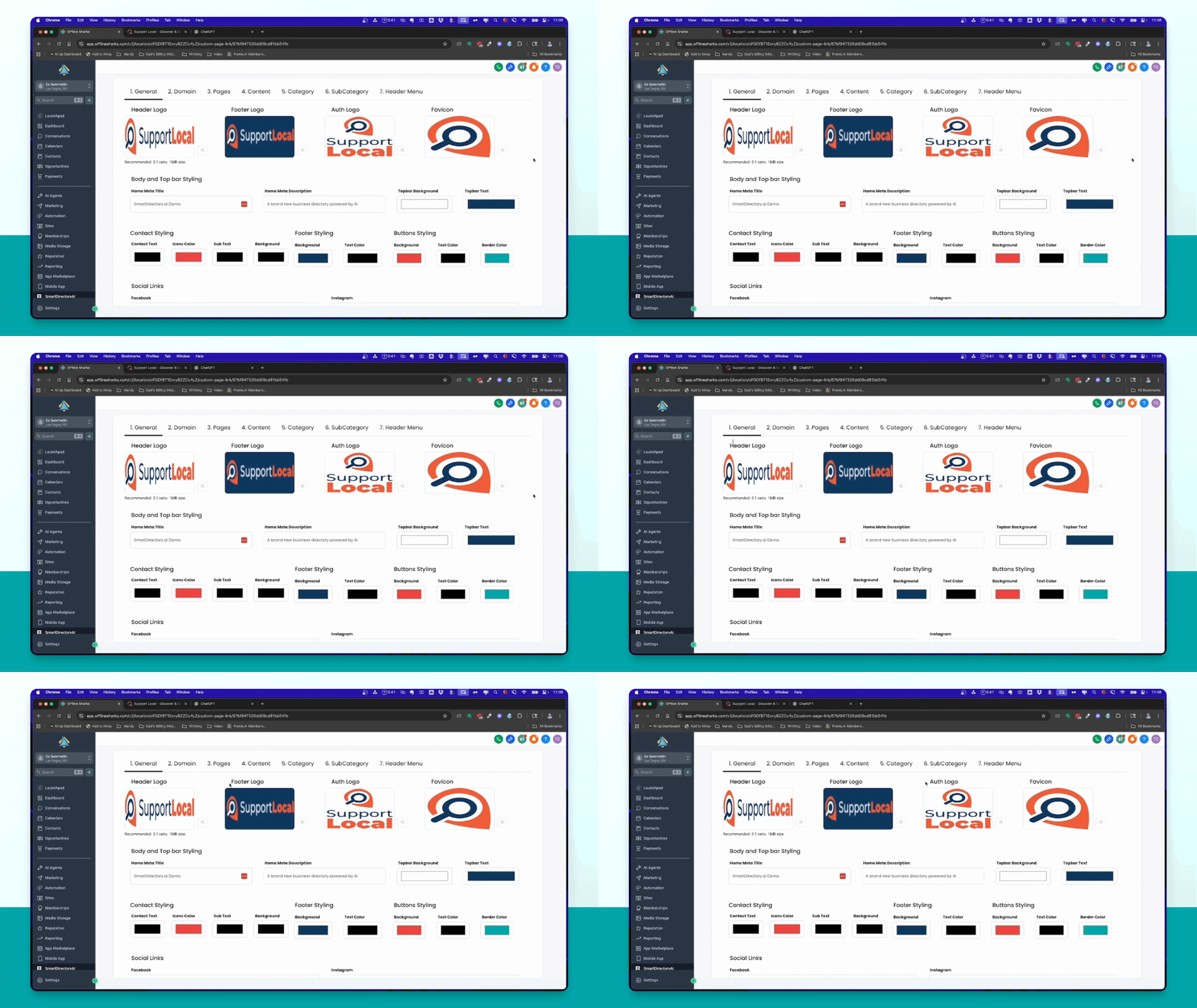
Step 2: Access Branding
Go to Branding in your Smart Directory AI sub account to begin customization.
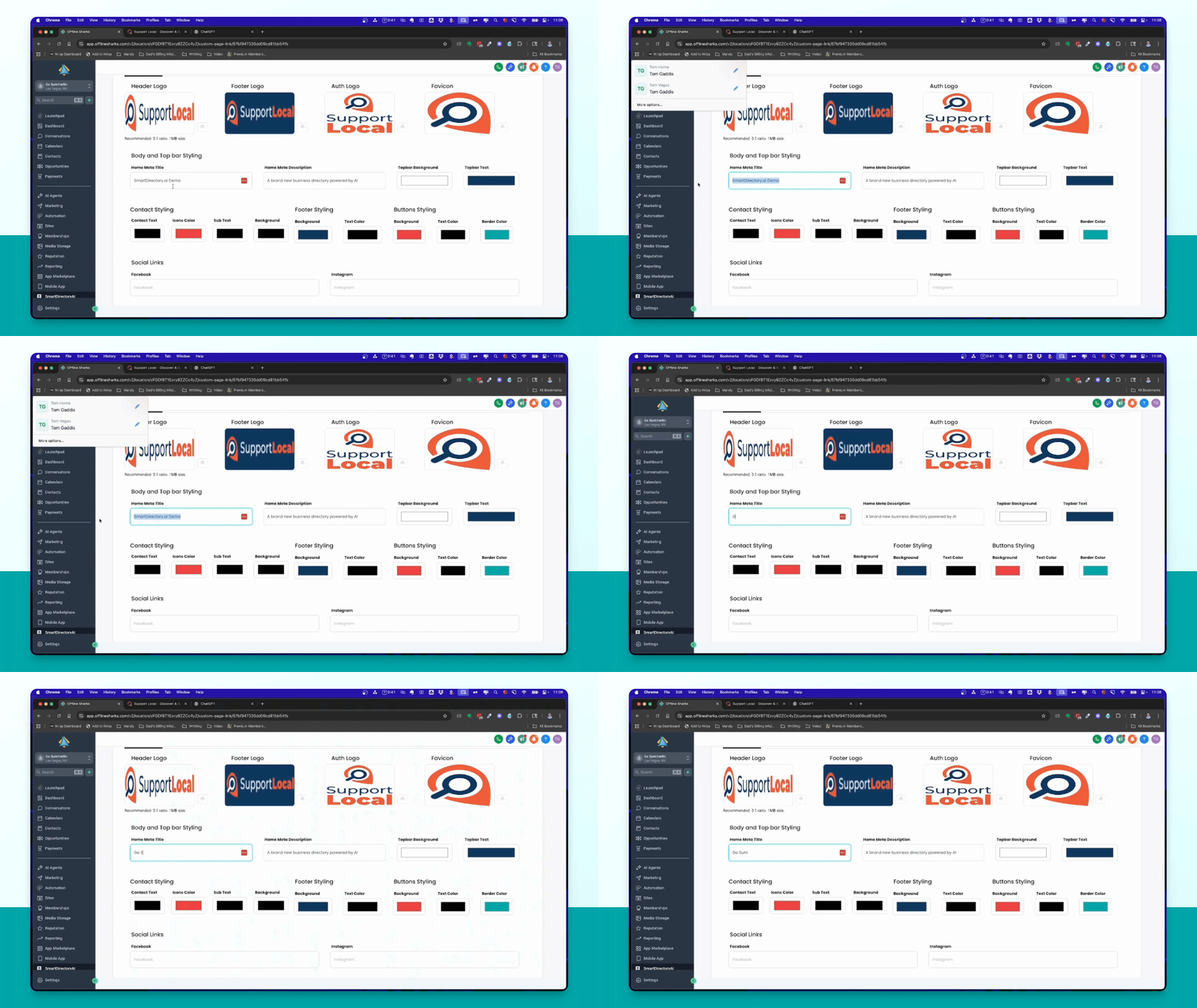
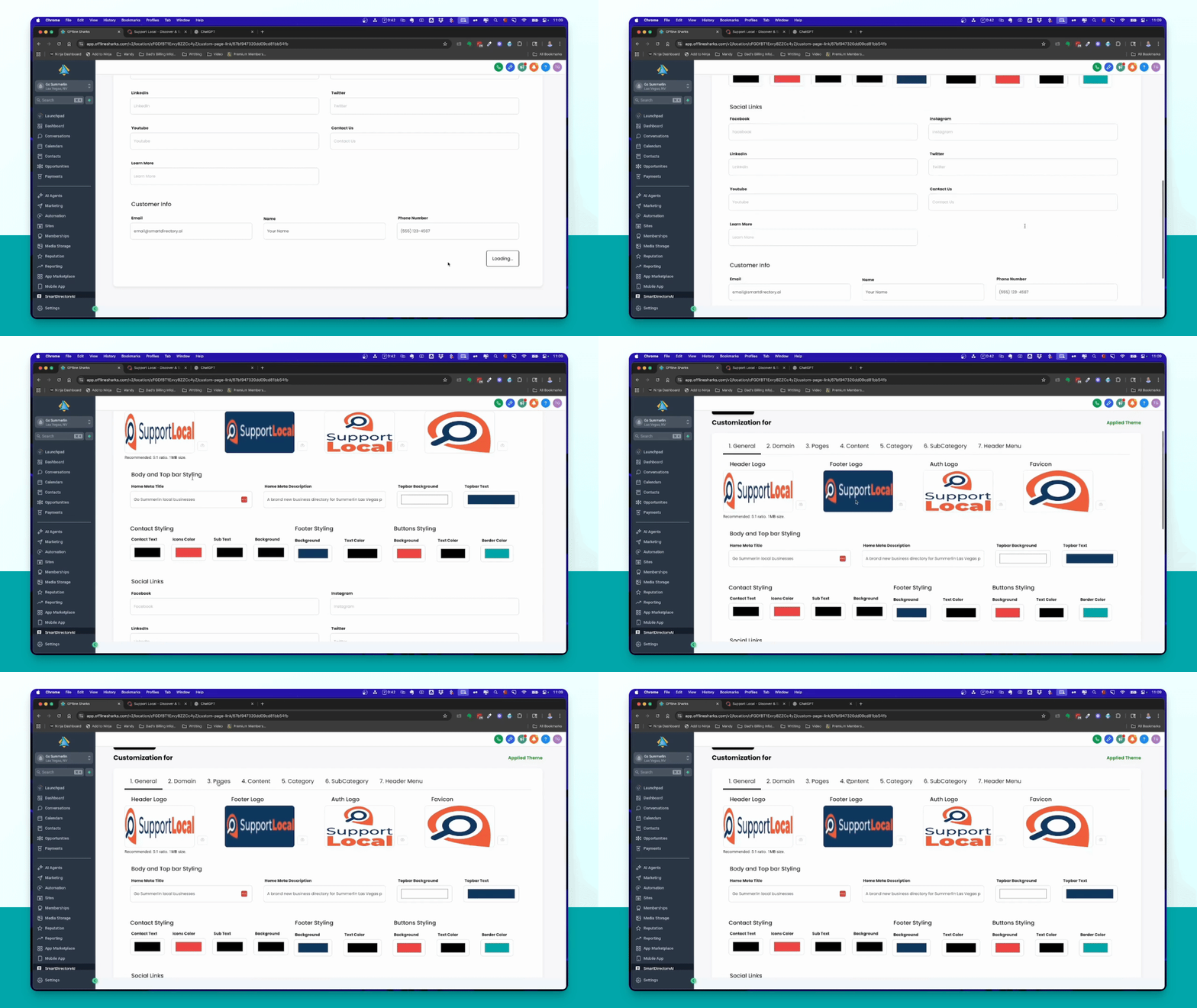
Step 3: Update Meta Title
Change the meta title to 'Go Summerlin Local businesses' and add a description.
Step 4: Customize Logo
Update the header, footer, and auth logos as needed. Use the provided logo if you don't have one.
Step 5: Update Content Section
Navigate to Content to change the hero image and update text elements on the homepage.
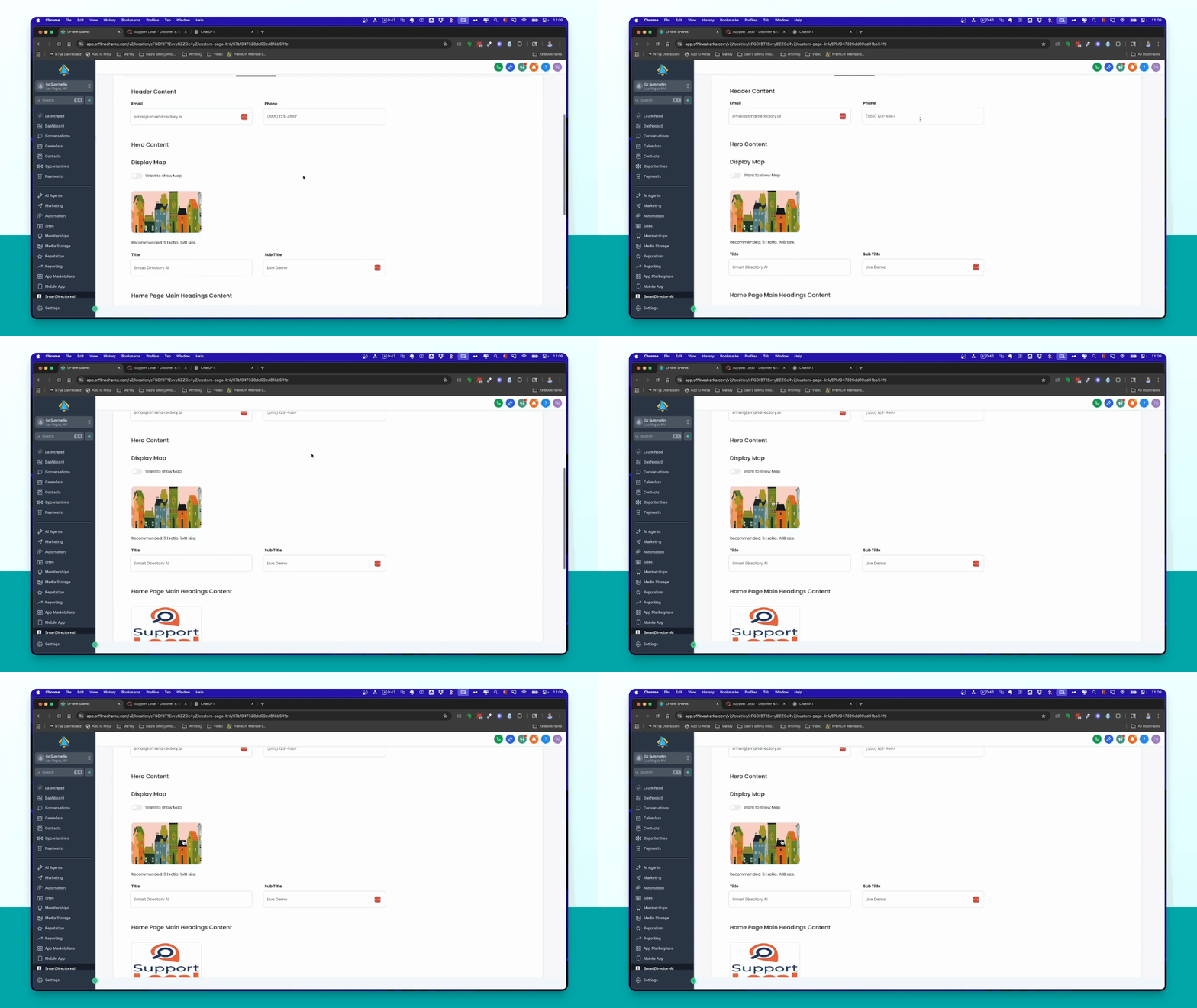
Step 6: Change Hero Image
Select the hero image, ensuring it is less than 1 megabyte, and crop it to fit your needs.
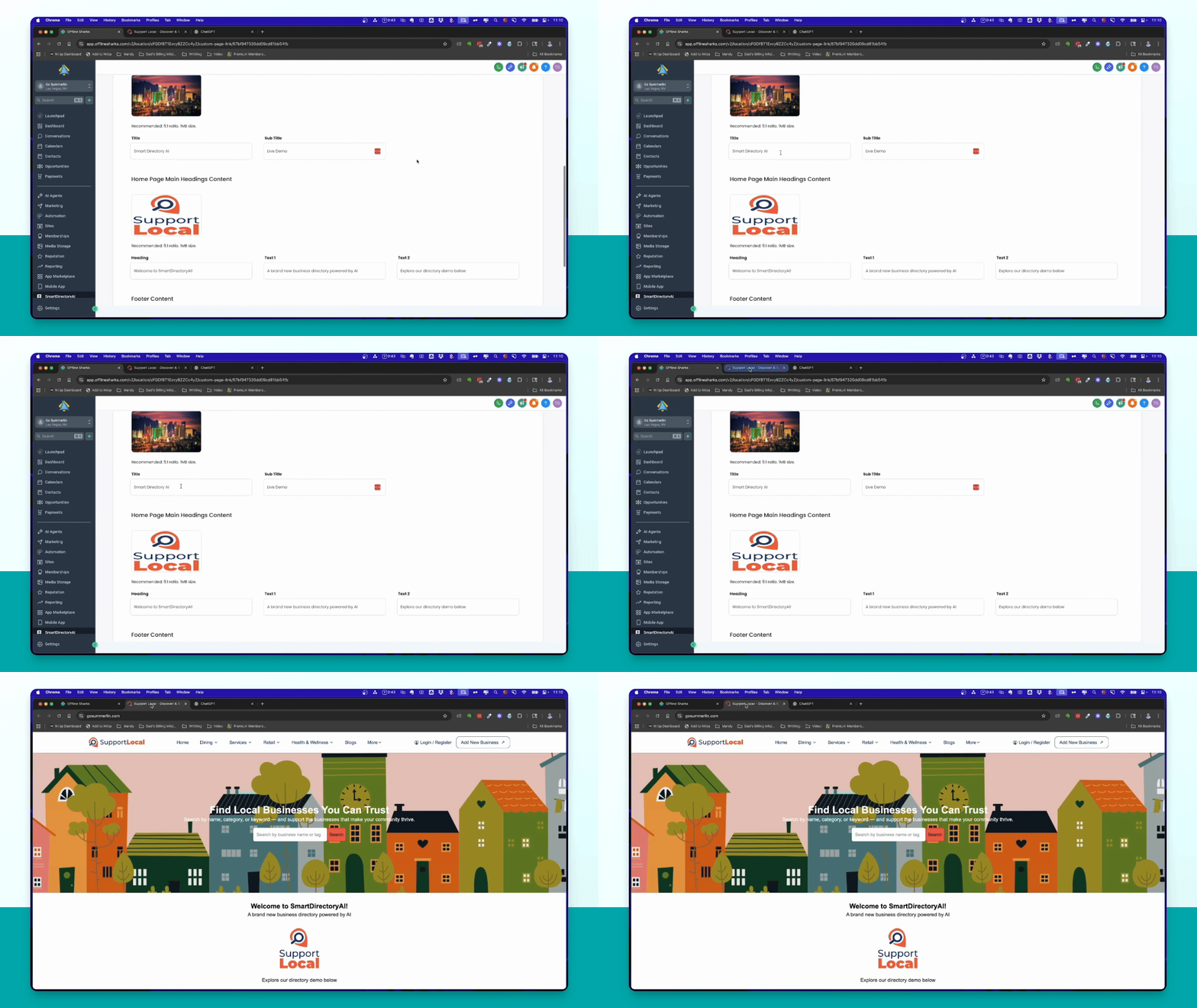
Step 7: Update Titles and Text
Change the title to 'Find Summerlin businesses you can trust' and update the supporting text accordingly.
Step 8: Finalize Updates
Click Update to save all changes made to branding and content sections.
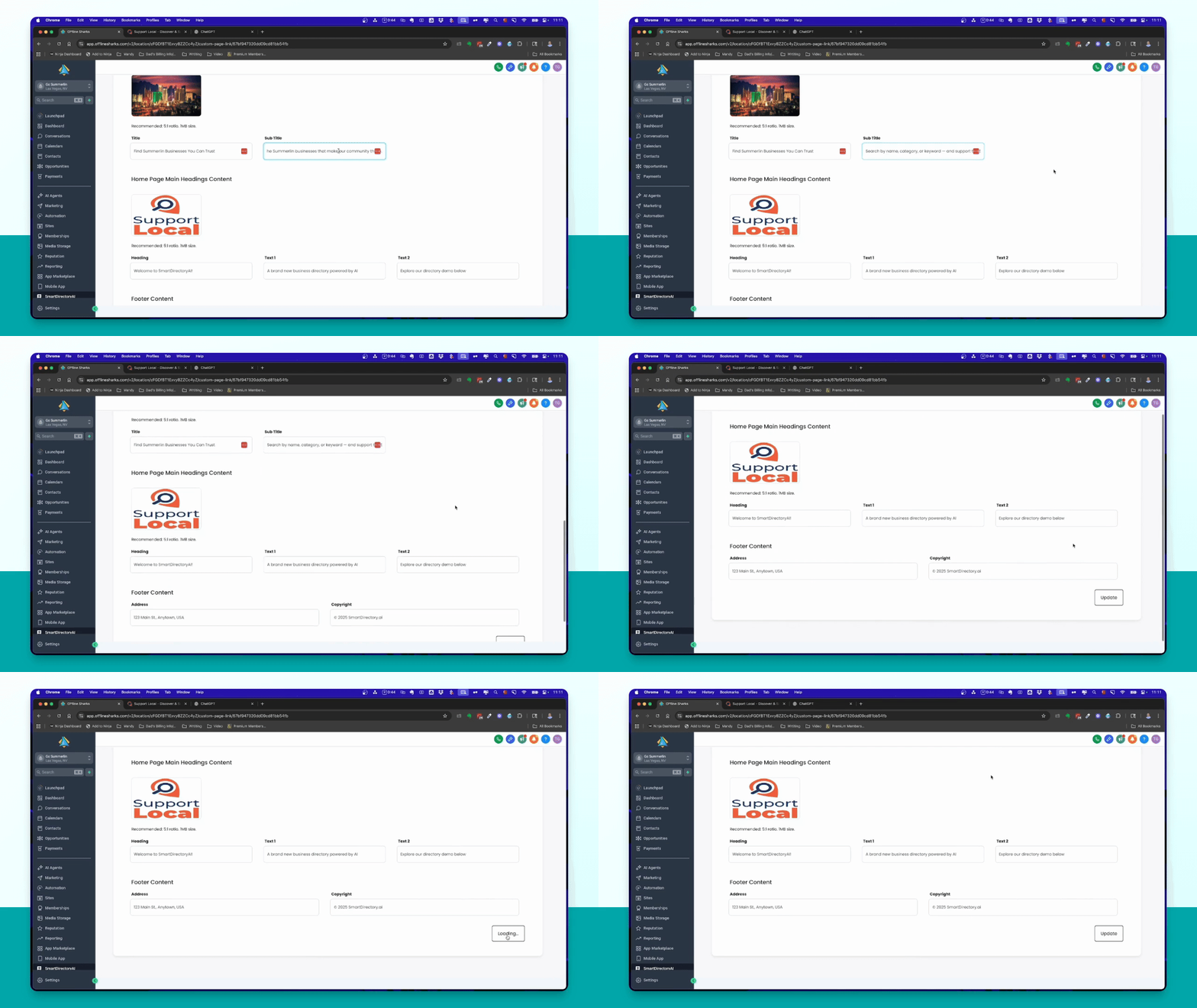
Step 9: Refresh and Preview
Refresh the site and preview your Smart Directory AI site to ensure all changes are applied correctly.
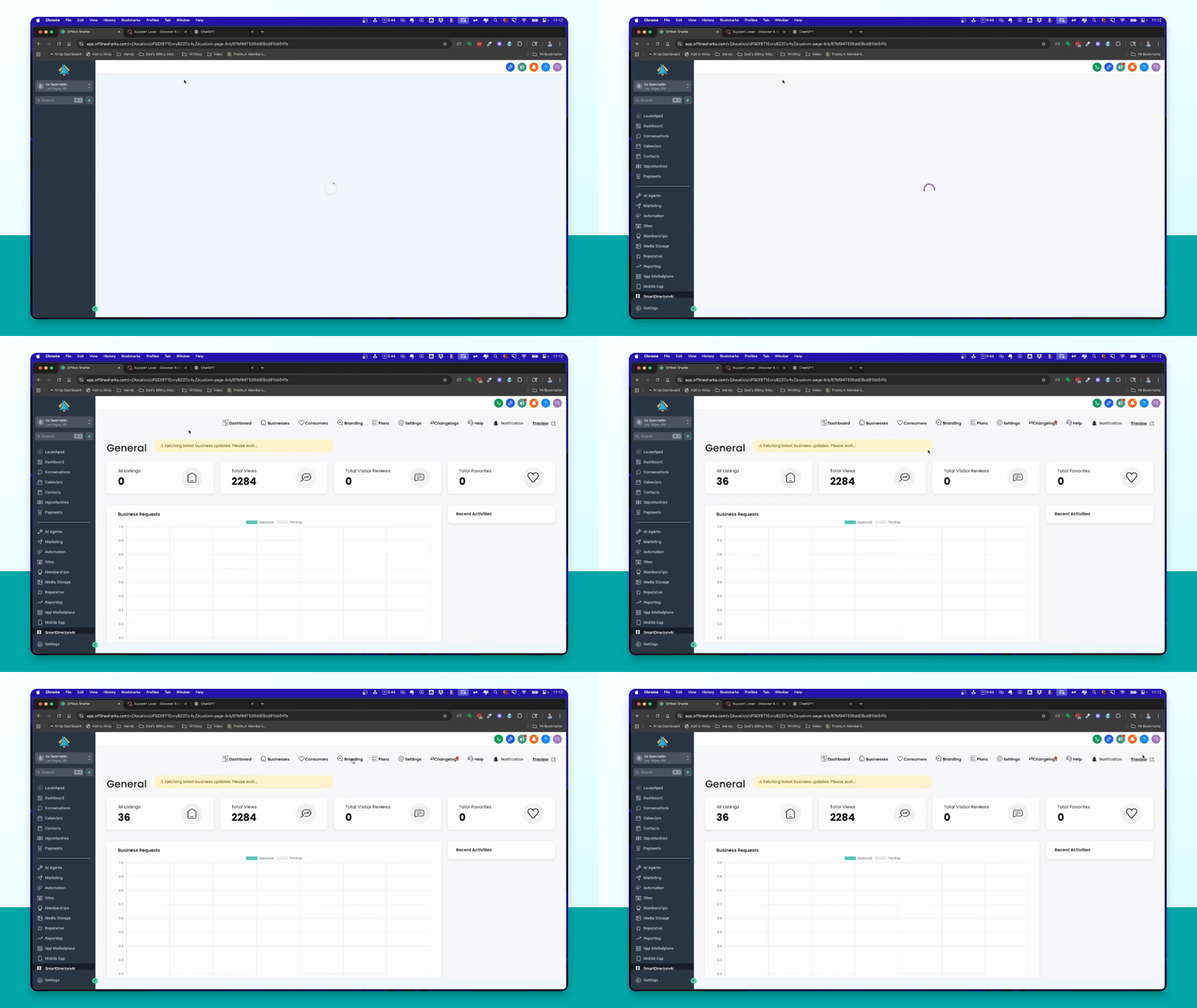
Step 10: Prepare for Prospecting
Customize minimal elements like logos and text, then start adding business listings for prospecting.