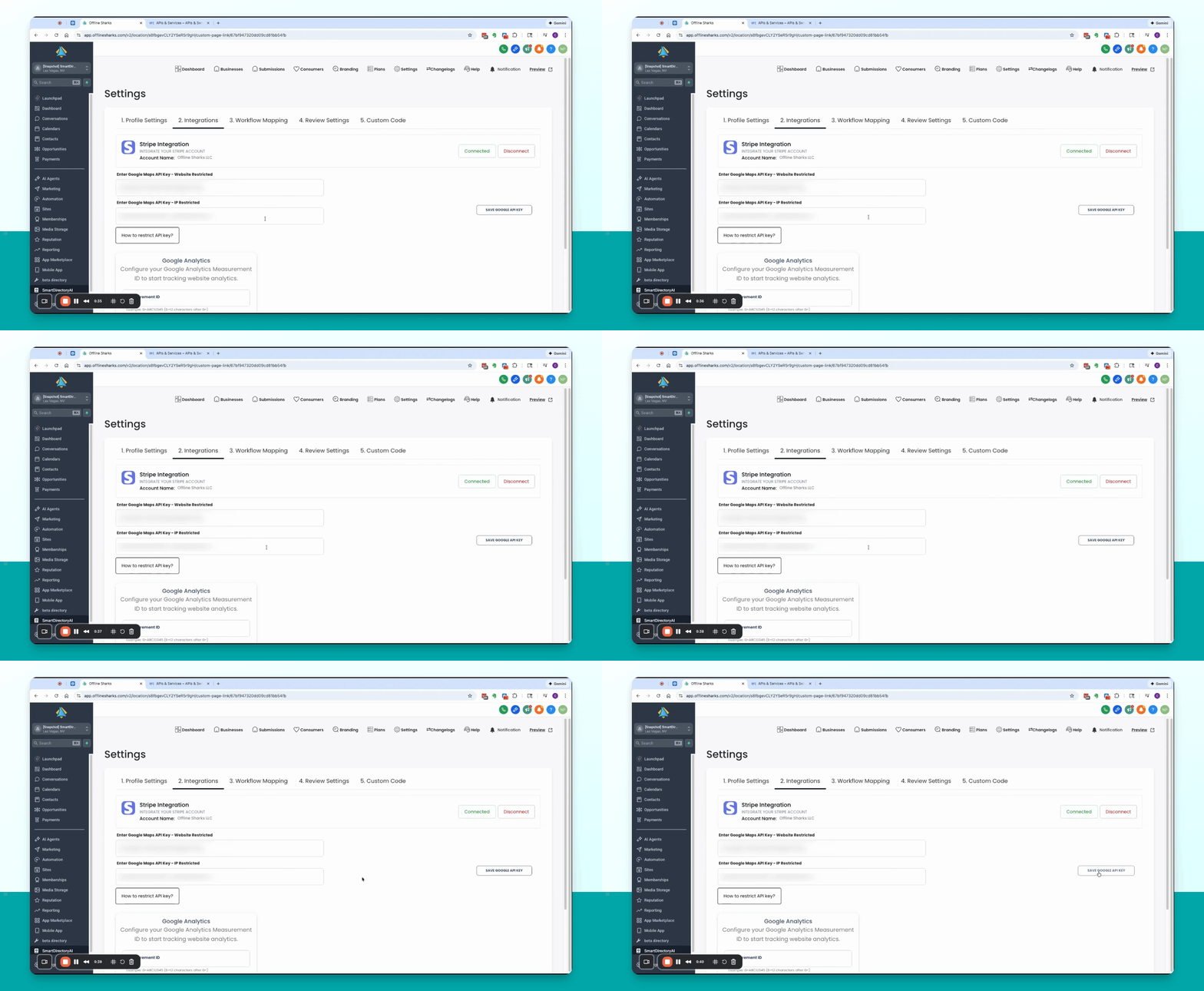
Let's do it together!
Step 1: Access Settings
From the Smart Directory AI dashboard, go to Settings and then click on Integrations.
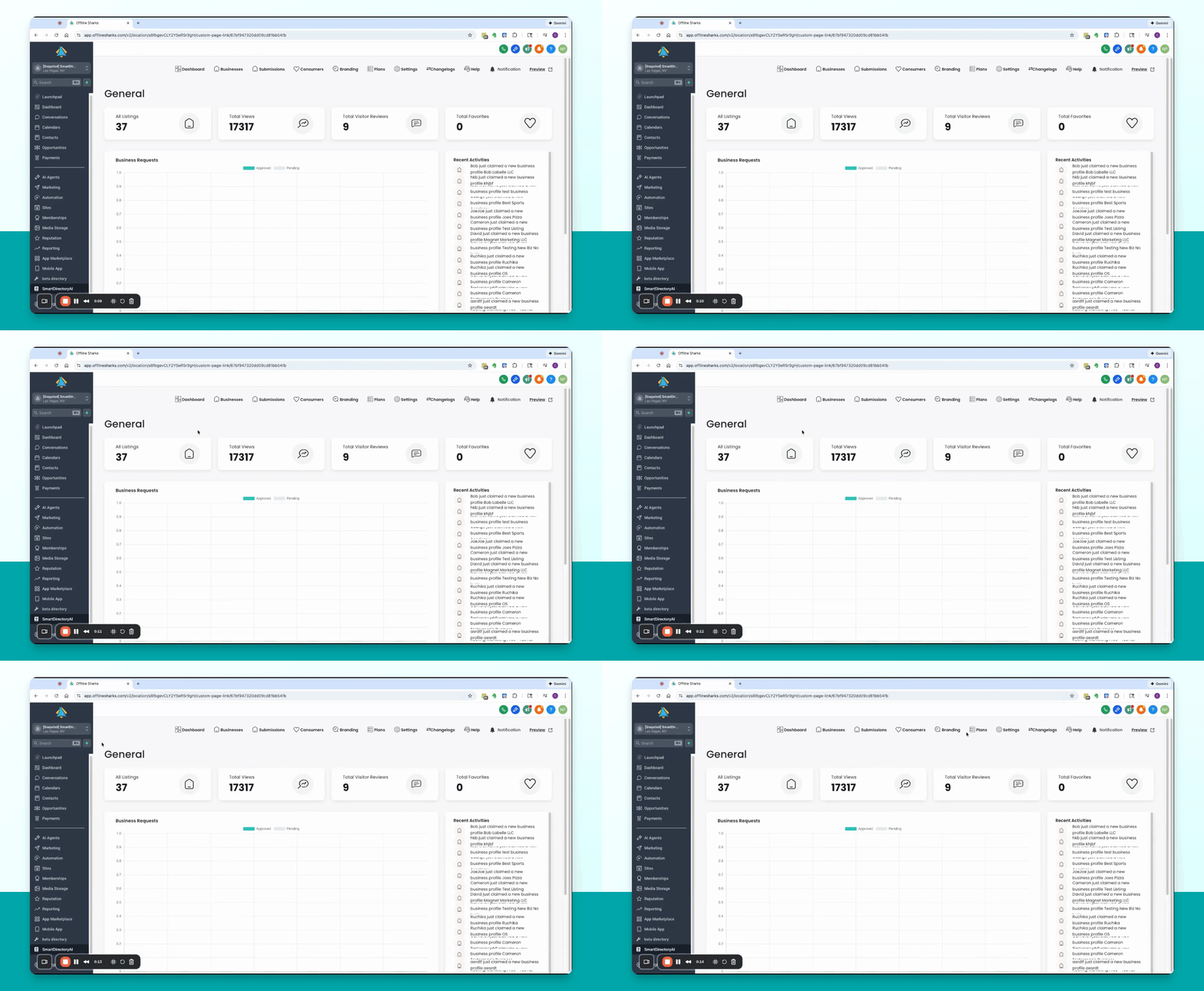
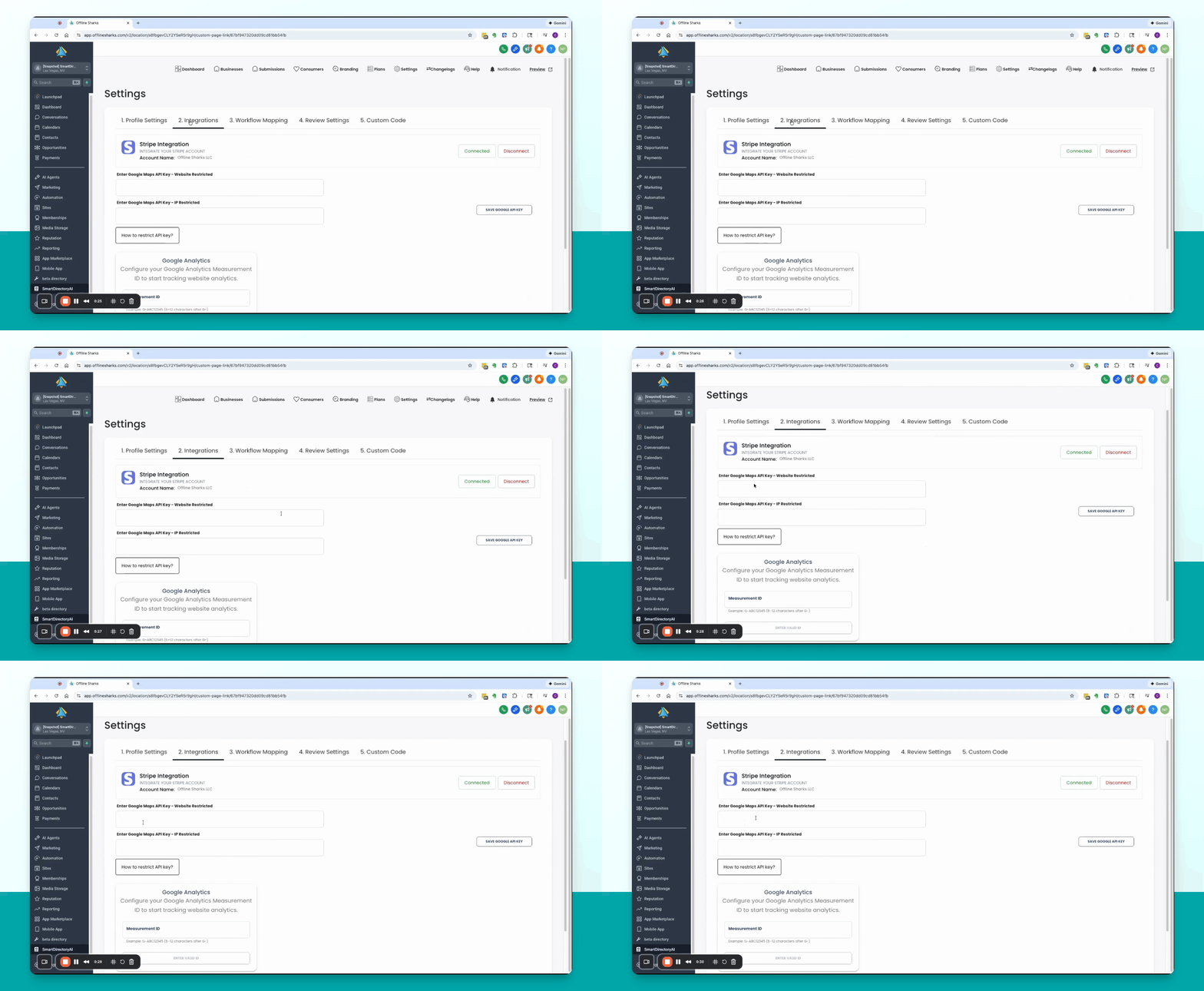
Step 2: View API Key Fields
Locate the two fields for Google Maps API keys on the Integrations page.
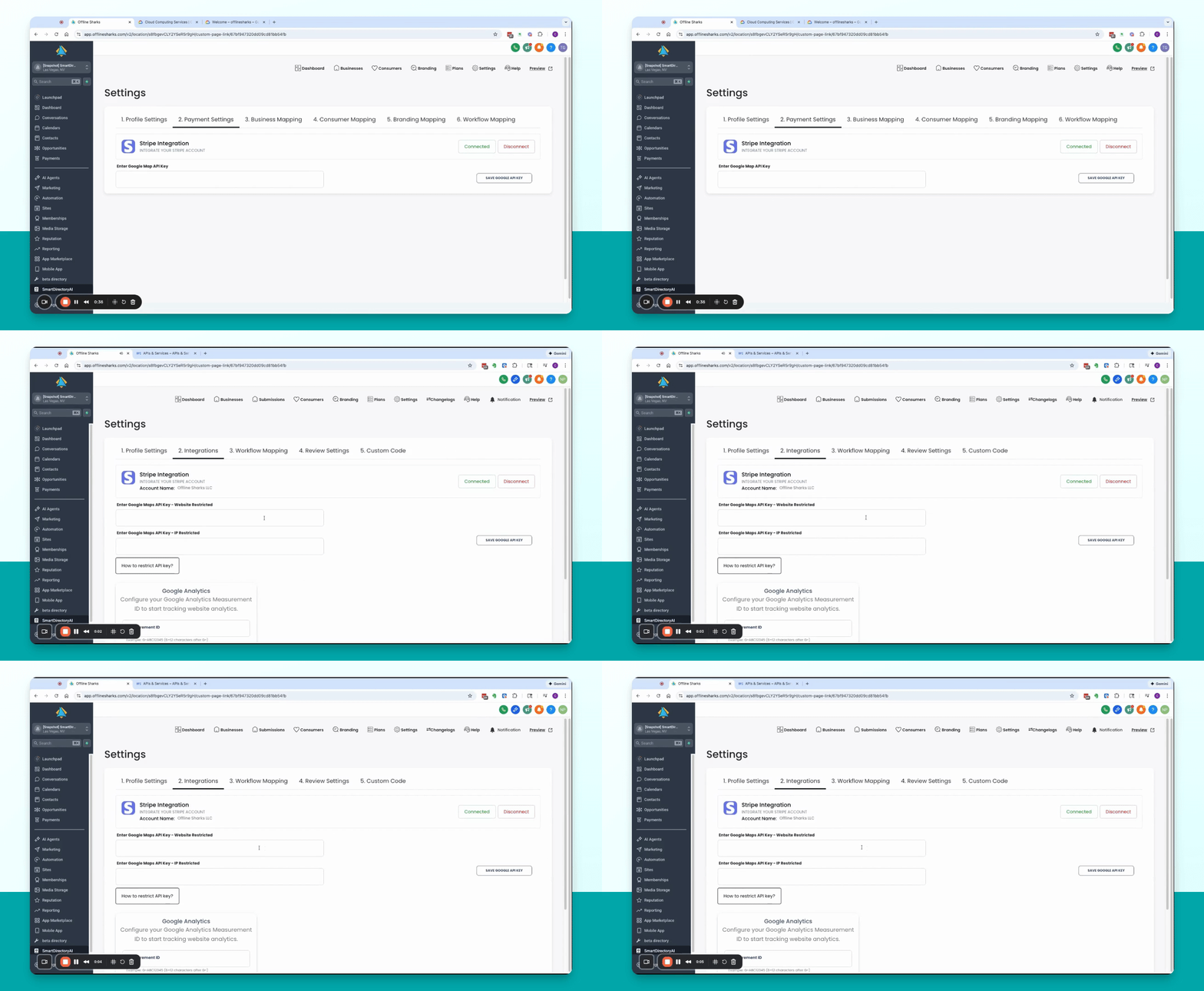
Step 3: Learn About Restrictions
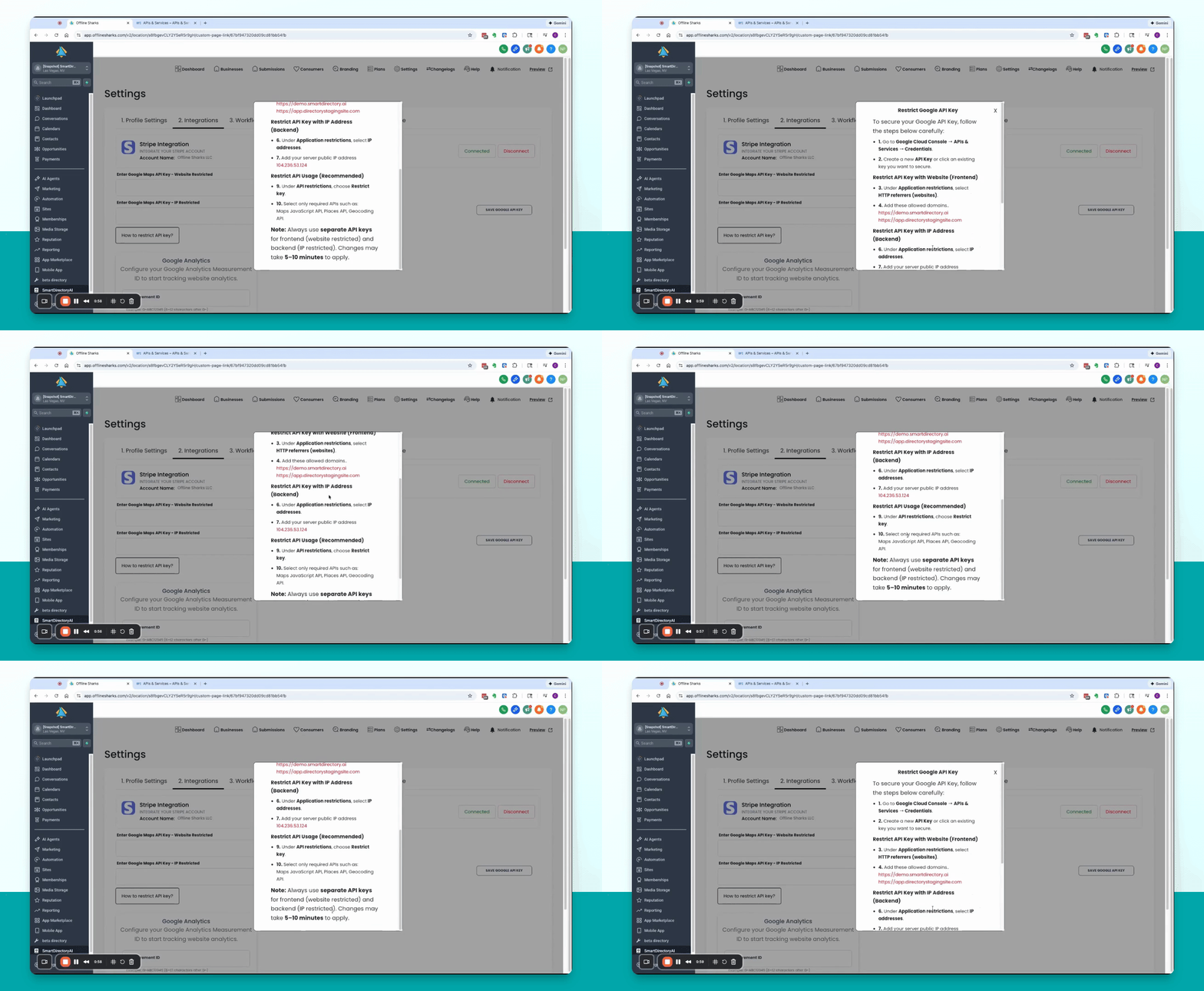
Click the button labeled How to restrict API key to view the restrictions needed for your domain.
Step 4: Copy Restrictions
Copy the restrictions provided, ensuring they match your Smart Directory AI domain.
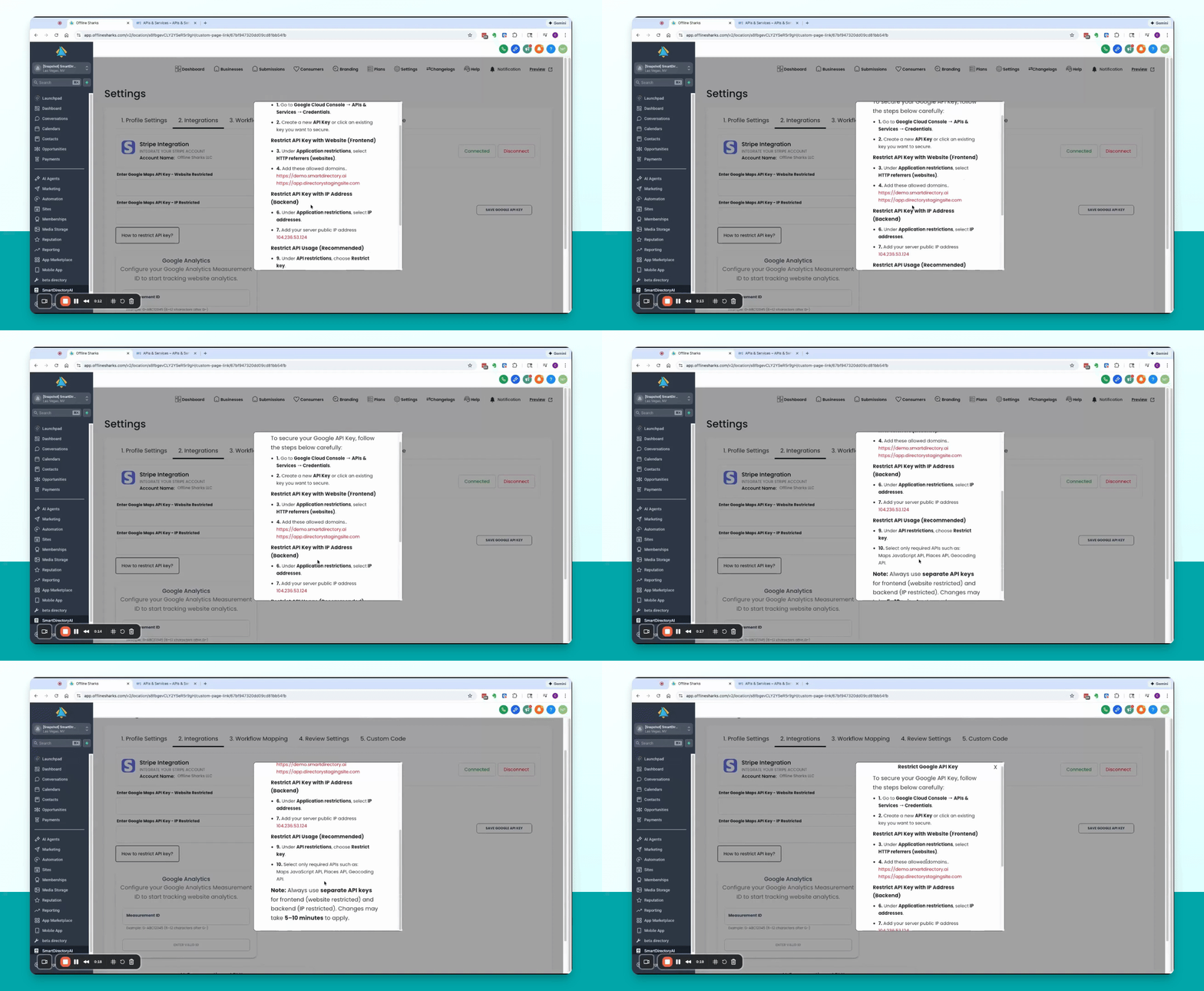
Step 5: Open Google Cloud Console
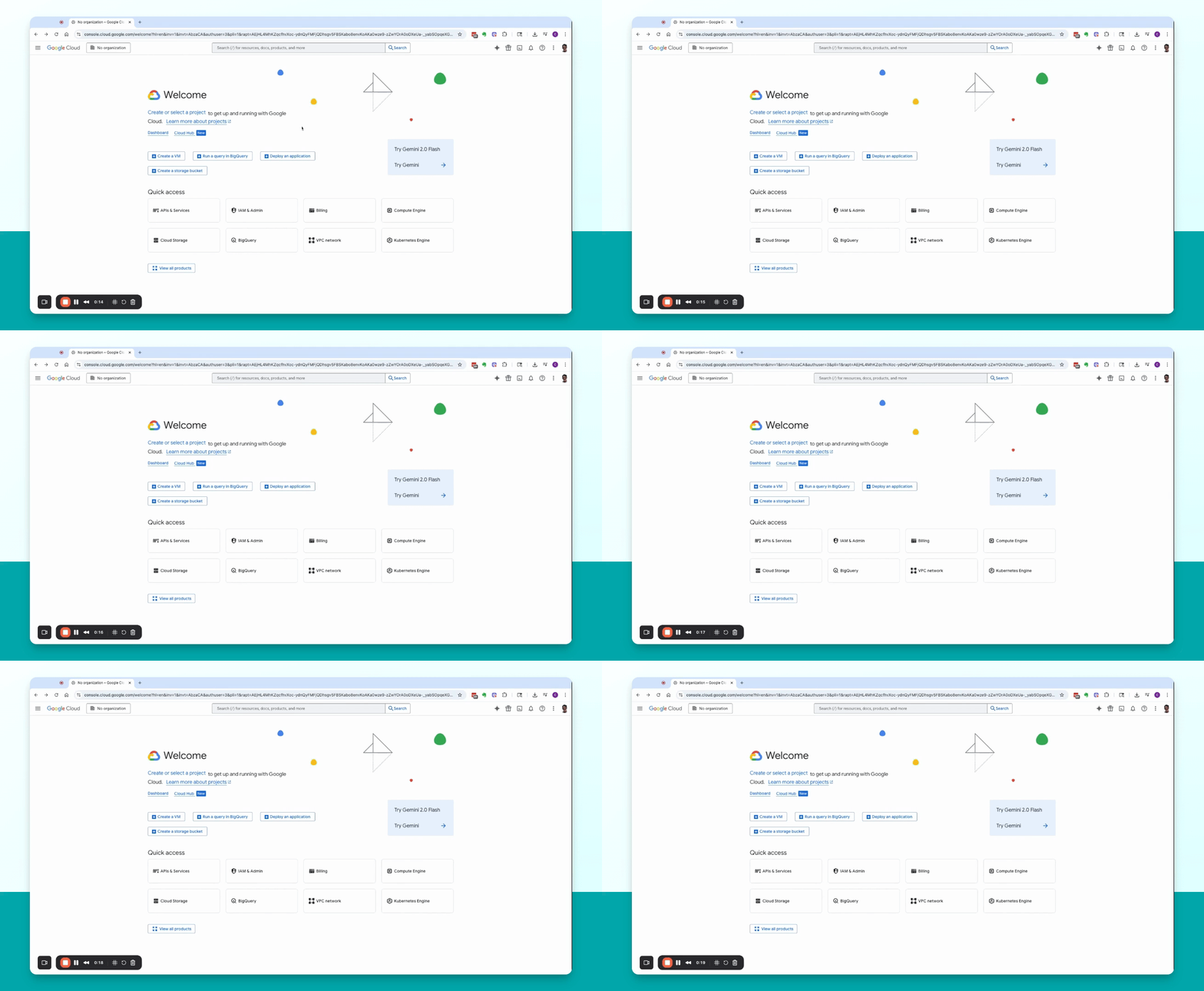
Navigate to cloud.google.com and click on Console to access the Google Cloud console.
Step 6: Create a Project
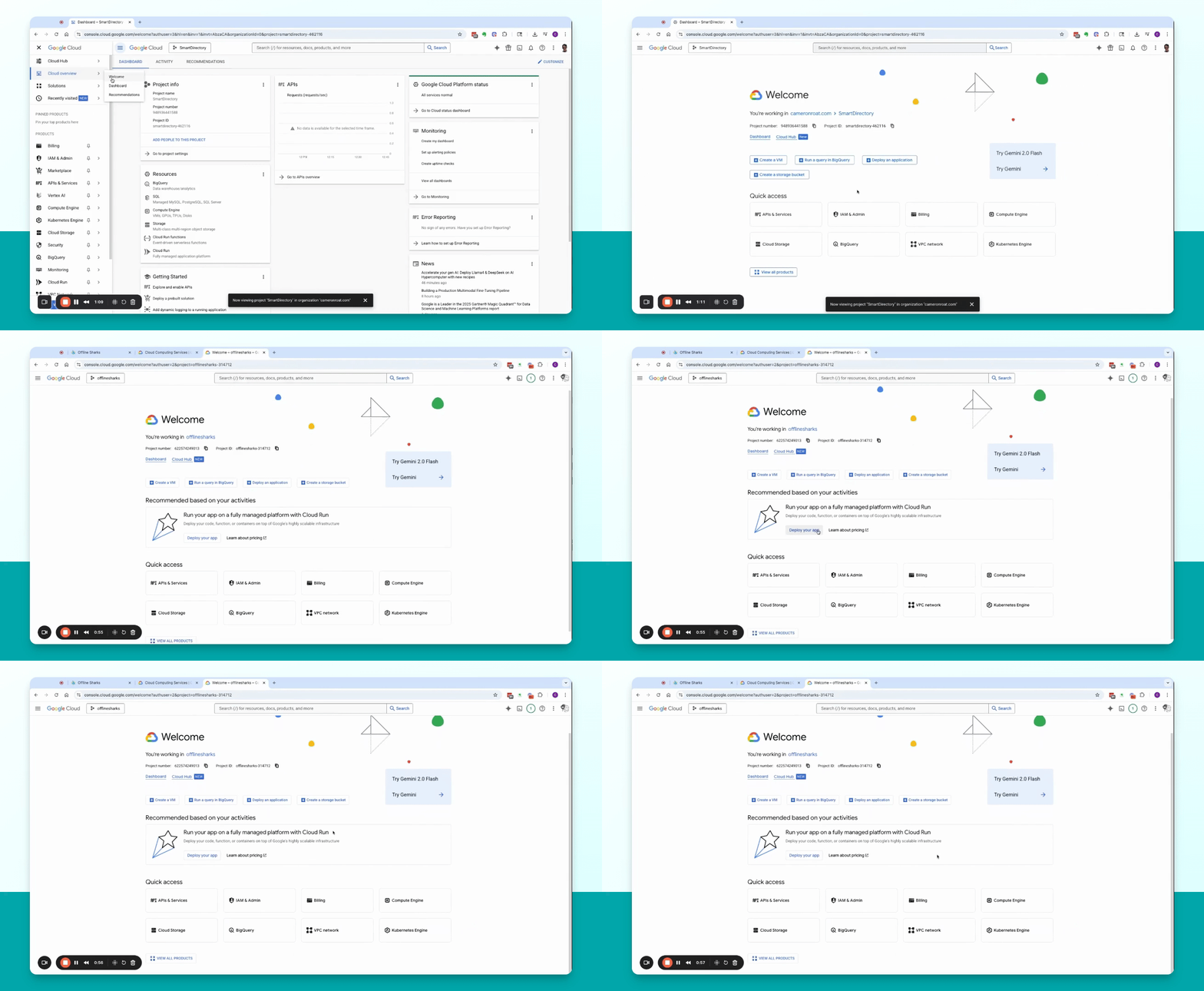
If needed, click on Create or select a project and then New project. Name it appropriately, such as Smart Directory Create.
Step 7: Set Up Billing
Ensure a billing method is connected under Billing. Google provides free credits for usage.
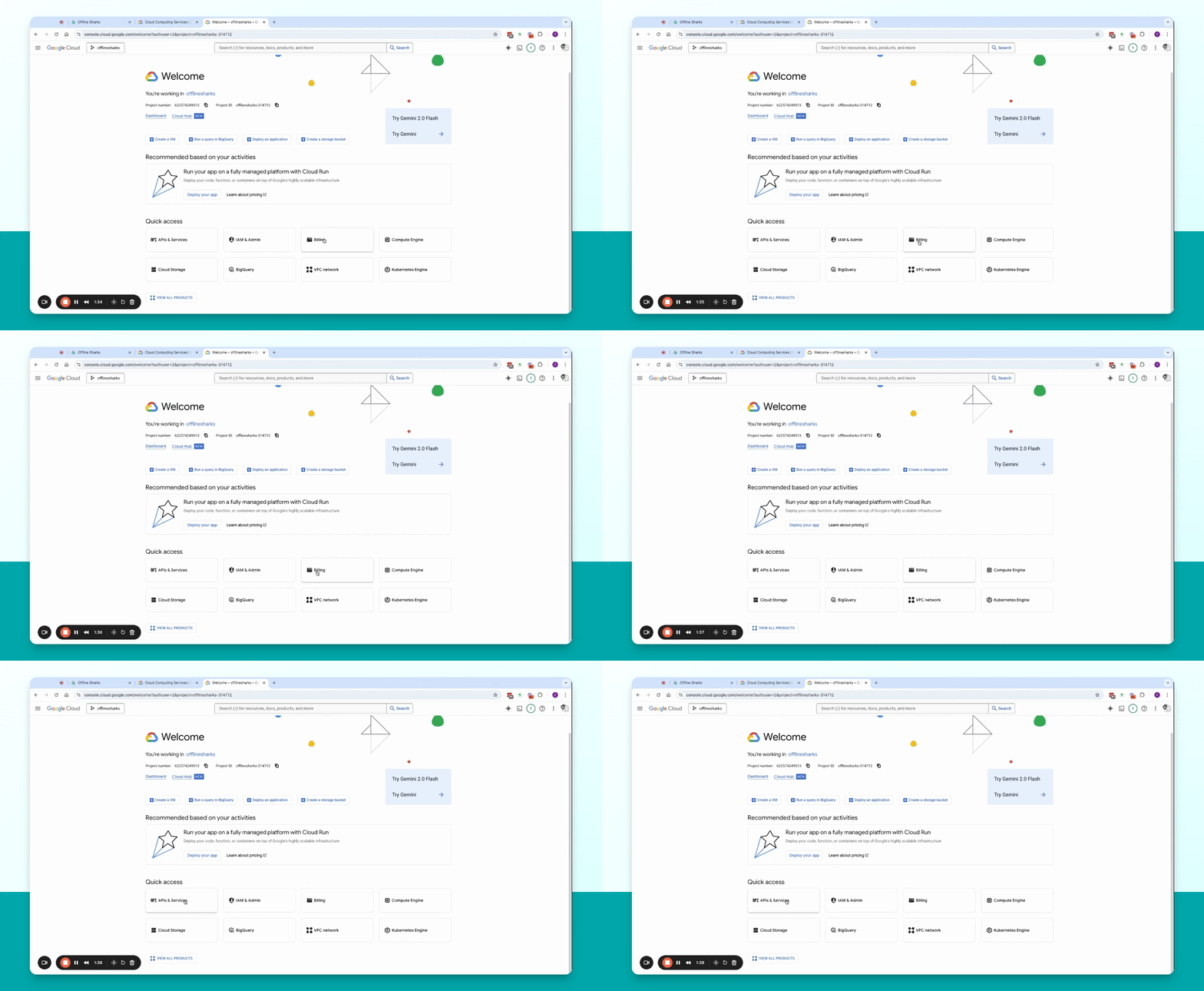
Step 8: Enable APIs
Go to APIs and services and click on Enable APIs and Services to enable necessary APIs.
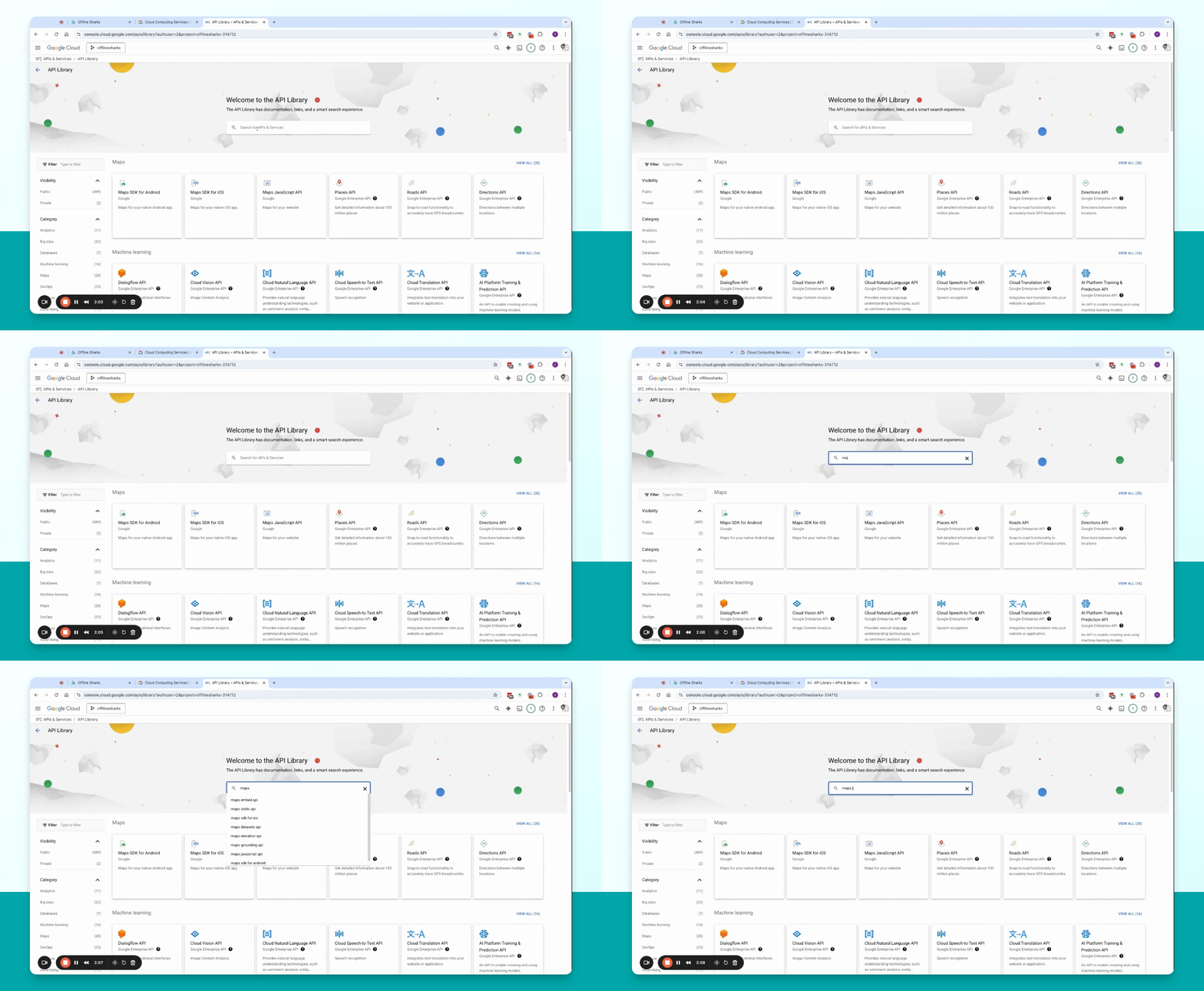
Step 9: Enable Maps JavaScript API
Search for Maps JavaScript API, click on it, and then click Enable.
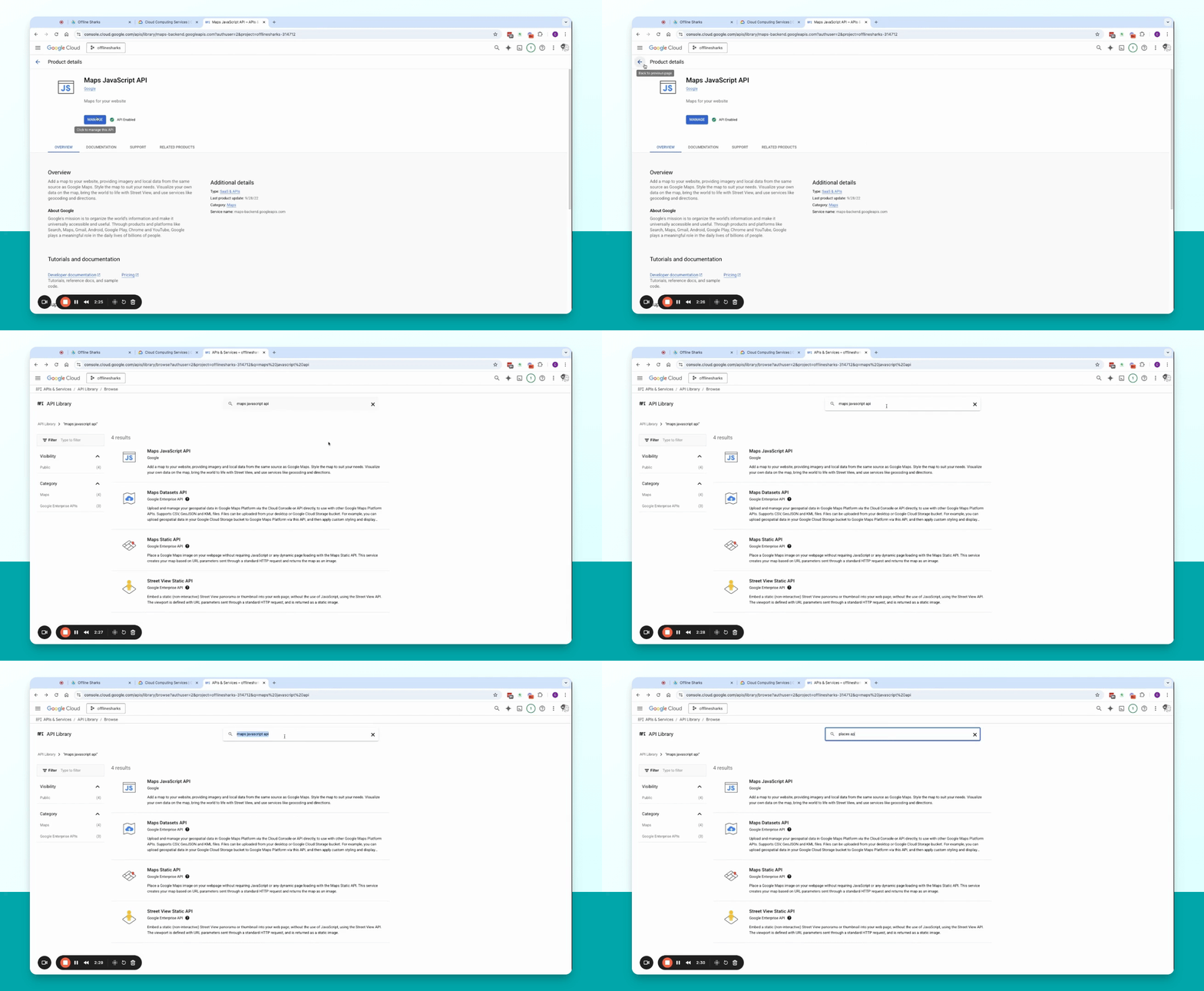
Step 10: Enable Places API
Find the Places API, and click Enable.
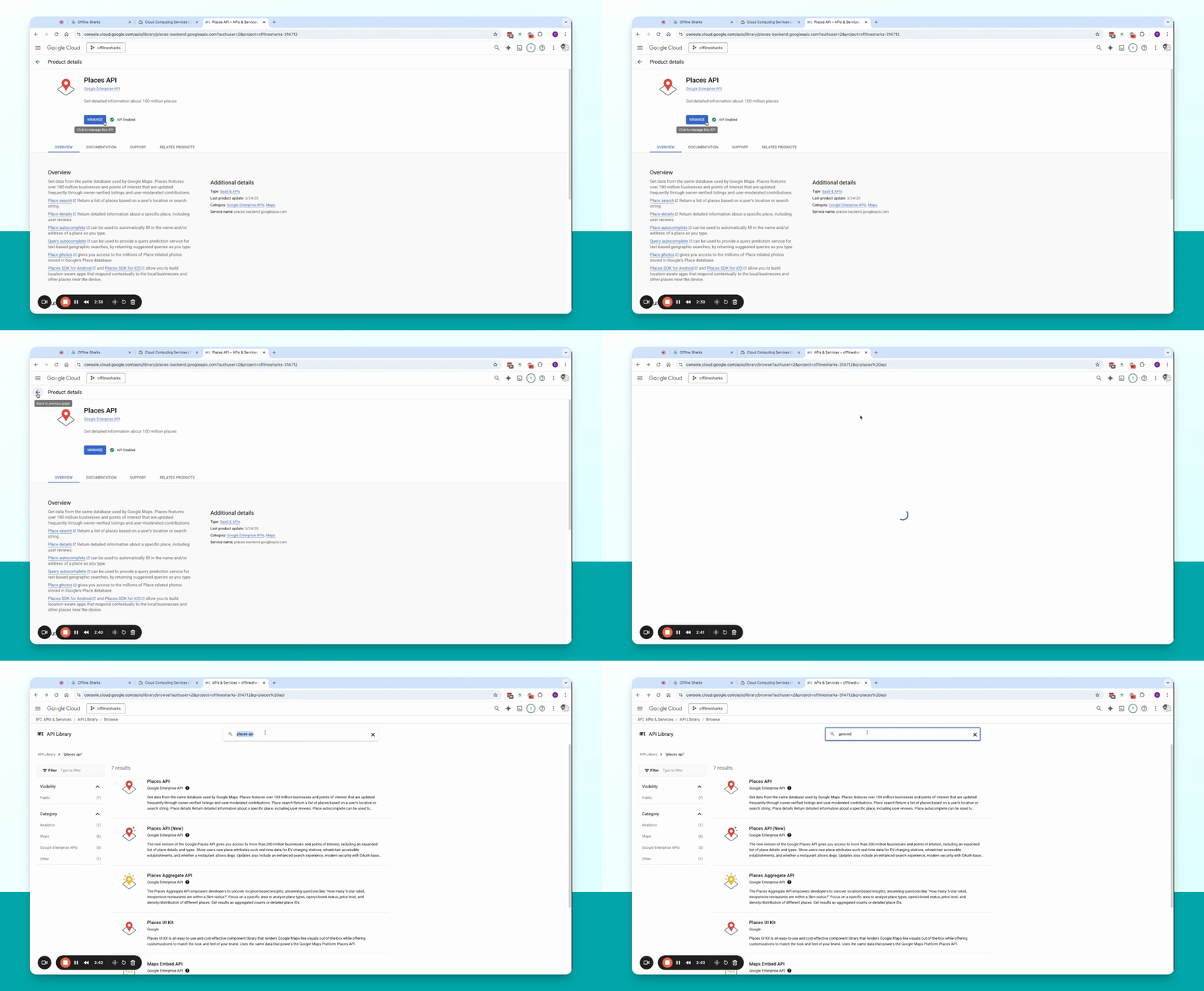
Step 11: Enable Geocoding API
Locate the Geocoding API and click Enable.
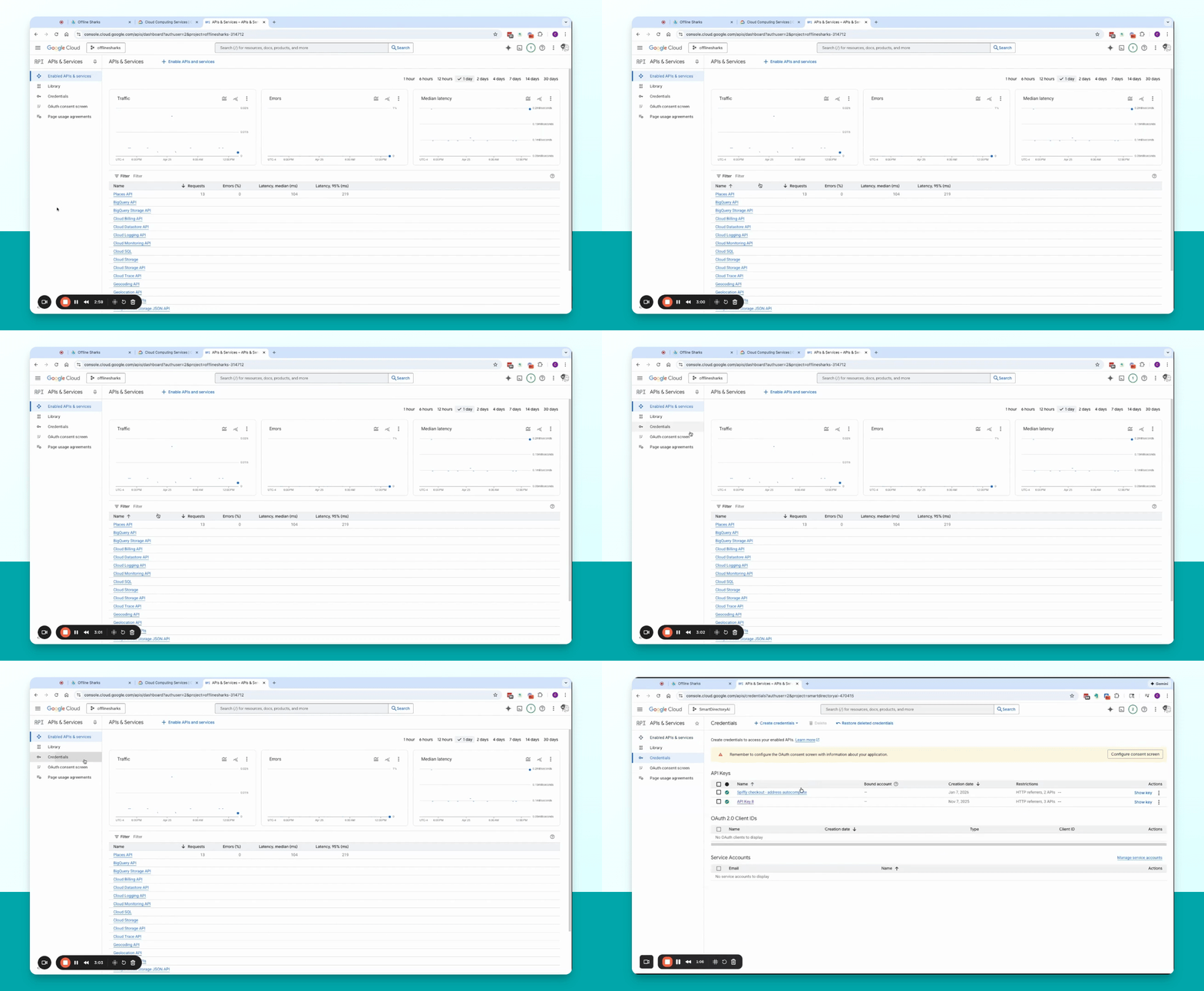
Step 12: Create Credentials
Go back to Credentials and click Create Credentials to add an API key for the front end.
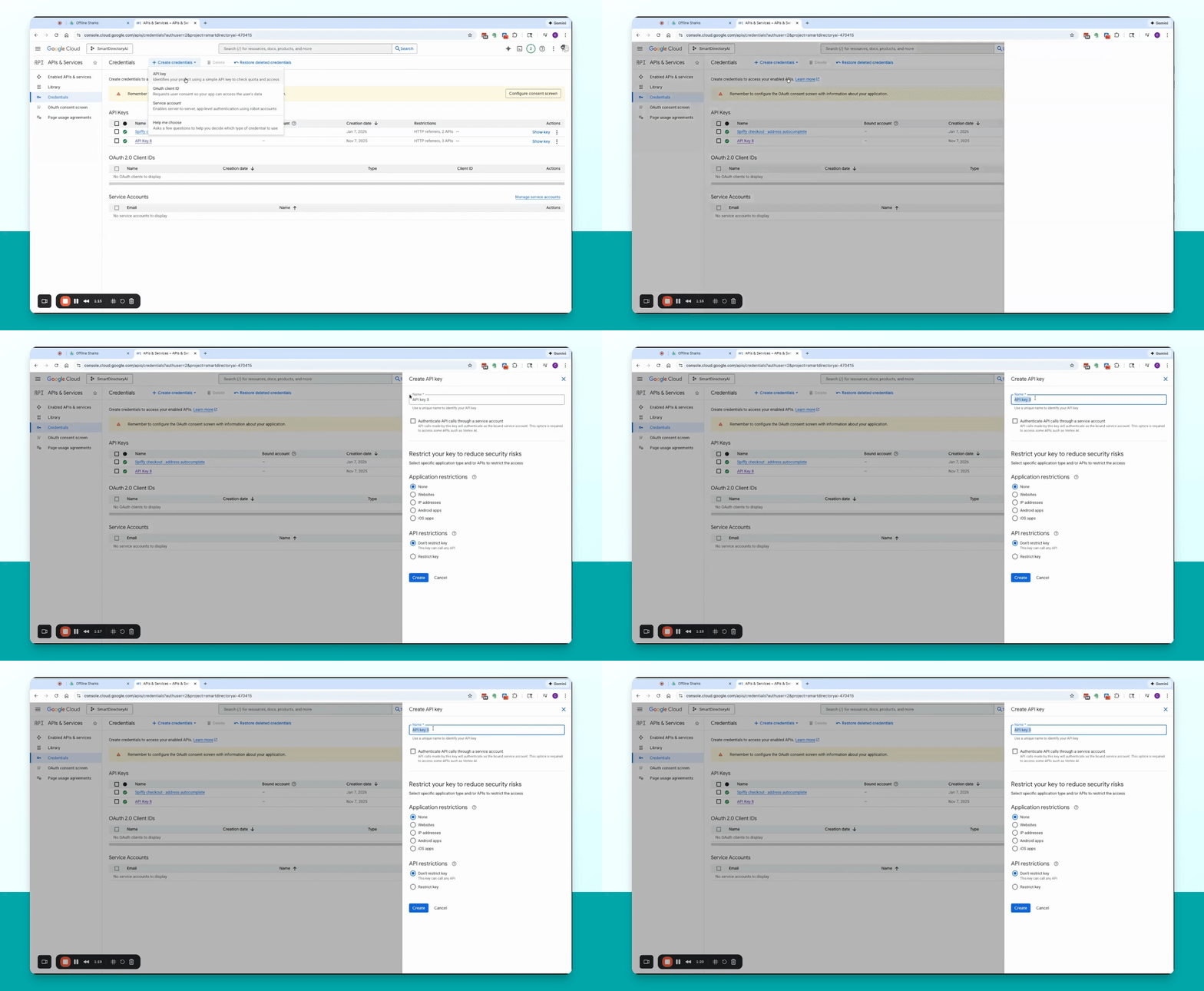
Step 13: Configure Front End Key
Name the key and set application restrictions for your domains. Restrict it to the three enabled APIs.
Step 14: Create Back End Key
Create another key for the back end, restricting it by IP address and to the same three APIs.
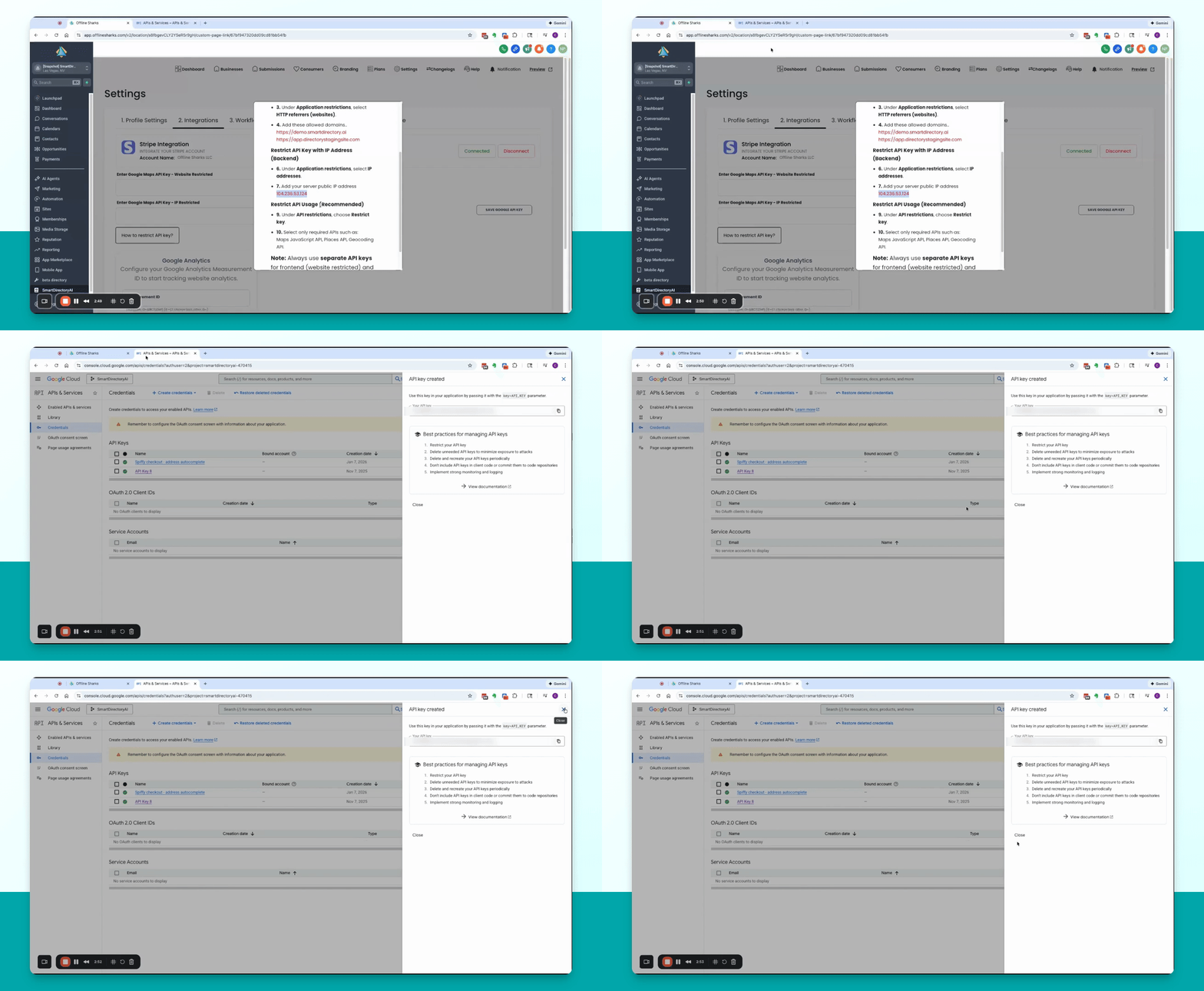
Step 15: Save API Keys
Copy both API keys and save them securely in the Smart Directory AI dashboard.