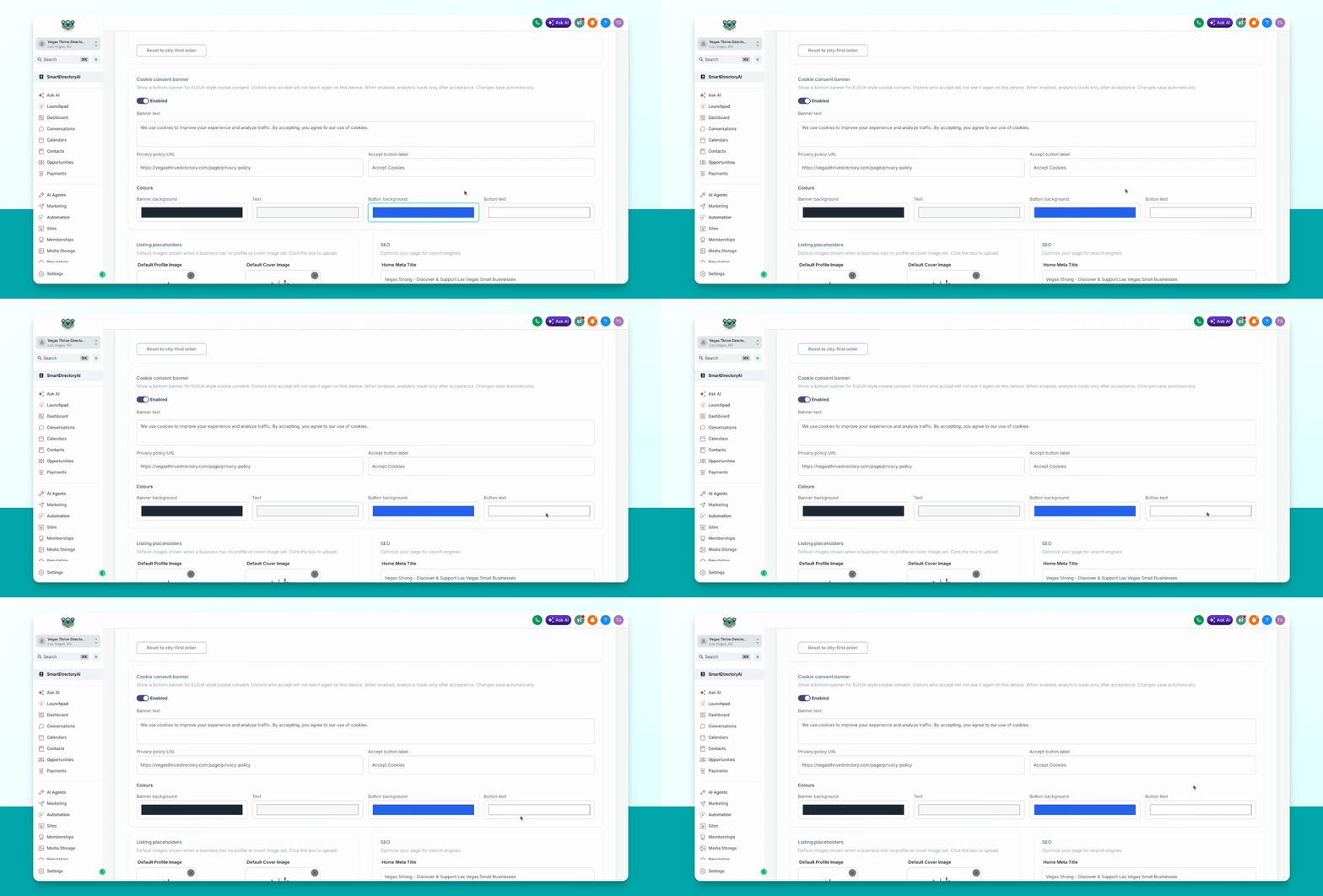

To manage your homepage Cookie Consent Banner, access the Smart Directory AI Dashboard and navigate to Branding > General. Let's look at the steps:
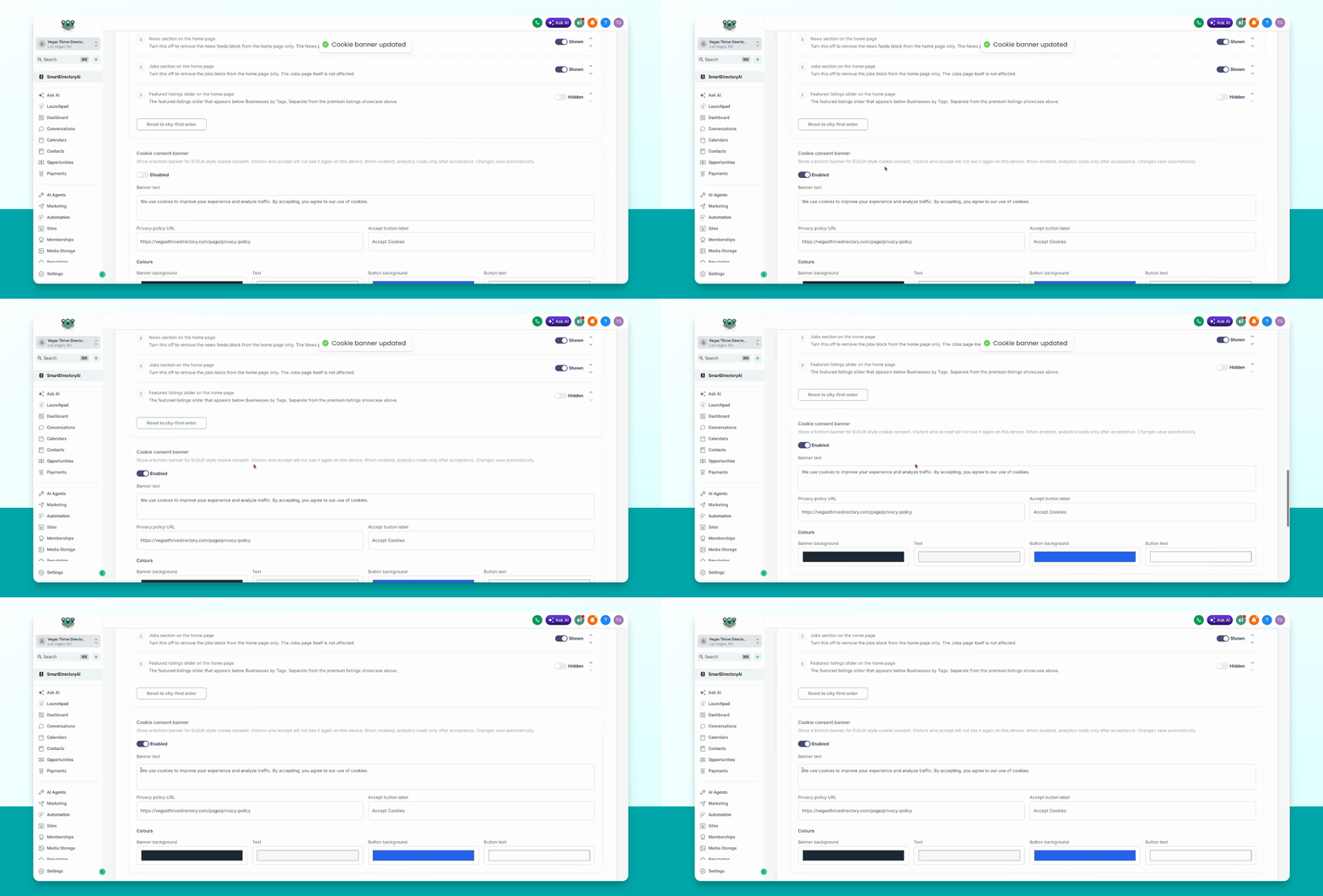
Step 1: Toggle Cookie Consent Banner
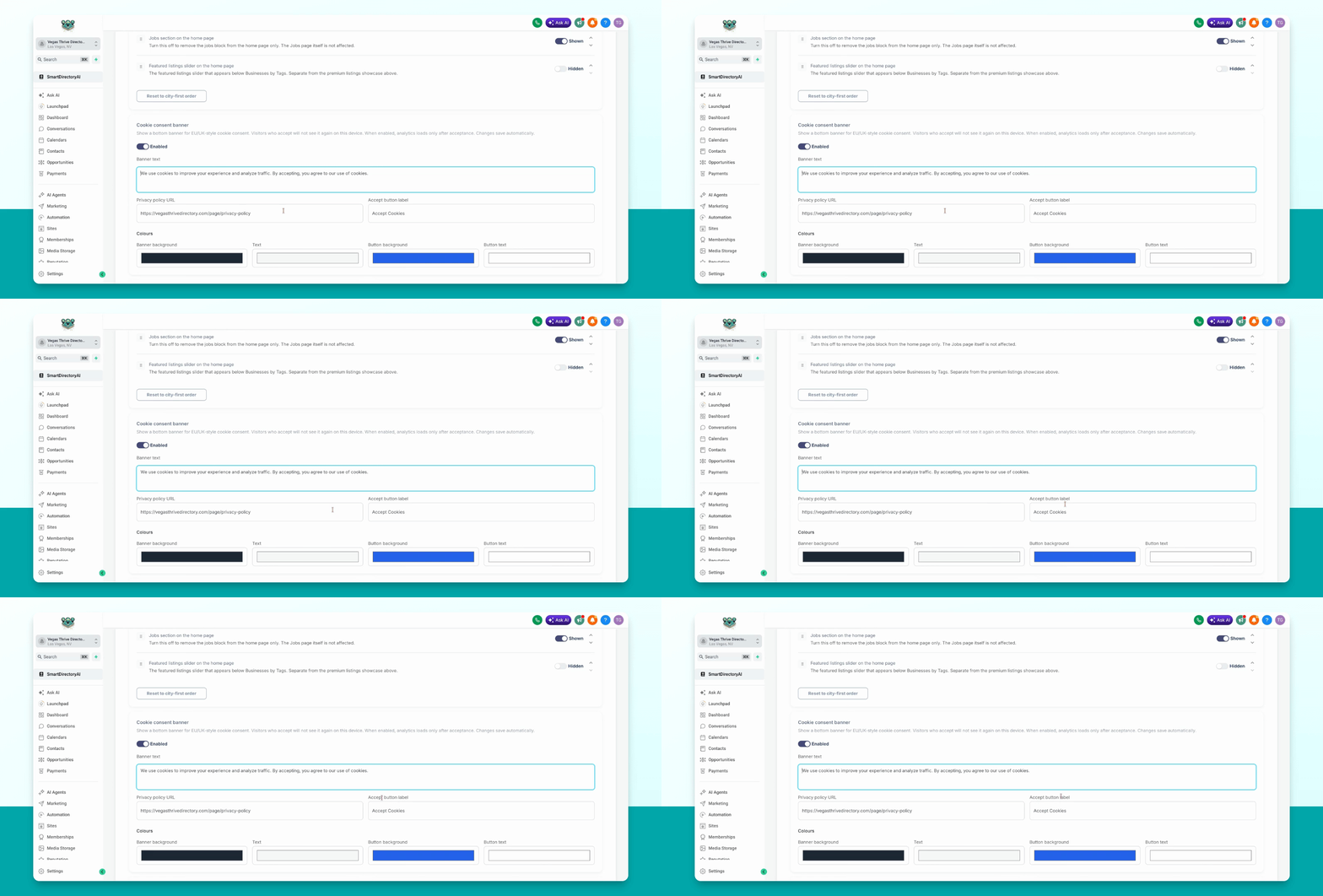
Scroll down to the Cookie Consent banner section. Click the toggle button to enable or disable the banner as needed.
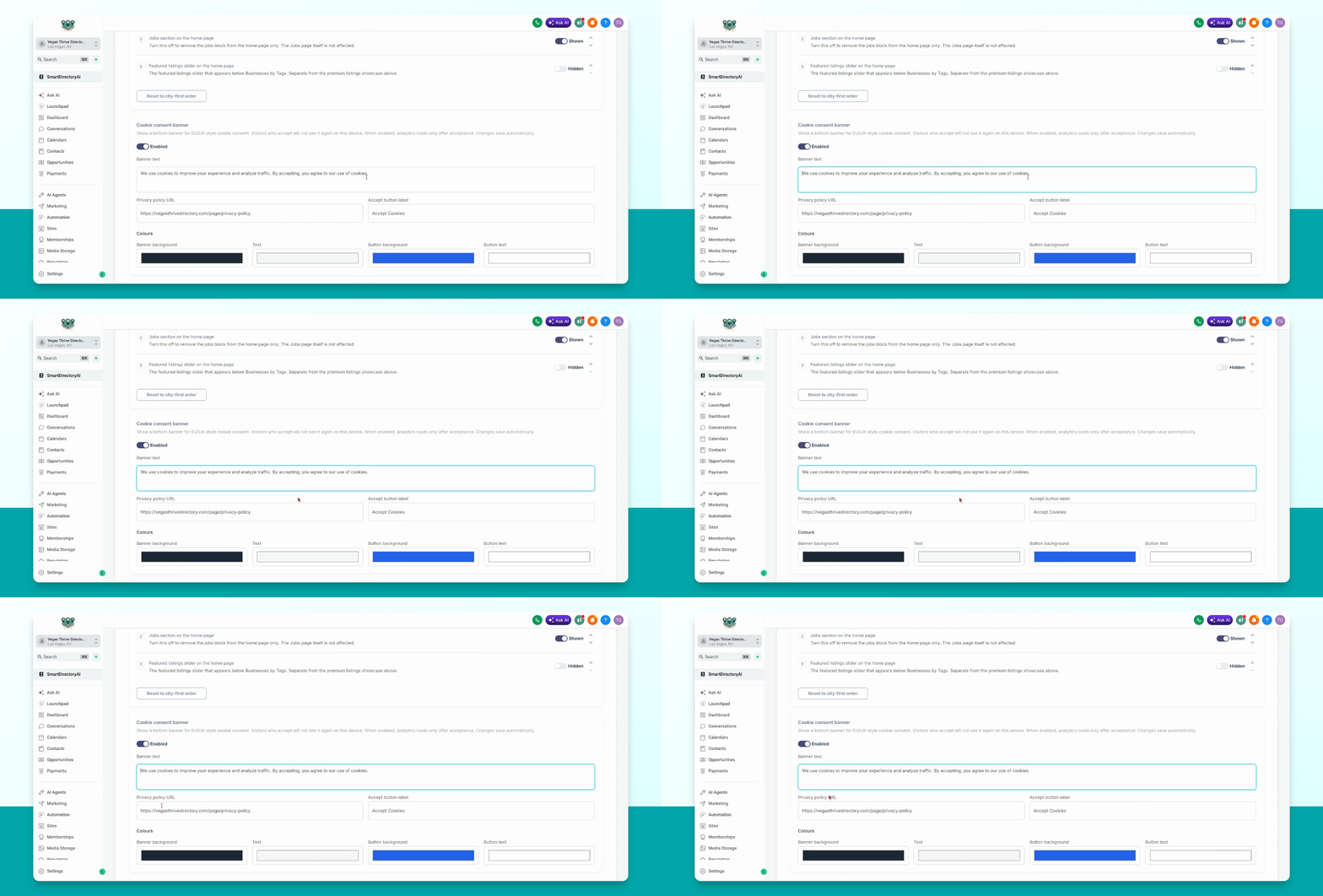
Step 2: Edit Banner Text
Update the banner message by editing the Banner text field.
Step 3: Add Privacy Policy URL
Insert your Privacy Policy link in the Privacy Policy URL field.
Step 4: Adjust Button Label
Change the text on the accept button by editing the Accept button label field.
Step 5: Customize Banner and Button Colors
Modify the banner background, text, and button colors. Click the corresponding color options (such as Banner background, text, or button color) and select your preferred colors.
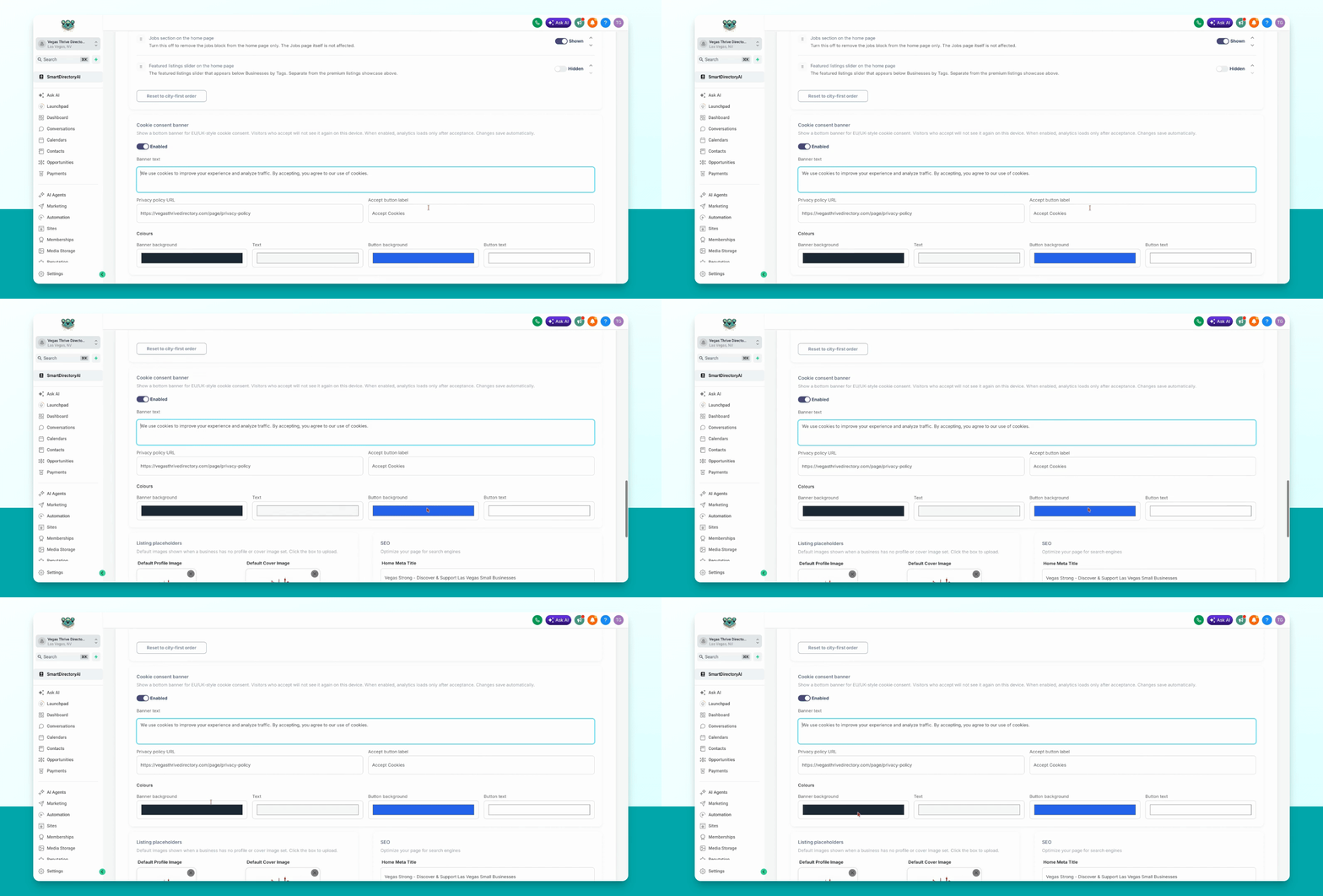
You can also change the button text color as needed.