Connect Domain in HighLevel
Your connected funnel(s) in HighLevel will need to be setup with a different domain than your primary SmartDirectory domain. Most users choose to create a sub-domain for their main SmartDirectoryAI website.
To add a sub-domain (or different domain) to your HighLevel funnel(s):
In your domain DNS settings, add a CNAME record:
Name/Host: pages
Value/Content: sites.ludicrous.cloud
Example Setup: Las Vegas Thrive
Domain: vegasthrivedirectory.com → points to SmartDirectoryAI (via A record to 104.236.53.124)
Subdomain: pages.vegasthrivedirectory.com → points to GHL funnel (via CNAME record to sites.ludicrous.cloud)
That puts our SmartDirectory live at the main vegasthrivedirectory.com domain, with additional funnel pages available through the menu.
Need to Connect Your Primary Domain?
See this article:
Need Help Updating DNS?
DNS Update Instructions for Common Registrars
Edit Existing Pages
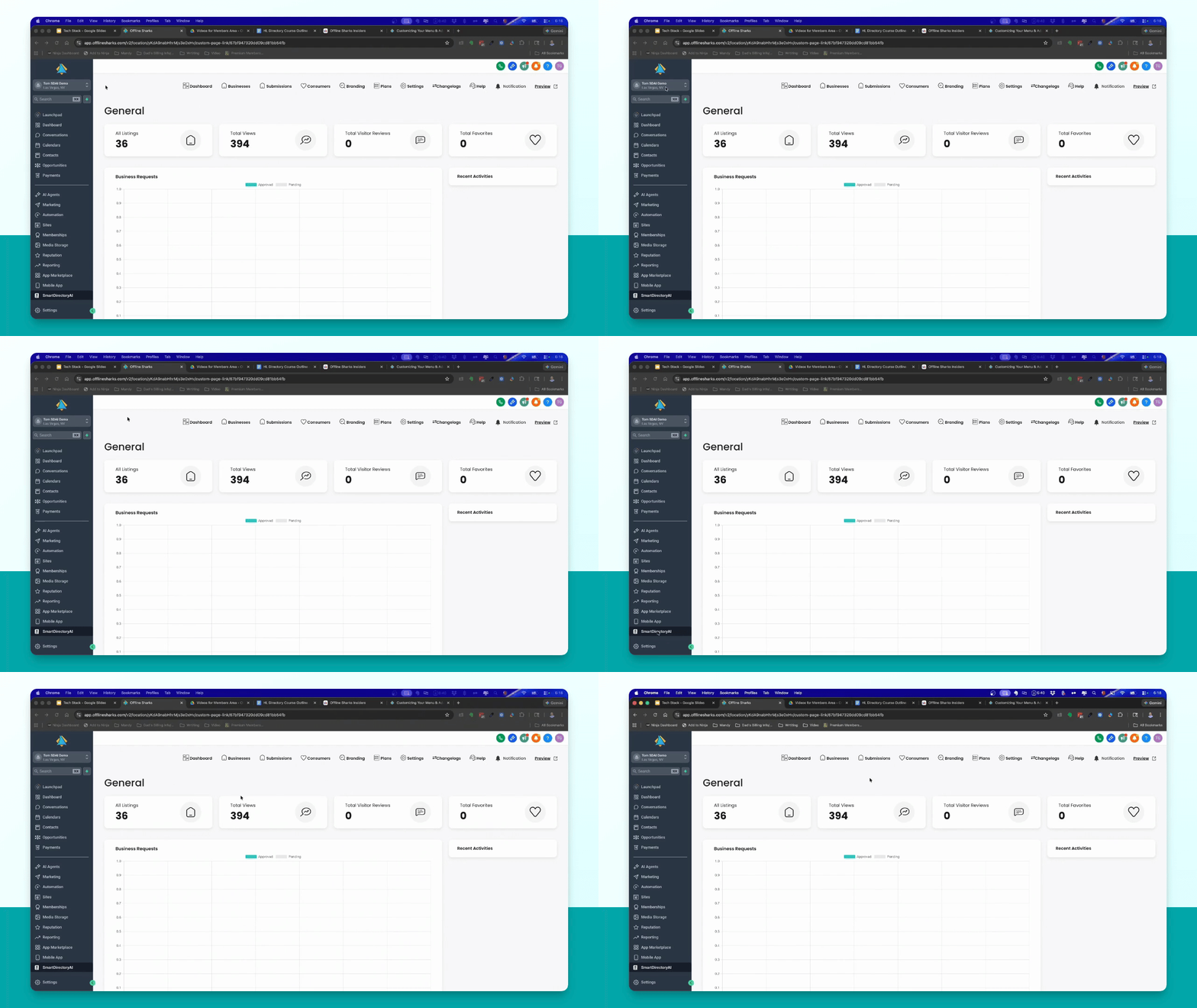
Step 1: Access Dashboard
Open the HighLevel dashboard.
Step 2: Navigate to Sites
In the left menu, go to Sites.
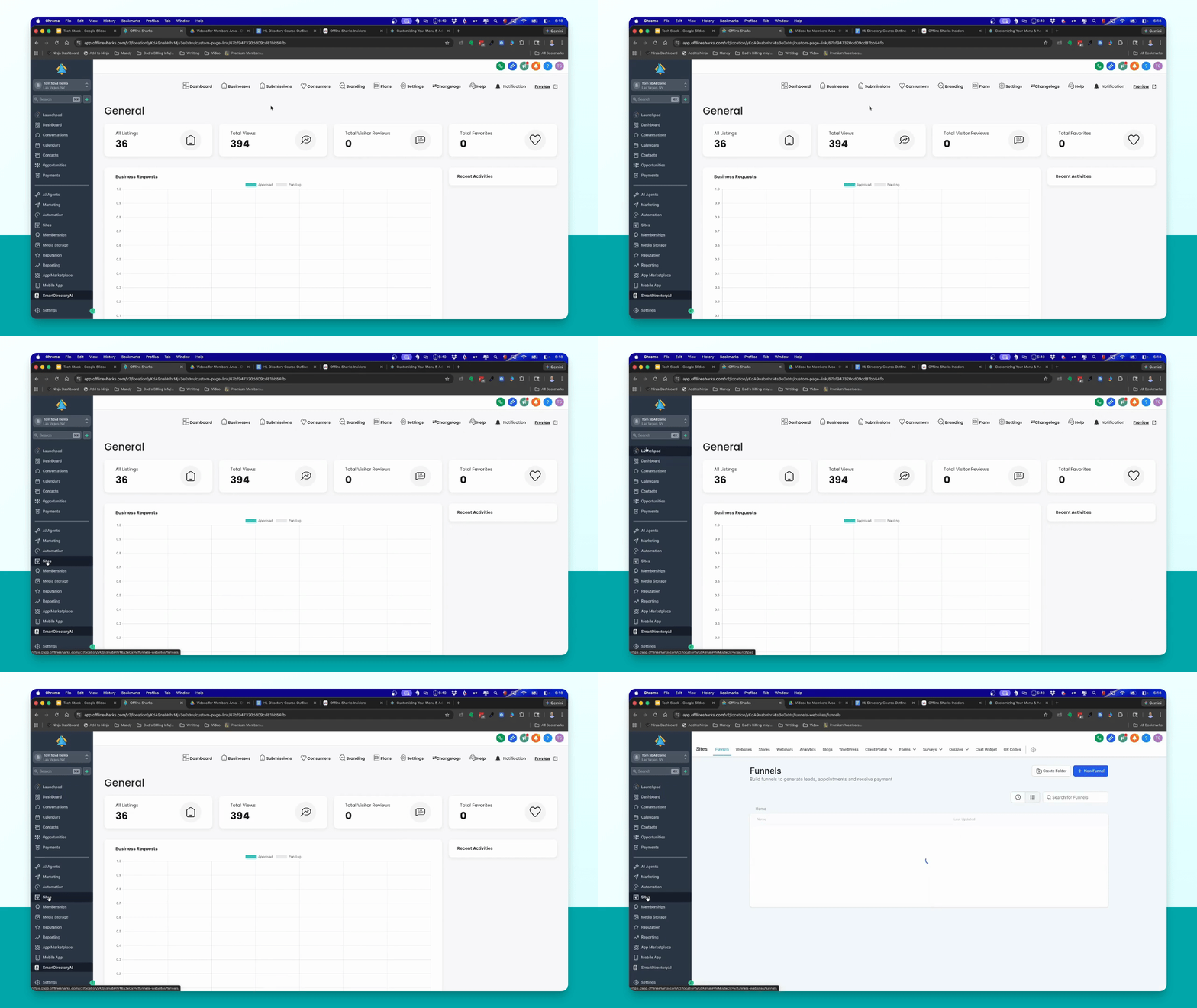
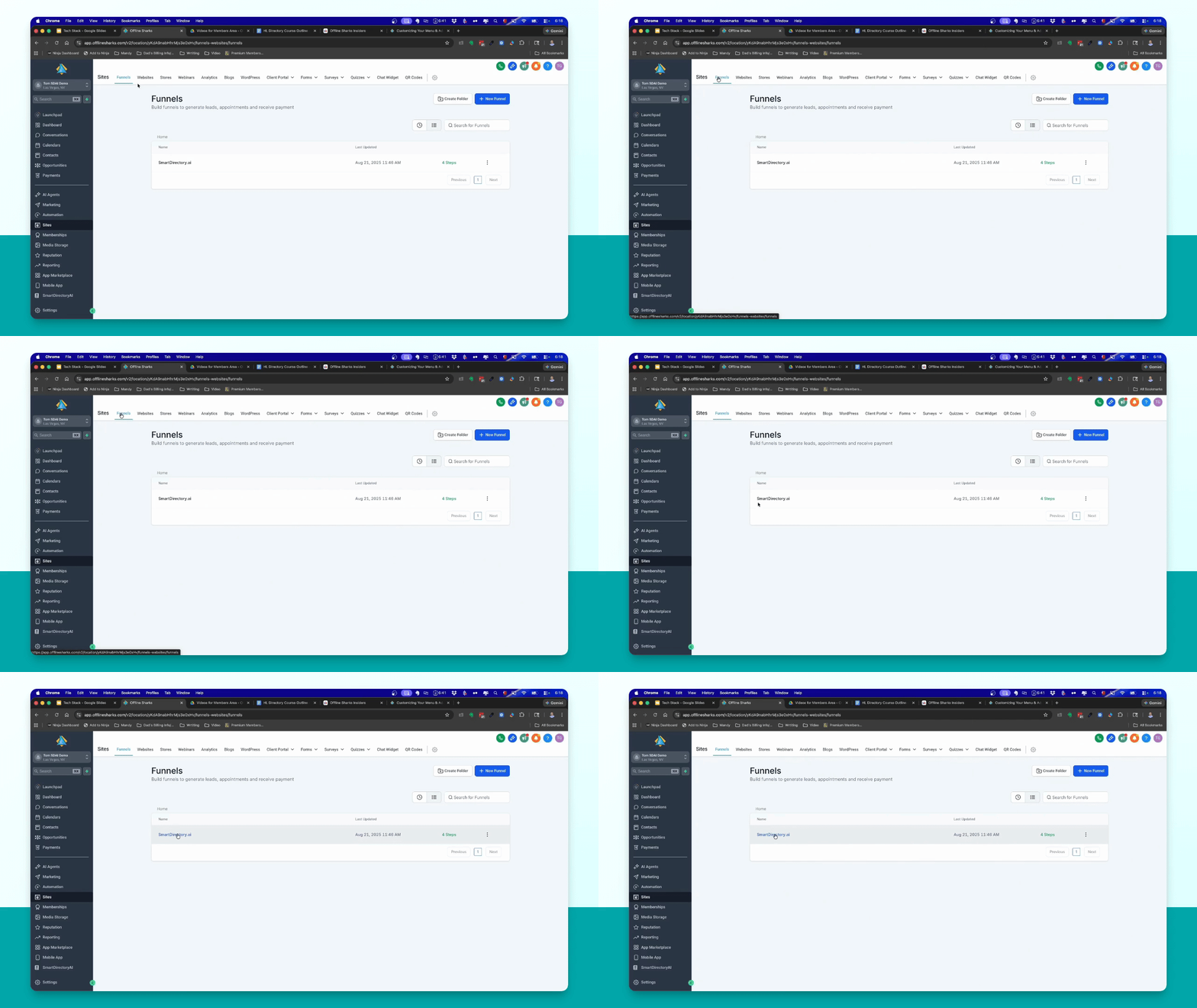
Step 3: Open Funnels
Click on Funnels, the first option in the Sites menu.
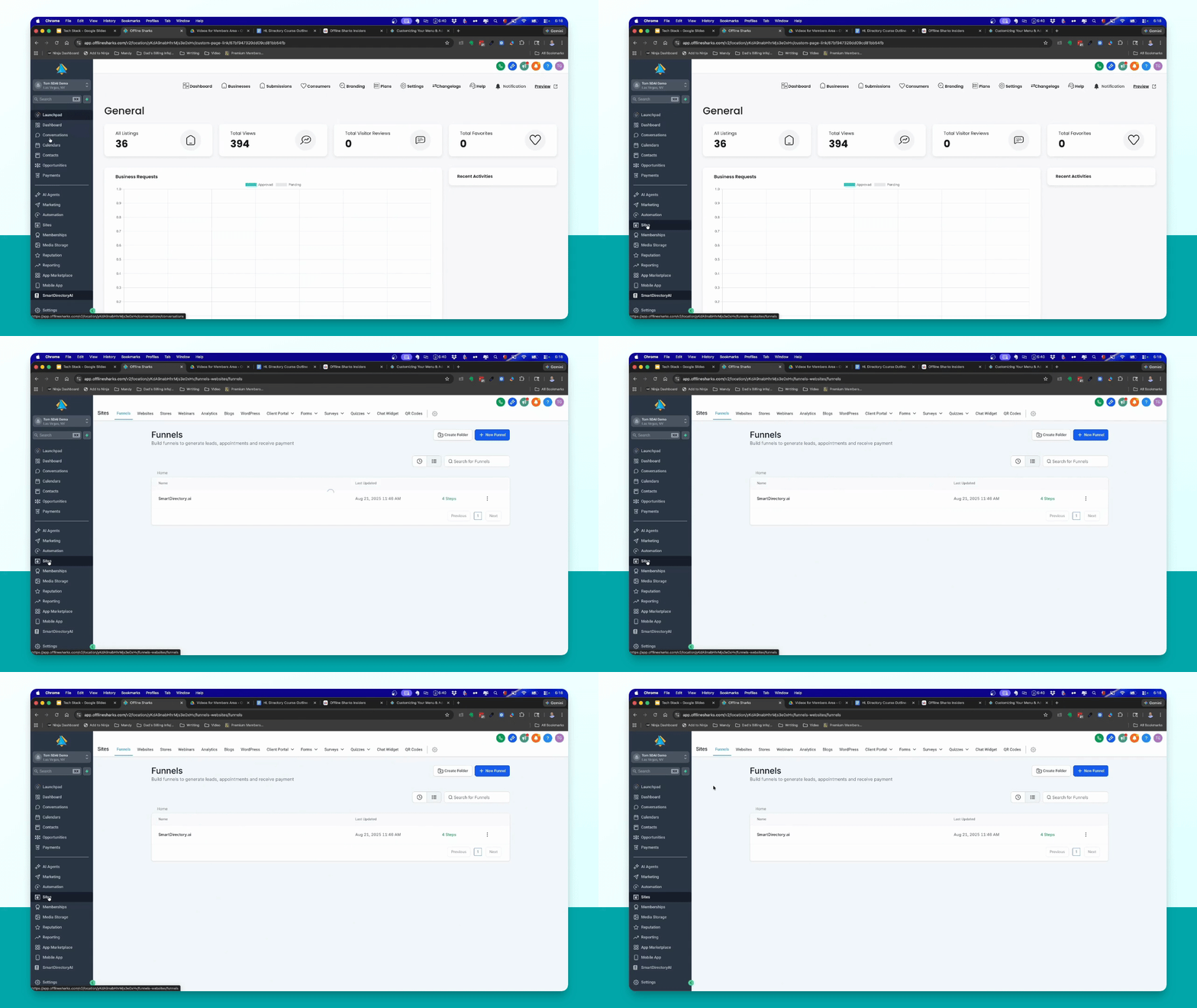
Step 4: View Funnel Pages
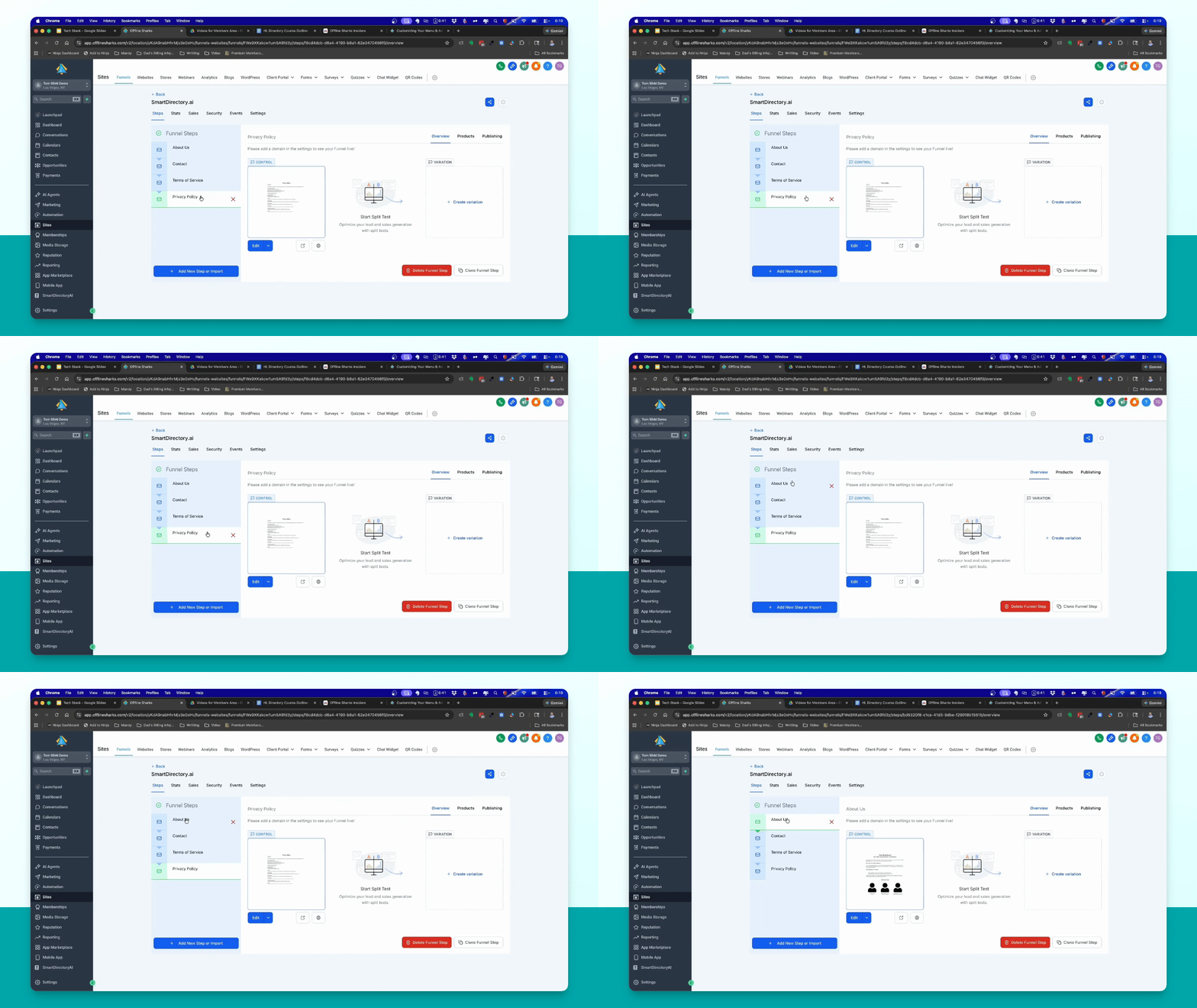
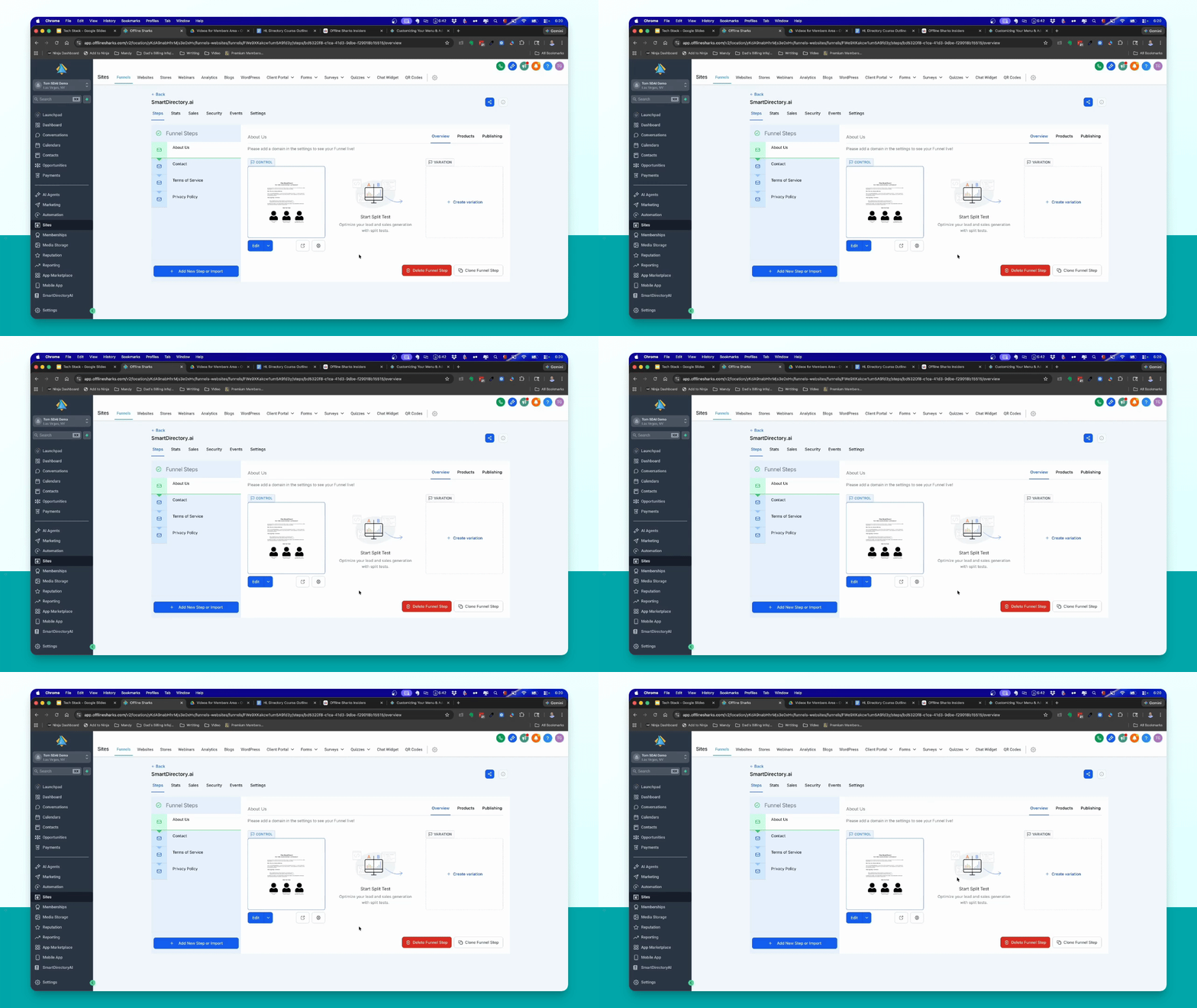
Select the SmartDirectoryAI funnel to see the included pages like About Us and Privacy Policy.
Step 5: Edit Existing Pages
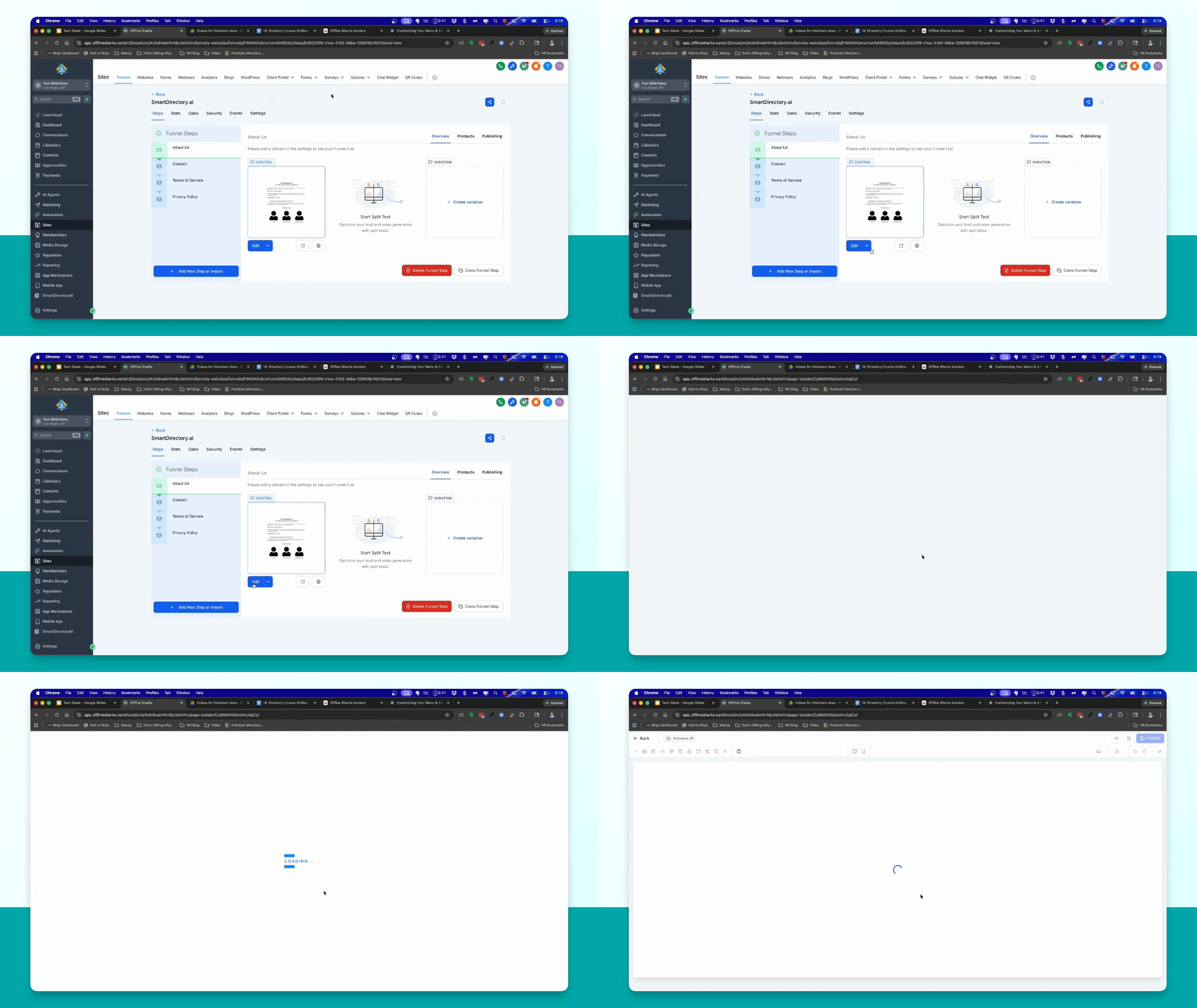
Choose a page to edit, then click Edit to access the page editor.
Step 6: Modify Page Content
Edit the page using the Go High Level page editor as needed, then click Publish to save changes.
Add New Custom Page
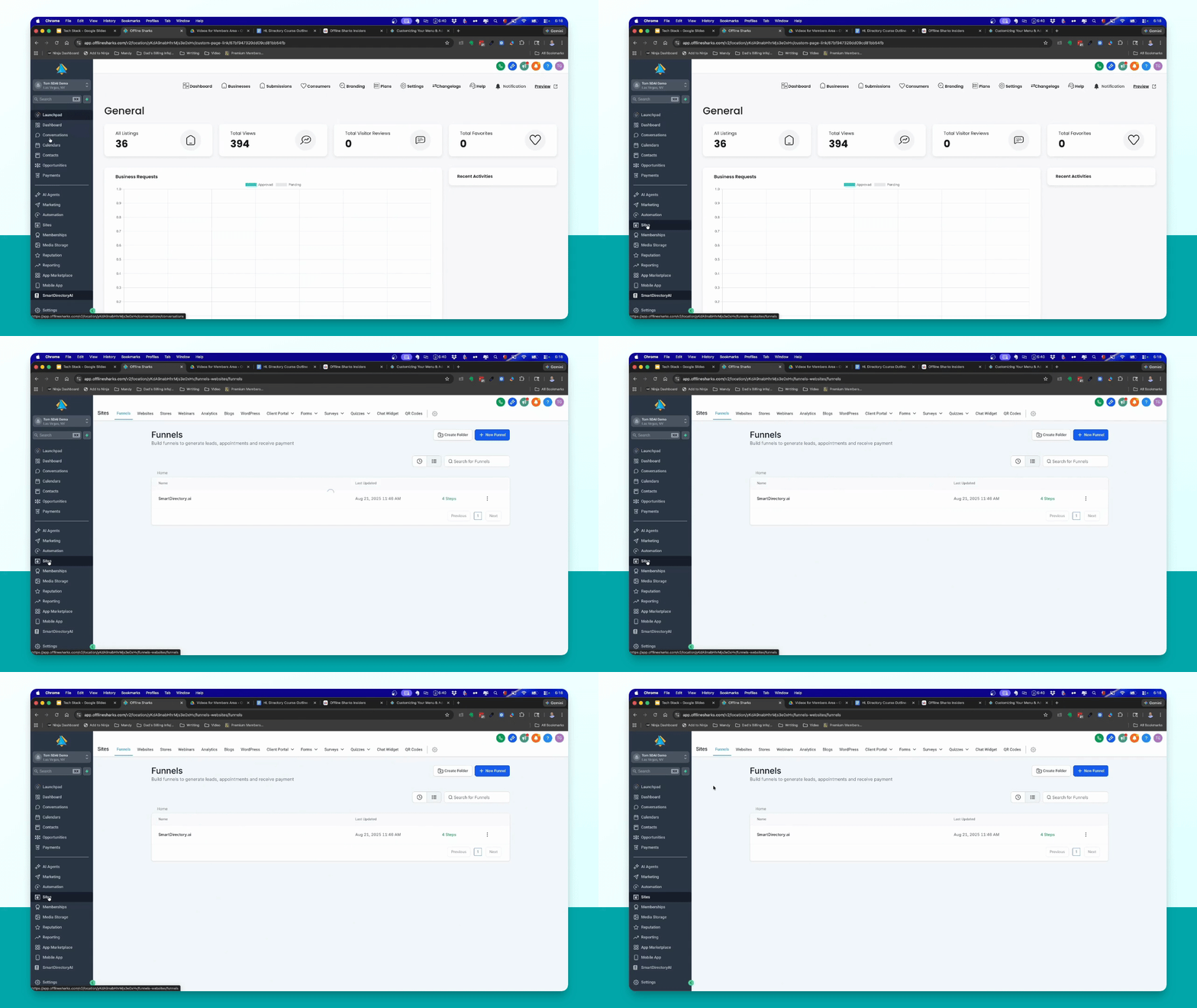
Step 1: Navigate to Sites
In the left menu of your HighLevel dashboard, go to Sites to find the custom pages section.
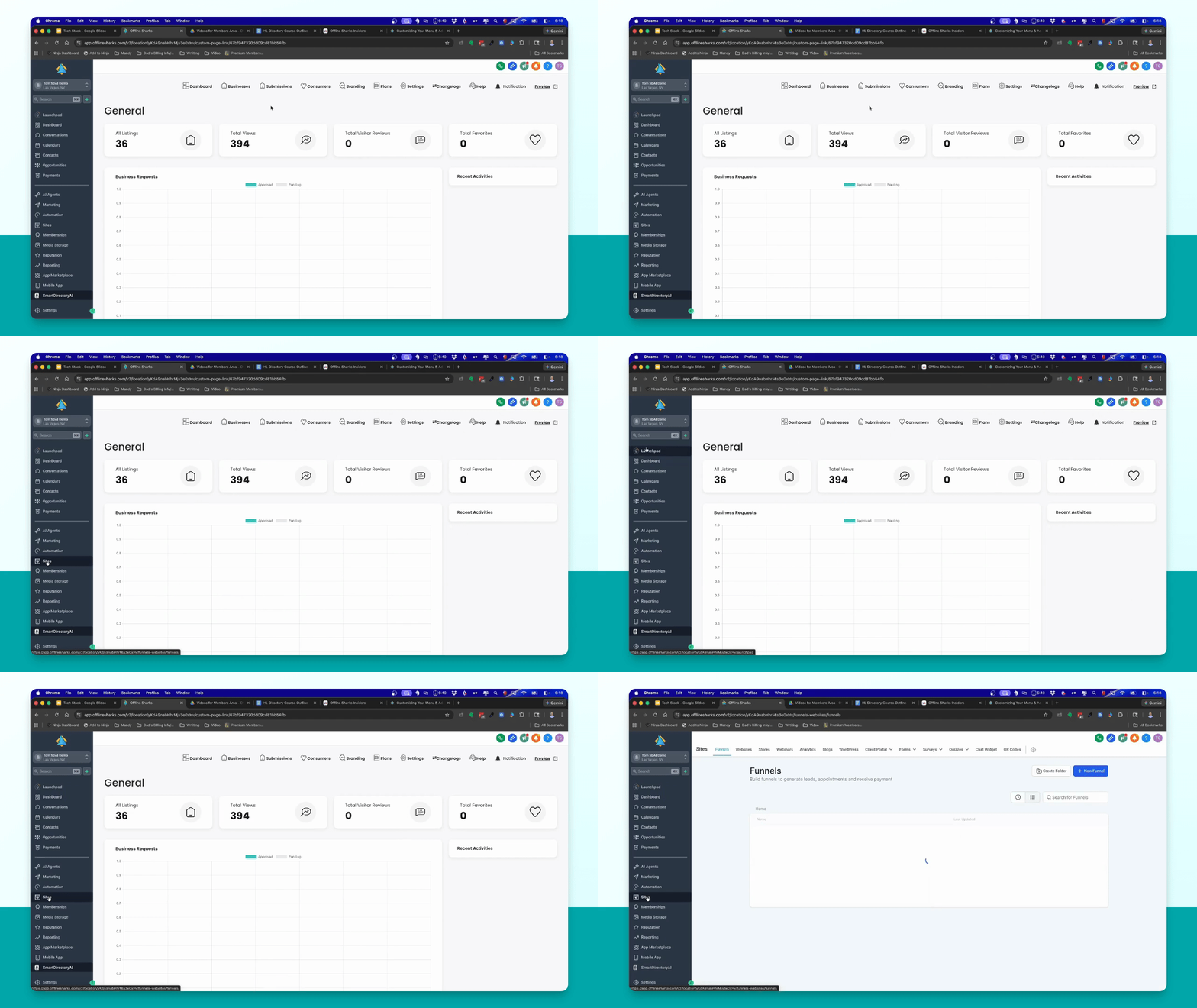
Step 3: Open Funnels
Click on Funnels, the first option in the Sites menu.
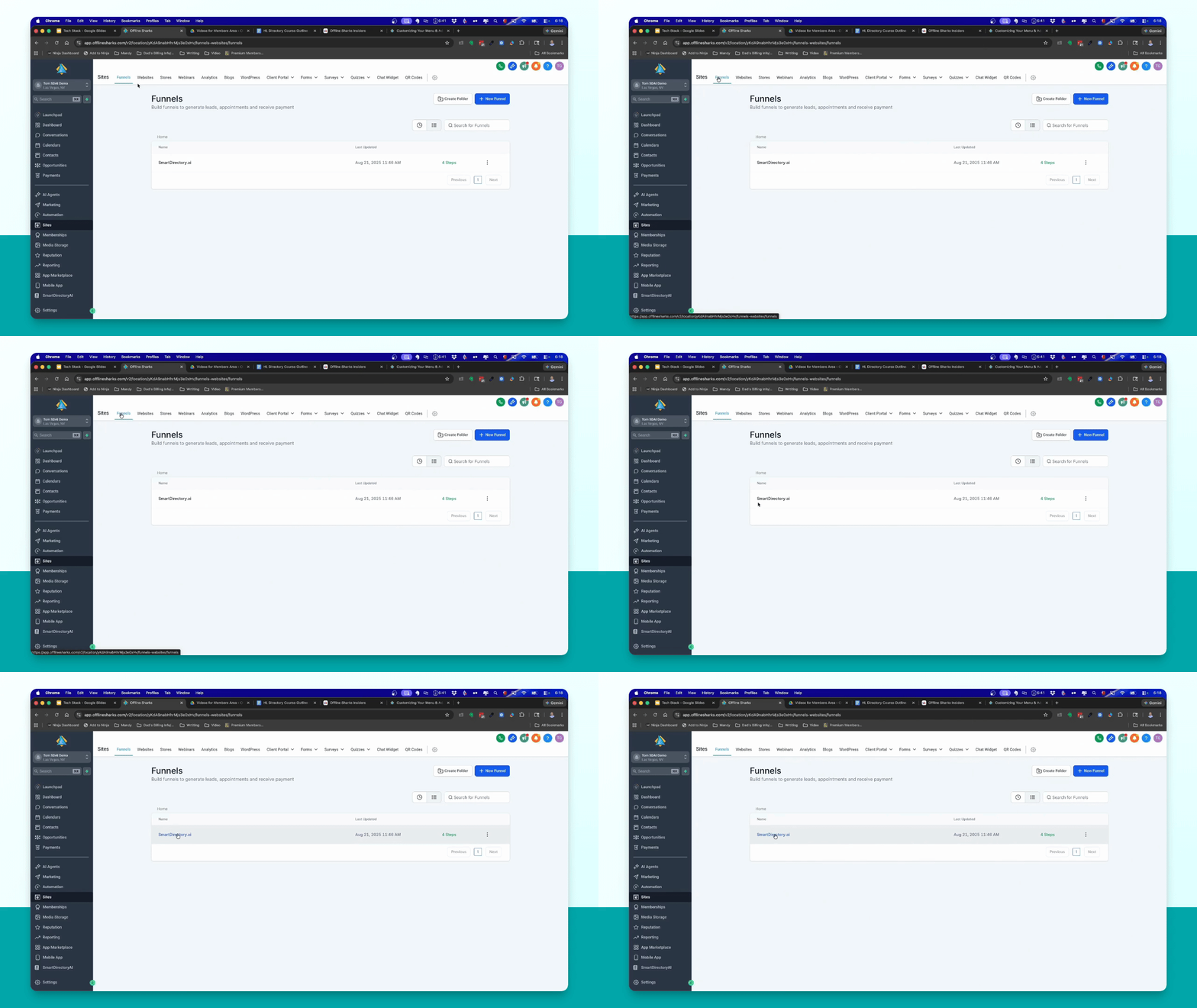
Step 4: View Funnel Pages
Select the SmartDirectoryAI funnel to see the included pages like About Us and Privacy Policy.
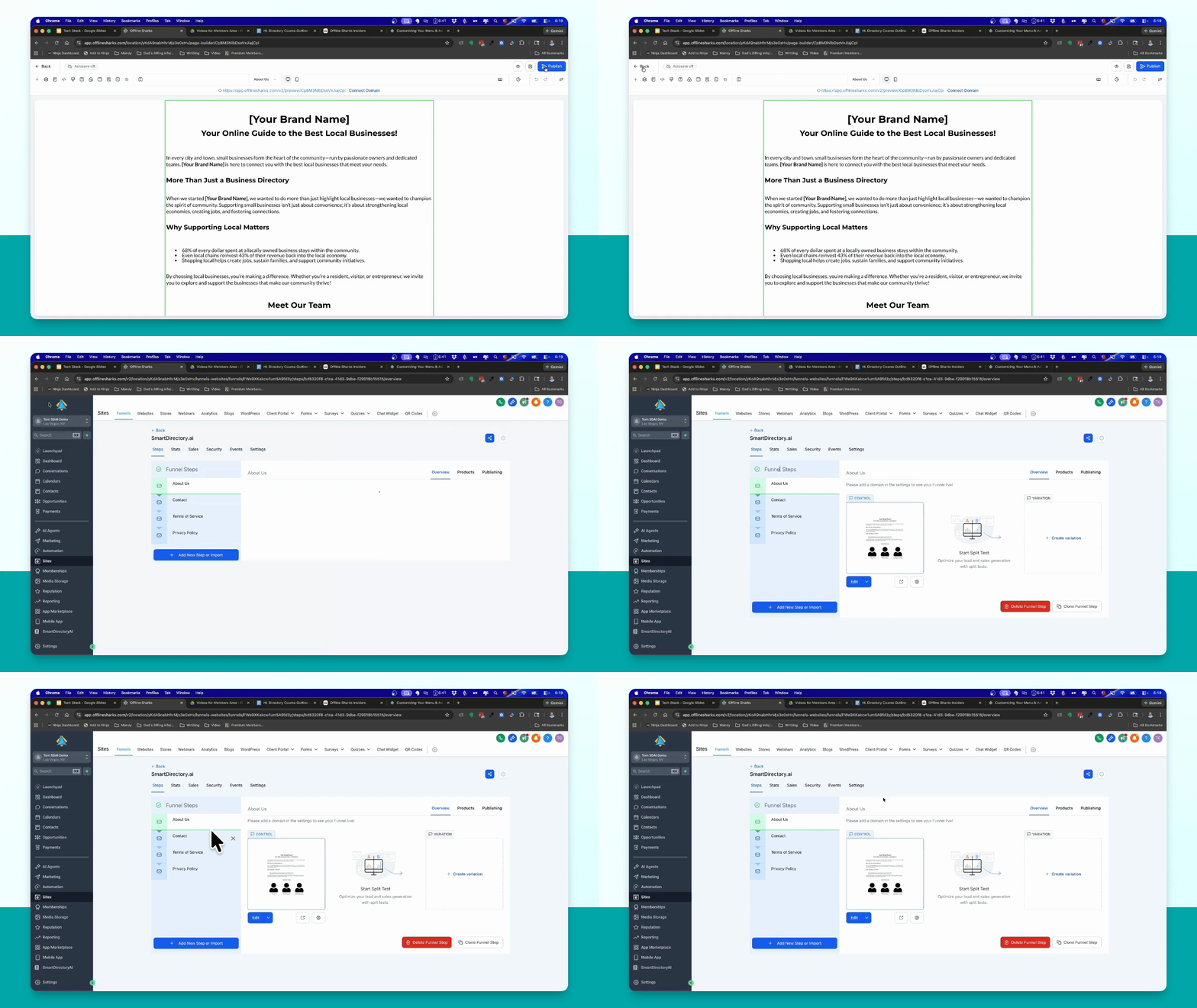
Step 5: Add New Funnel Step
To create a new page, click Add new step, name the page, and set the path.
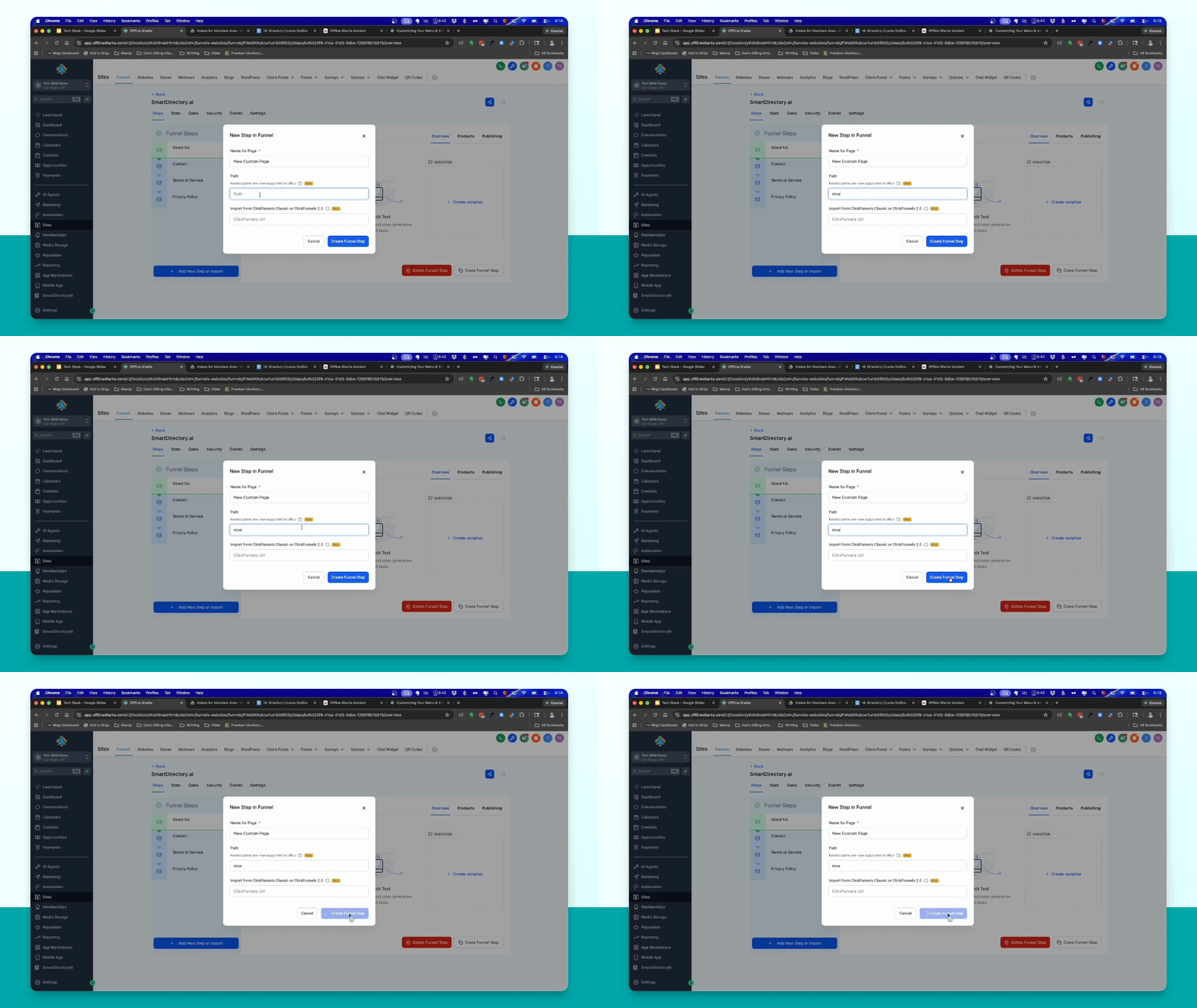
Step 6: Create Funnel Step
Finalize the new step creation in the funnel, then access the page builder.
Add This Custom Code to Make the iFrame Height Adapt to the Content of Your Custom Page (Fix Custom Page Cutoff)
Anywhere on your funnel page (it will not be visible), add a "Code" block from the HighLevel element selector
Enter the code below:
JavaScript<script>
function sendHeight() {
requestAnimationFrame(() => {
window.parent.postMessage(
{ type: "iframeHeight", height: document.body.scrollHeight },
"*"
);
});
}
window.addEventListener("load", sendHeight);
window.addEventListener("resize", sendHeight);
// Watch DOM changes for height updates
const observer = new MutationObserver(sendHeight);
observer.observe(document.body, { childList: true, subtree: true, attributes: true });
// Watch image loads
function watchImages() {
document.querySelectorAll("img").forEach(img => {
if (!img.dataset._resizeBound) {
img.addEventListener("load", sendHeight, { passive: true });
img.dataset._resizeBound = "true";
}
});
}
watchImages();
const imgObserver = new MutationObserver(watchImages);
imgObserver.observe(document.body, { childList: true, subtree: true });
// Capture hash changes dynamically
function handleHashChange() {
const hash = window.location.hash;
if (hash) {
window.parent.postMessage({ type: "ghlHash", hash }, "*");
}
}
// Run once in case page loads with a hash
handleHashChange();
// Listen for URL hash changes (buttons in GHL trigger this)
window.addEventListener("hashchange", handleHashChange);
// Also intercept click on anchor/buttons inside funnel
function patchScrollButtons() {
document.querySelectorAll("a, button").forEach(el => {
if (!el.dataset._scrollBound) {
el.addEventListener("click", () => {
setTimeout(handleHashChange, 100); // wait for GHL to update hash
});
el.dataset._scrollBound = "true";
}
});
}
patchScrollButtons();
const linkObserver = new MutationObserver(patchScrollButtons);
linkObserver.observe(document.body, { childList: true, subtree: true });
// NEW: Listen for scroll requests from parent
window.addEventListener("message", (event) => {
if (event.data?.type === "scrollInsideIframe") {
const target = document.querySelector(event.data.hash);
if (target) {
target.scrollIntoView({ behavior: "smooth", block: "start" });
setTimeout(sendHeight, 500); // recalc height after scroll
}
}
});
</script>
Save the element
Save and publish your funnel page
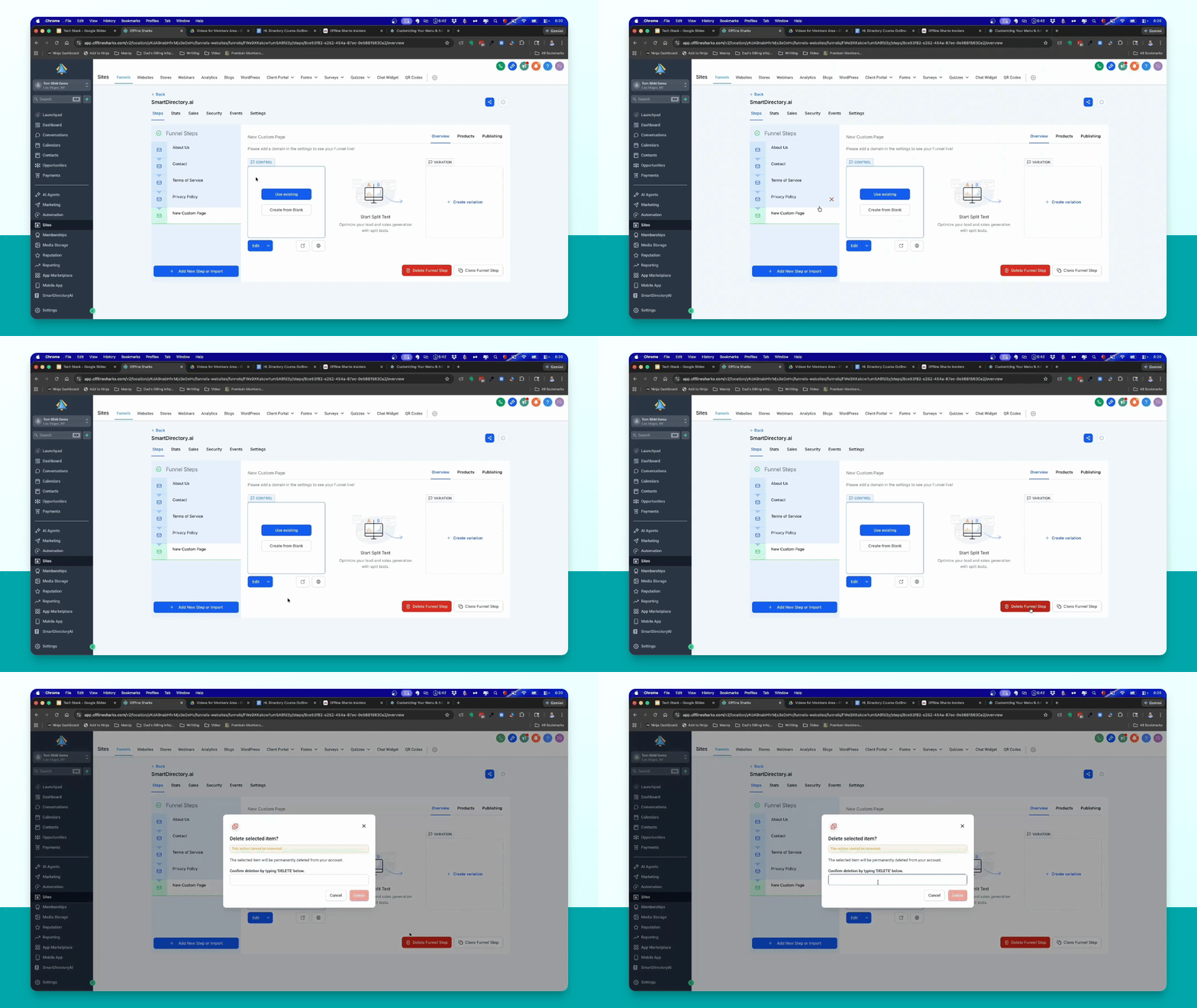
Delete a Funnel Step
Select the step you want to delete, choose Delete, and confirm by typing delete.
Add Funnel Pages to SmartDirectoryAI
Even though your funnel pages live on a subdomain (like pages.yourdomain.com), you can still add them to your SmartDirectory’s menu:
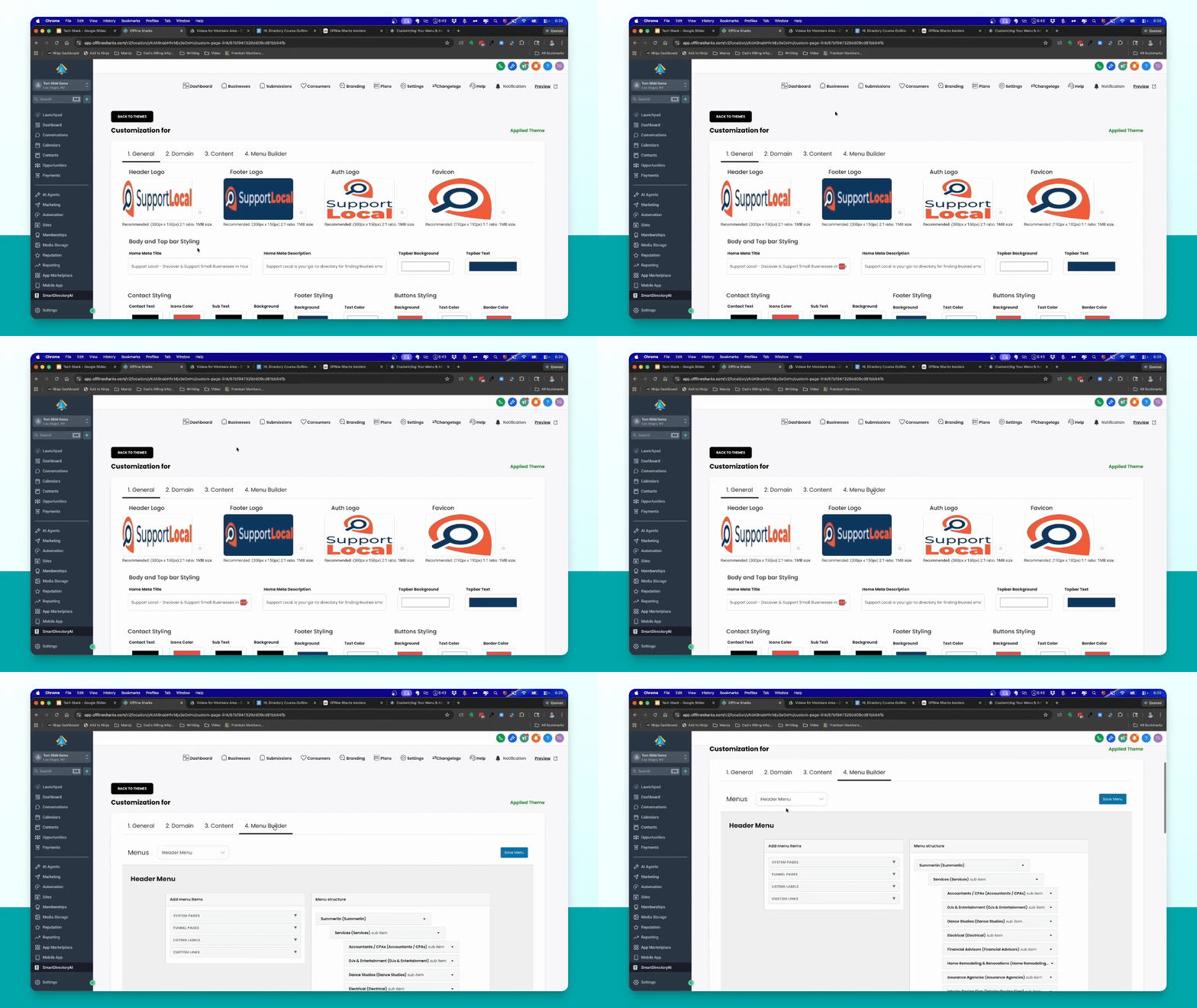
Step 1: Go to Branding Settings
Go to the SmartDirectoryAI dashboard, and click Branding.
Step 2: Open the Menu Builder
Select the Menu Builder, then look on the left side for the Funnel Pages section.
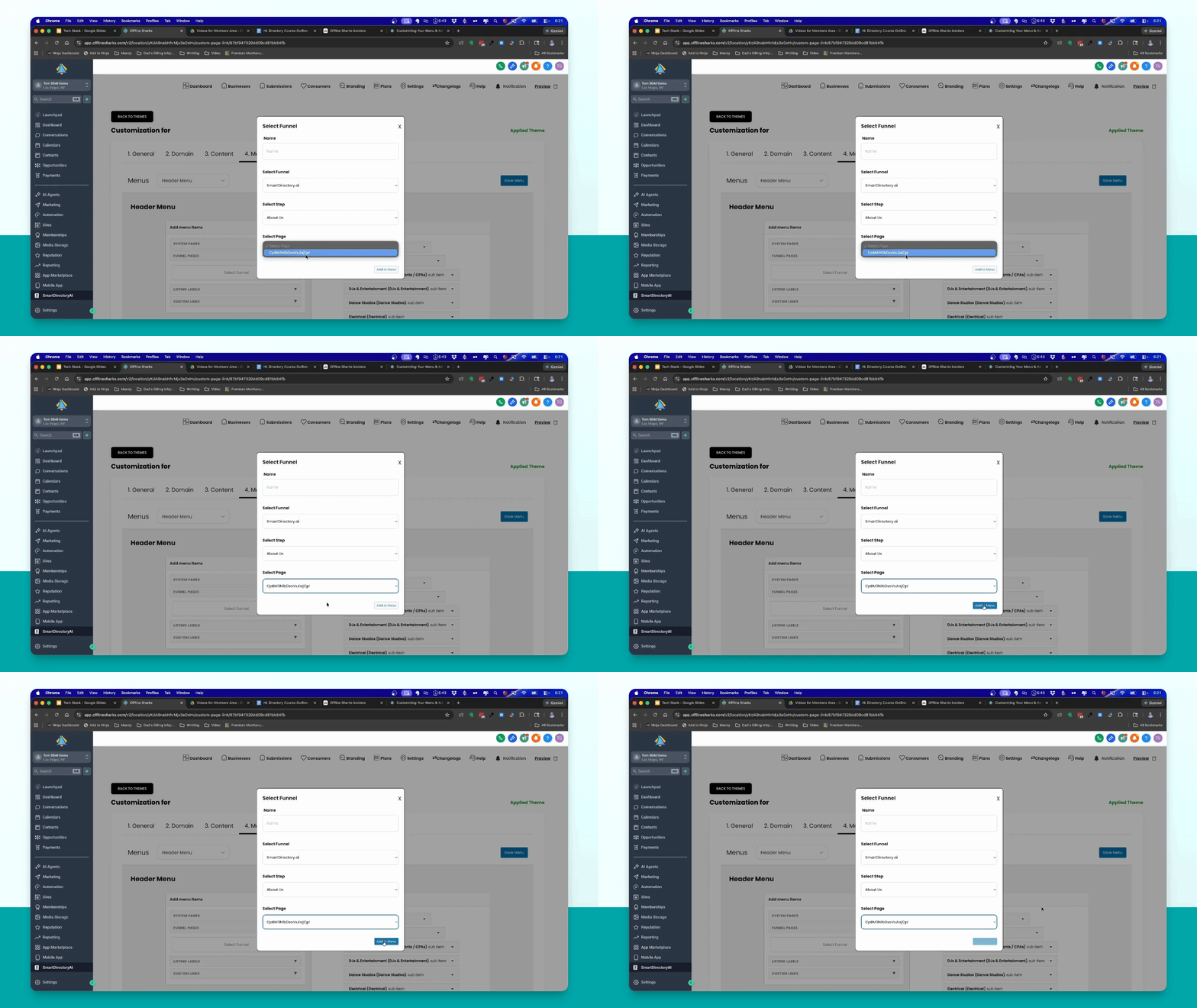
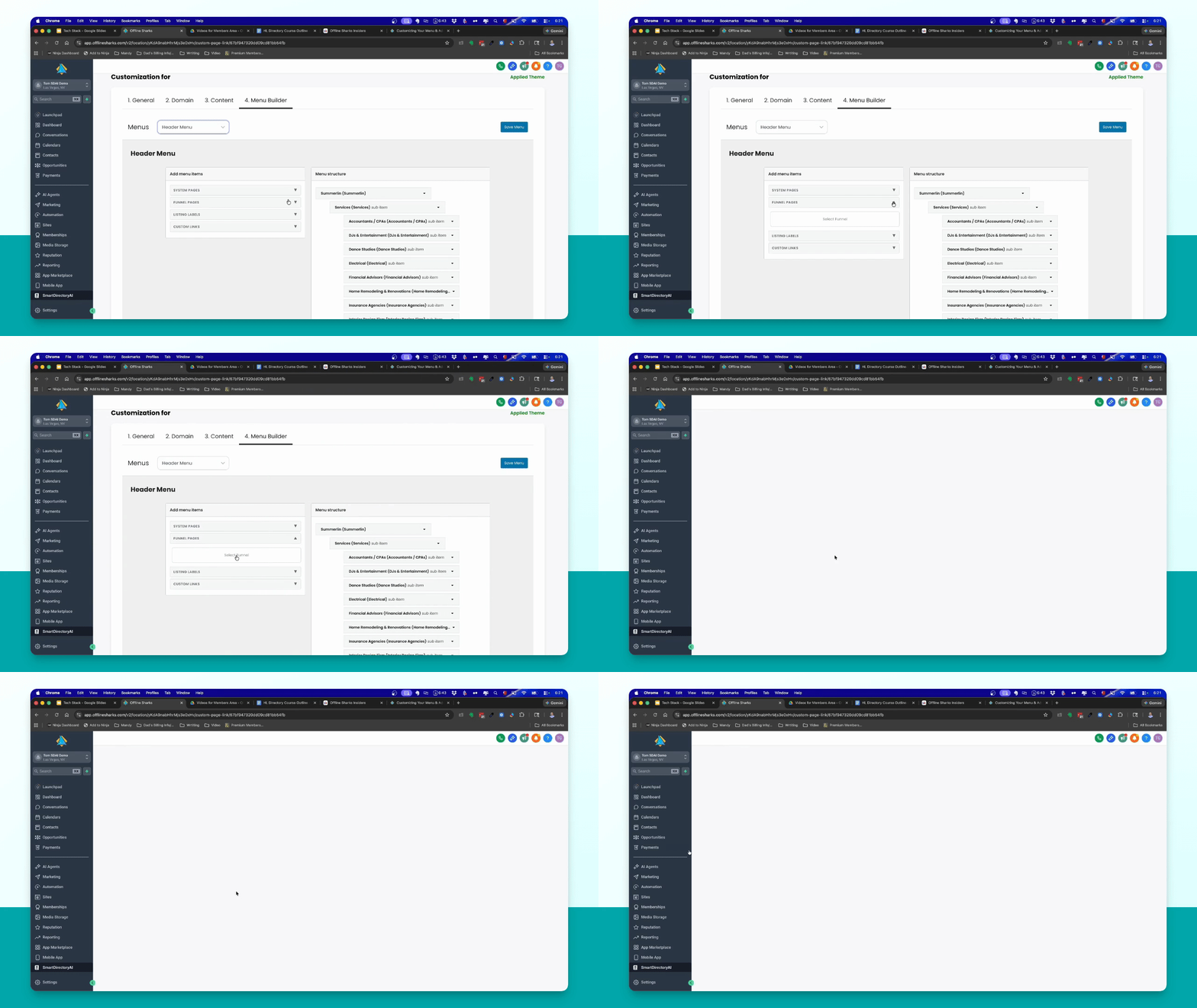
Step 3: Choose Funnel and Page
Select the funnel and then the specific page you created to add it to the menu. Click Add to Menu and rearrange it as needed using drag and drop.
Step 4: Finalize Menu Addition
Click Save Menu button to save your updates.