

If you encounter an error when trying to enrich existing Go High Level Contacts in the Leads tool, you need to create a Personal Integration Token (PIT). Let's look at the steps:
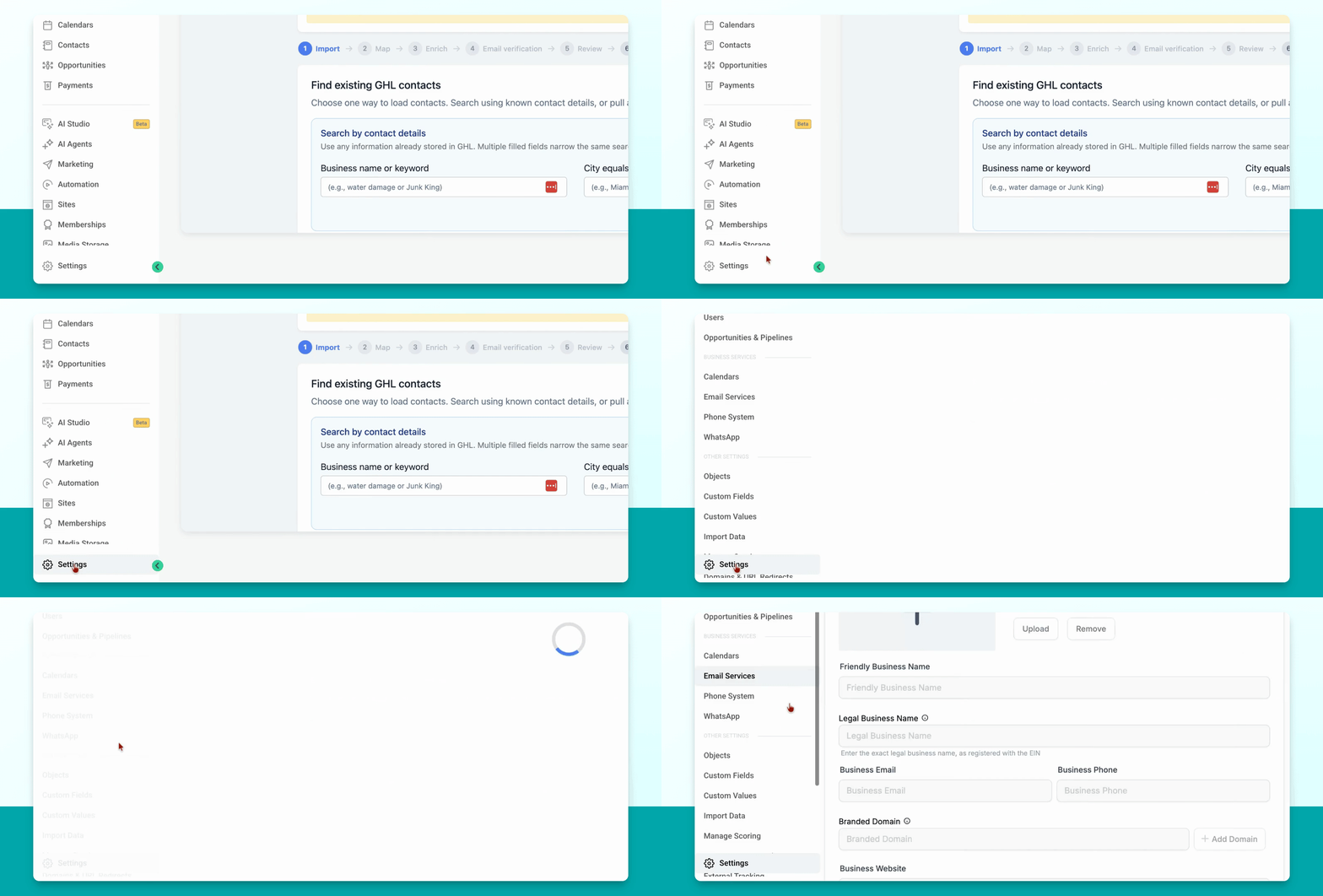
Step 1: Go to Settings
In the left-hand menu, select Settings.
Step 2: Create New Integration
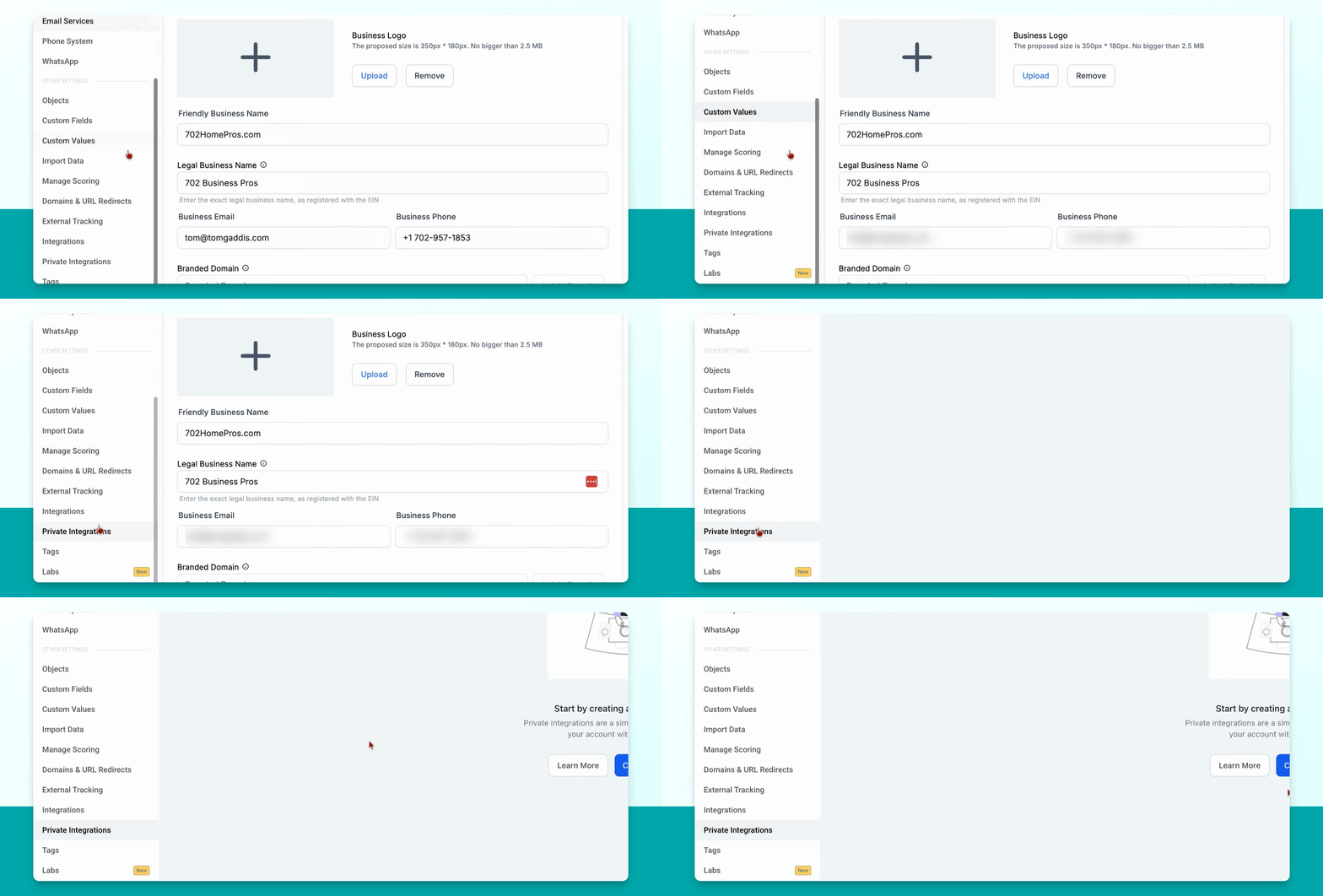
Under Private Integrations, click Create New Integration.
Step 3: Name the Integration
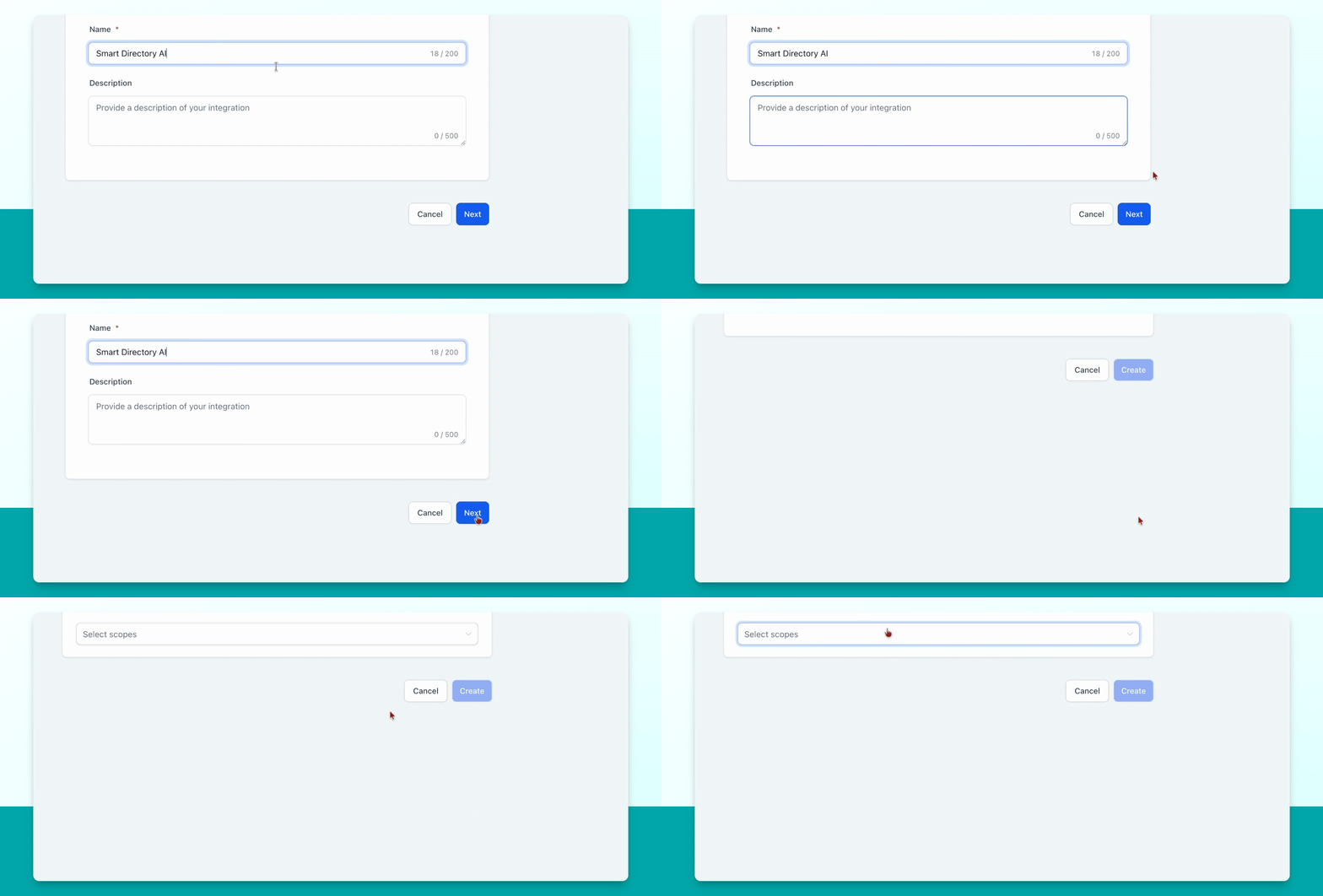
Enter a name for your new integration.
Step 4: Select Scopes and Confirm
Under Scopes, select All, then click Create and confirm your selection.
Step 5: Copy the Token
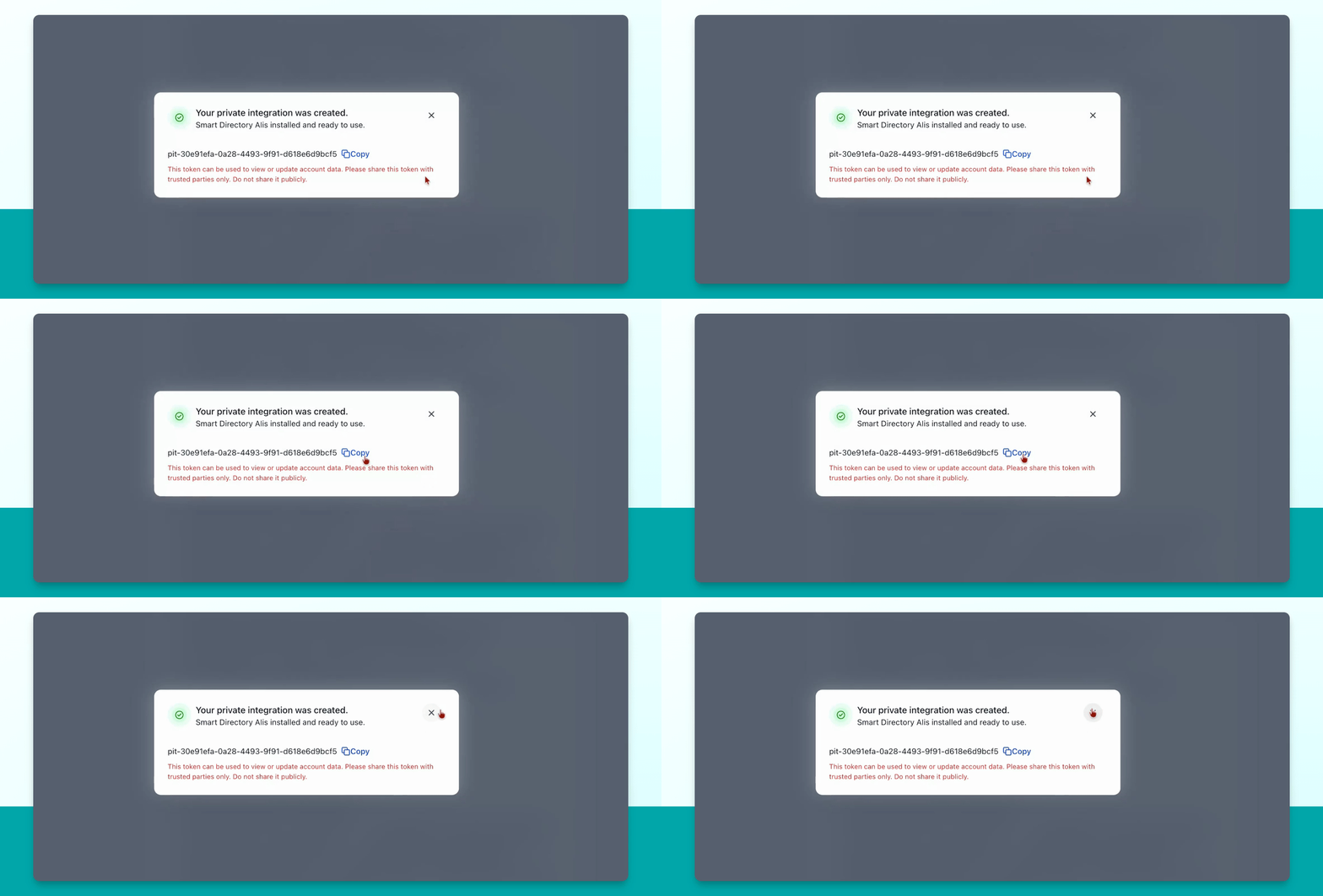
Copy the generated Personal Integration Token.
Step 6: Paste Token in Leads Tool
Return to your Leads Tool Dashboard. Navigate to Smart Directory AI Dashboard > Leads > Enrich Existing Contacts > Manage Go High Level Connection. Click the relevant option, paste your token in the provided field, and click Save and Test Connection.
Step 7: Confirm Connection
Paste your token as instructed and click Save and Test Connection. The connection will be saved and tested automatically.
You can now use Go High Level Contact Enrichment features in your Leads tool.