

Already have a list of business leads from another source?
SmartDirectoryAI allows you to import existing leads into the Leads system so you can take advantage of the same enrichment, email verification, and listing creation tools available for leads found directly through SmartDirectoryAI.
This is useful if you've purchased, generated, or collected a list of businesses elsewhere and want to bring those leads into SmartDirectoryAI.
Before You Import
Your leads must be in a SmartDirectoryAI-approved CSV format.
Other CSV formats will not work with the importer, so make sure you're using a lead file provided or generated in the correct SmartDirectoryAI format.
Importing the file itself does not automatically enrich, verify, or create listings from your leads. Those are separate actions you can perform after the import is complete.
How to Import Existing Leads
From your SmartDirectoryAI dashboard:
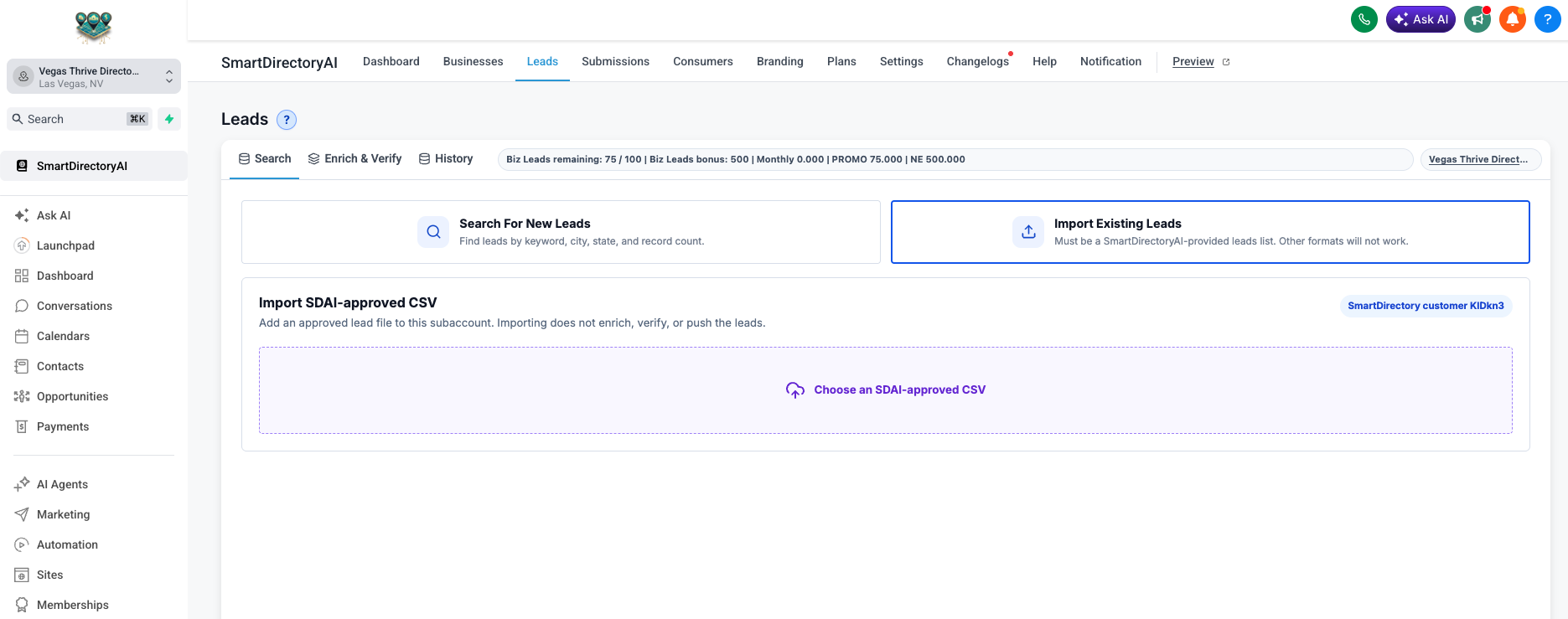
Click Leads in the top navigation.
Select the Search tab.
Click Import Existing Leads.
Click Choose an SDAI-approved CSV.
Select your CSV file from your computer.
SmartDirectoryAI will analyze the file before allowing you to import it.
Review Your CSV
Once your file has been uploaded, SmartDirectoryAI will display a preview of the data it found.
You'll see information including:
Rows Ready – The number of leads ready to be imported.
Duplicate Emails – Any duplicate email addresses detected within the file.
Field Coverage – A summary showing how many records contain business names, email addresses, phone numbers, cities, states, and websites.
You'll also see a confirmation when the file format is approved for import.
Review this information before continuing to make sure the file contains the leads you expected.
Add Your Niche and Location
Before importing, you'll also have the option to identify the market associated with the leads.
Enter or select the:
Niche / Keyword
City
Region
Country
This information helps SmartDirectoryAI organize the imported batch and is especially useful when you later enrich or work with the leads.
For example, if you're importing a list of plumbing companies in Las Vegas, you might use:
Niche / Keyword: Plumbers
City: Las Vegas
Region: Nevada
Country: United States
Import Your Leads
Once your file has been approved and you've reviewed the information, click Import Batch.
SmartDirectoryAI will process the CSV and add the businesses to your Leads system.
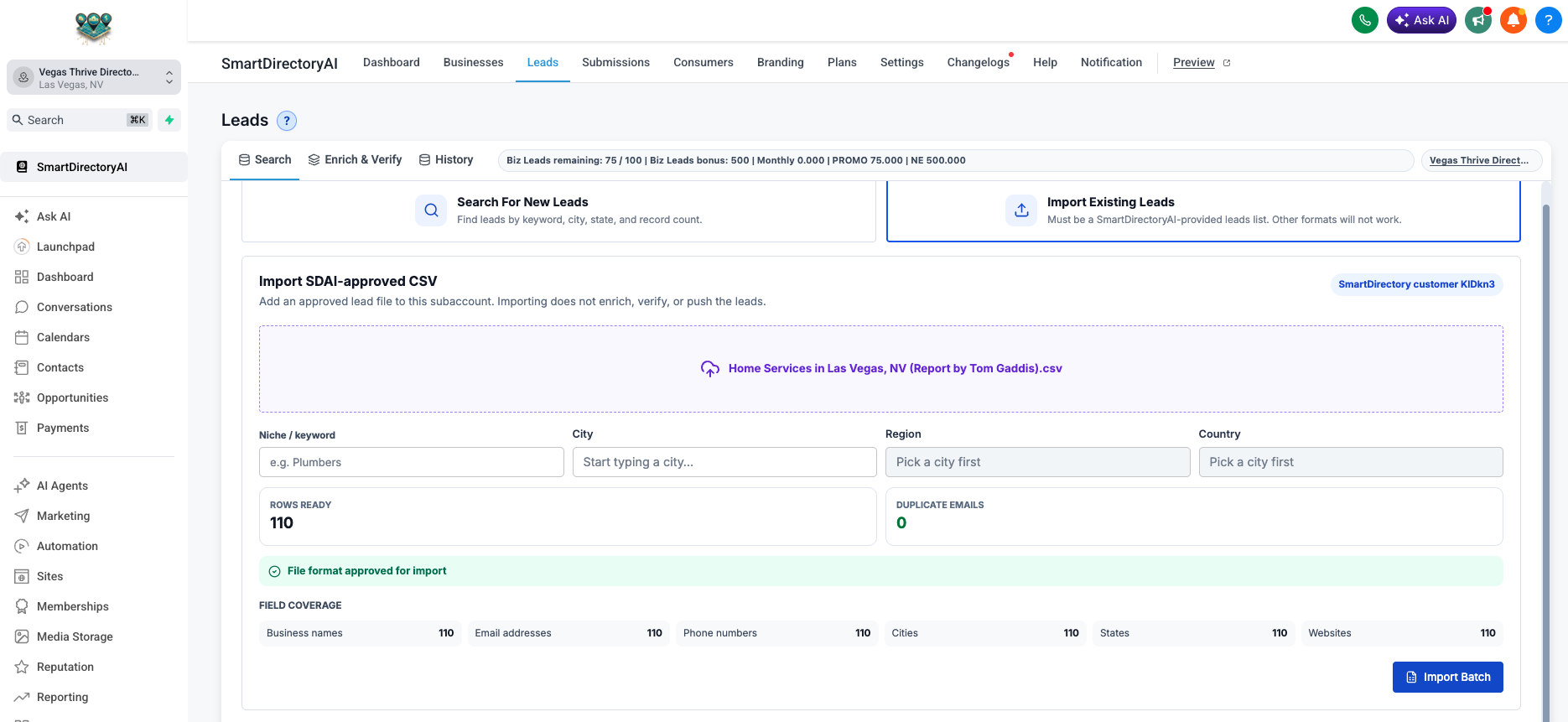
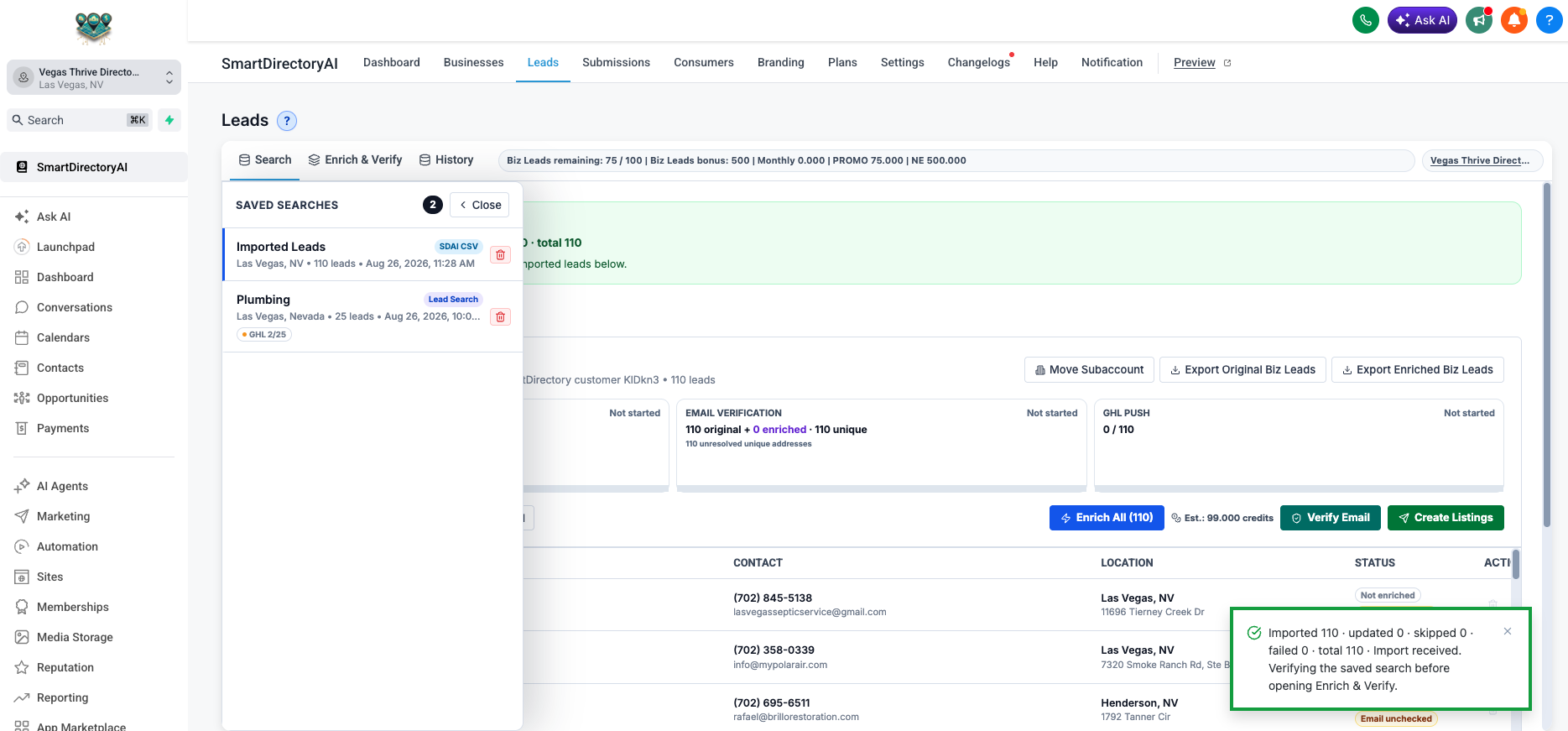
When the import is complete, you'll see a summary showing how many records were:
Imported
Updated
Skipped
Failed
SmartDirectoryAI will then verify the saved search before opening the imported batch.
Find Your Imported Leads
Imported lead lists are saved alongside searches you've created inside SmartDirectoryAI.
Go to Leads → Enrich & Verify and open Saved Searches.
Your imported batch will appear in the list, where you can select it and begin working with the leads.
From here, you can:
Enrich your leads to find additional business information and identify sales opportunities.
Verify email addresses before using them for outreach.
Create SmartDirectoryAI listings directly from your imported businesses.
Export your lead data for use elsewhere.
Importing vs. Searching for Leads
There are now two ways to get businesses into the SmartDirectoryAI Leads system.
Search For New Leads lets SmartDirectoryAI find businesses for you based on a niche and location.
Import Existing Leads lets you bring a compatible list you already have into SmartDirectoryAI and use the Leads tools on those businesses.
Either way, once the businesses are inside the Leads system, you can use SmartDirectoryAI's enrichment, verification, and listing creation tools to turn a basic lead list into something much more useful.
Tip: If you plan to contact your imported leads, consider enriching them first and verifying their email addresses afterward. Enrichment may uncover additional or updated contact information, while verification helps you determine which email addresses are ready for outreach.