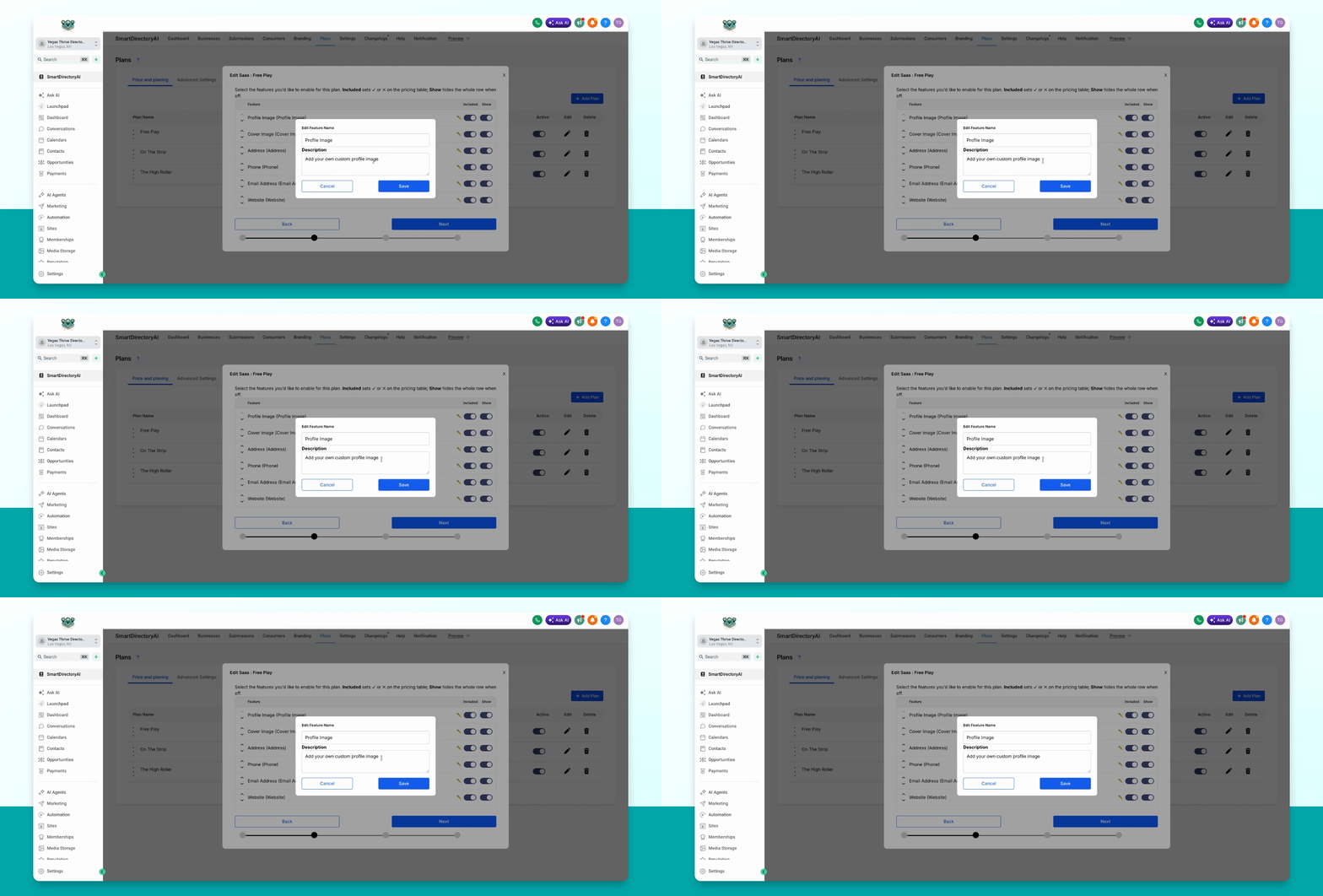

This guide explains how to edit the names of items in your Premium plans using the Smart Directory AI Dashboard. Let's look at the steps:
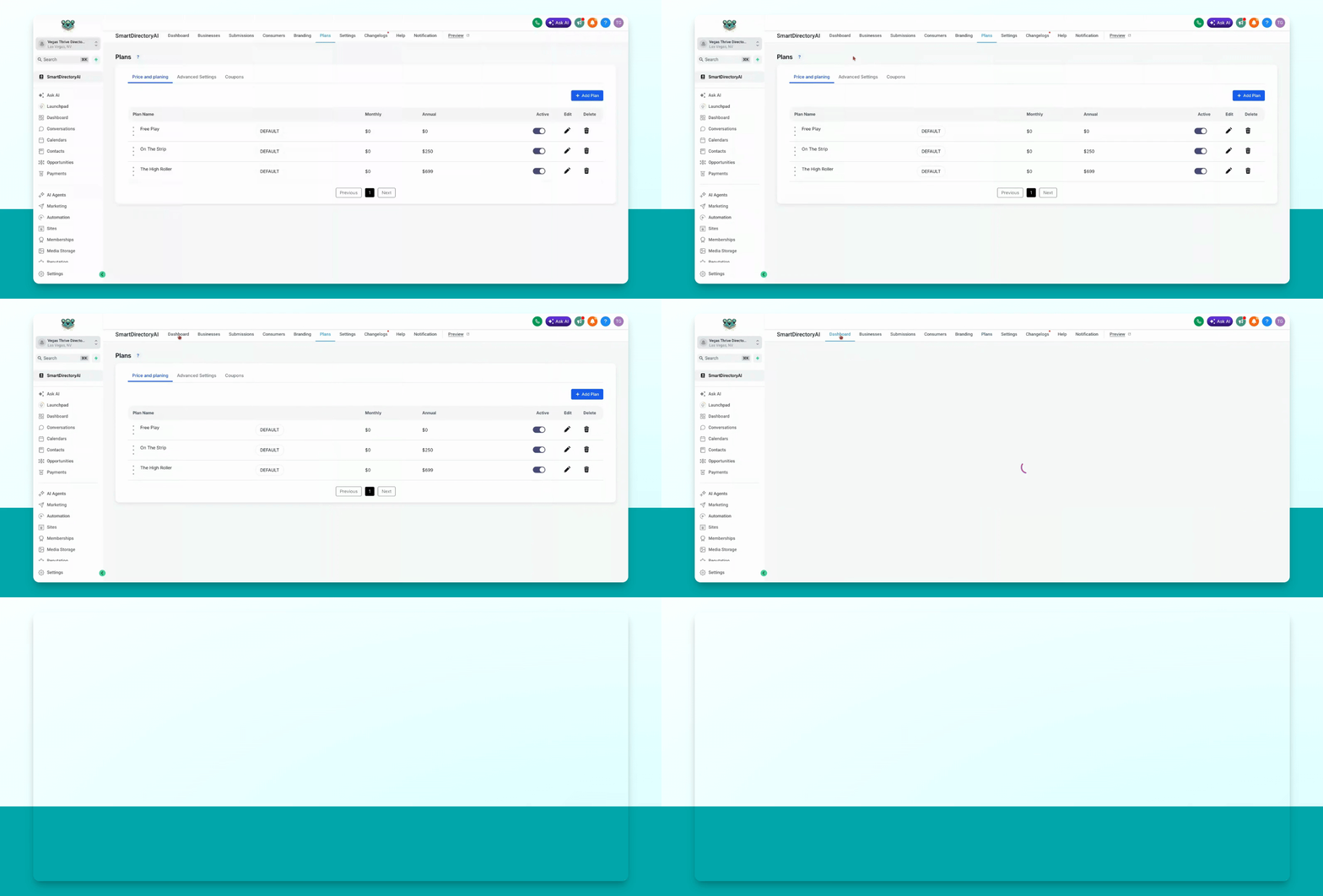
Step 1: Open Plans Section
In your Smart Directory AI Dashboard, click Plans.
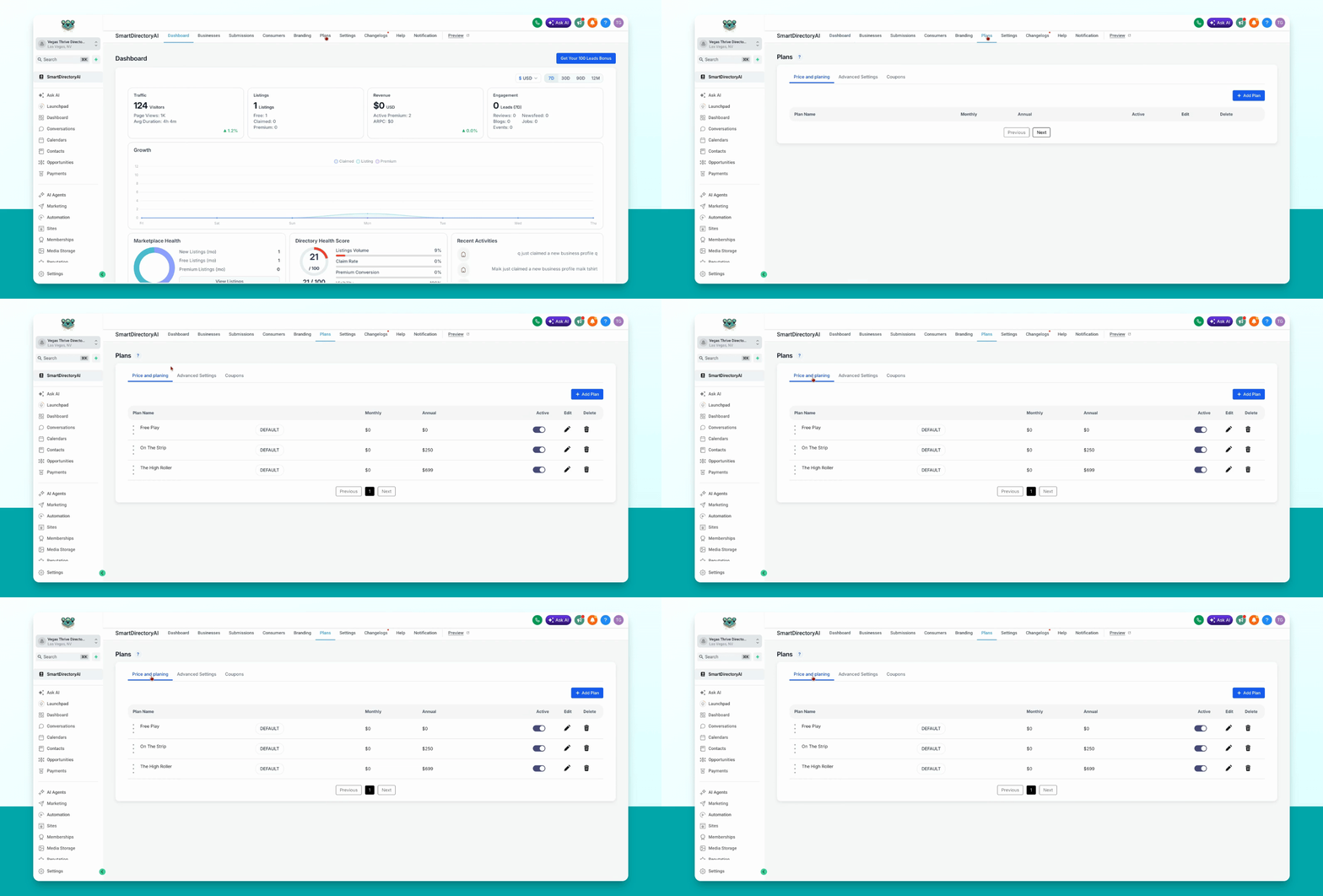
Step 2: Go to Price and Planning
Navigate to the Price and Planning section.
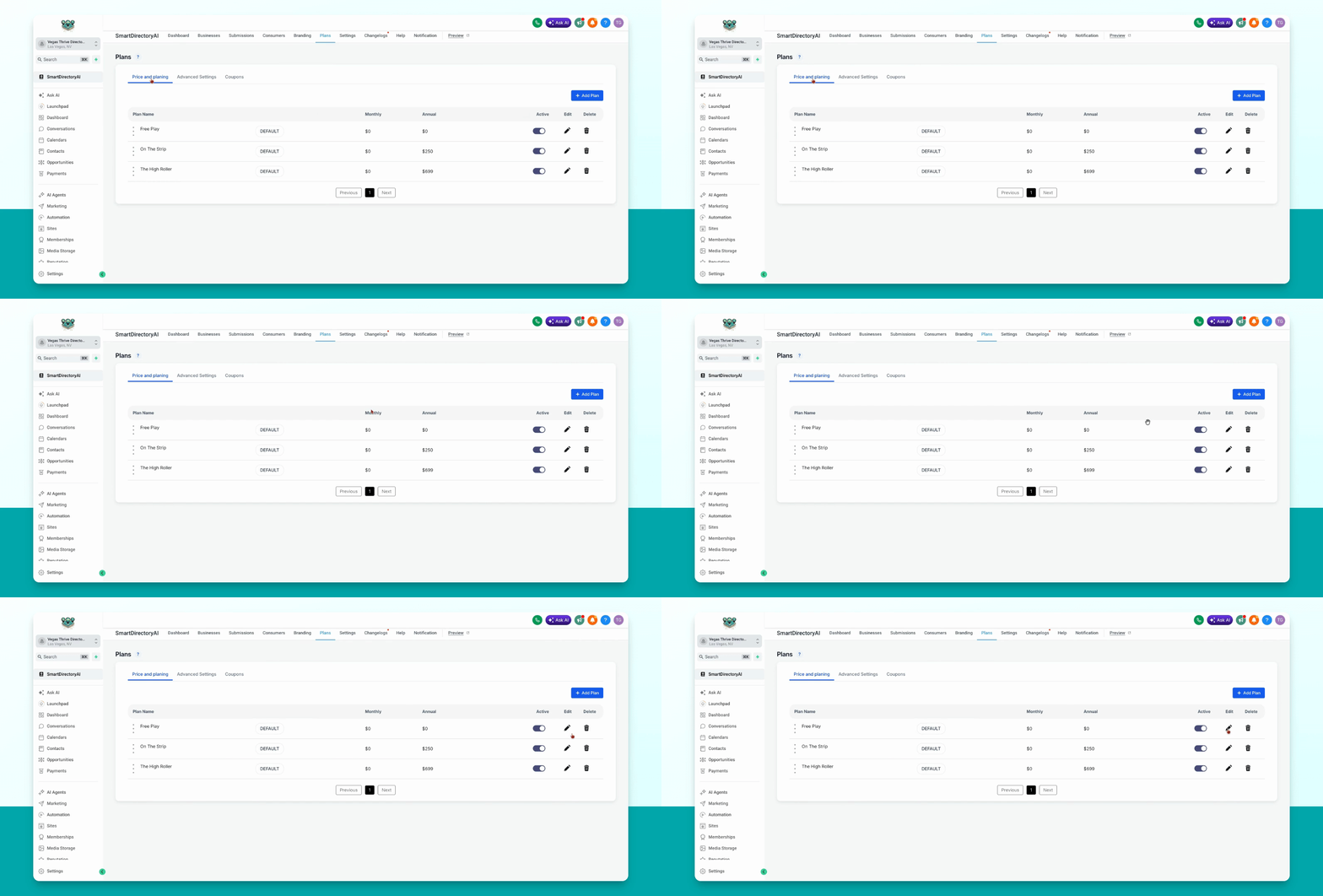
Step 3: Select Plan to Edit
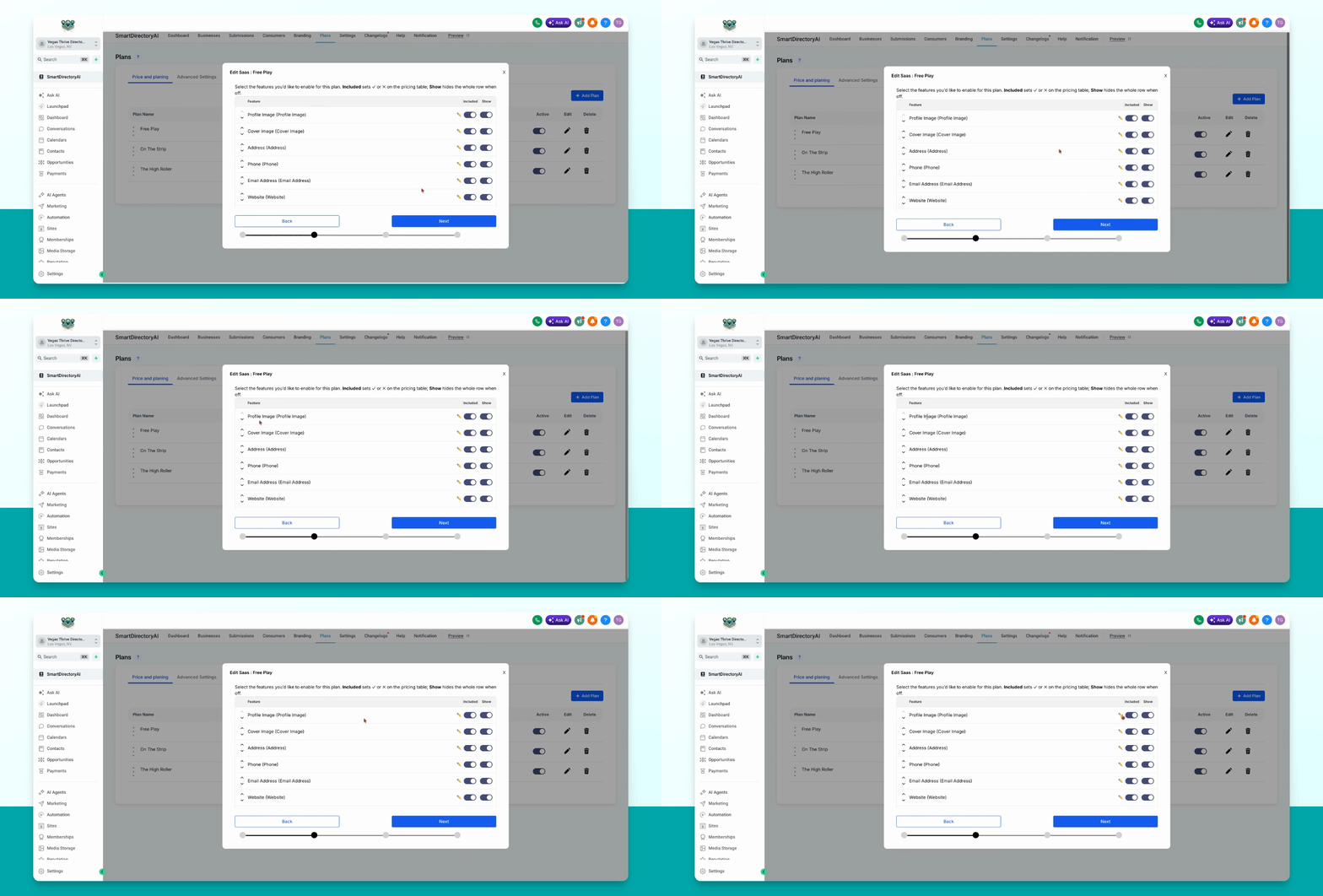
Select the plan you want to edit by clicking the pencil icon under Edit. Go to the section that lists the items.
Step 4: Edit Item Name
To edit an item's name, click the pencil icon to the left of the included Toggle on button.
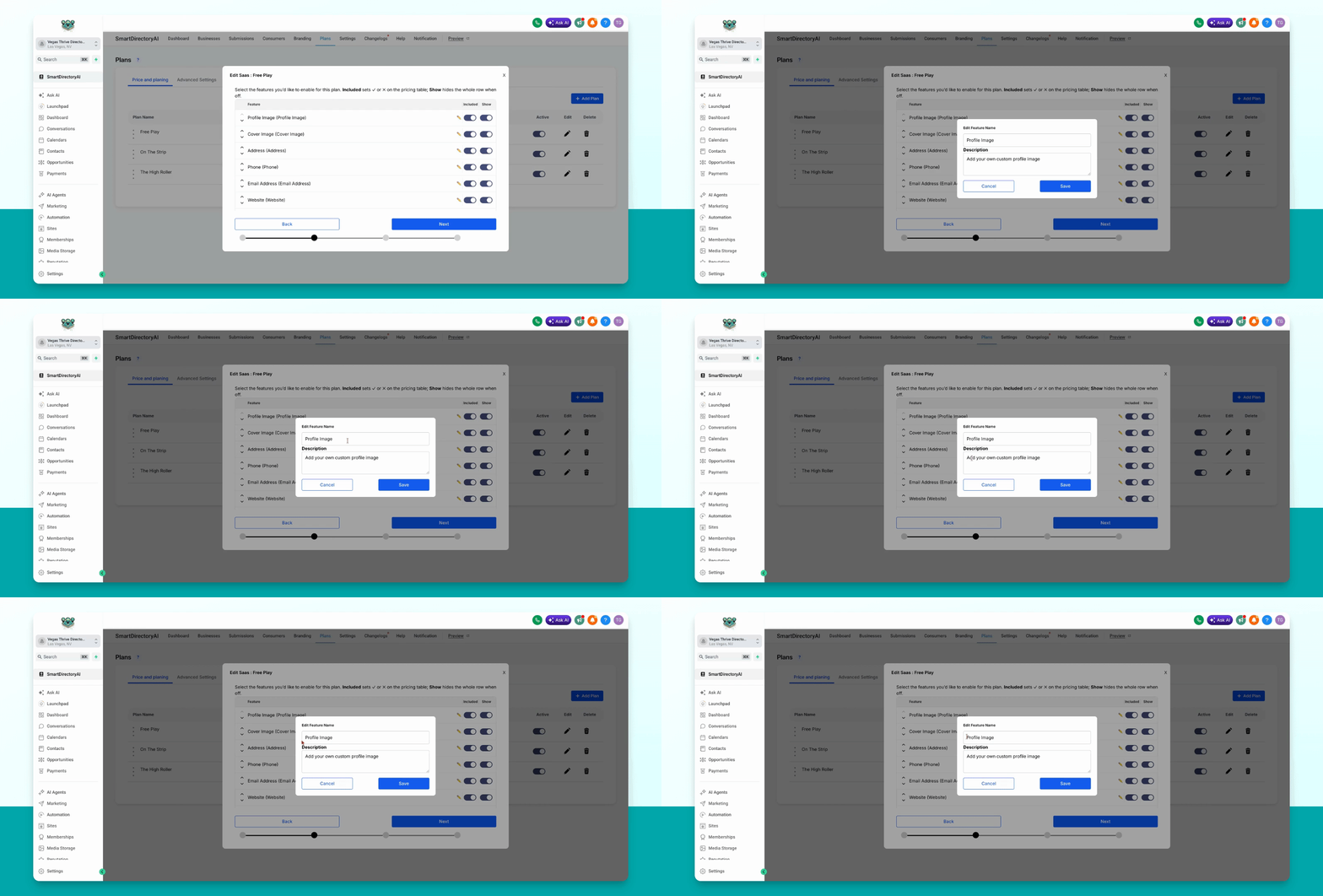
Step 5: Enter New Name
Enter the new name you want for the item.
Step 6: Add Description (Optional)
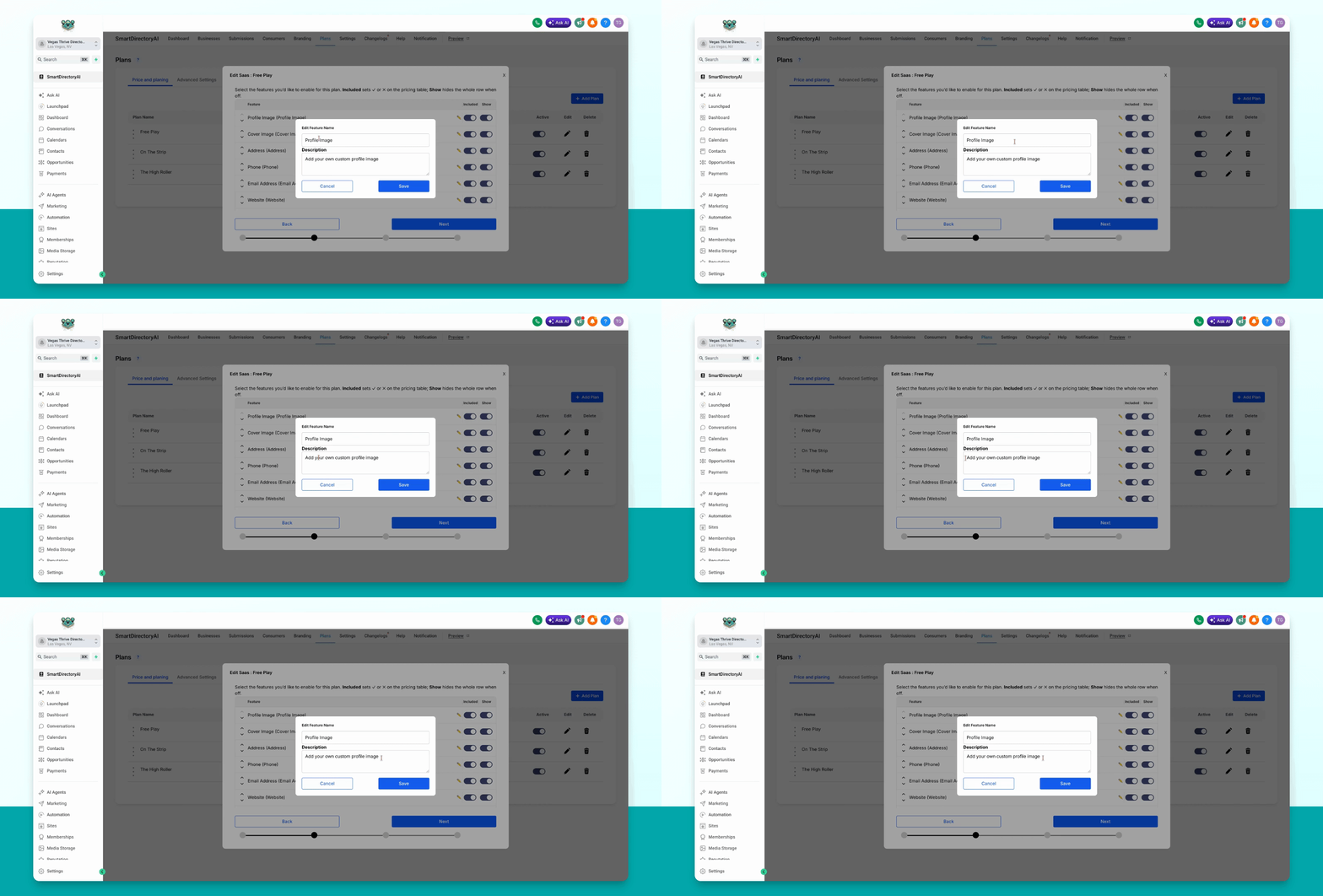
You can also add a description for the item if desired.
Step 7: Save Changes
The description will appear when someone hovers over the item. Click Save to apply your changes.