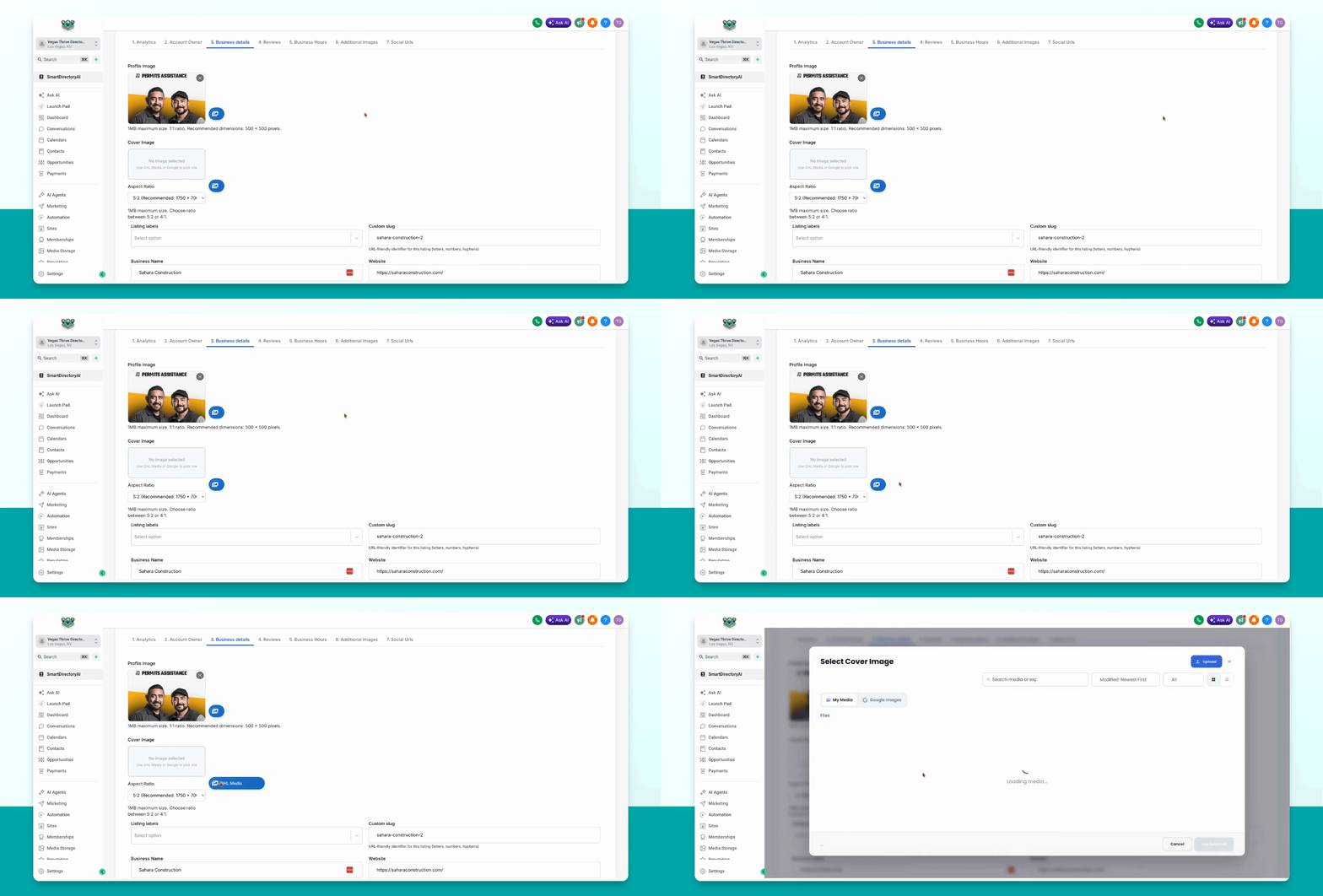

This guide explains how to import images from a Google Business Profile into your individual listings on Smart Directory AI. Let's look at the steps:
Step 1: Connect Google API
Ensure the Google API is connected to your Smart Directory AI site before proceeding.
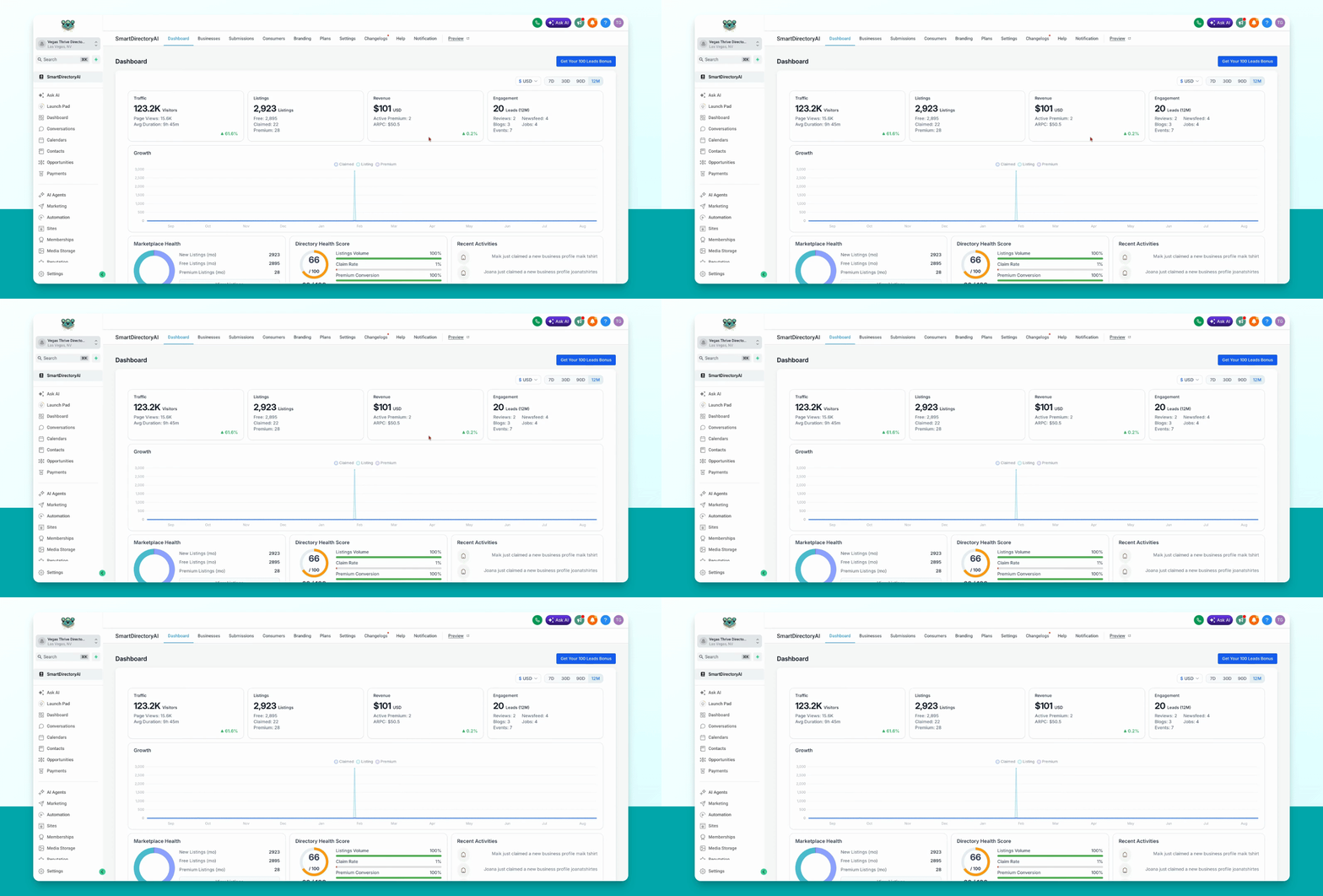
Step 2: Open Businesses Section
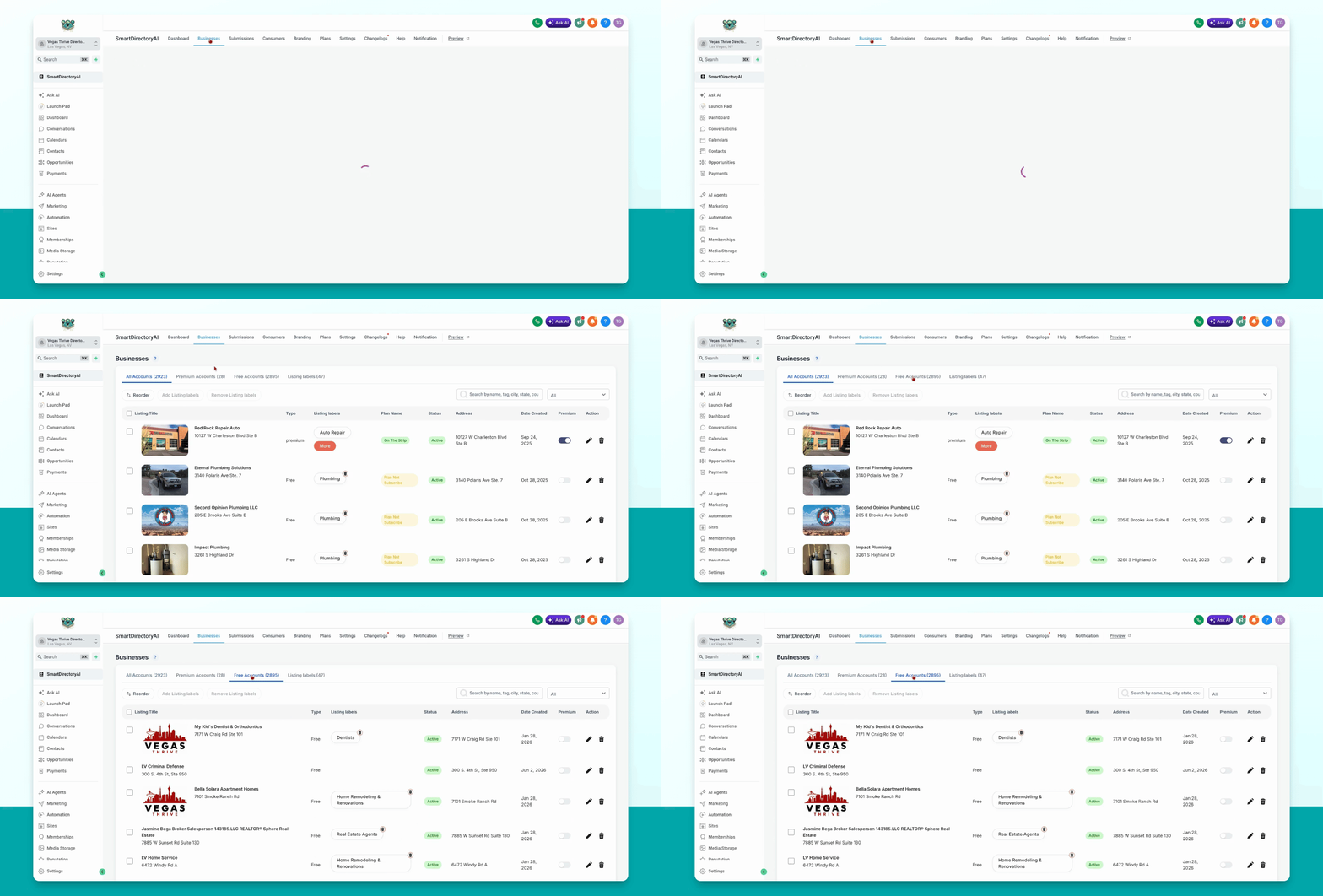
Go to the Businesses section in your dashboard.
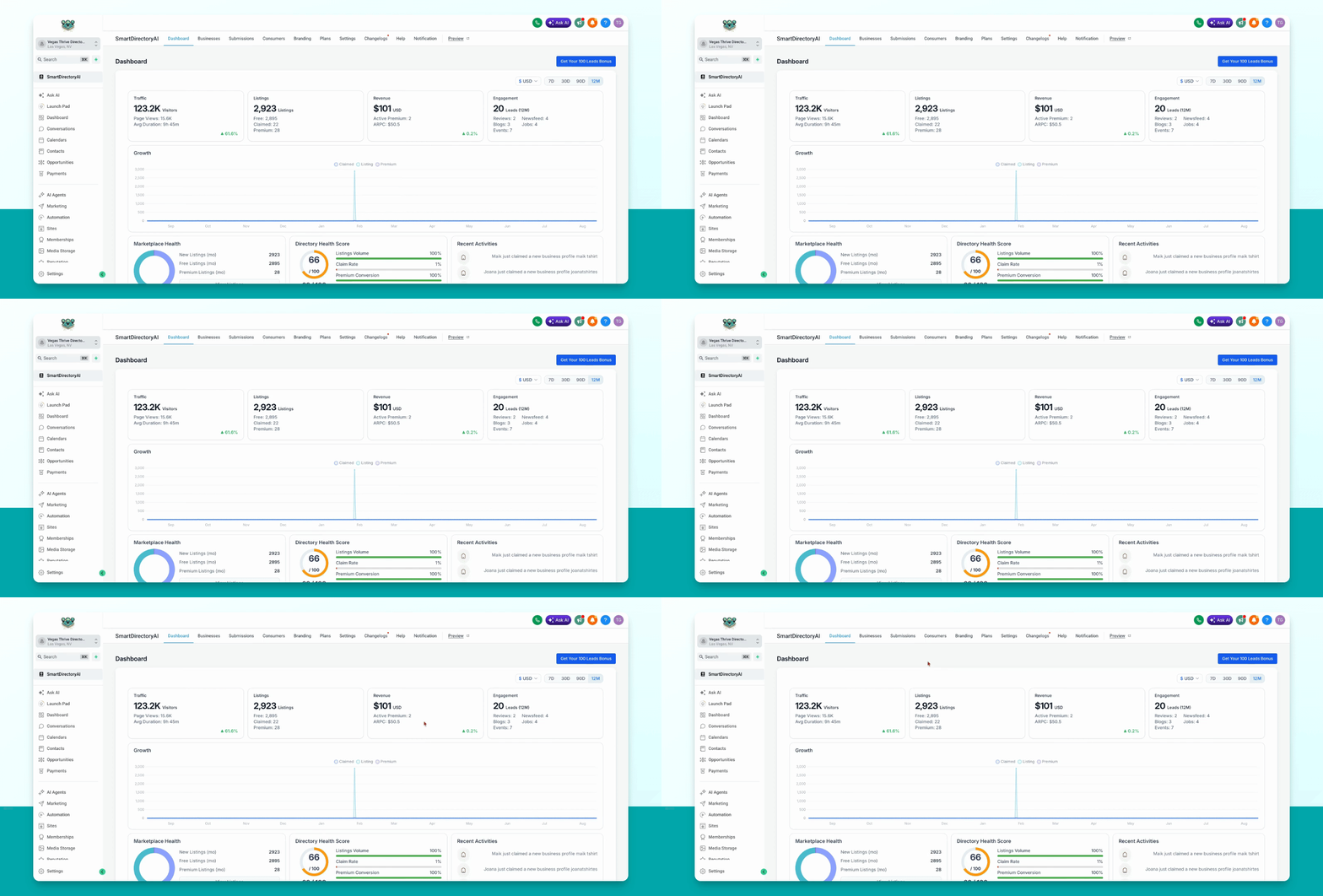
Step 3: Find and Edit Listing
Find the business you want to update and click the pencil icon to edit the listing.
Step 4: Connect Google Business Profile
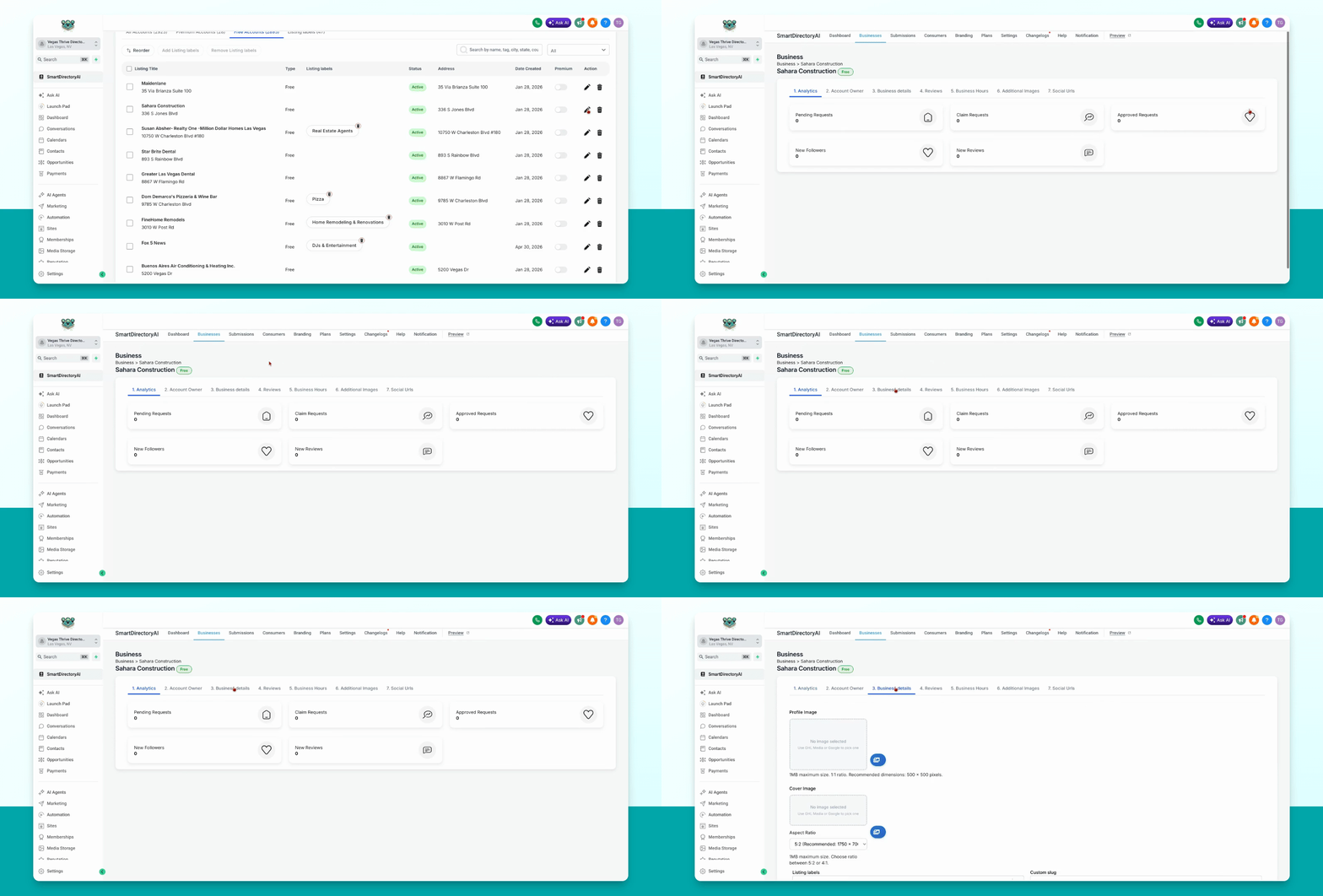
Go to Business Details. Copy the business name, then paste it into the field labeled link to Google Business Profile in the lower right. When a list appears, select the correct business. Click to save the Google Business Profile connection.
Step 5: Import Images from Google
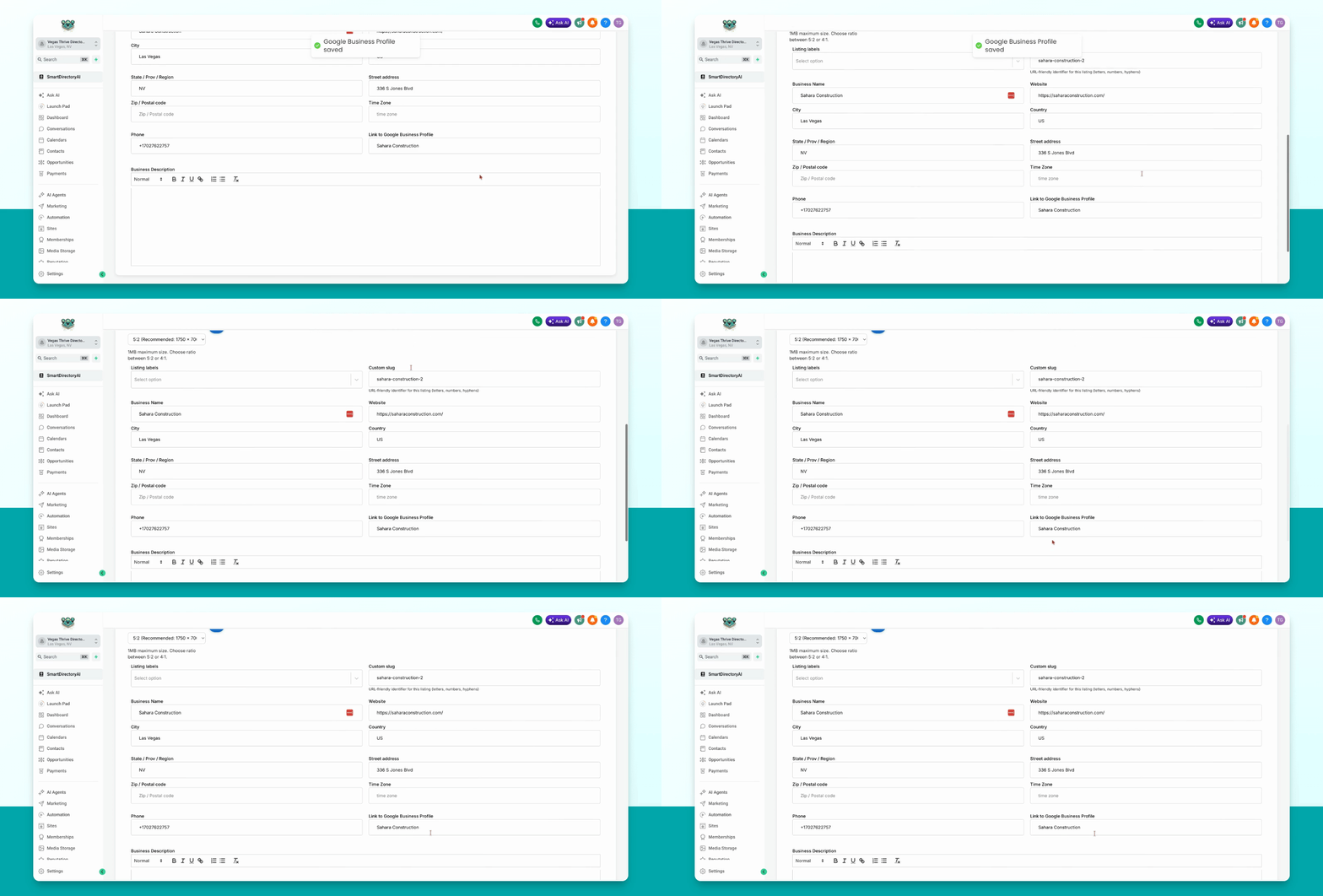
Click on image in the listing. Choose the Google Images option to pull in images from the connected Google Business Profile.
Step 6: Set Profile Image
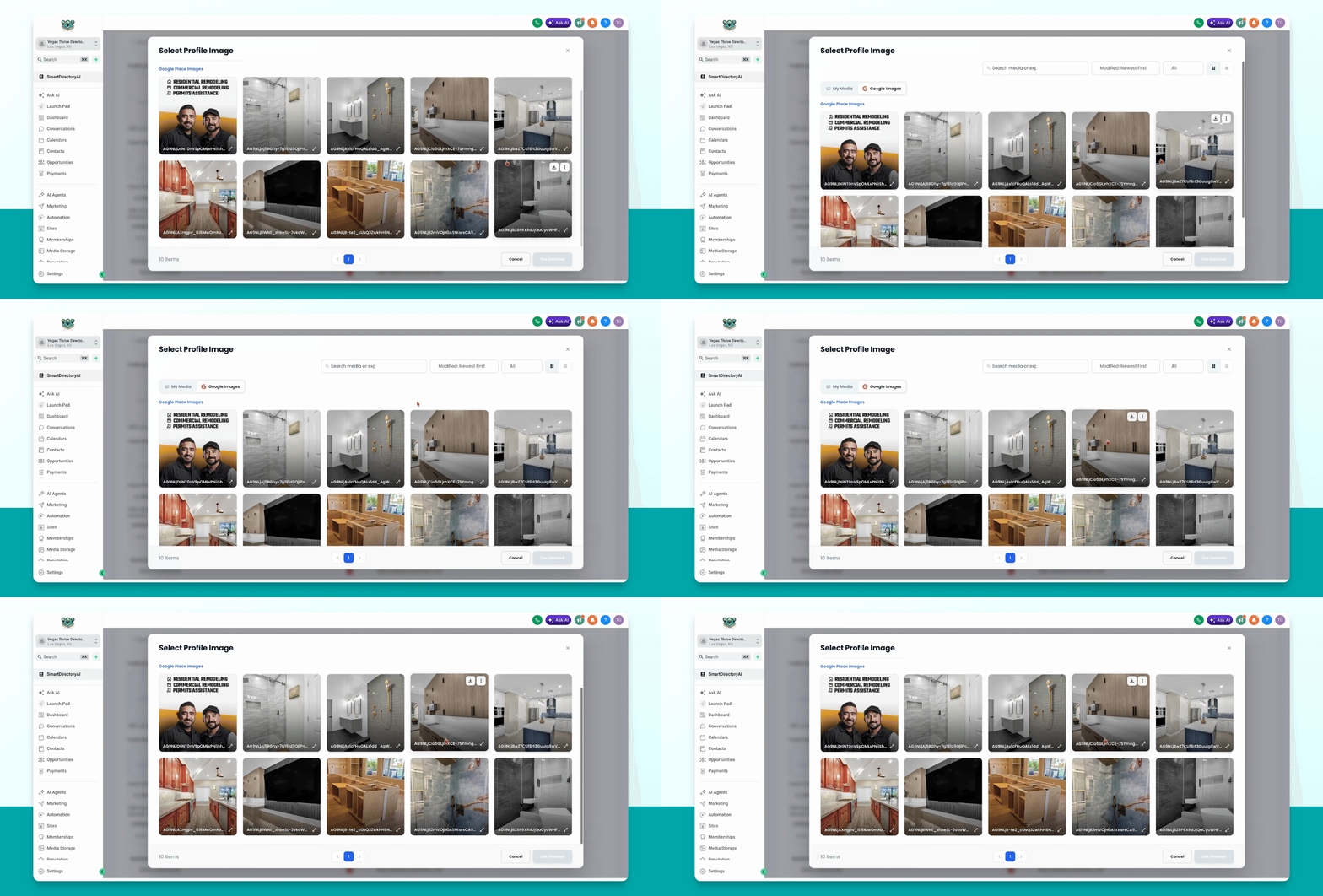
Select the desired image and click use selected to set it as the profile image.
Step 7: Set COVID Profile Image
Repeat the process for the COVID image: go to Google Images, choose an image, and click use selected to set it as the COVID Profile image.