

This guide explains how to add businesses that respond to your Facebook group posts into your Smart Directory AI account. You'll create two contacts for each business: one for the business listing and one for the consumer profile. Let's look at the steps:
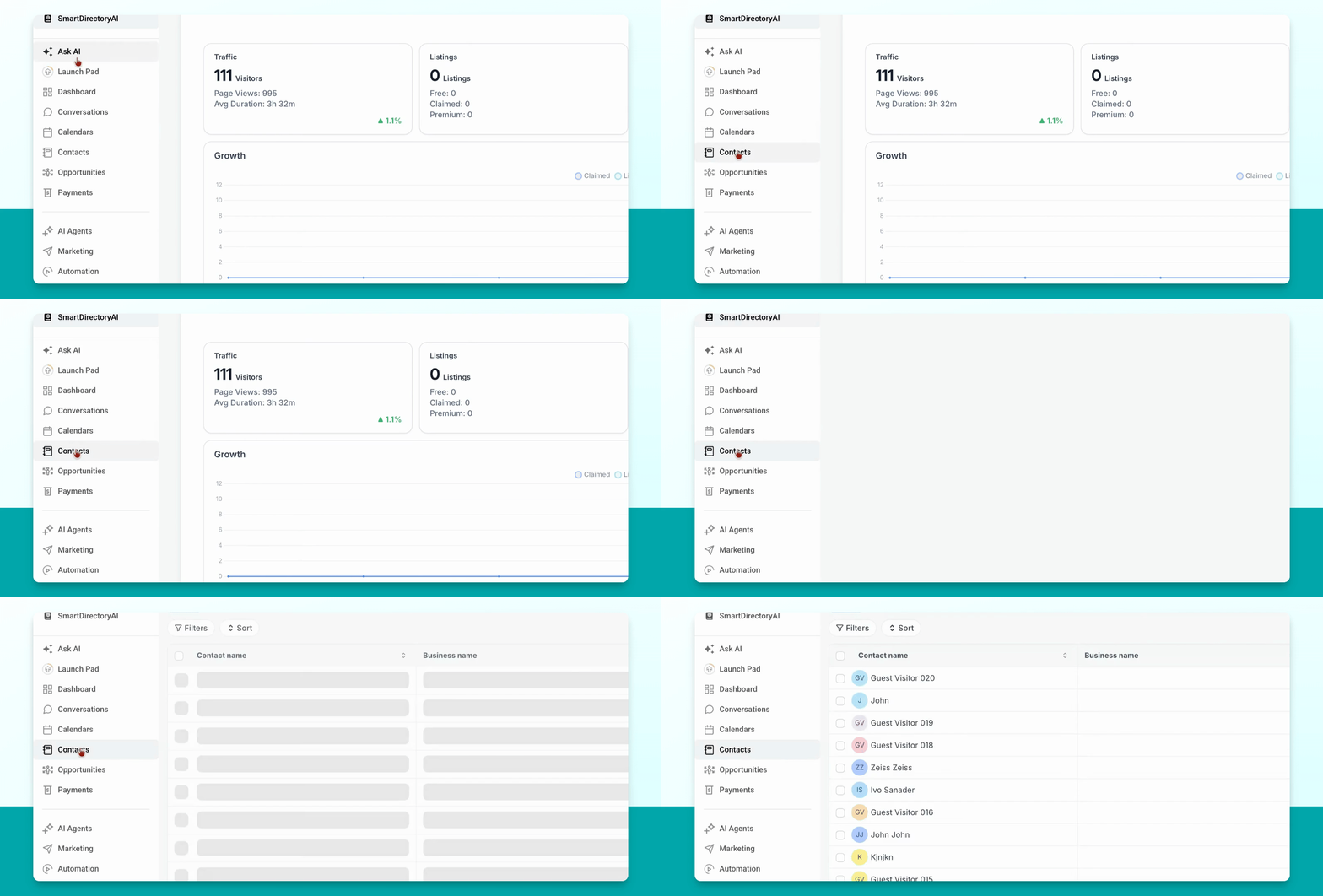
Step 1: Go to Contacts
Navigate to the Contacts section in your Smart Directory AI account using the left-hand menu.
Step 2: Add a New Contact
Click the blue Add contact button to start creating a new contact.
Step 3: Create Business Listing Contact
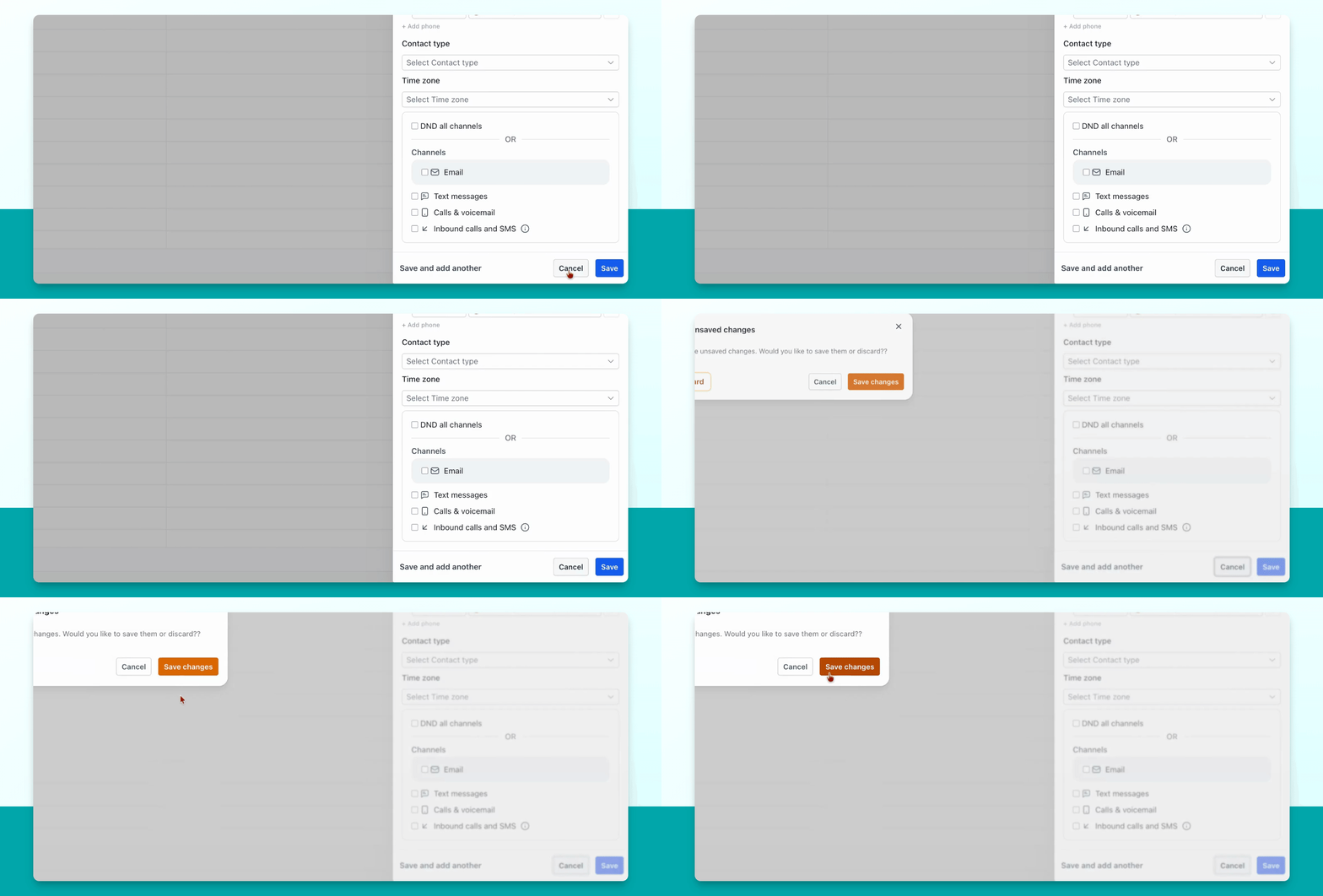
For the business listing, enter the business name in the First Name field. Fill in their email and any other available information.
Step 4: Save the Business Contact
Click Save to add the business contact.
Step 5: Create Consumer Listing Contact
Repeat the process to add a second contact for the consumer listing. Enter their first name, last name, email, and other relevant details.
Step 6: Locate Both Contacts
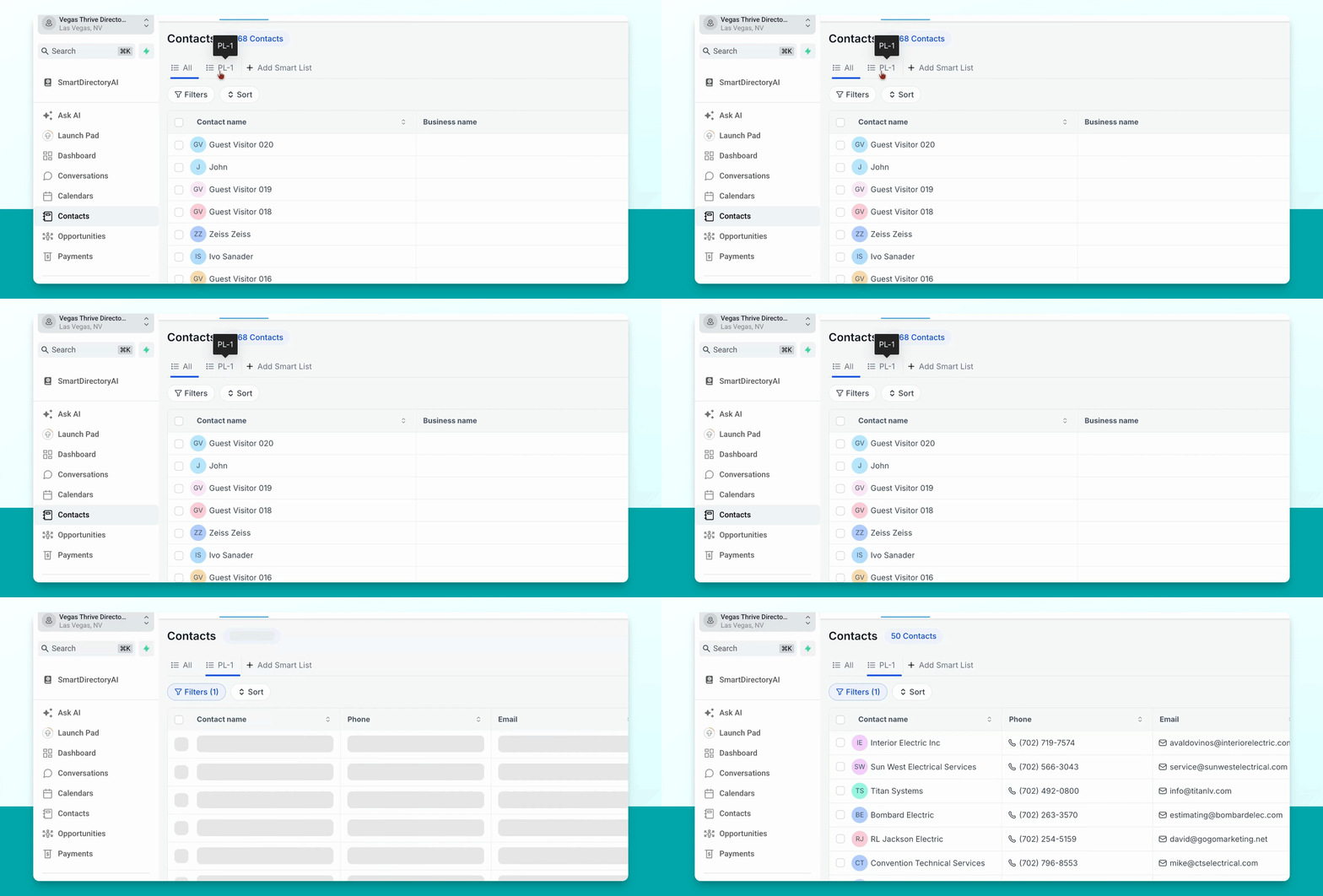
Find the two newly created contacts in your contact section.
Step 7: Tag the Business Contact
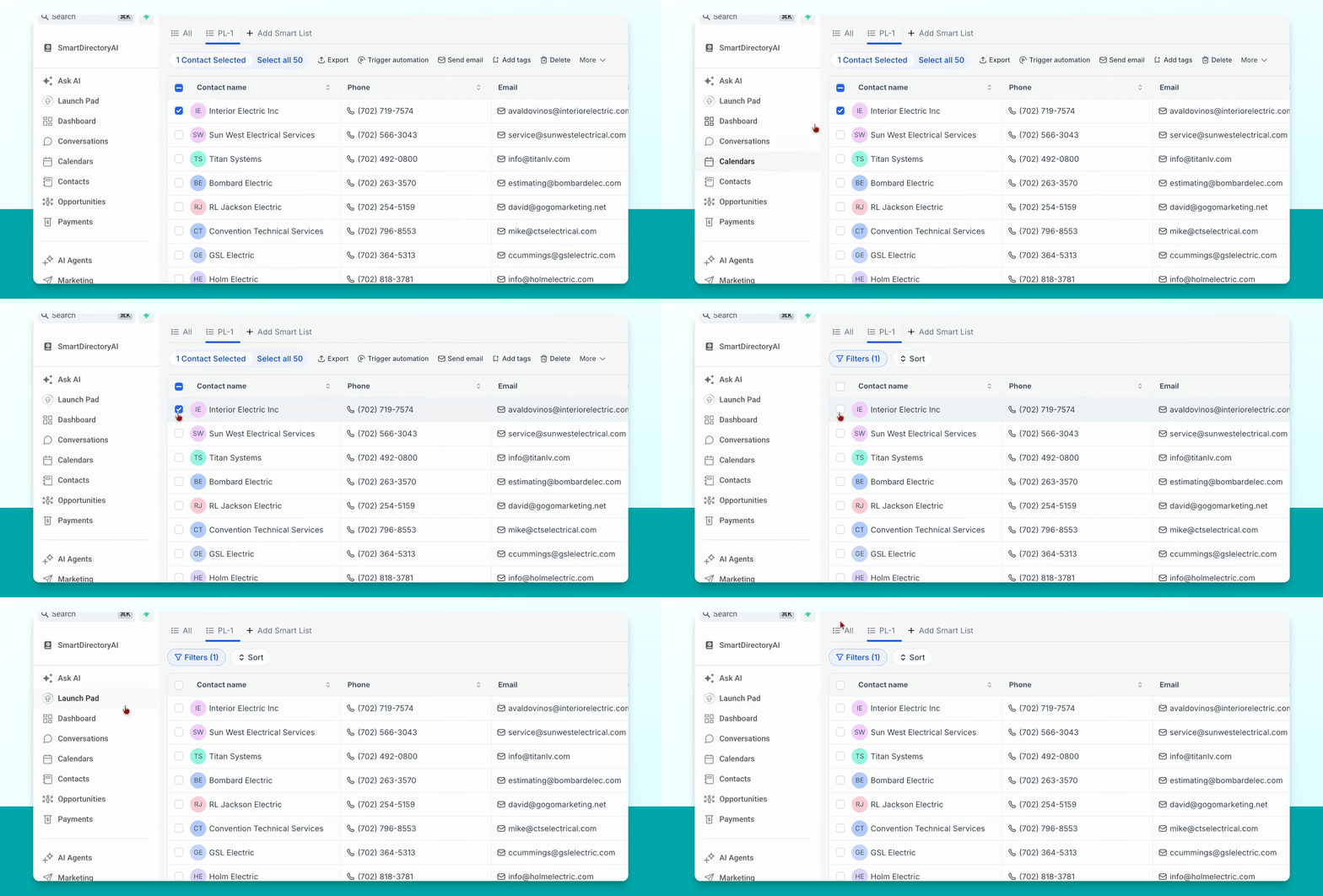
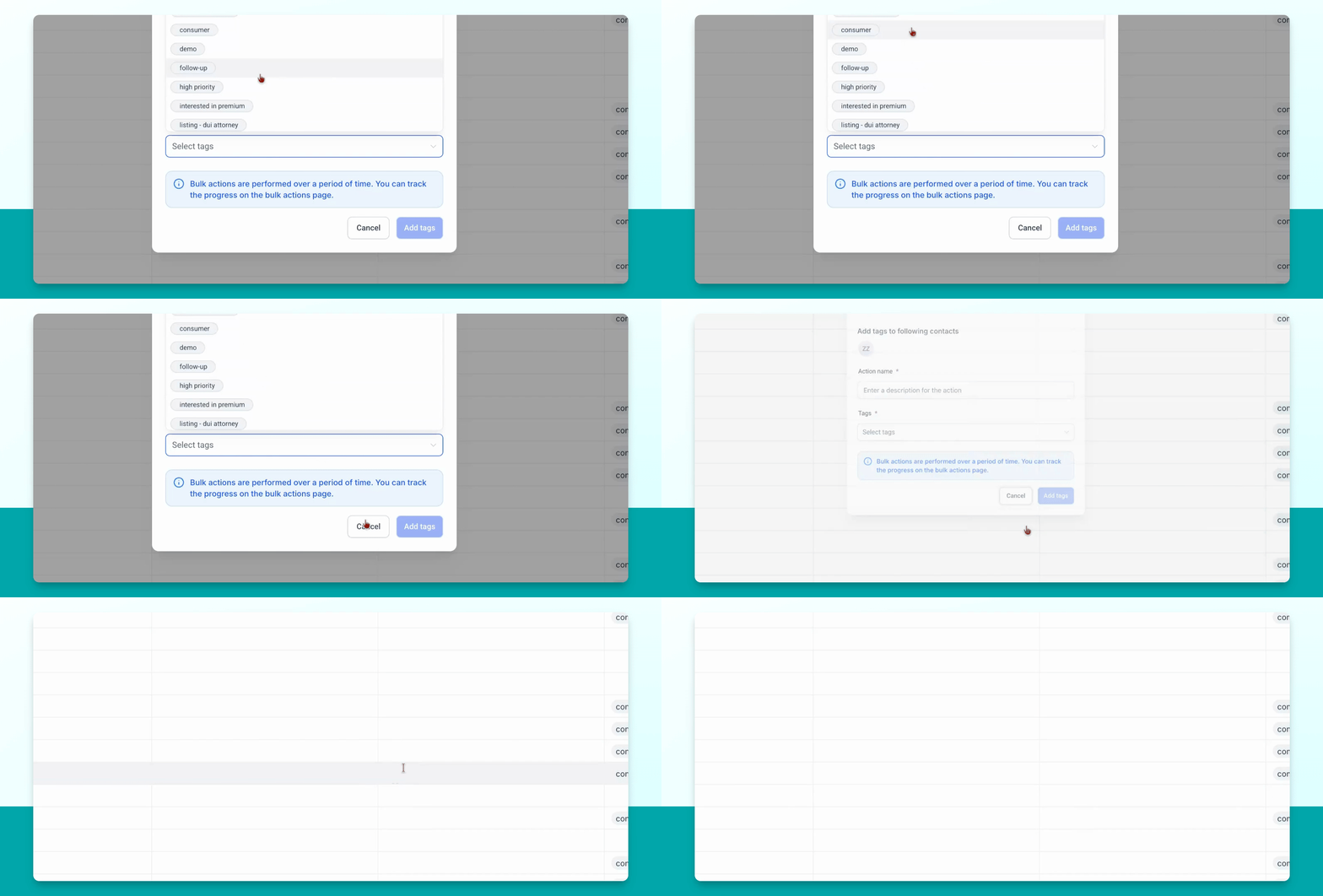
Select the business listing contact, go to Add tags, choose Business from the dropdown, and add the tag. This creates a business listing on your site.
Step 8: Tag the Consumer Contact
Select the consumer contact and add the Consumer tag. This creates their consumer profile.
When you add the consumer tag, the system will email the user a username and password so they can log in and manage their own listing.
To recap, after a business responds to your Facebook message and you receive their information, create two contacts: one for the business listing on your site and one for their personal consumer listing. This allows them to log in and manage their listing.