Let's do it together!
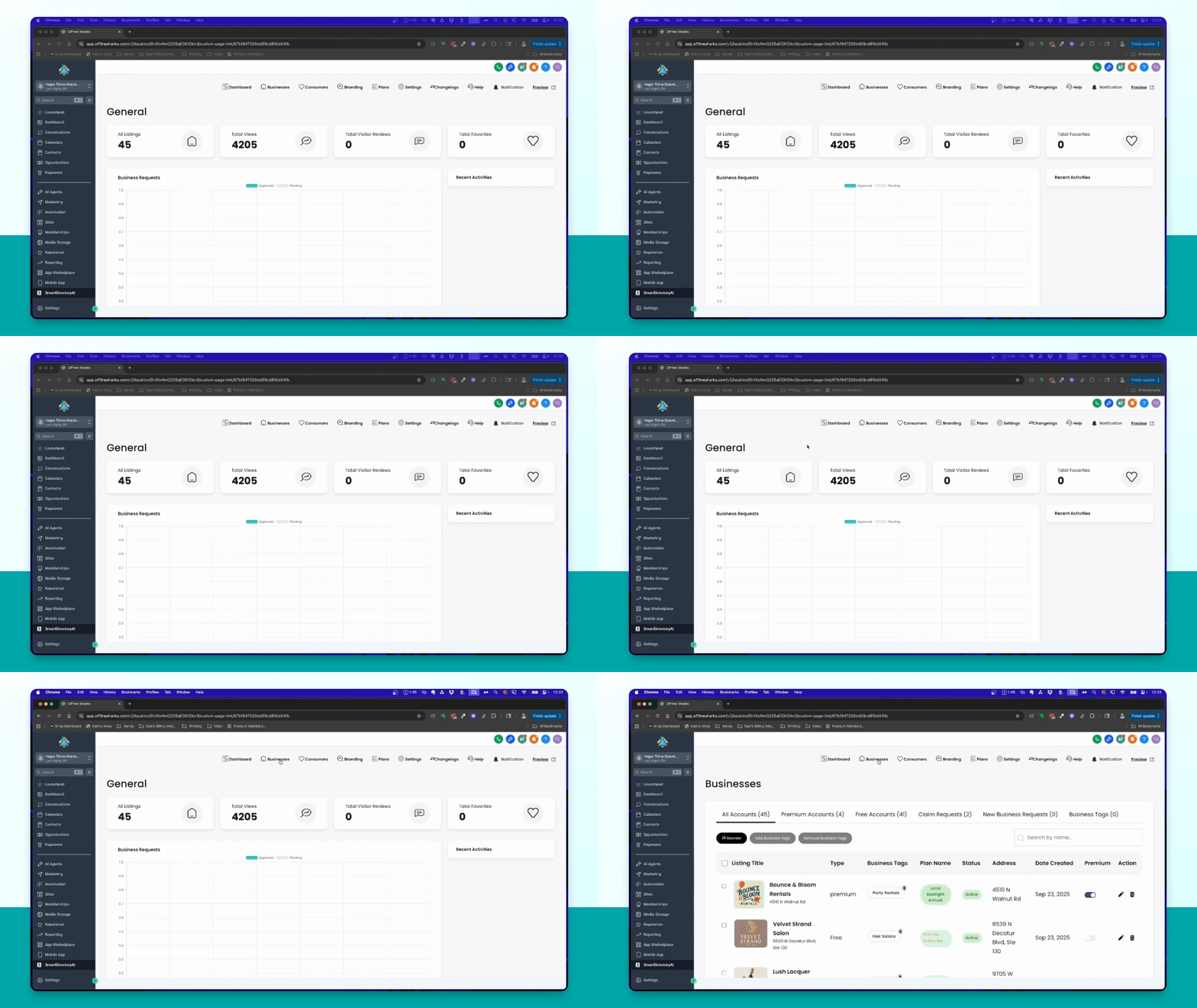
Step 1: Access Businesses
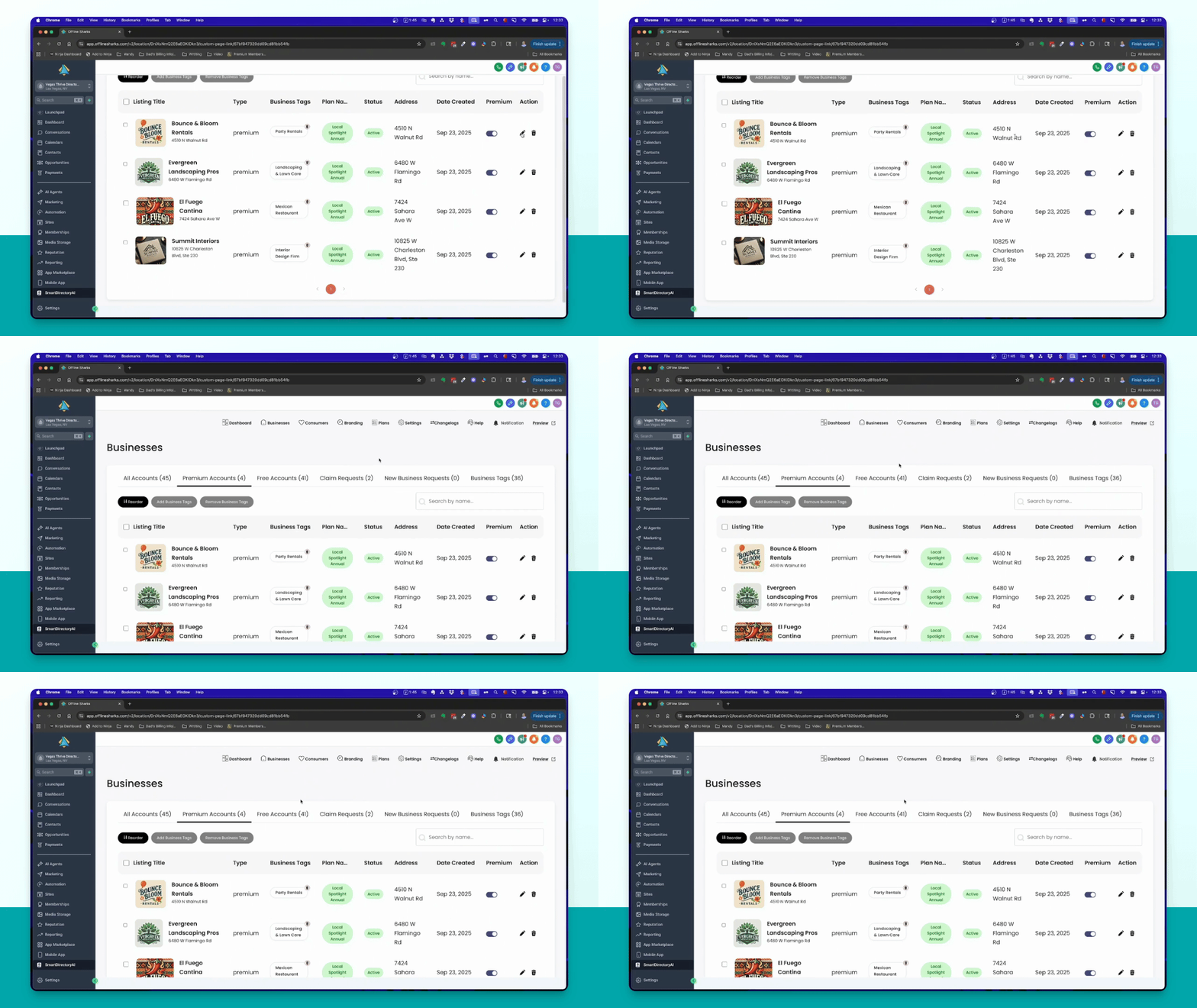
Click on Businesses in the main menu to find the listing you want to edit.
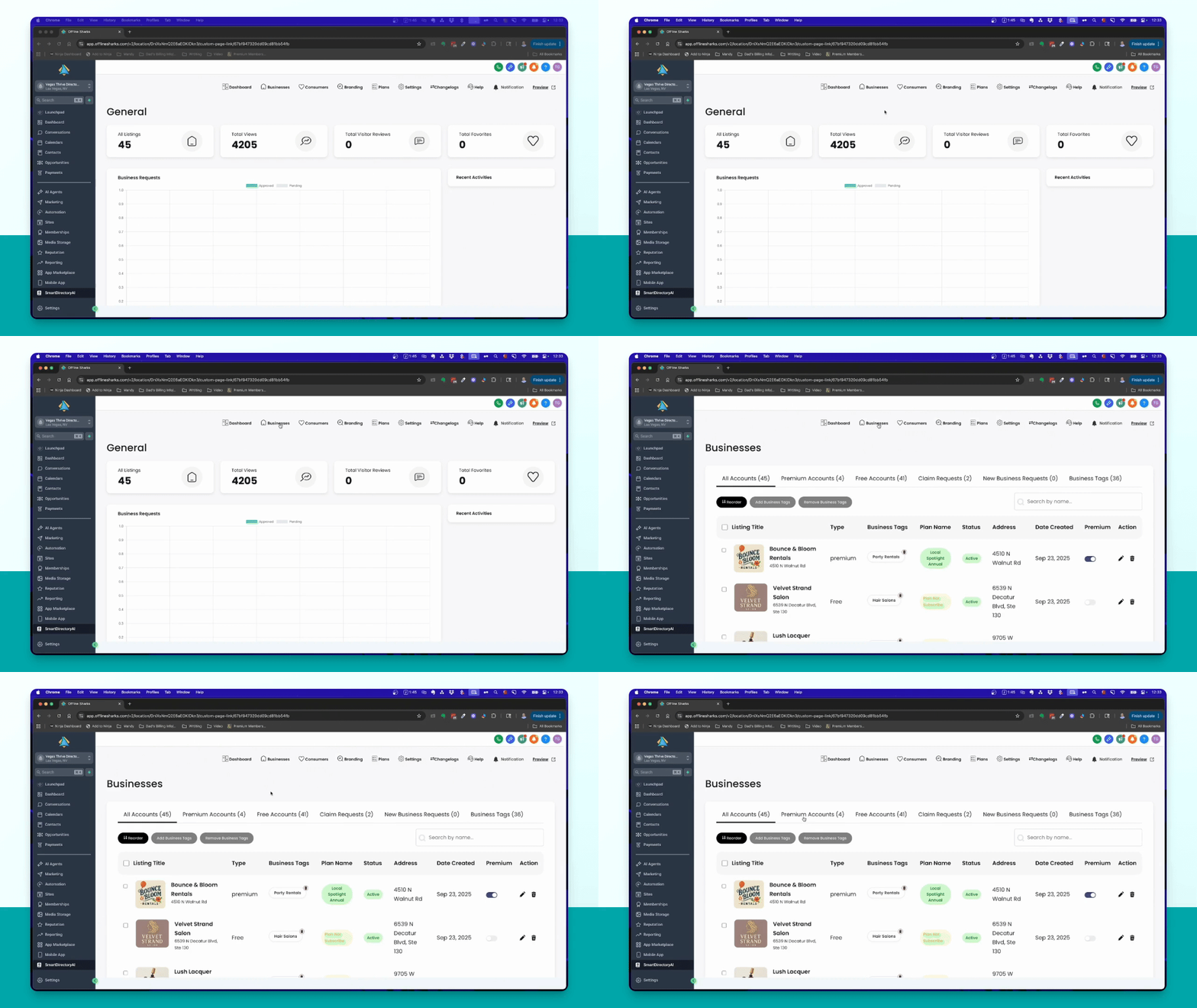
Step 2: Select Premium Account
If you have existing Premium accounts, select one from the Premium Accounts column.
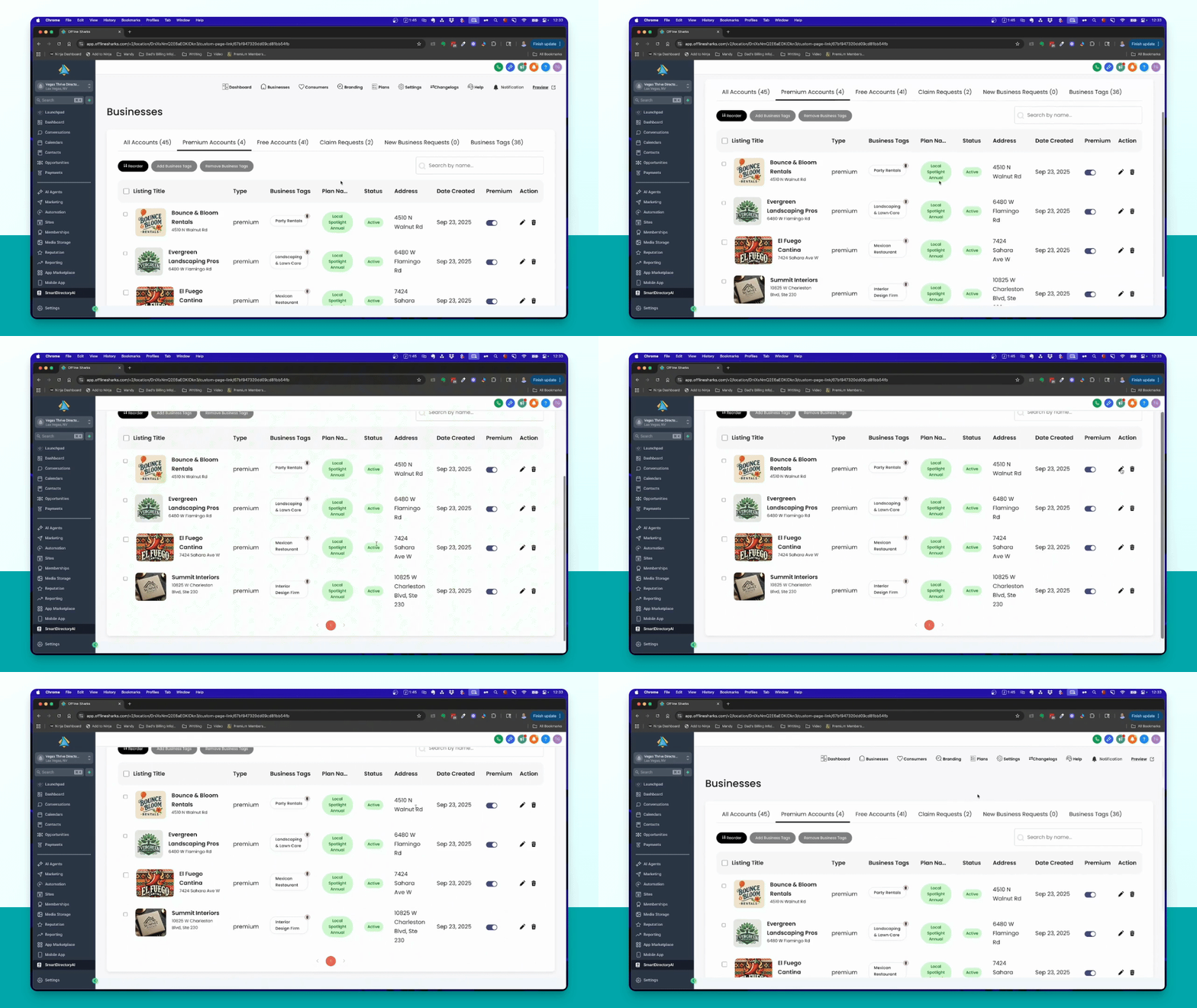
Step 3: Edit Account
Click the pencil icon next to the selected Premium account to edit it.
Step 4: Create Premium Listing
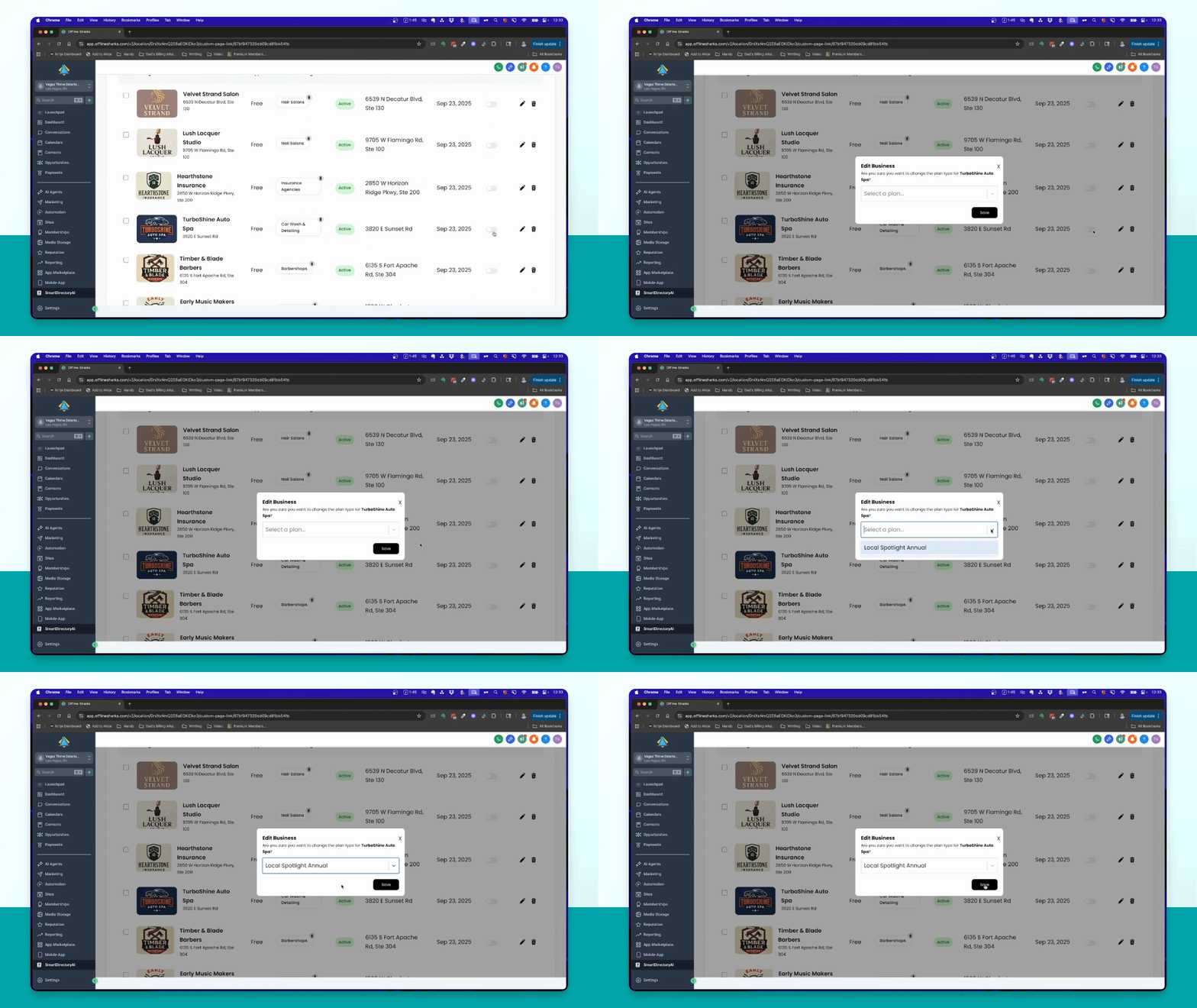
If you don't have Premium accounts, convert a free listing by selecting it and toggling the button on.
Step 5: Choose Plan
Select the Premium plan you want to assign to the free listing.
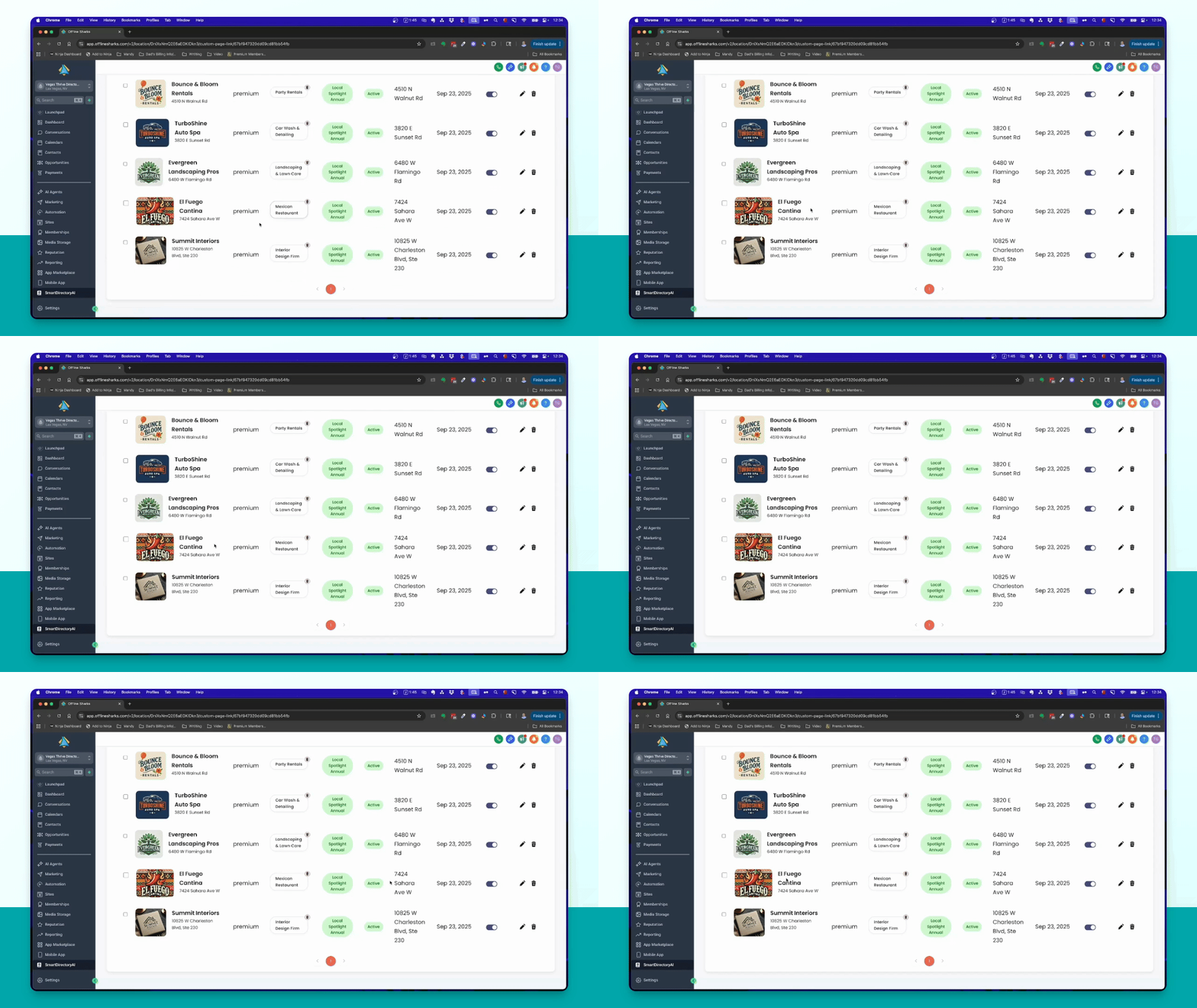
Step 6: Access Premium Menu
Choose the business you want to edit and click the pencil icon to open the Premium Listing menu.
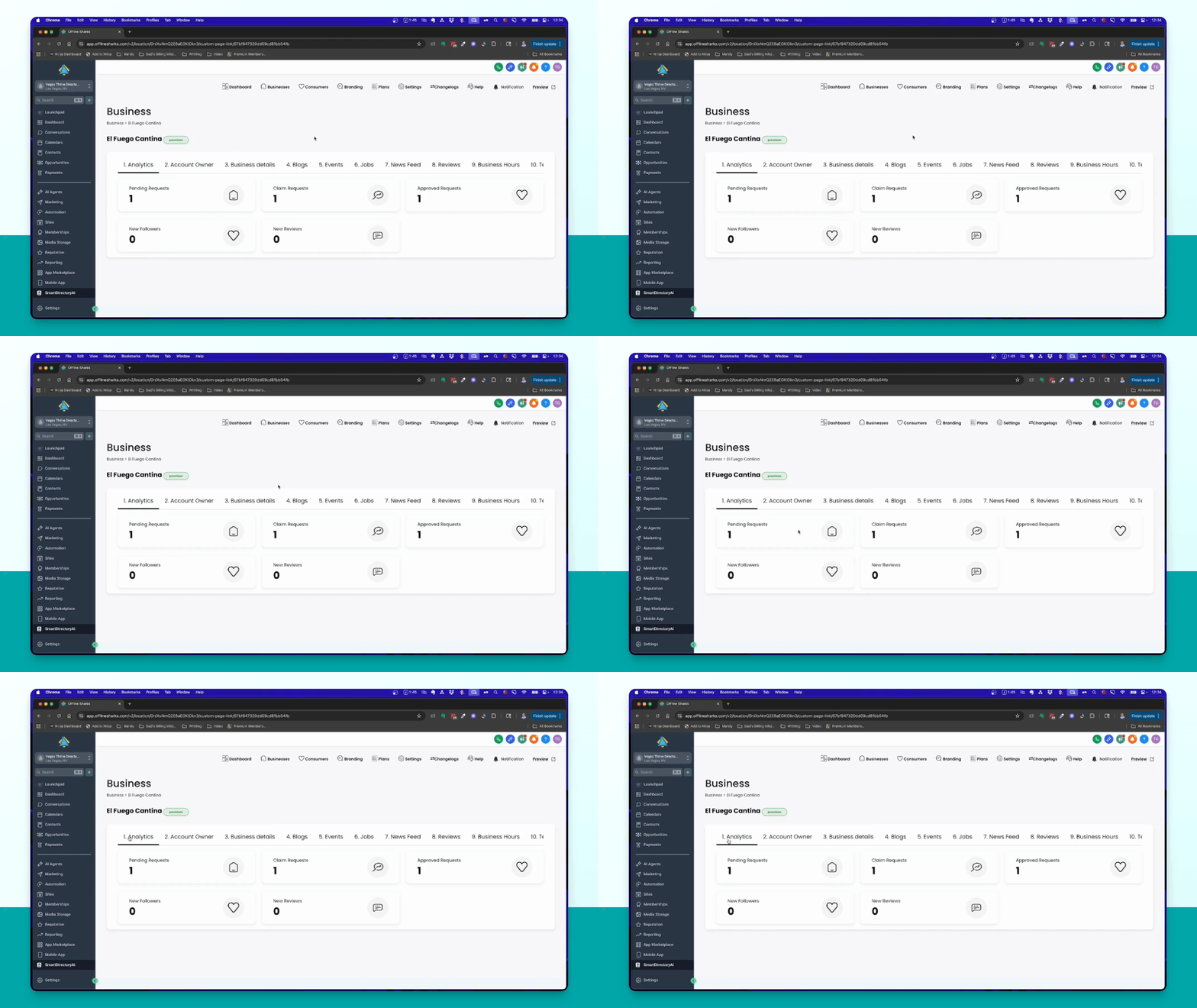
Step 7: View Analytics
Check the Analytics tab for pending requests, followers, and reviews related to the Premium listing.
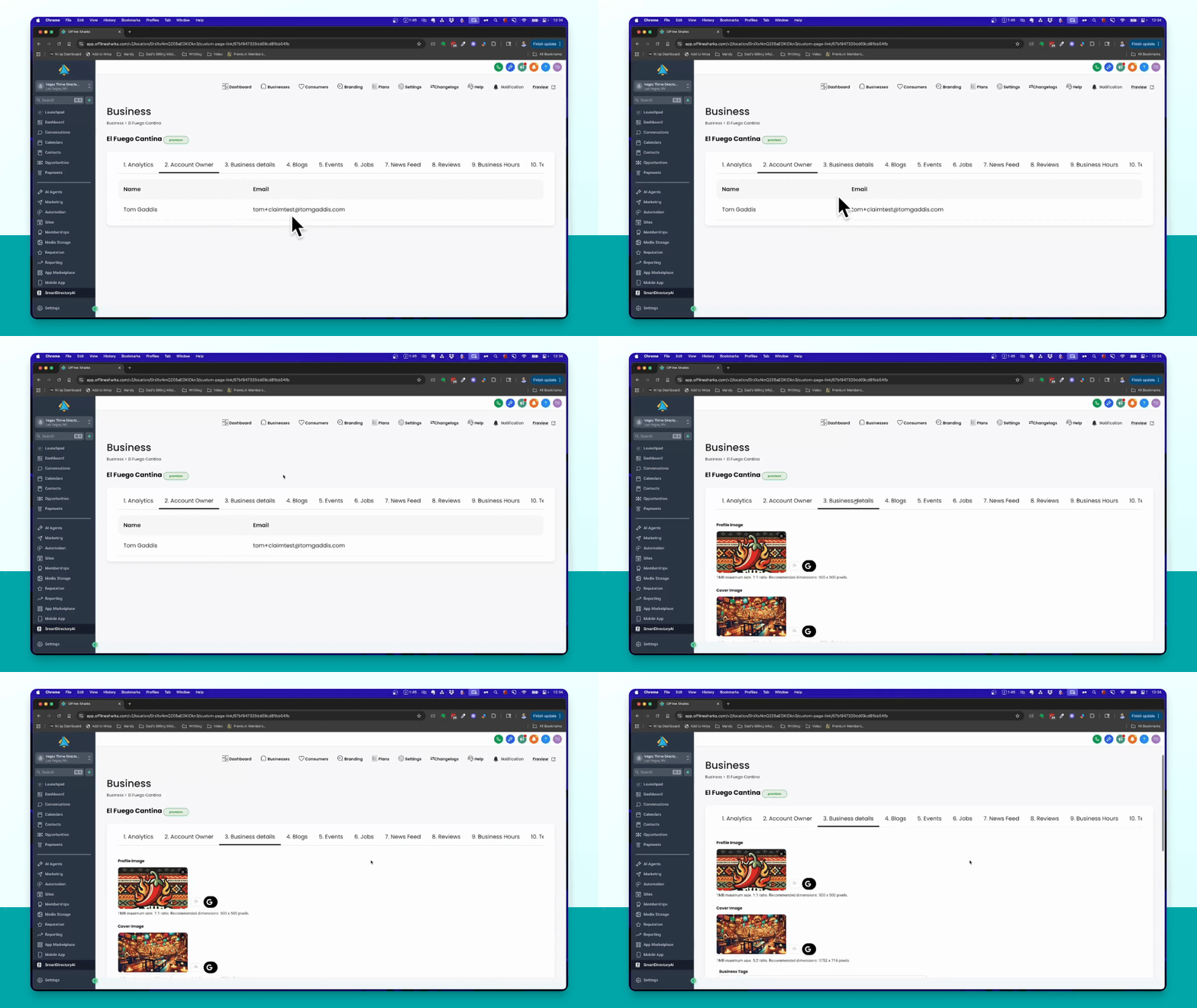
Step 8: Edit Business Details
Edit business details including profile images, business name, and description in the Business details tab.
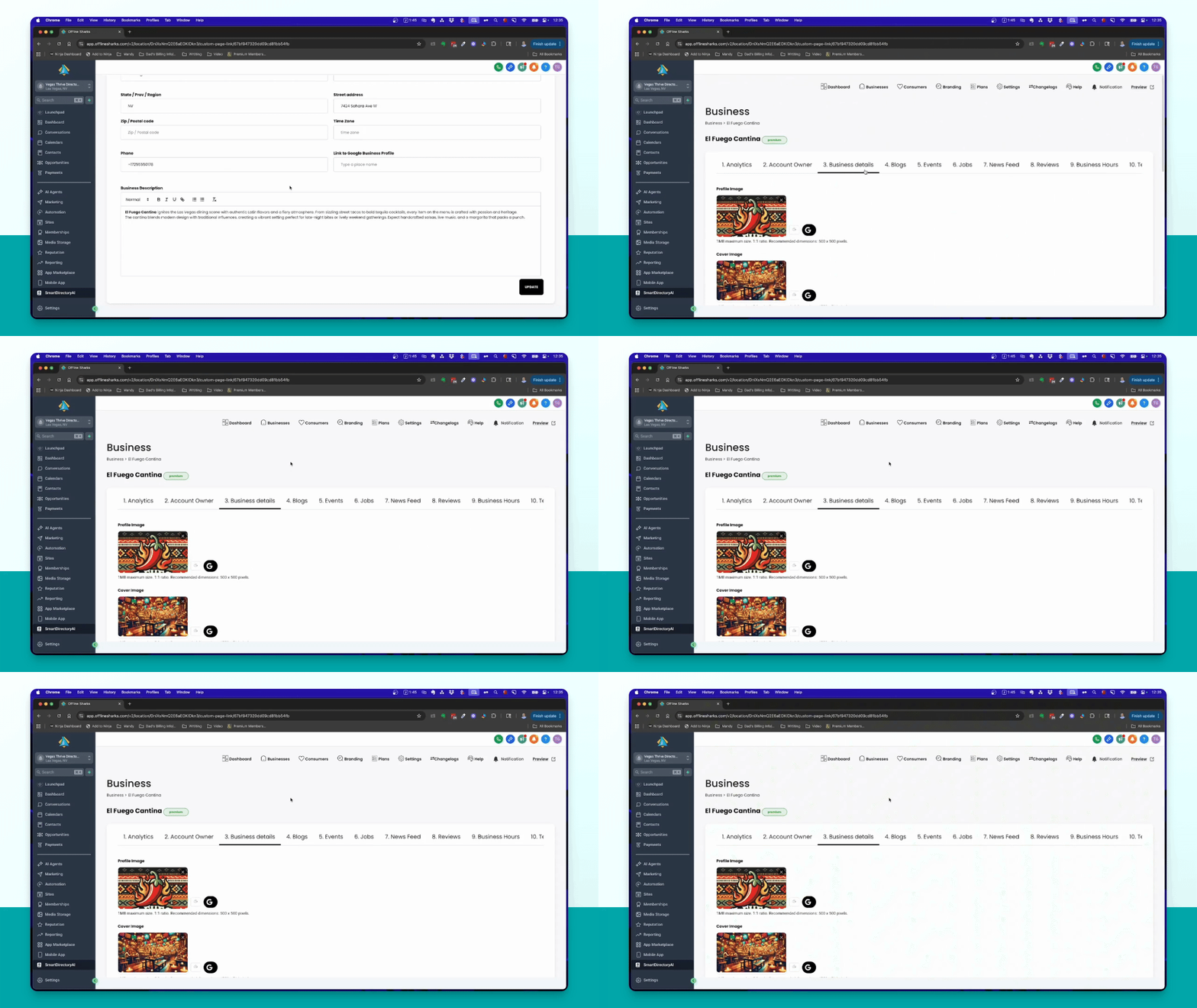
Step 9: Manage Blog
Click on blogs to add or edit entries for the Premium listing.
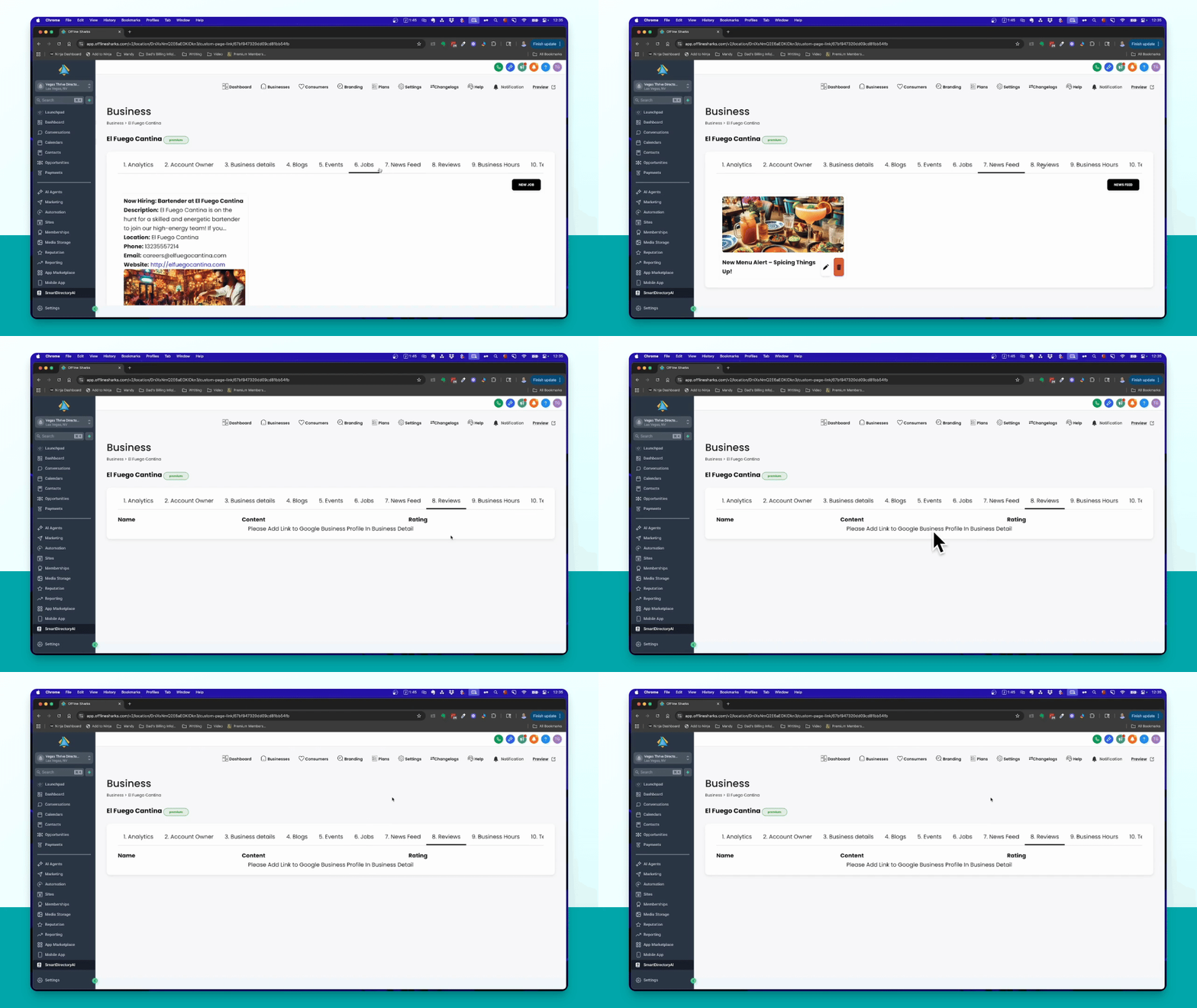
Step 10: Configure Reviews
If you have Google API set up, check the reviews section to manage incoming reviews.
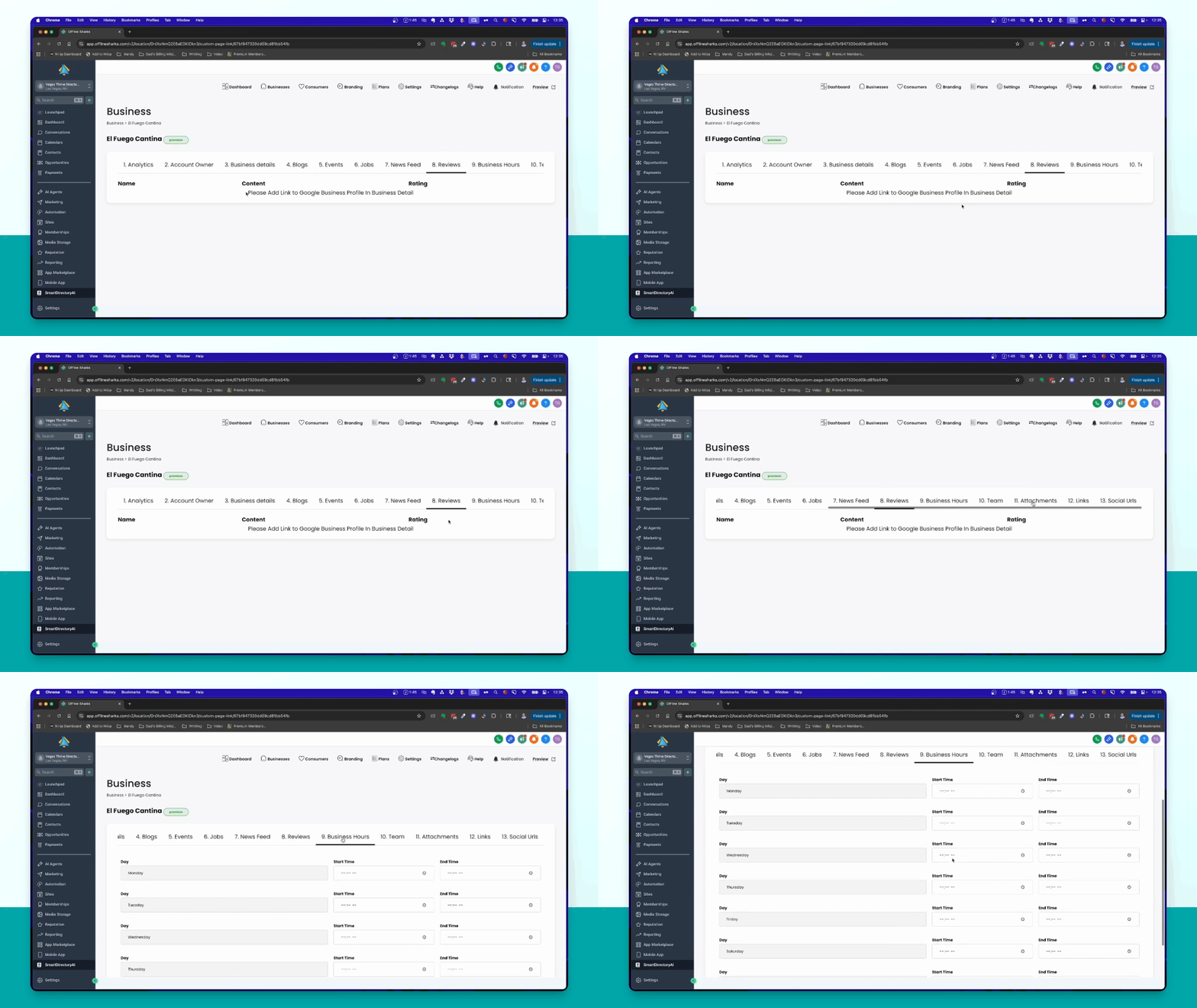
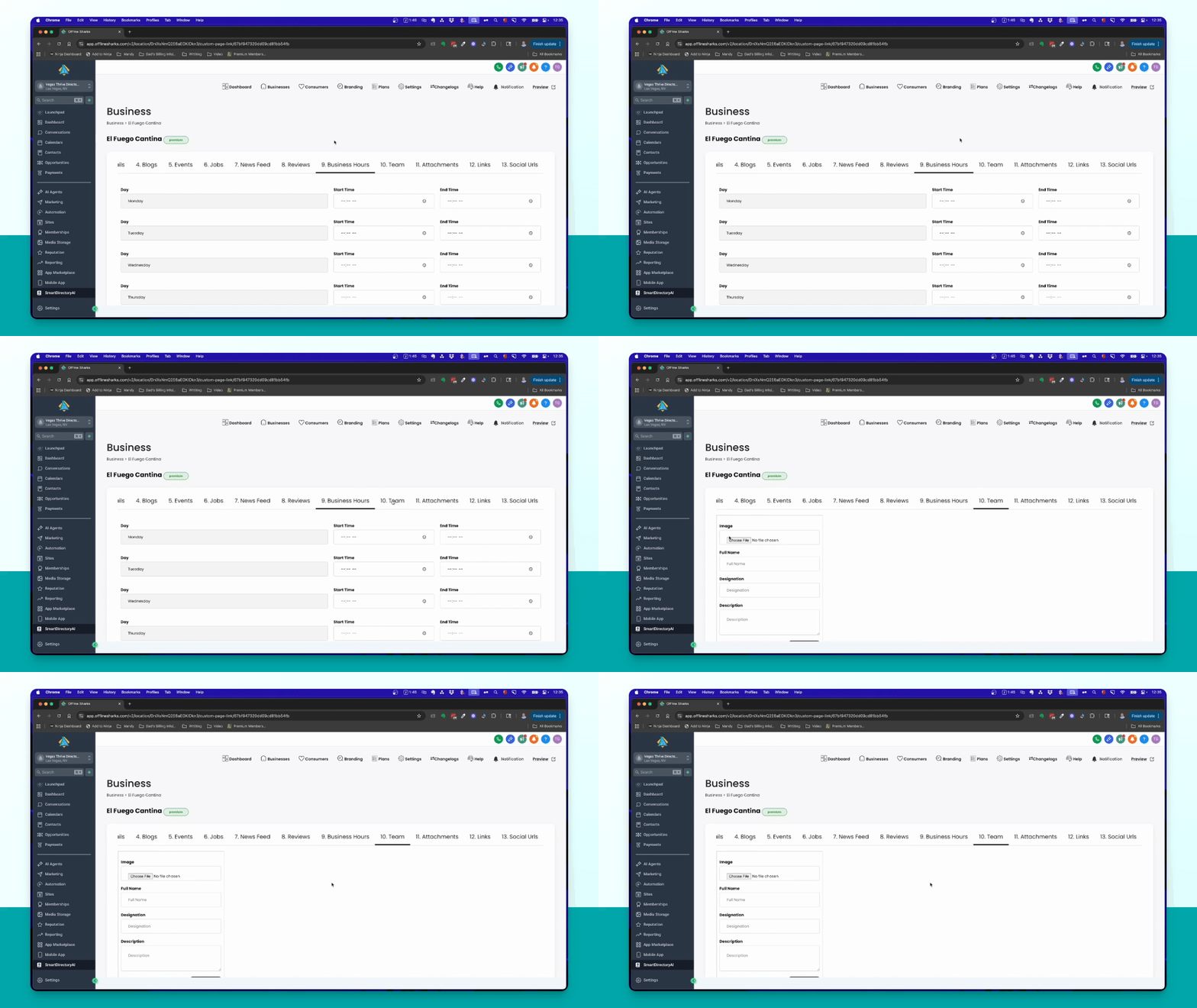
Step 11: Set Business Hours
Add or edit business hours in the designated section to display on the Premium listing.
Step 12: Add Team Members
Access the team members section to add or manage team members for the Premium listing.
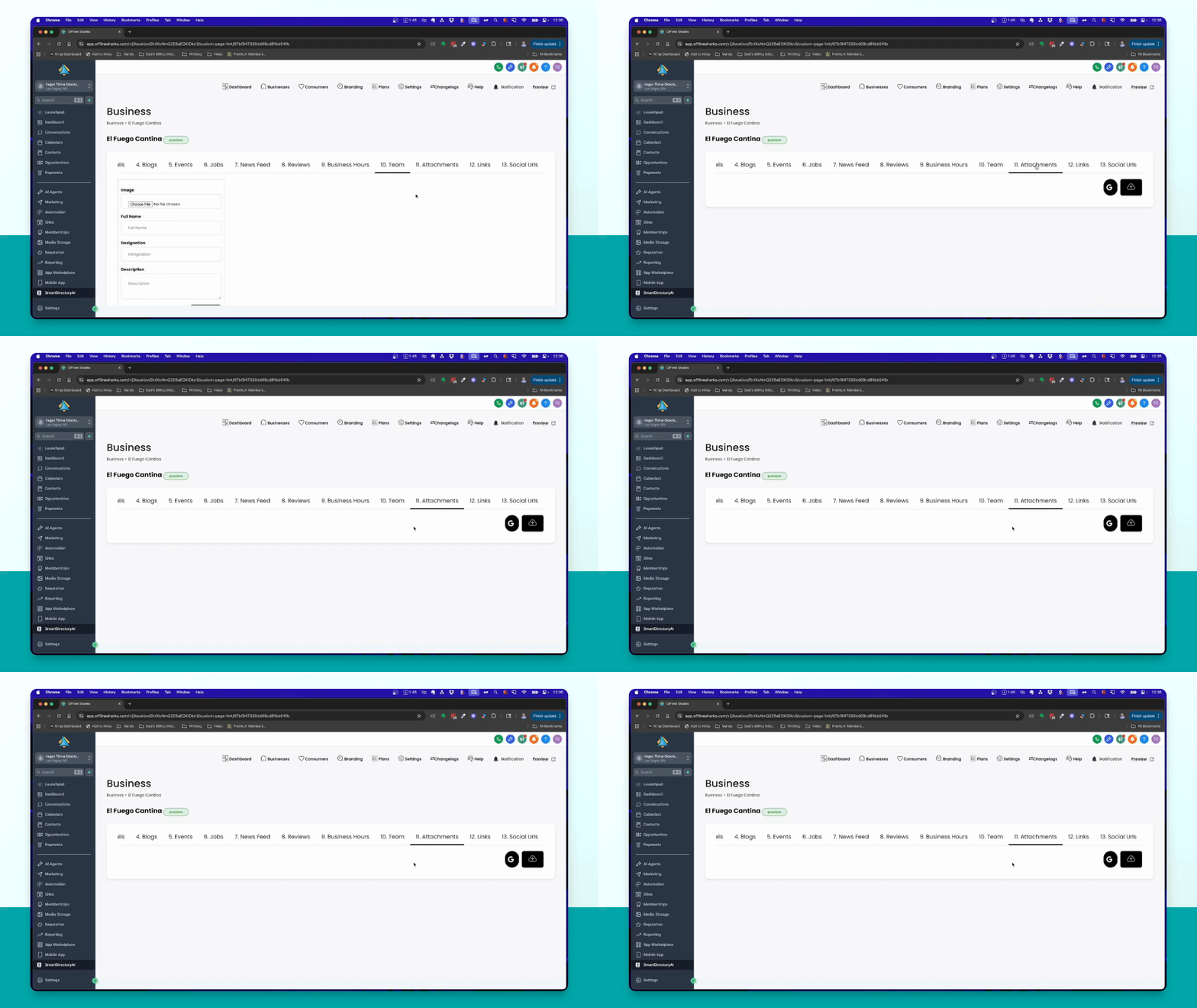
Step 13: Upload Attachments
Add additional images to the COVID section or upload attachments from your device.
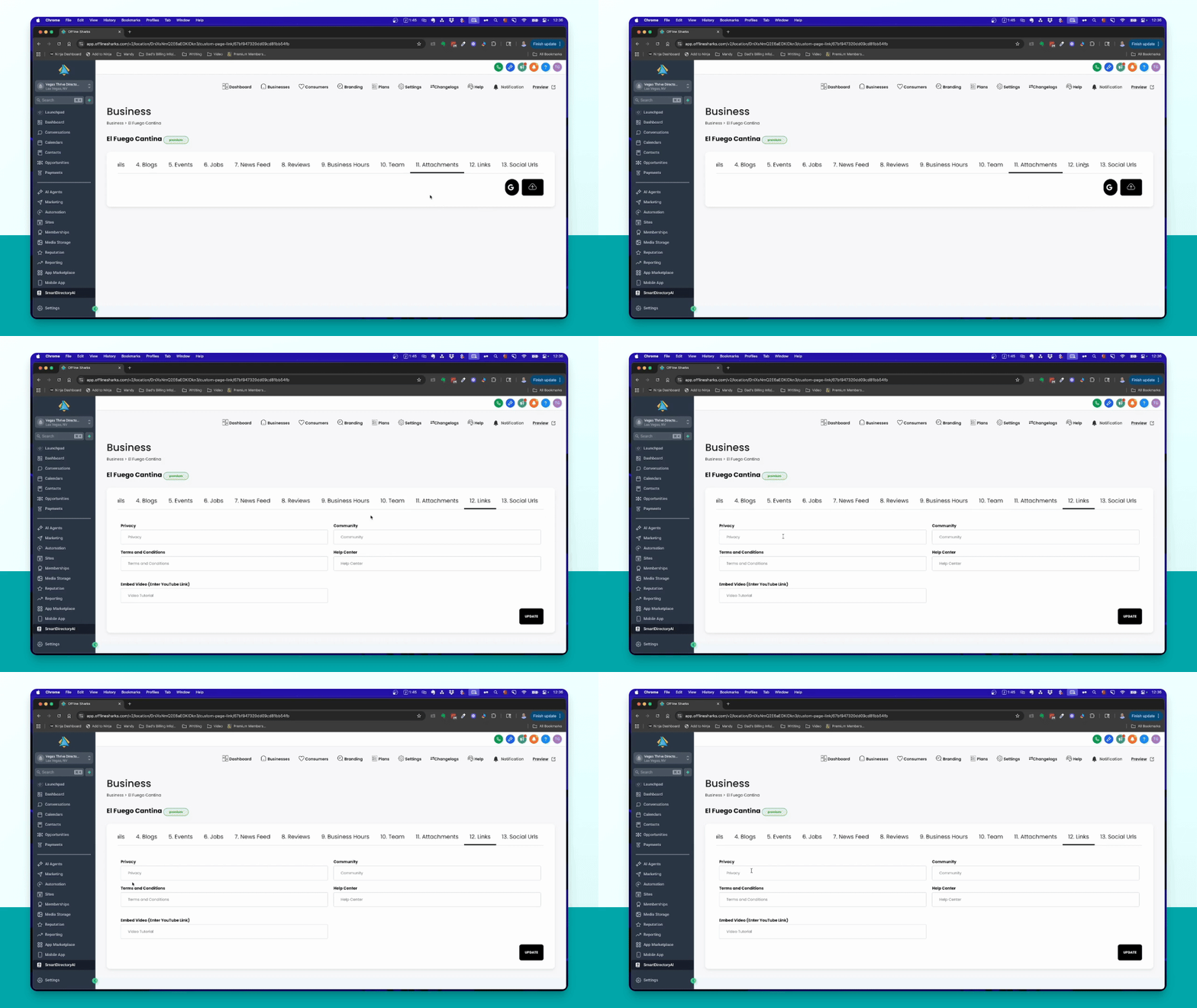
Step 14: Add Links
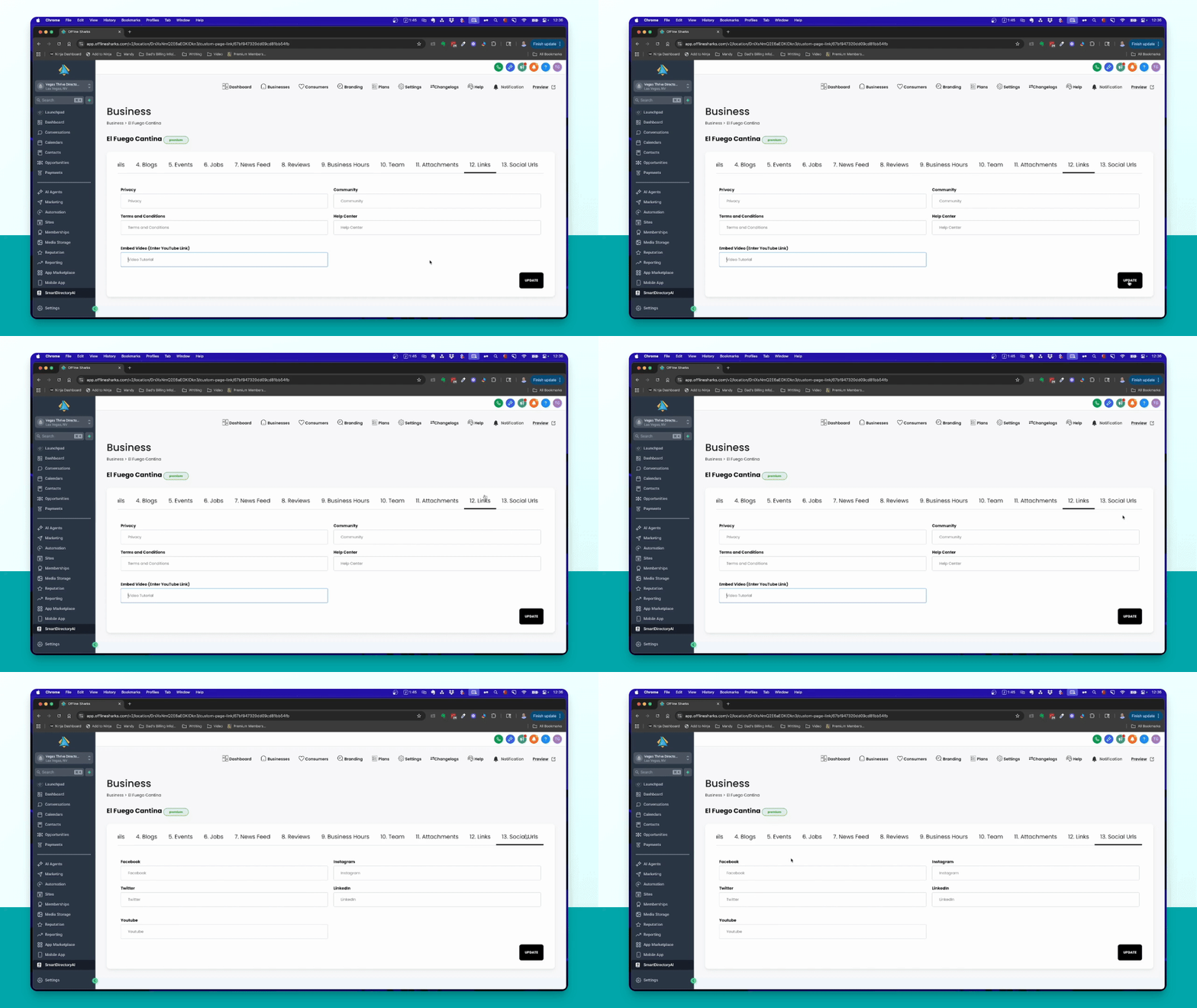
Add links for Privacy terms, conditions, or embed a YouTube video directly in the Premium listing.
Step 15: Update Social URLs
Enter various social media URLs that will appear on the Premium listing page.