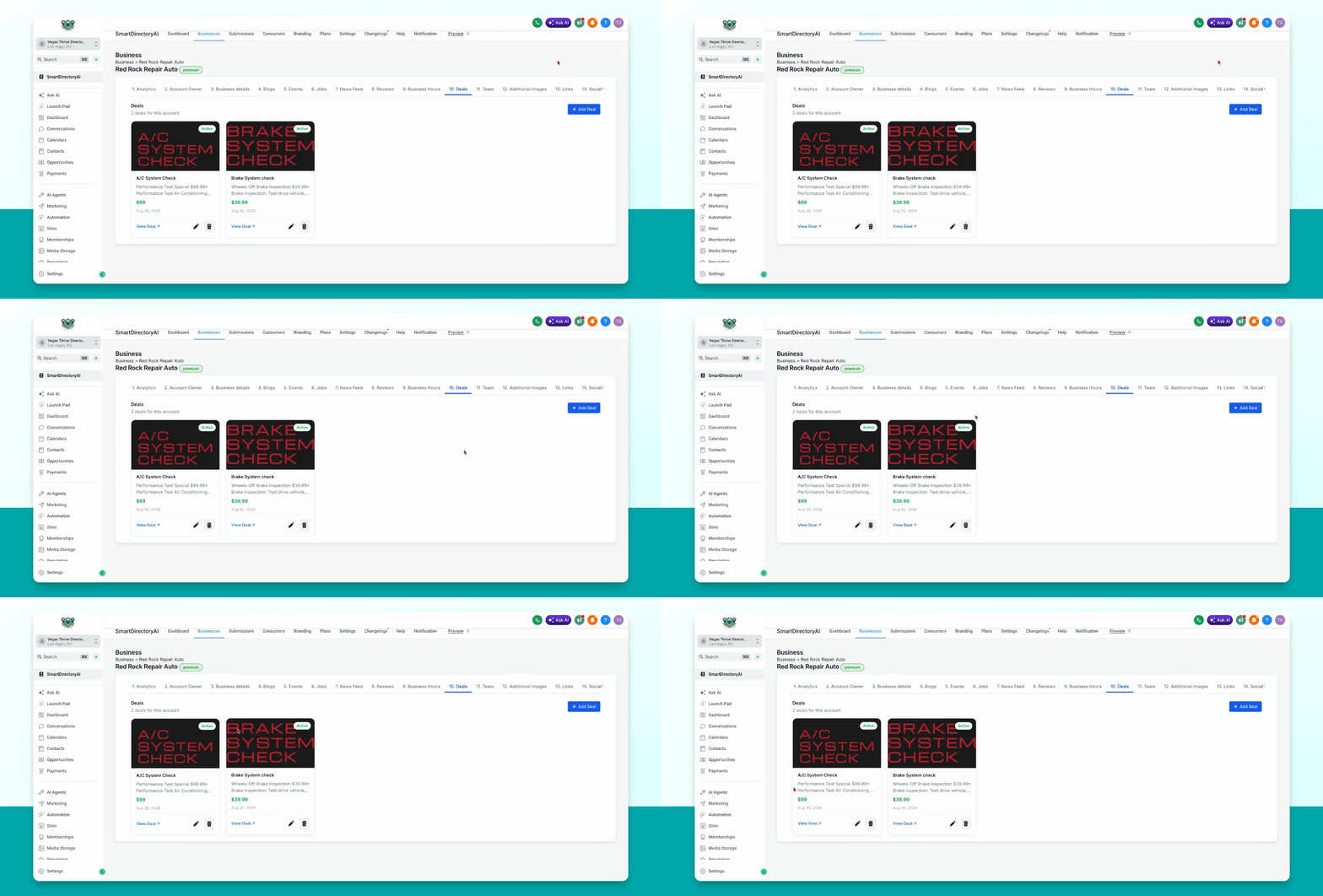

This guide explains how to enable, create, and edit deals on your business listings. Let's look at the steps:
Step 1: Activate Deals in Plans
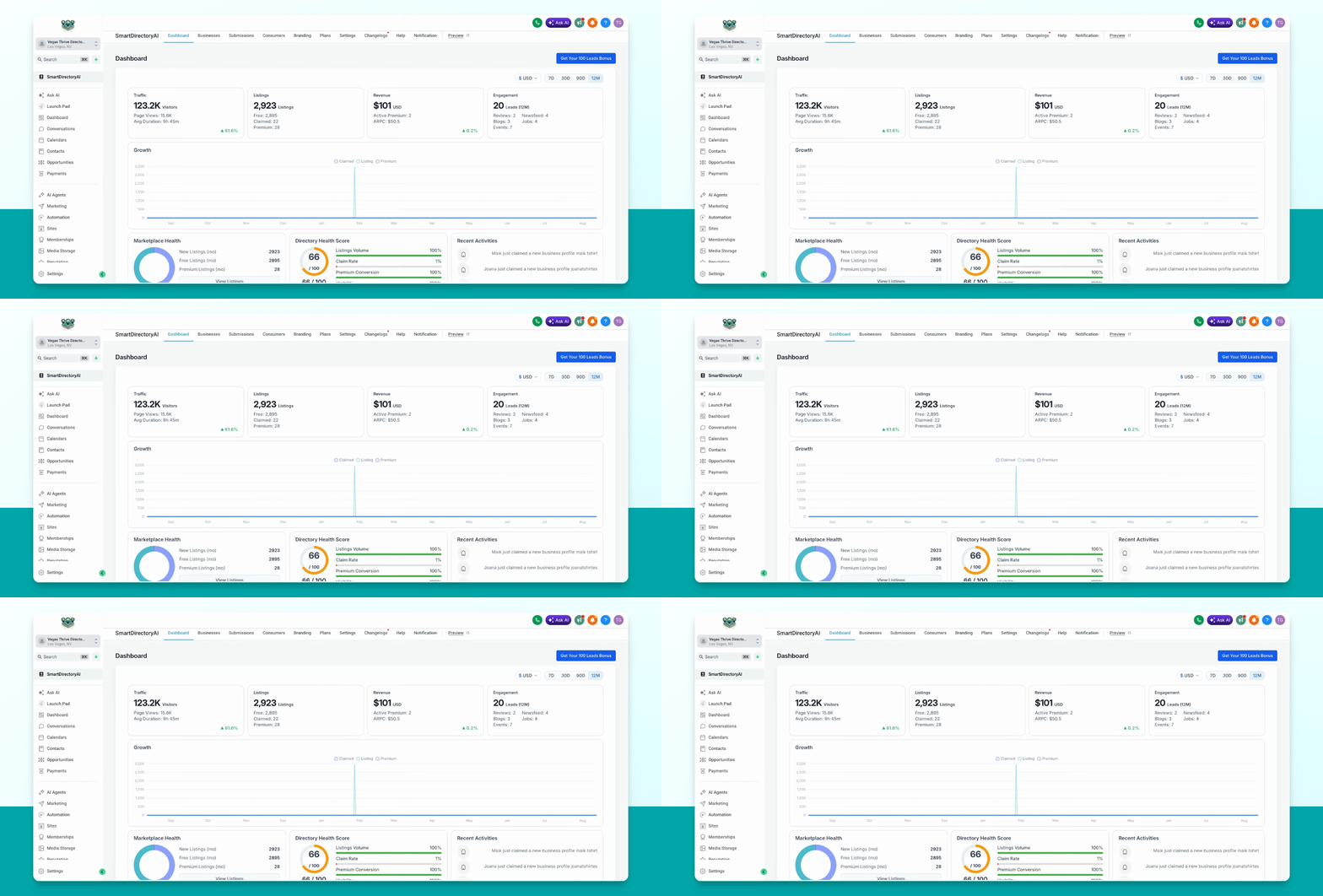
Go to Plans. Select the plan you want to enable deals for by clicking the pencil icon to the right. Click Next, find the deals item, and toggle it on to activate deals for that plan. Click Submit to save your changes.
Step 2: Assign Plan to Business
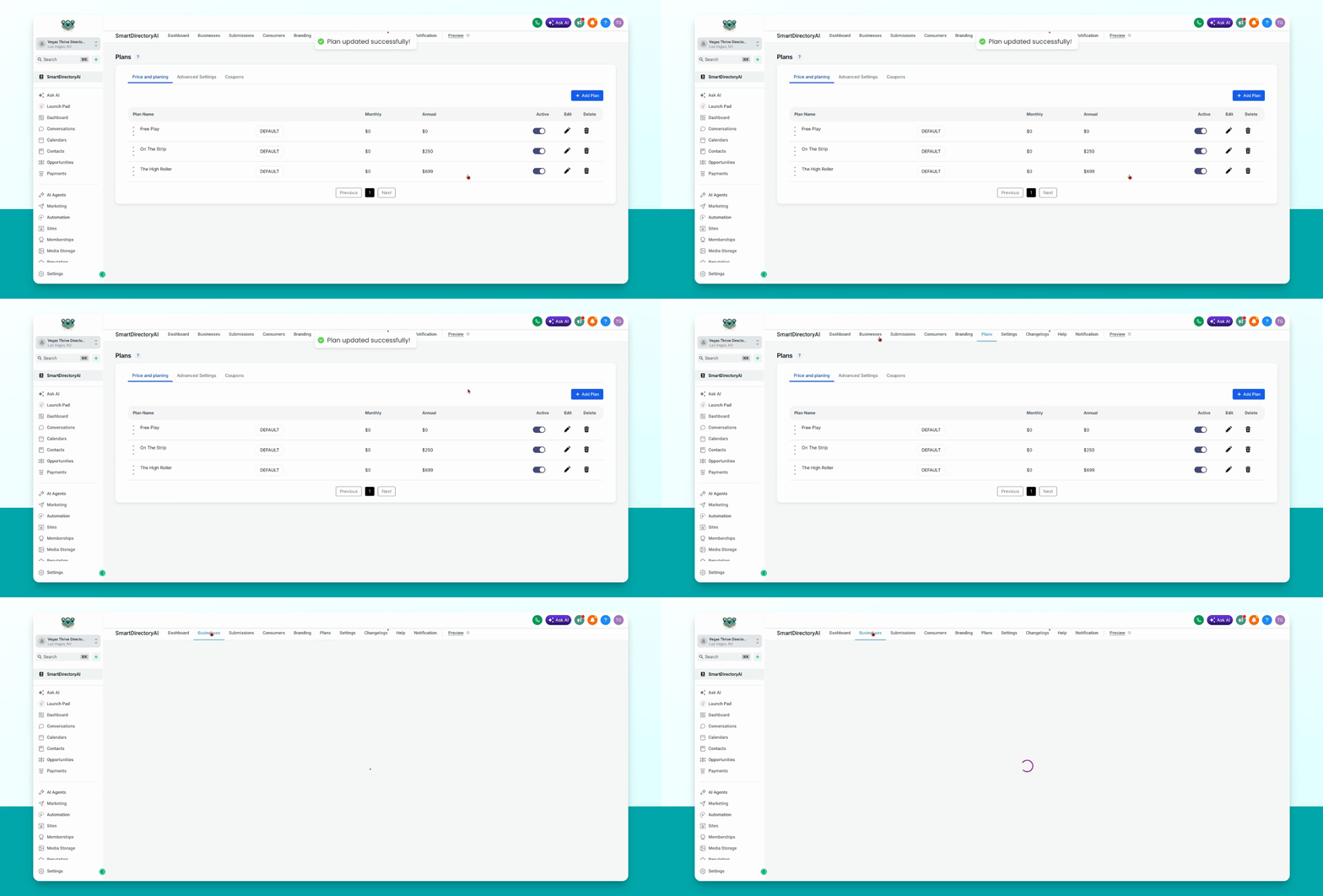
Go to Businesses. Locate the business you want to add a deal to and ensure it has the plan with deals activated. Click the pencil icon to edit the business.
Step 3: Add a New Deal
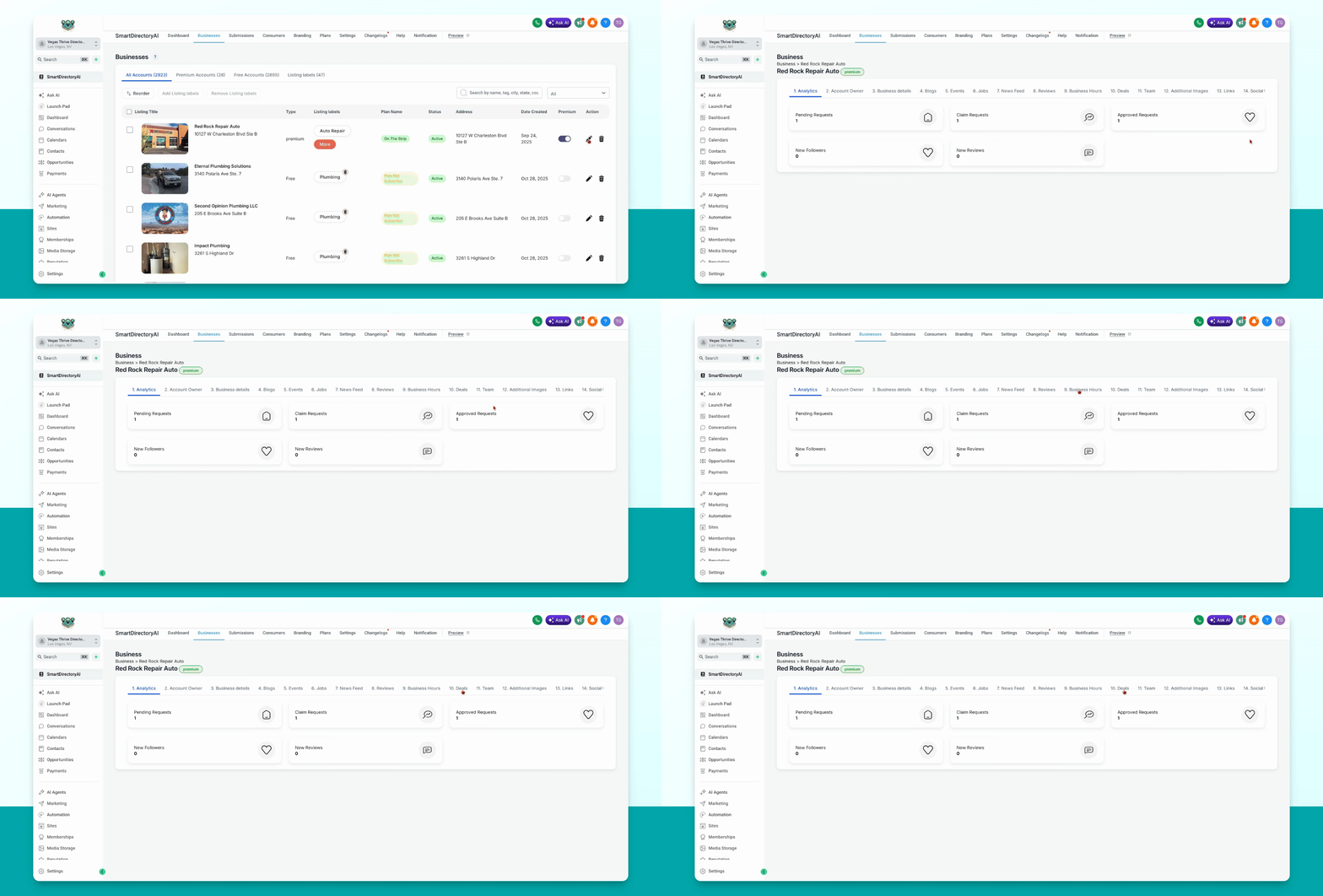
In the top menu, click Deals. Then click the blue Add Deal button. Fill out the deal details, including the title, image (optionally from the Google Business profile if connected), slug, regular price, discounted price, start and end dates, and the URL where users will redeem the deal. You can also edit the button text and add a description. When finished, click Save Deal.
See the Knowledge Base article on Google Business Profile connection for more details.
Step 4: Edit an Existing Deal
To edit a deal, go to the business where the deal is listed. Click the pencil icon to edit, make your changes to the deal, and then click Update Deal to save.