

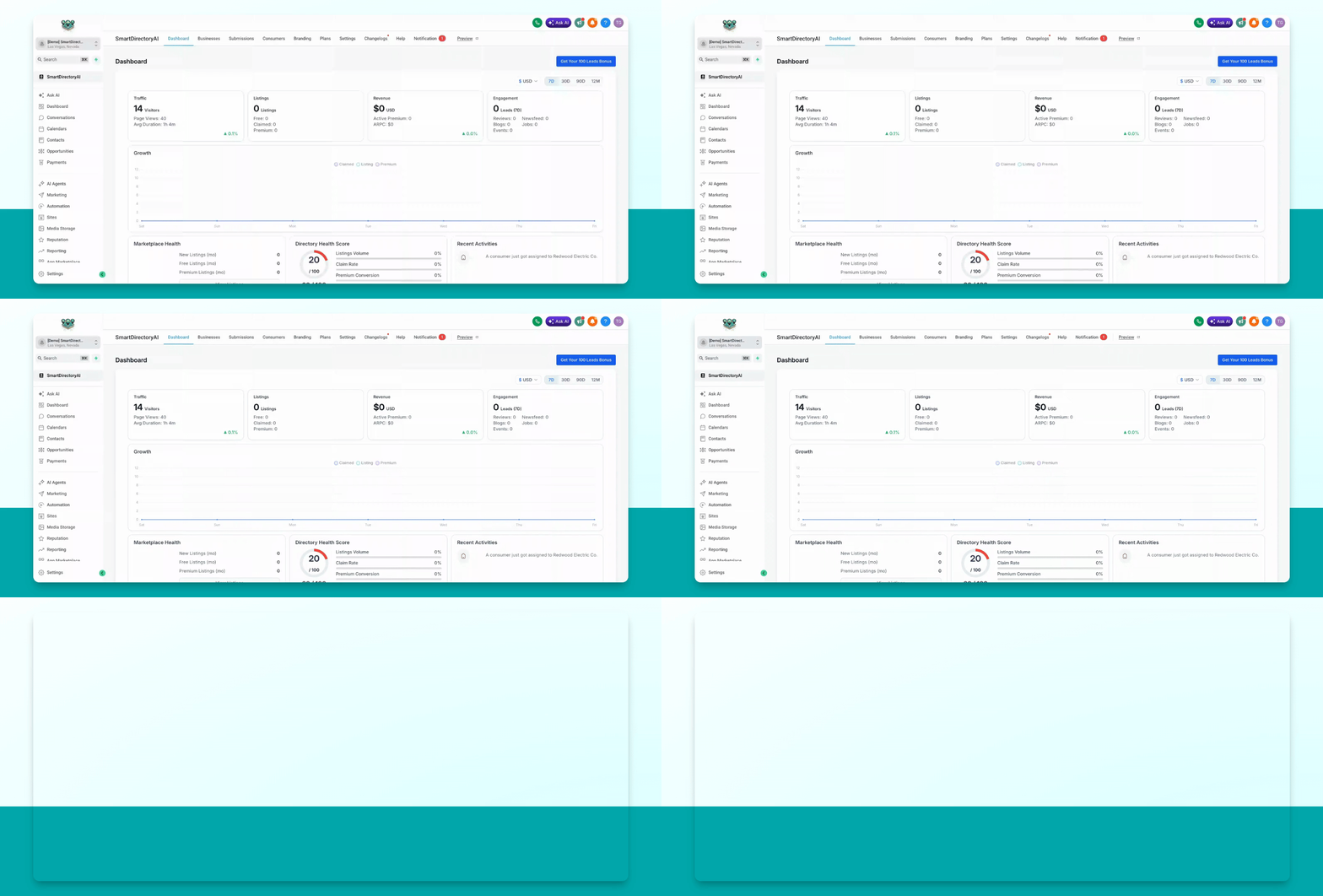
In your Smart Directory AI Dashboard, you can manage listing labels for your businesses. Let's look at the steps:
Step 1: Select Businesses
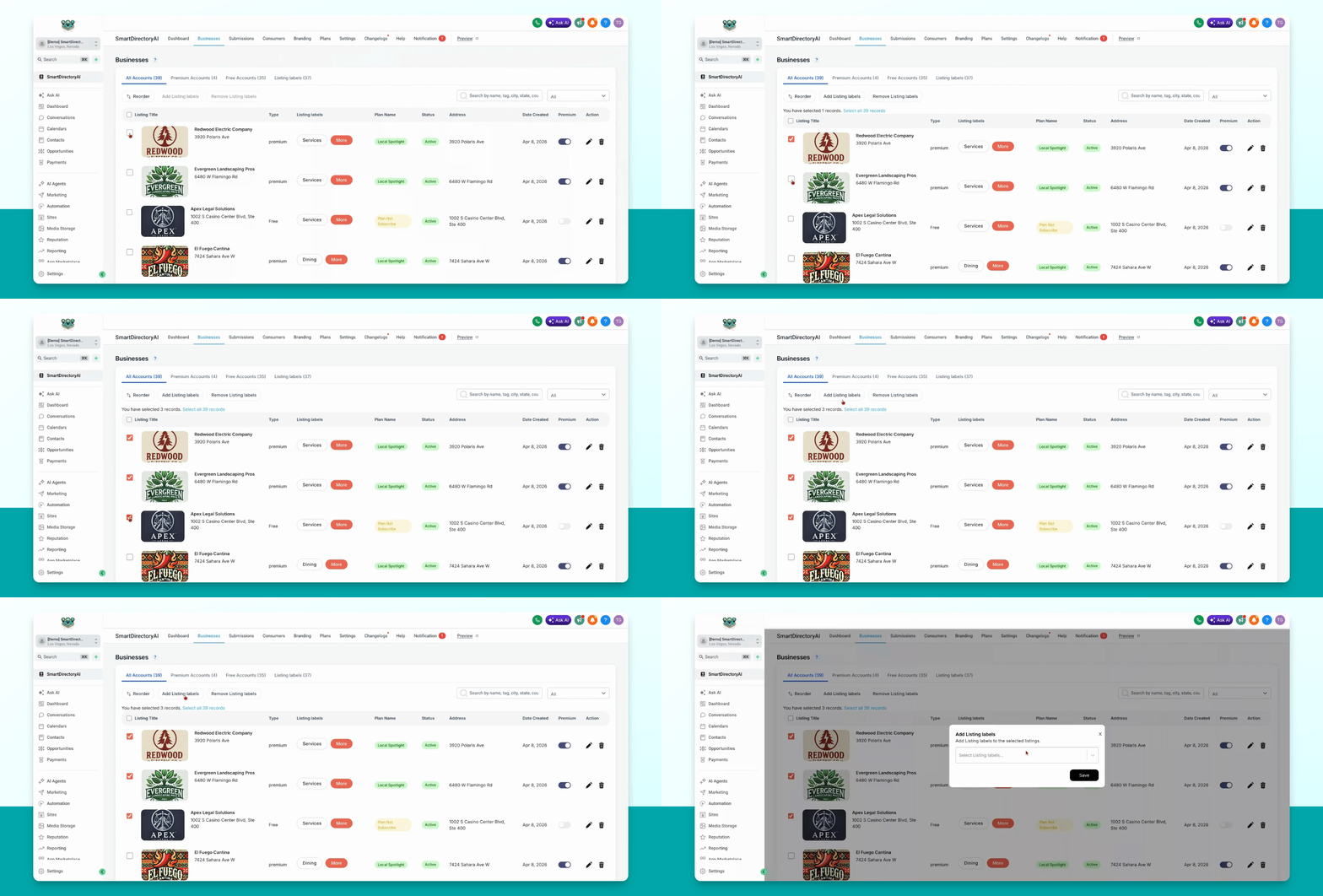
Go to Businesses in the dashboard. Select the businesses you want to add labels to from the list.
Step 2: Add Listing Labels
Click Add Listing Labels. Choose the label you want to add from the dropdown menu and click Save.
Step 3: Remove Listing Labels
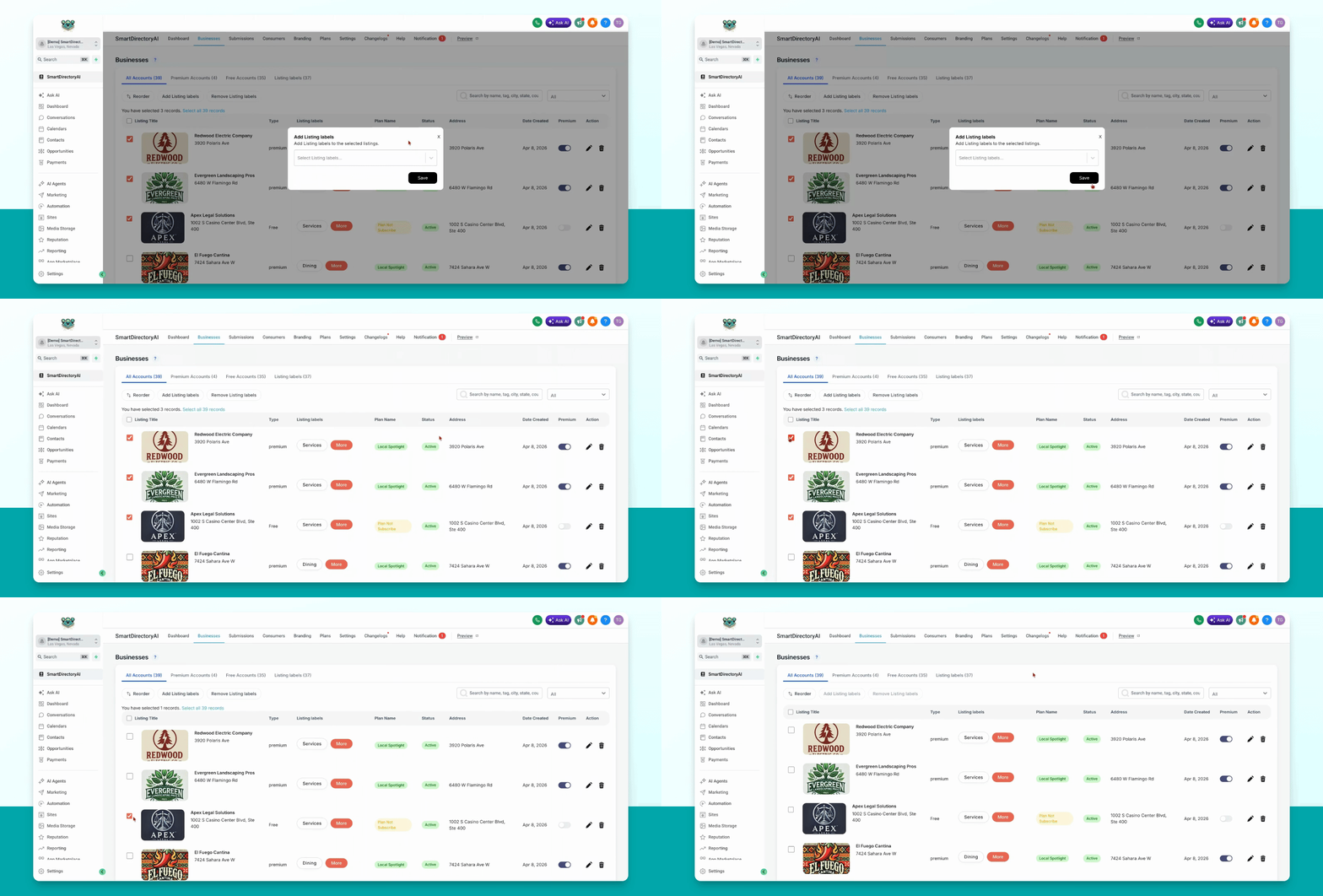
To remove labels, go to Smart Directory AI Businesses. Select the appropriate tab at the top, such as All Accounts, Premium, or Free. Choose the businesses you want to update, click Remove Listing Labels, select the labels to remove from the dropdown, and click Remove.
Step 4: Search by Listing Labels
You can search for businesses by their listing labels or find all businesses without listing labels using the search bars provided.
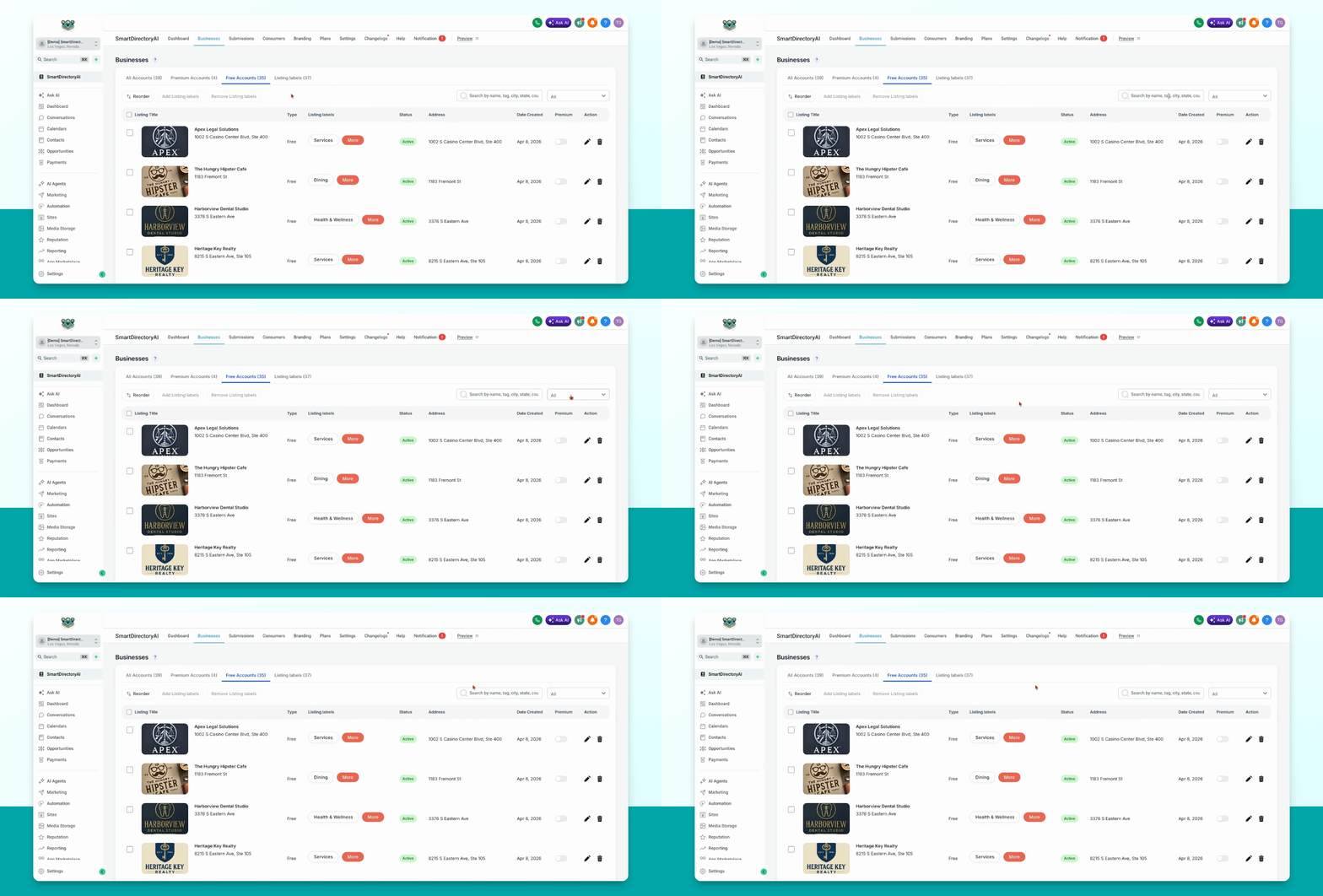
Step 5: Filter Businesses Without Labels
To view all business listings without labels, use the dropdown to select none. This will display all free accounts without listing labels, based on your current tab.
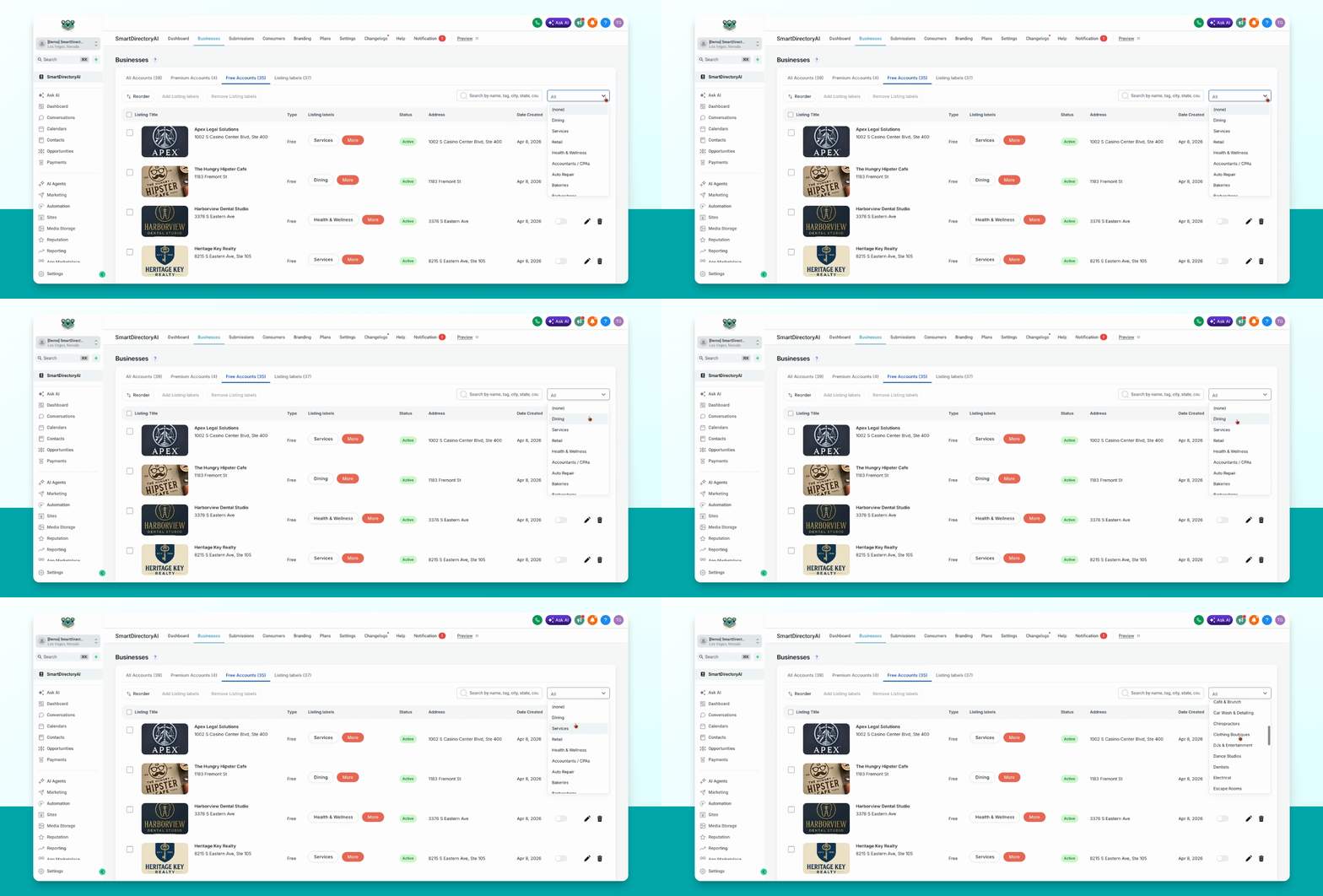
Step 6: Filter by Specific Label
To find businesses with a specific listing label, select the desired label from the dropdown. The dashboard will show all businesses using that label.
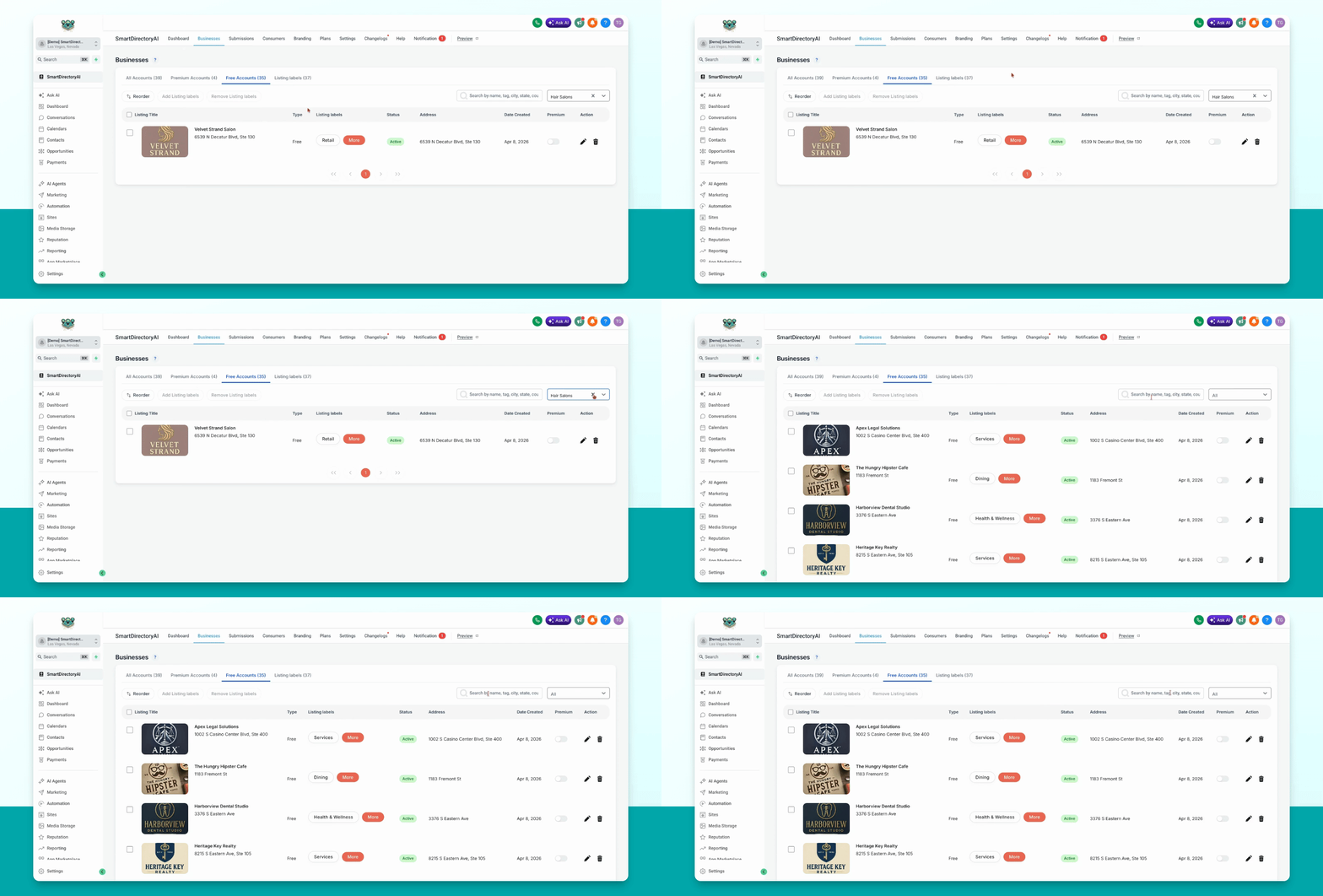
Step 7: Search by Other Criteria
You can also search for businesses by name, tag, city, state, country, and other criteria.
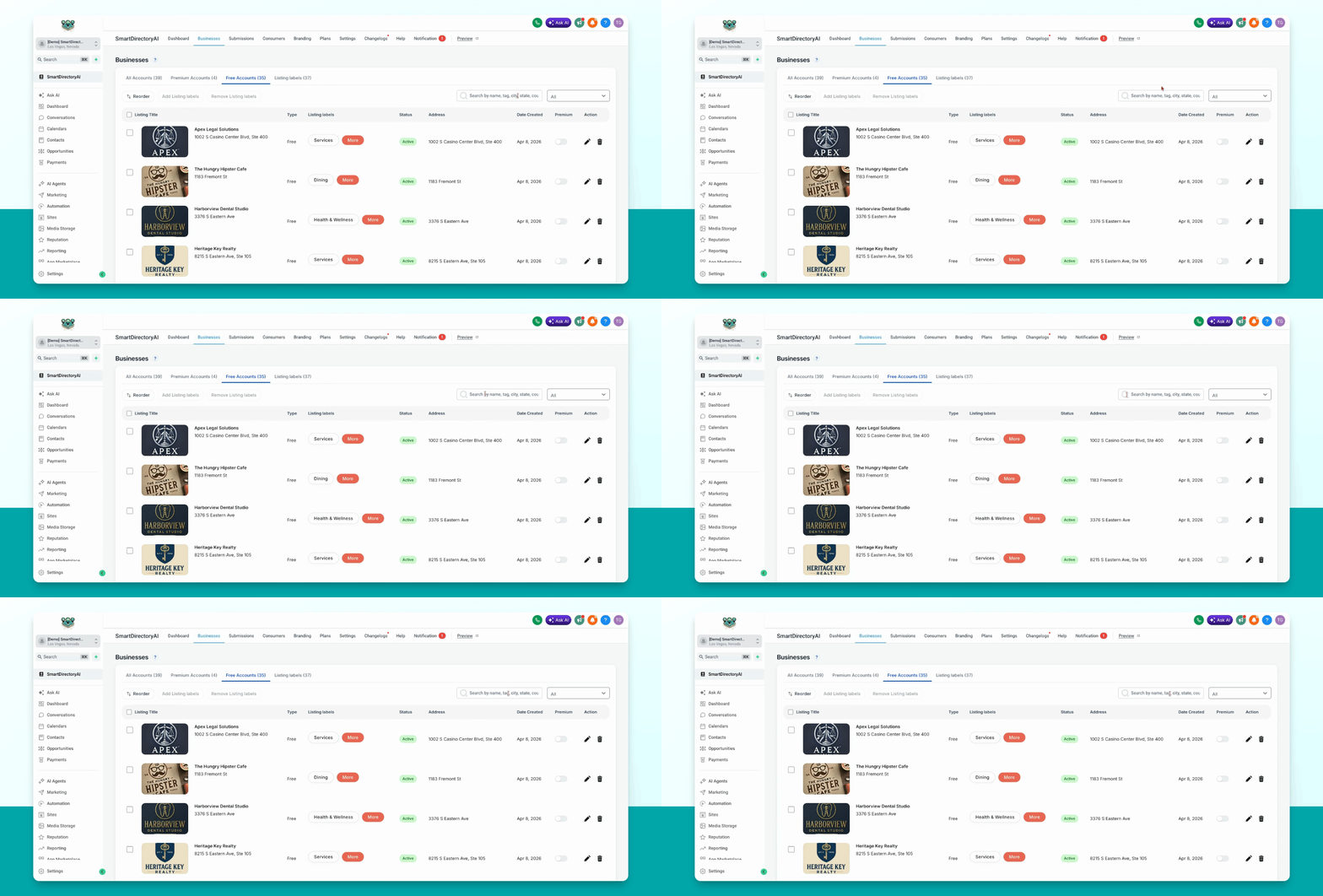
This allows you to quickly organize and manage your business listings, adding or removing labels in bulk as needed.
Download Demo Listing Labels
Need a copy of the demo Listing Labels we include with SmartDirectoryAI? Download Demo Listing Labels with Images CSV
Download Demo Listing Label Images
Need just the images for the default Listing Labels? Download a ZIP file here