Need a Phone Number? Check This Article
Let's do it together!
Step 1: Access Dashboard
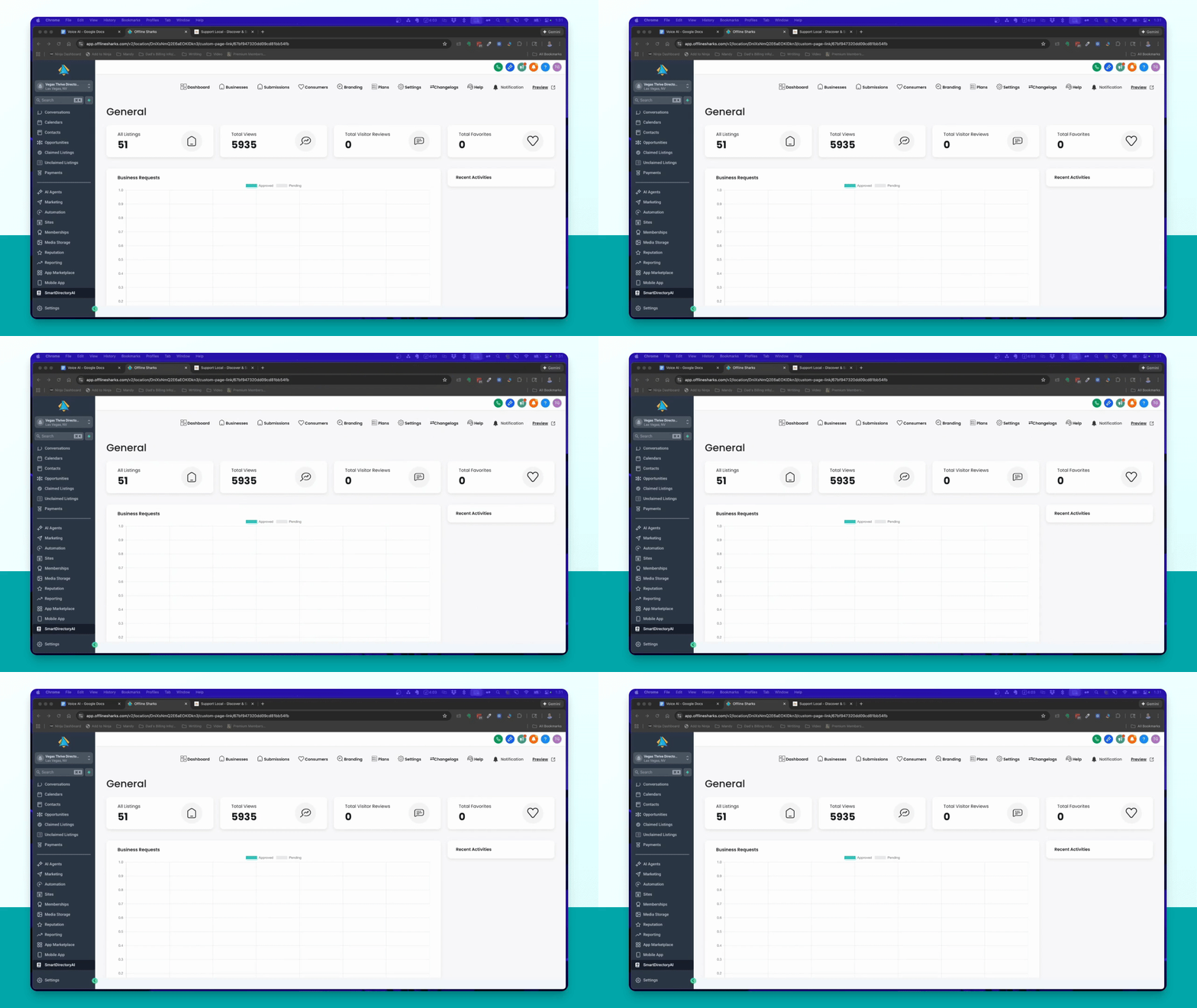
Log in to your Smart Directory AI account and navigate to the dashboard.
Step 2: Understand Legal Compliance
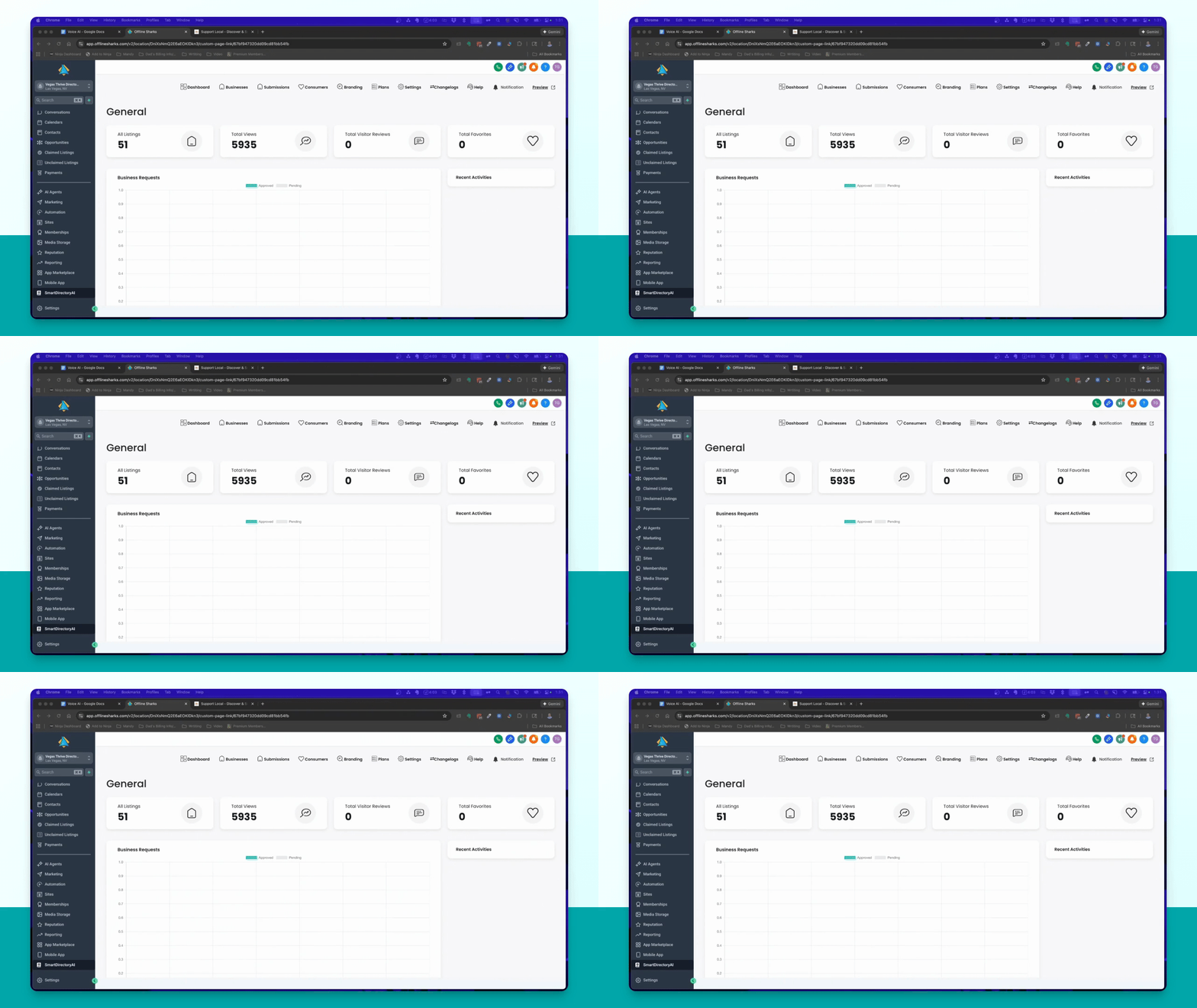
Review legal aspects of outbound voice dialing and consult a legal professional if necessary.
Step 3: Access Acknowledgments
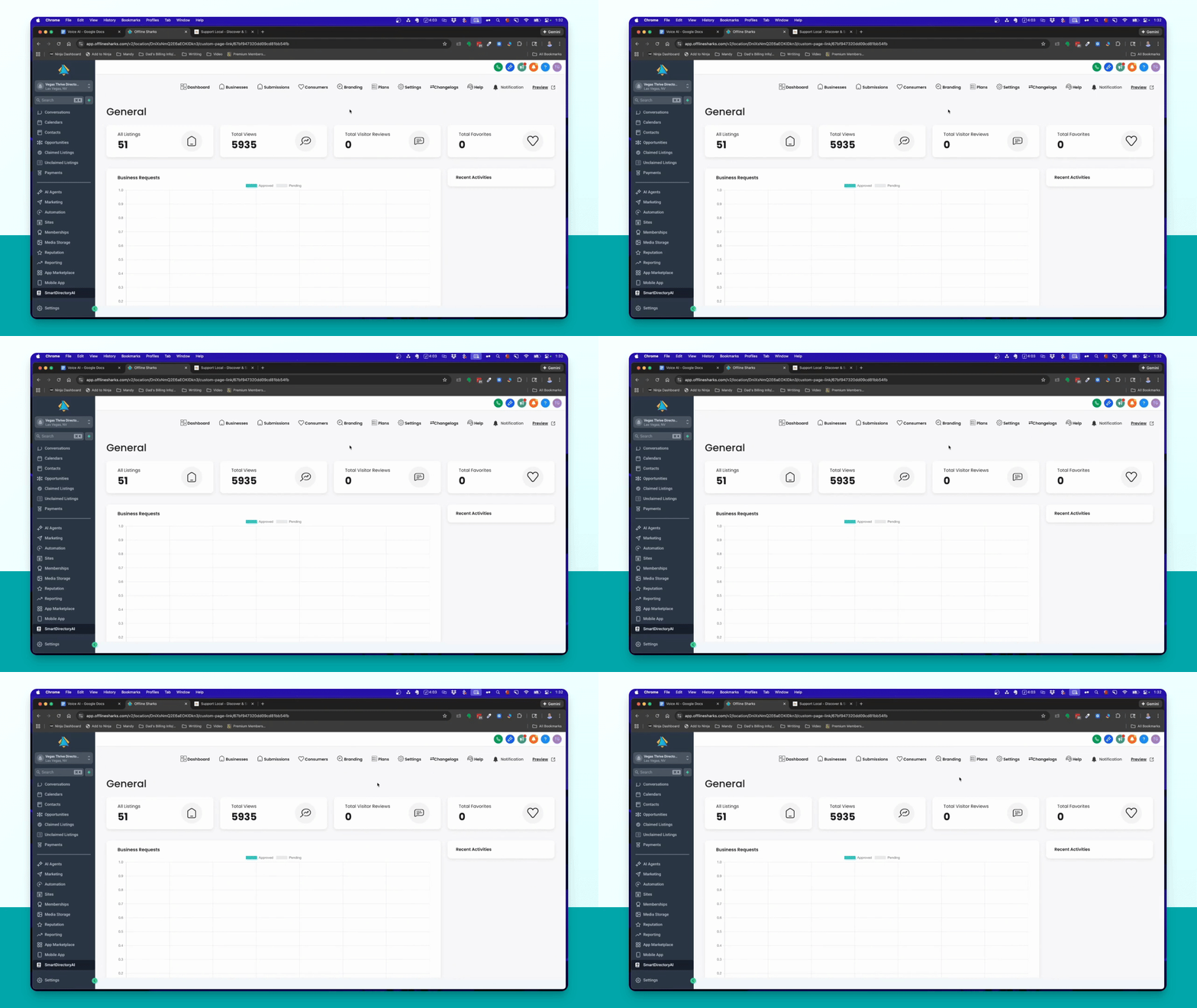
Go to Branding → Theme → Content to find acknowledgment content settings.
Step 4: Review Acknowledgment Settings
Ensure users acknowledge they are authorized representatives and can receive AI calls.
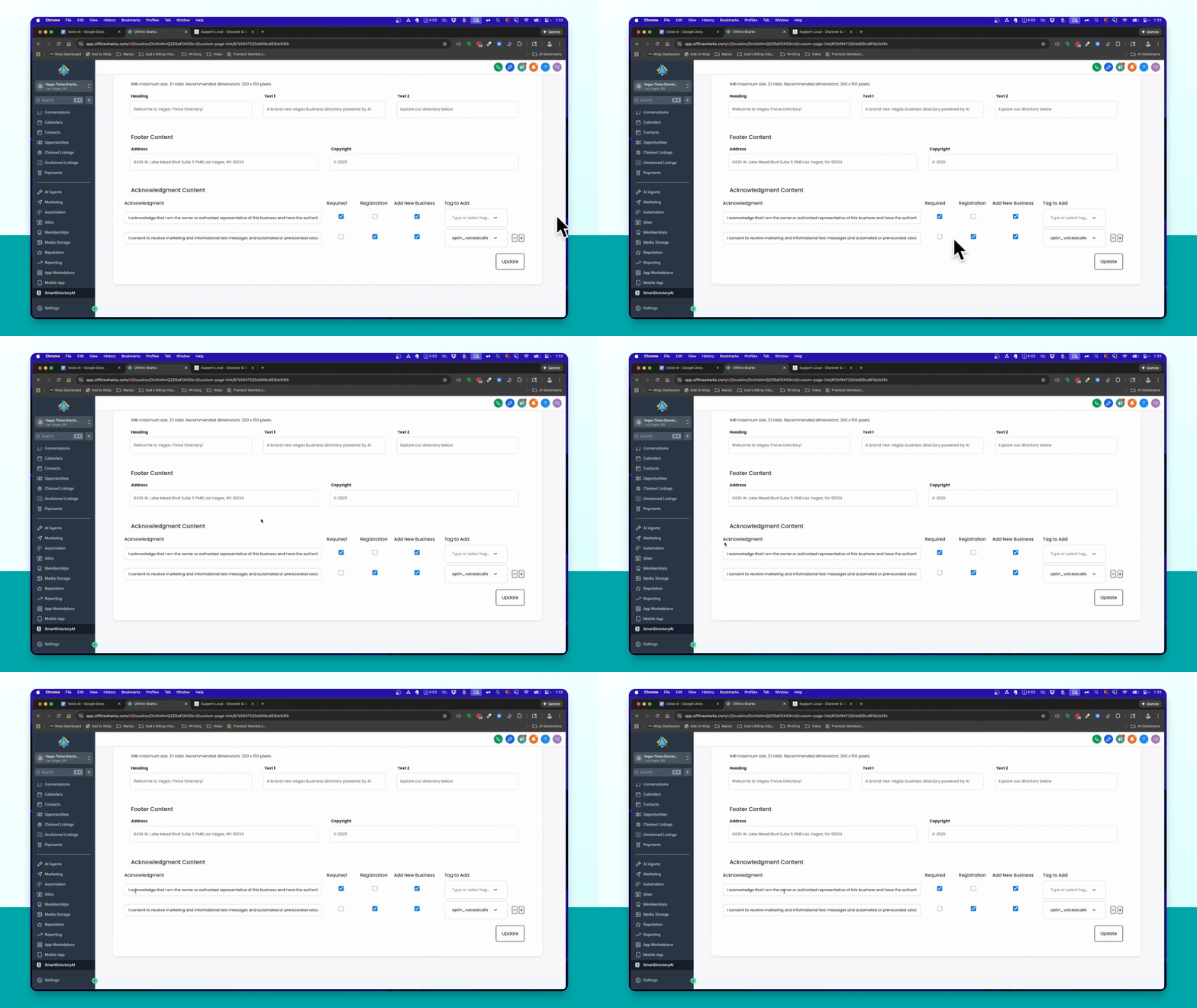
Step 5: Add Acknowledgments
If needed, click the plus icon to add more acknowledgment options or delete existing ones.
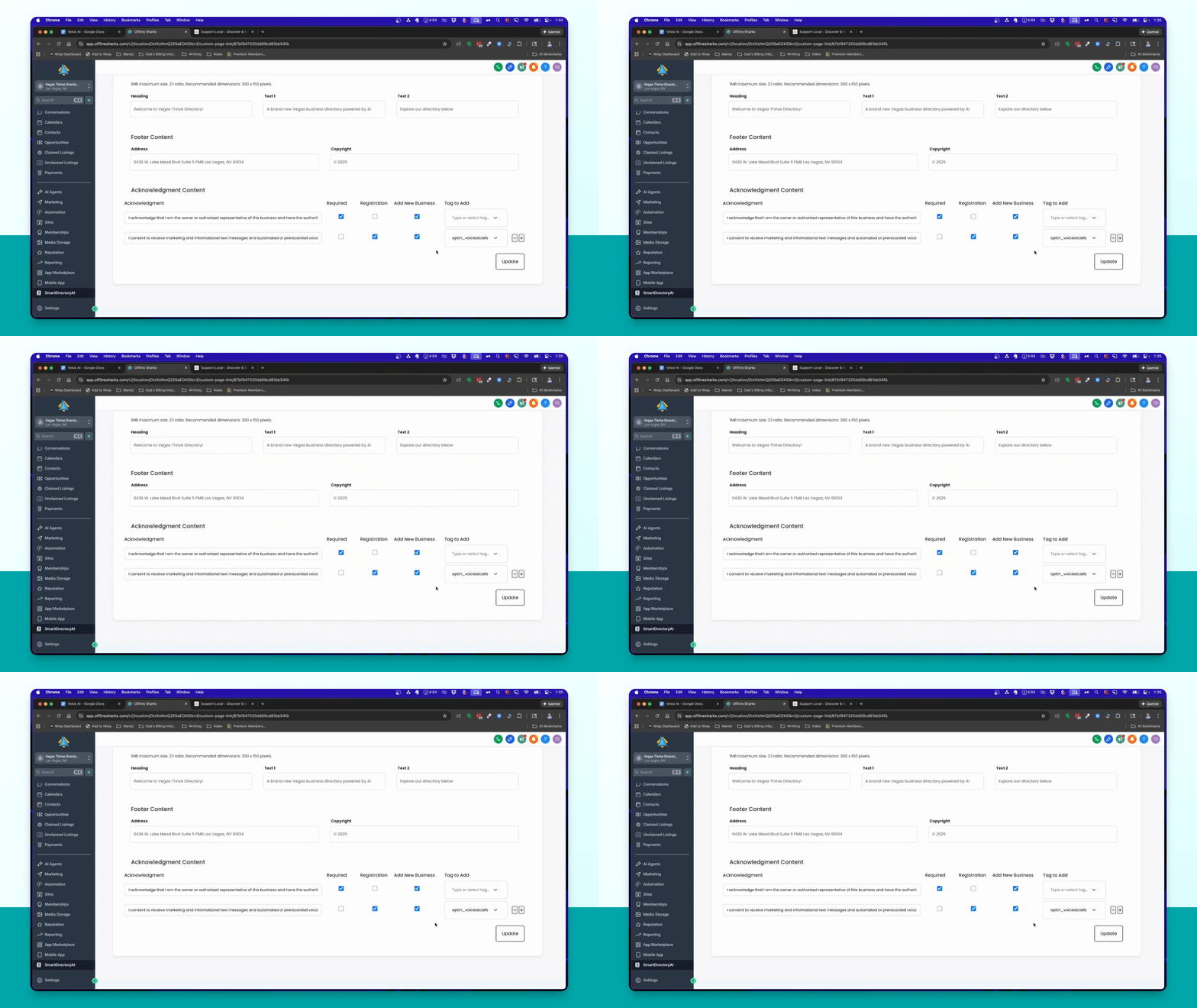
Step 6: Copy Acknowledgment Text
Copy the text regarding AI voice calls for future updates in your forms.
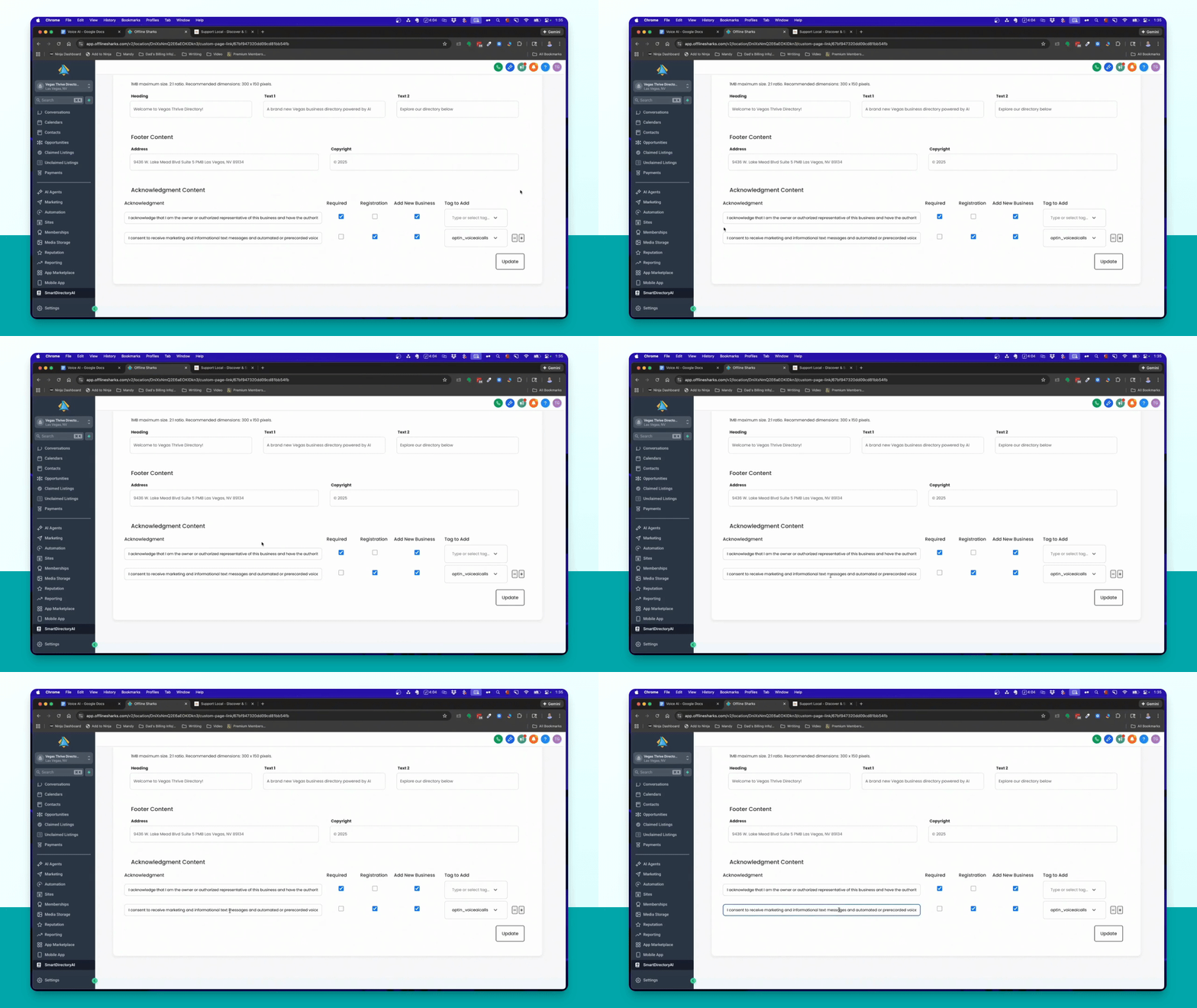
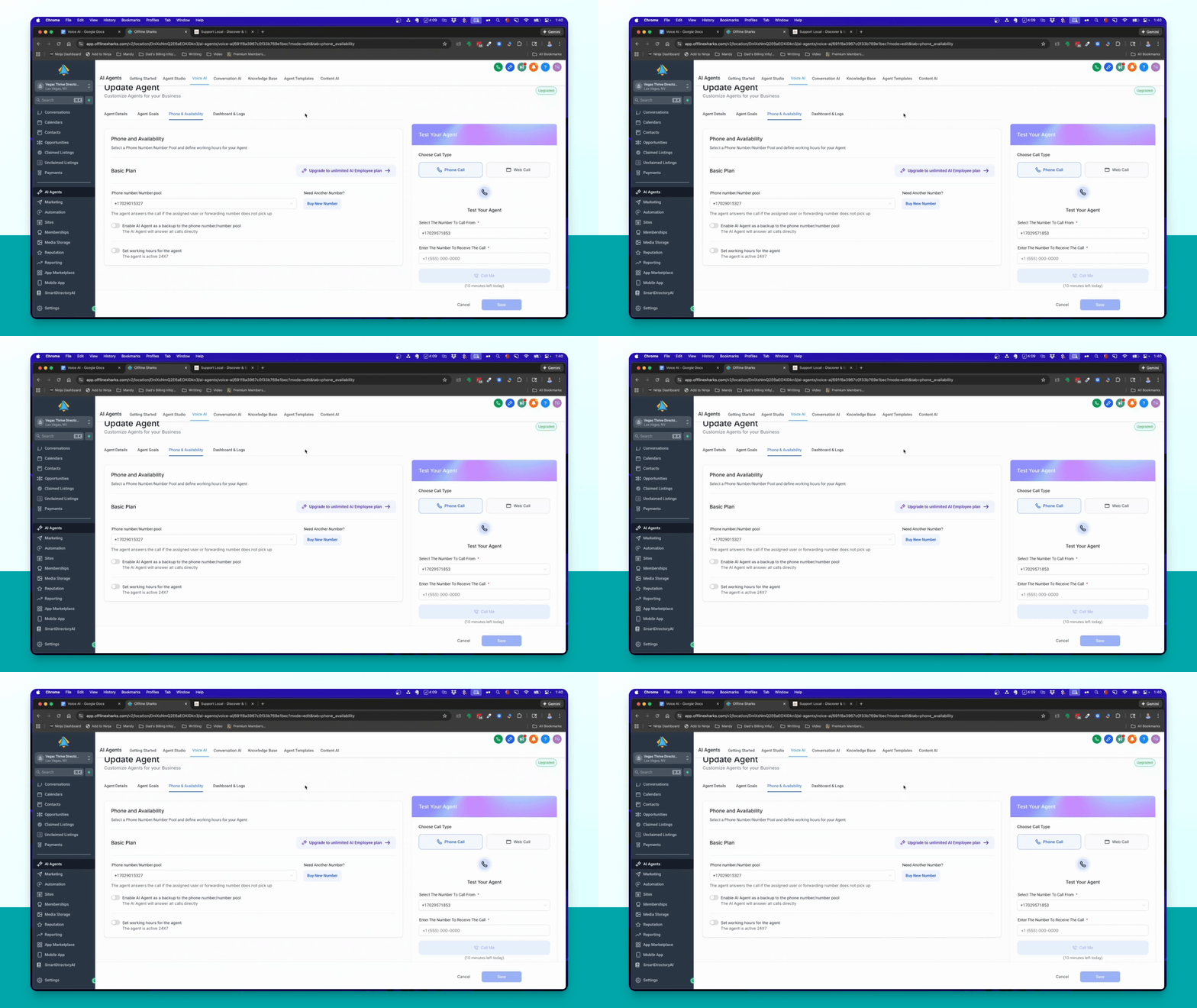
Step 7: Set Up Inbound AI Agent
Click on AI Agents in the left menu, then go to Voice AI → AI Agent List.
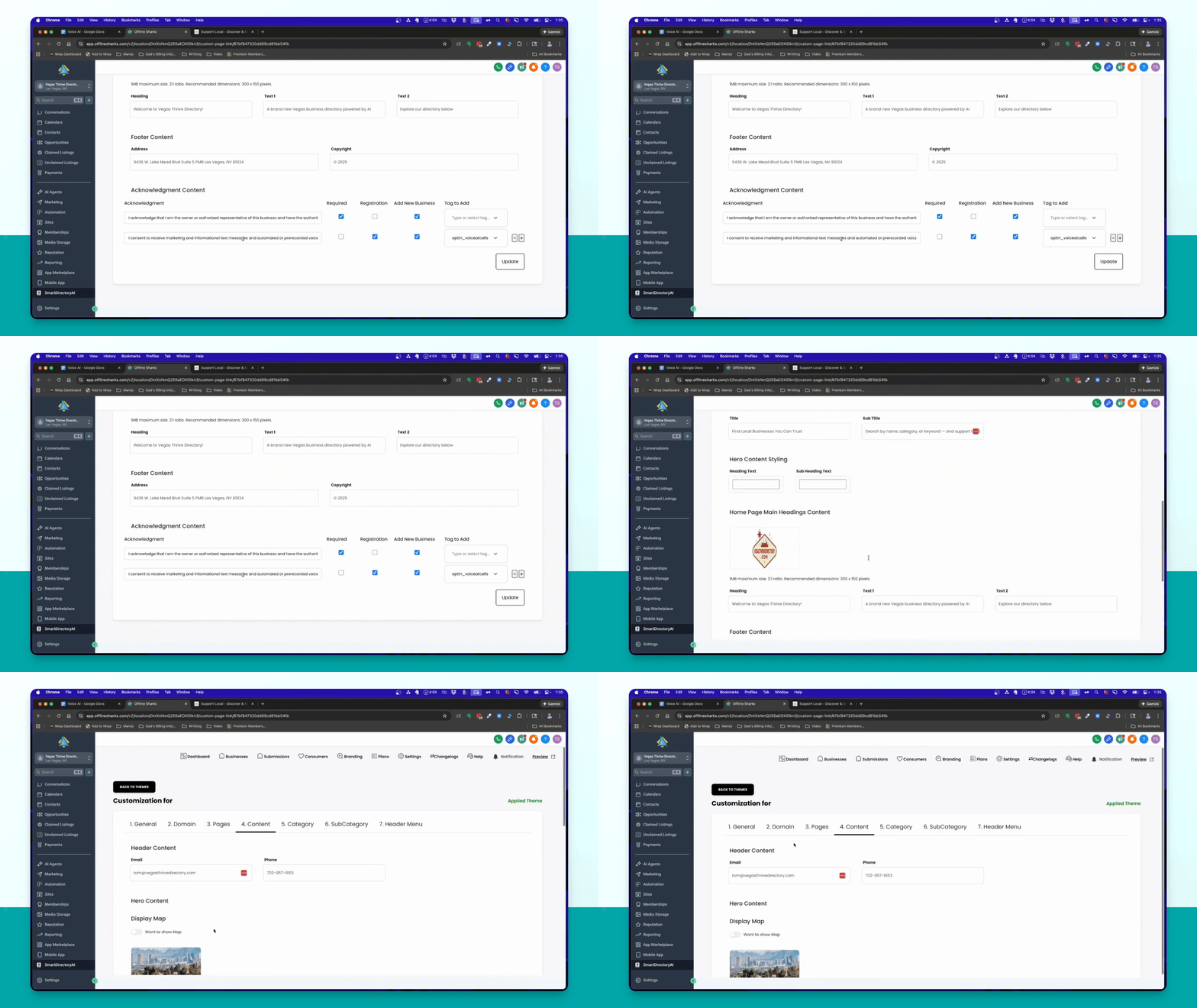
Step 8: Connect Inbound Number
Select the phone number to connect to the inbound AI agent from the dropdown menu.
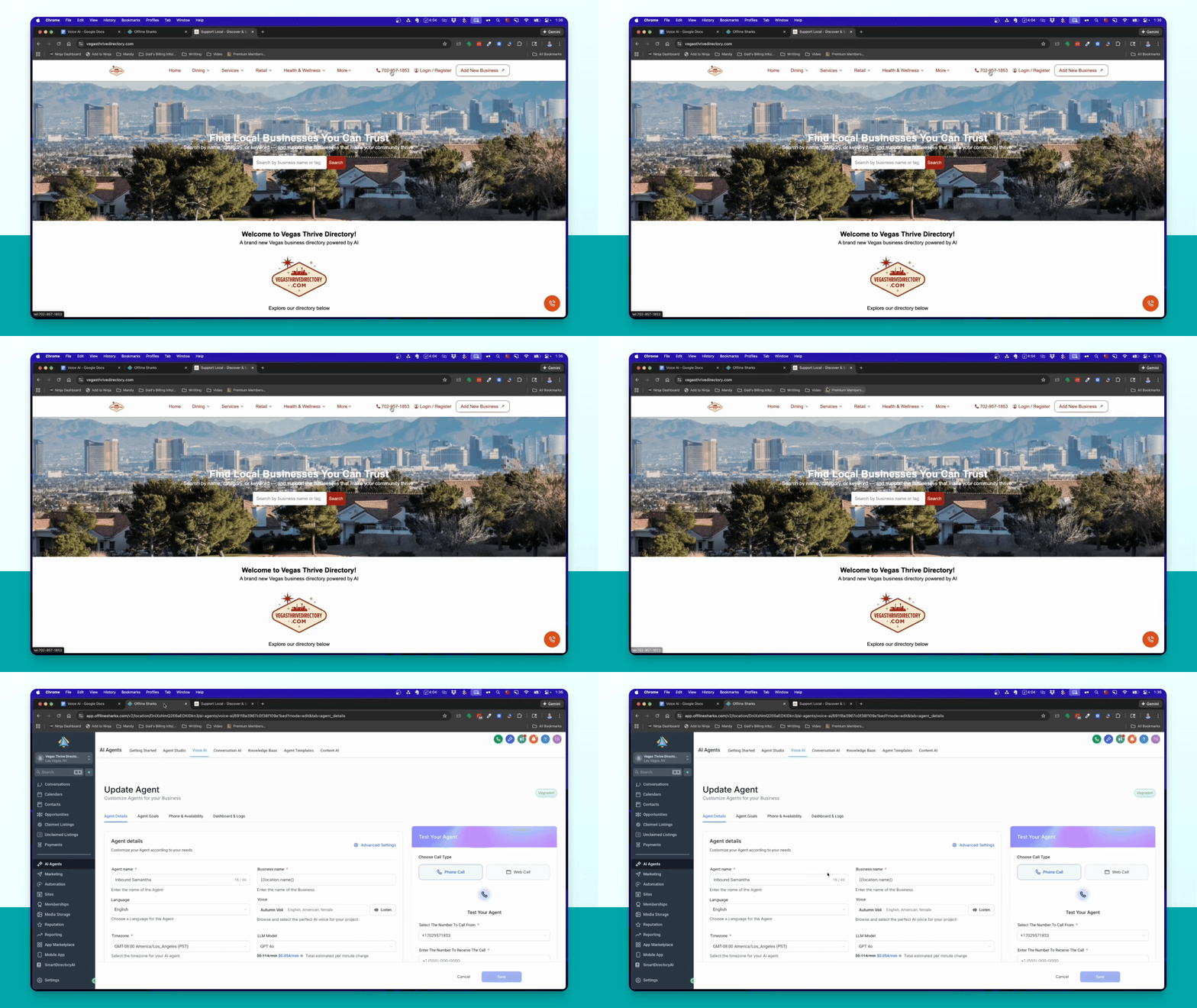
Step 9: Save Inbound Settings
Toggle off the option to answer only if a real person does not answer, then click Save.
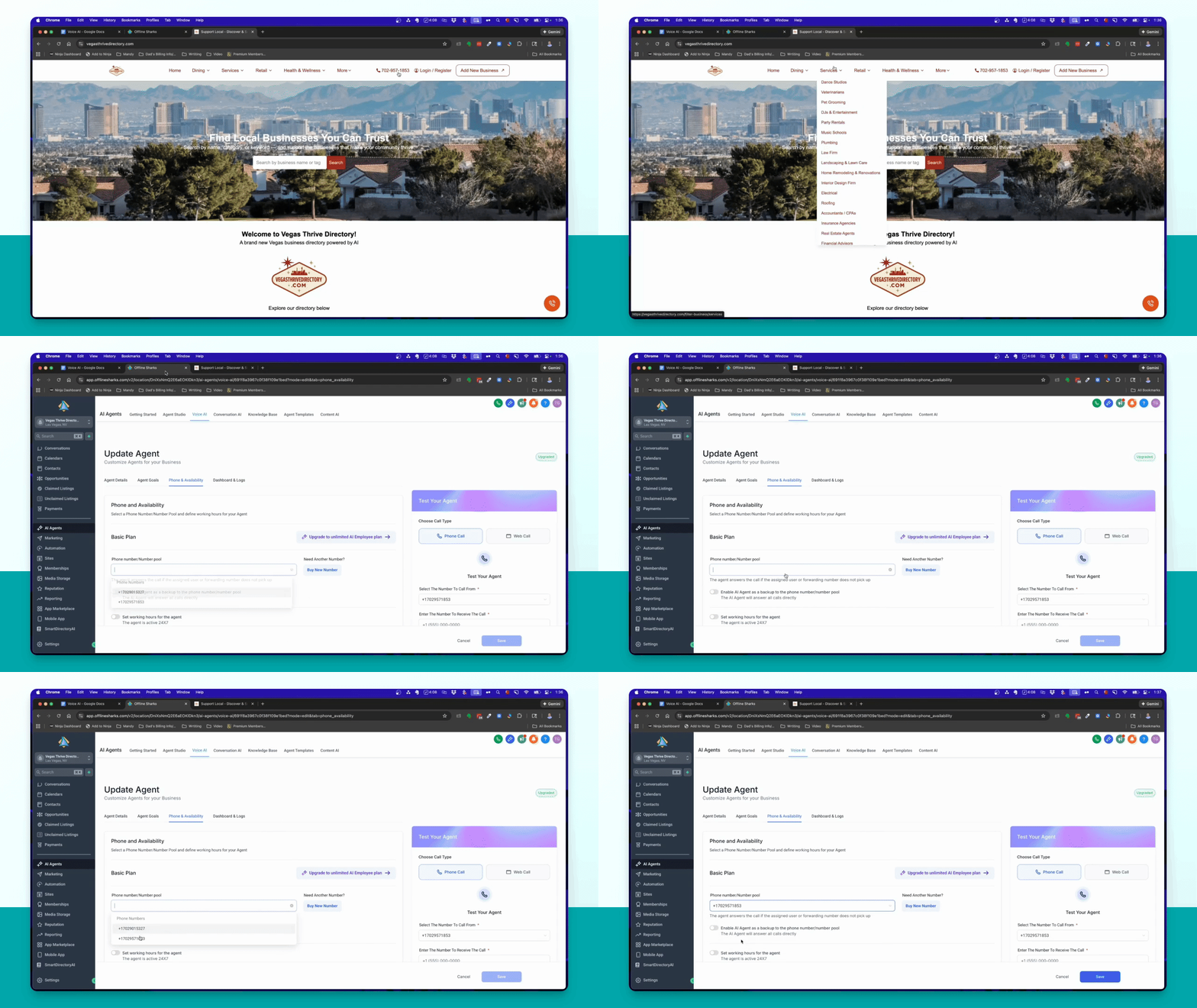
Step 10: Enable Outbound Calls
Select Enable Outbound Calls in the upper right corner to start the setup.
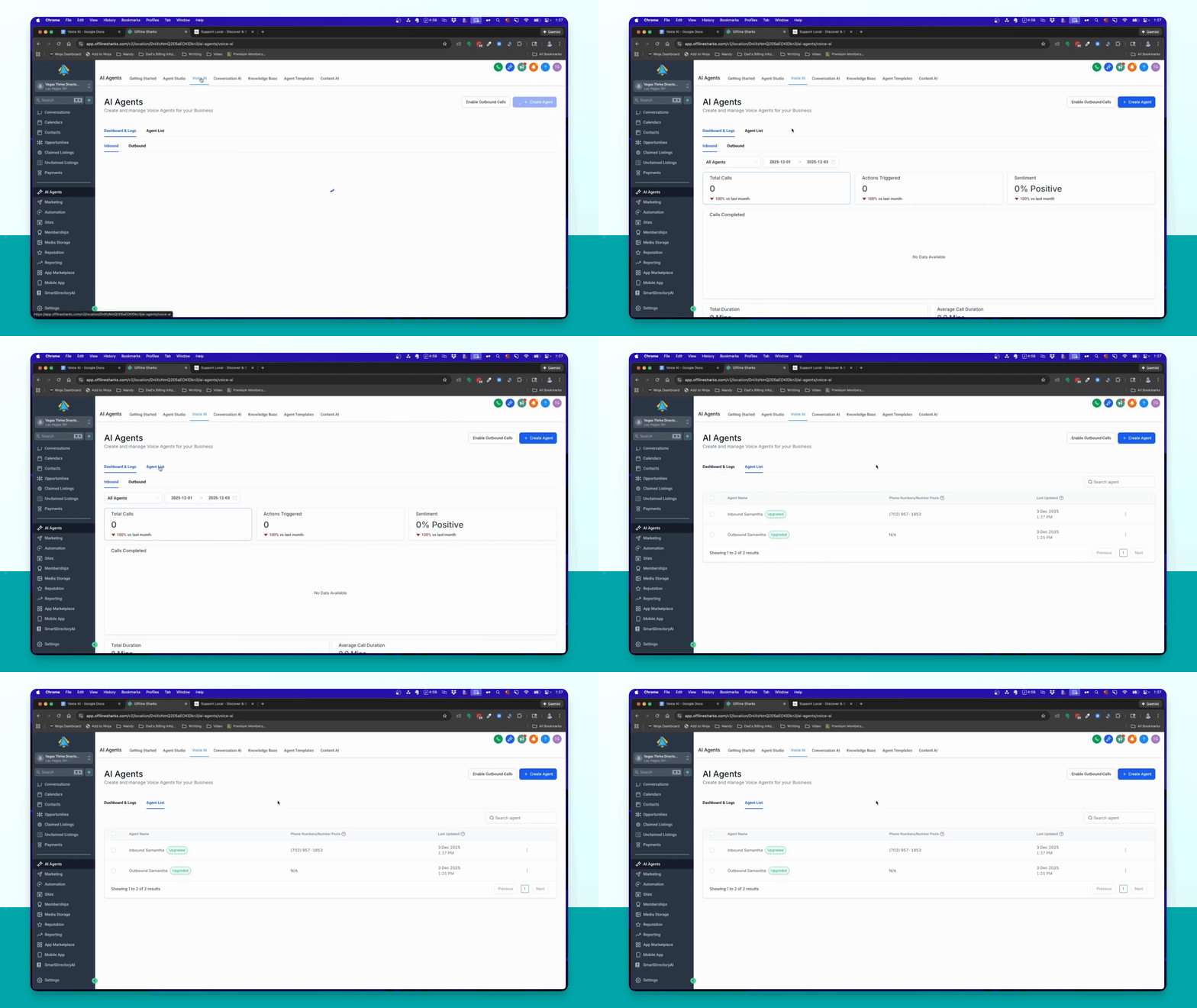
Step 11: Verify Your Identity
If prompted, verify your identity by submitting a form of ID to proceed.
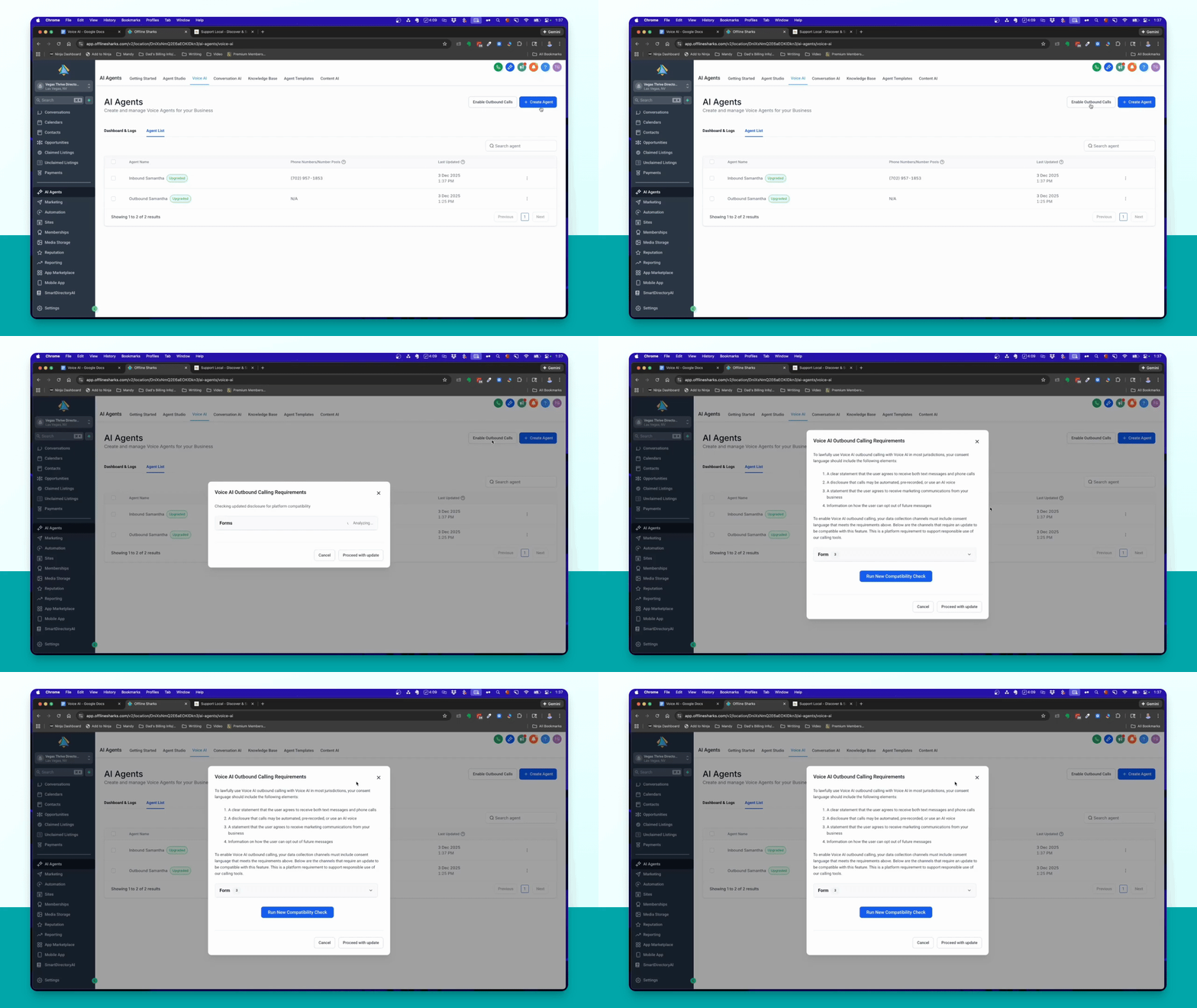
Step 12: Check Compliance
Address any compliance issues indicated by the system regarding your forms.
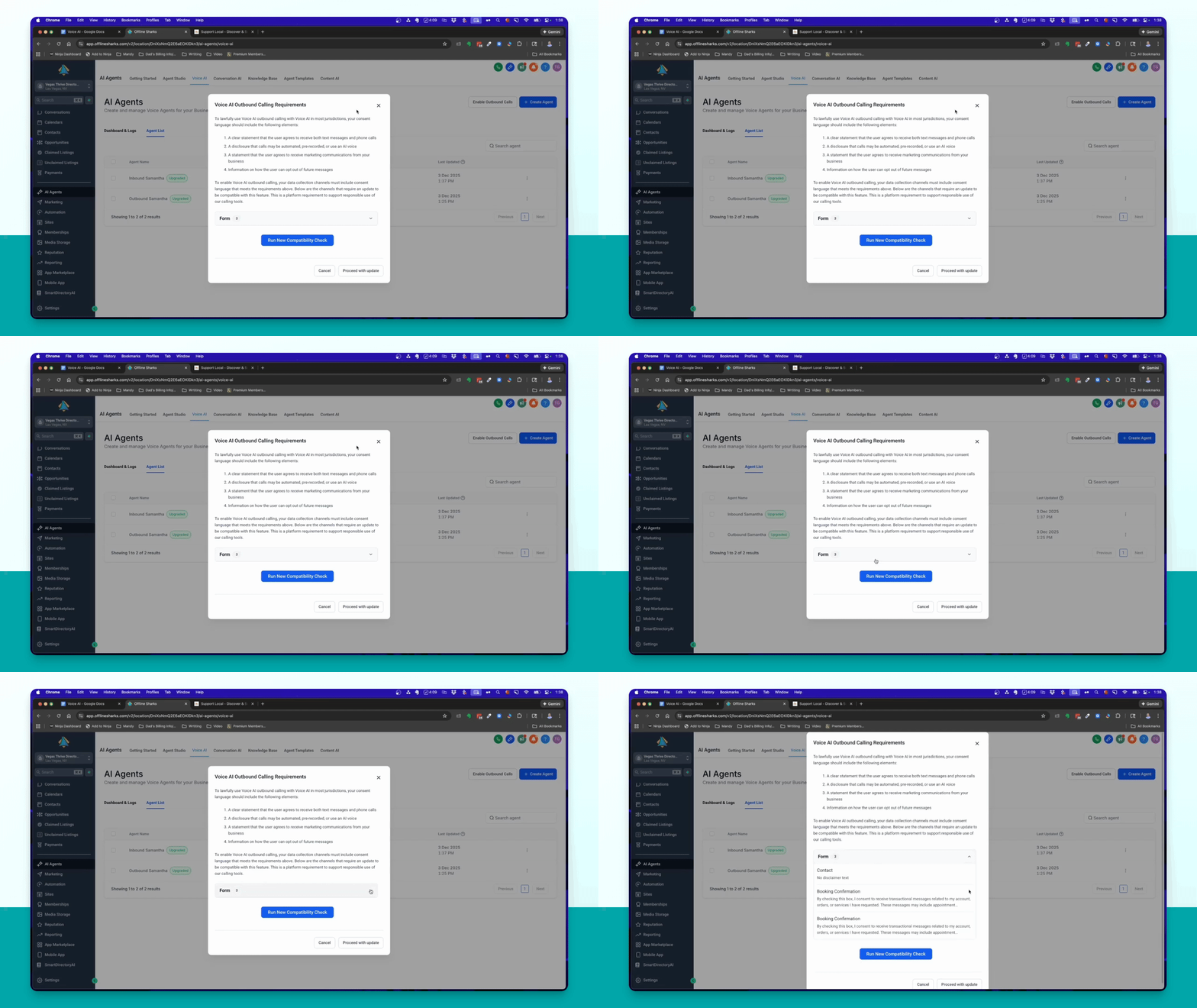
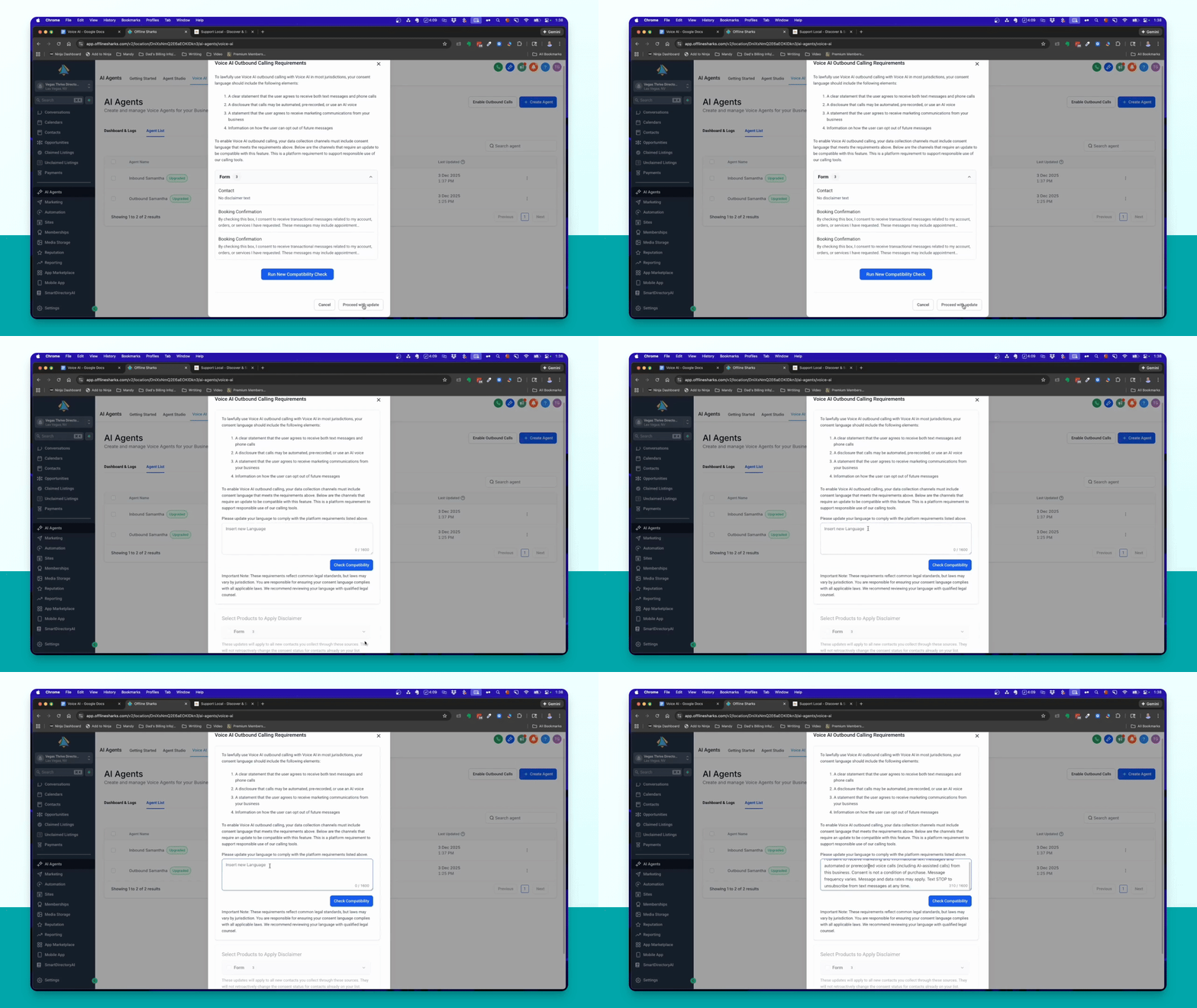
Step 13: Update Language
Insert the copied acknowledgment text and update the language for the selected forms.
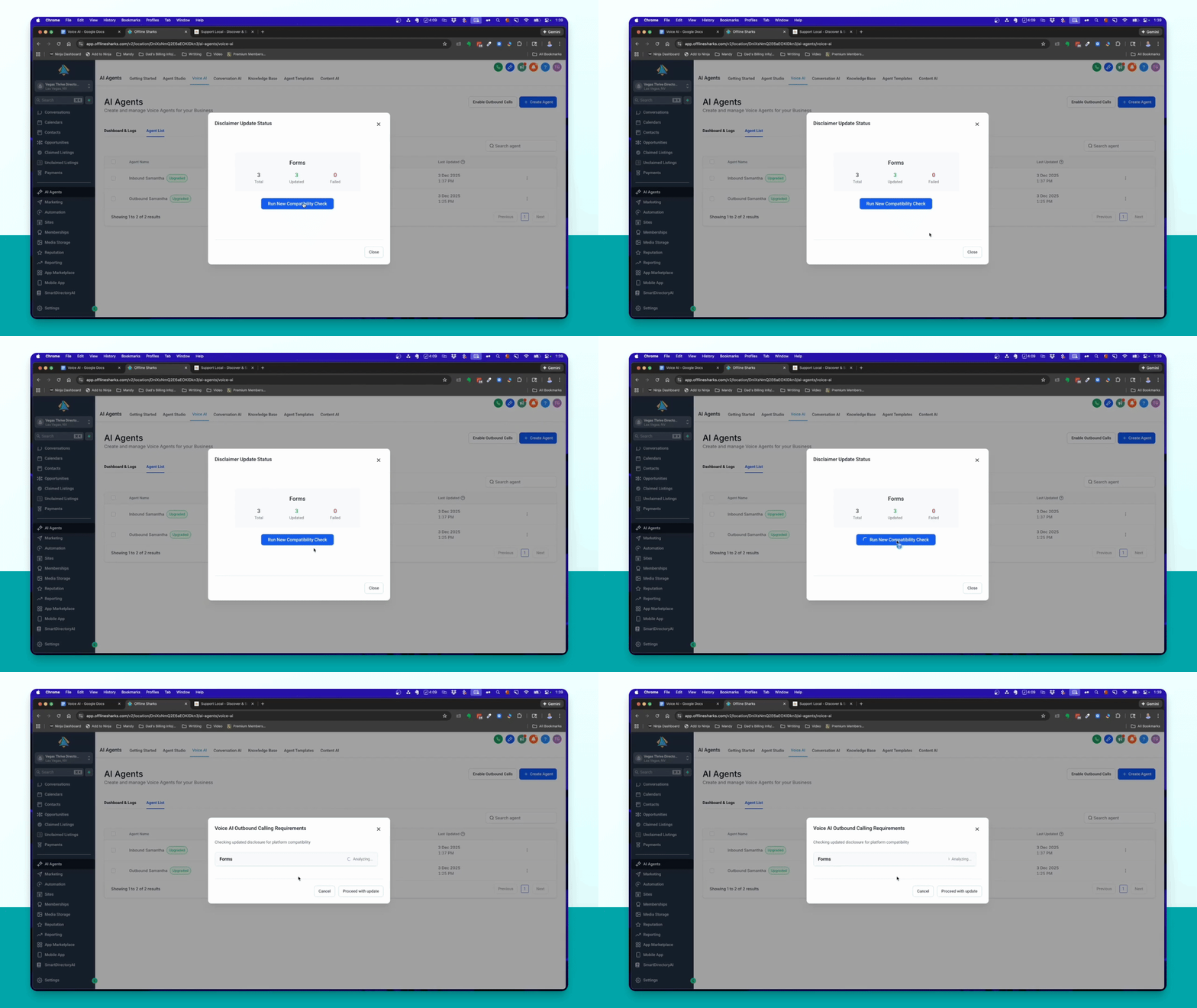
Step 14: Confirm Compliance
Run a compatibility check to ensure all forms are compliant.
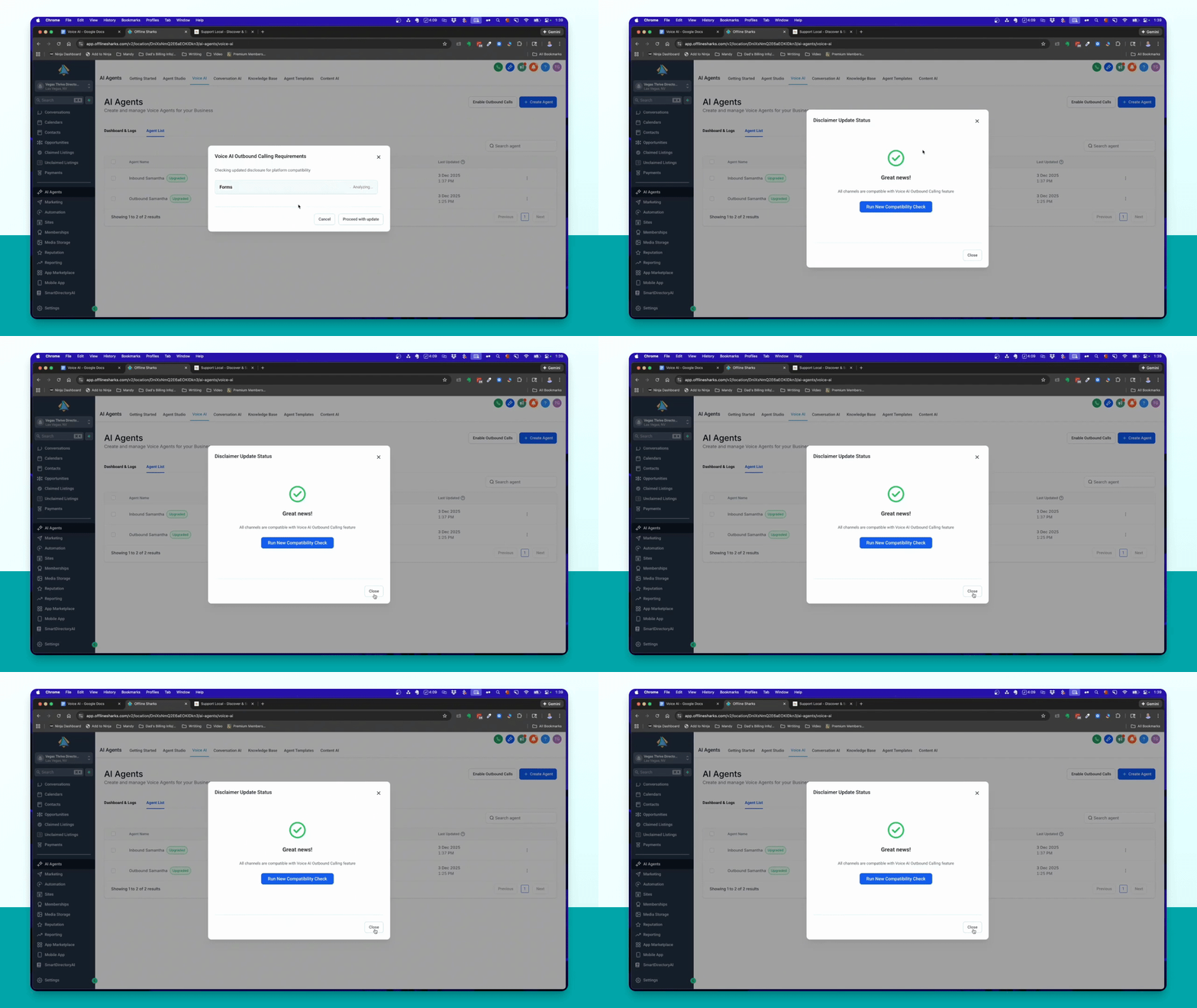
Step 15: Close Compliance Check
After confirming compliance, close the compatibility check window.
Step 16: Prepare for Next Steps
Plan to add the outbound agent to the workflow in the next video.