

Let's do it together!
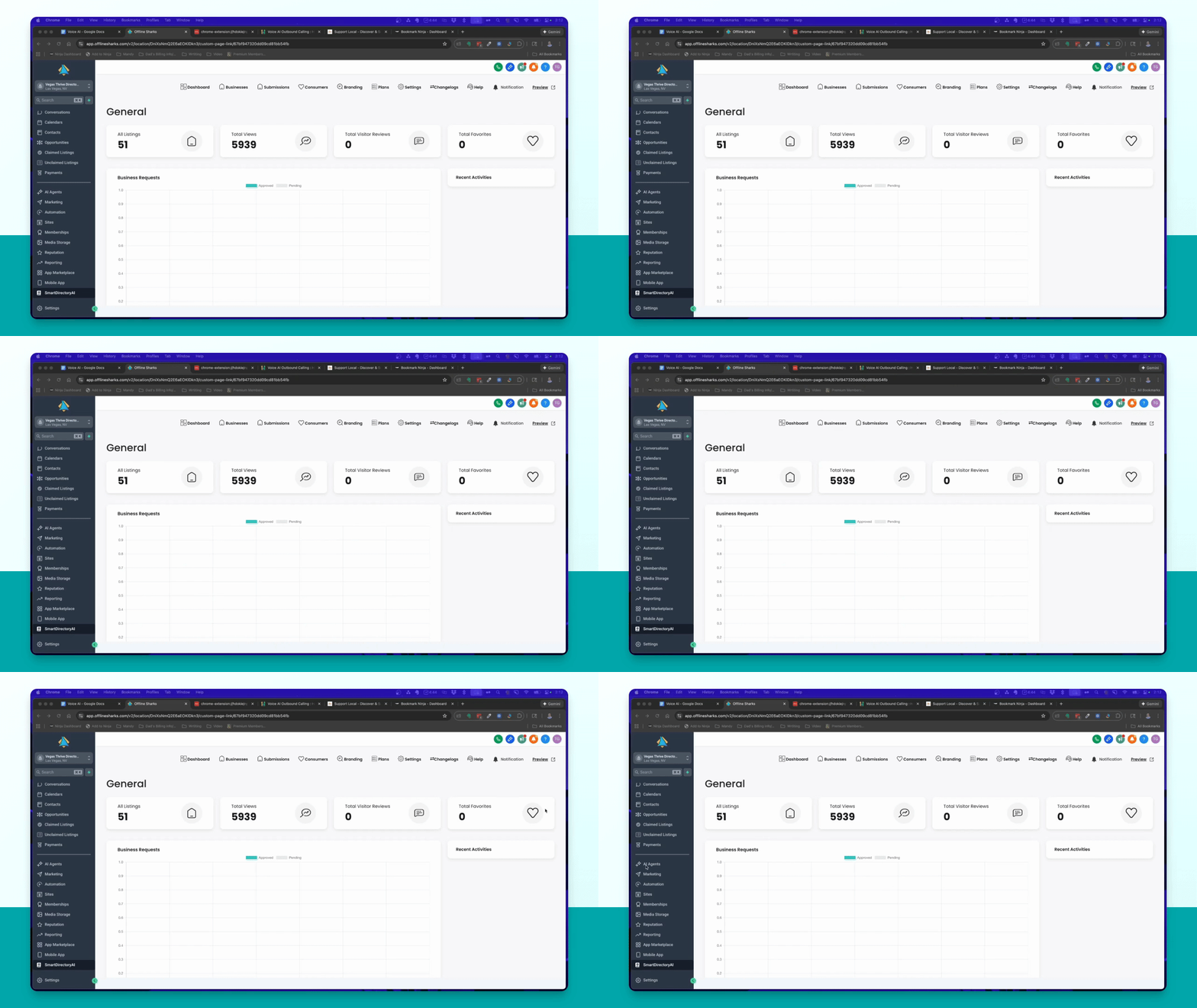
Step 1: Access Automation
Go to the left-hand menu and click on Automation.
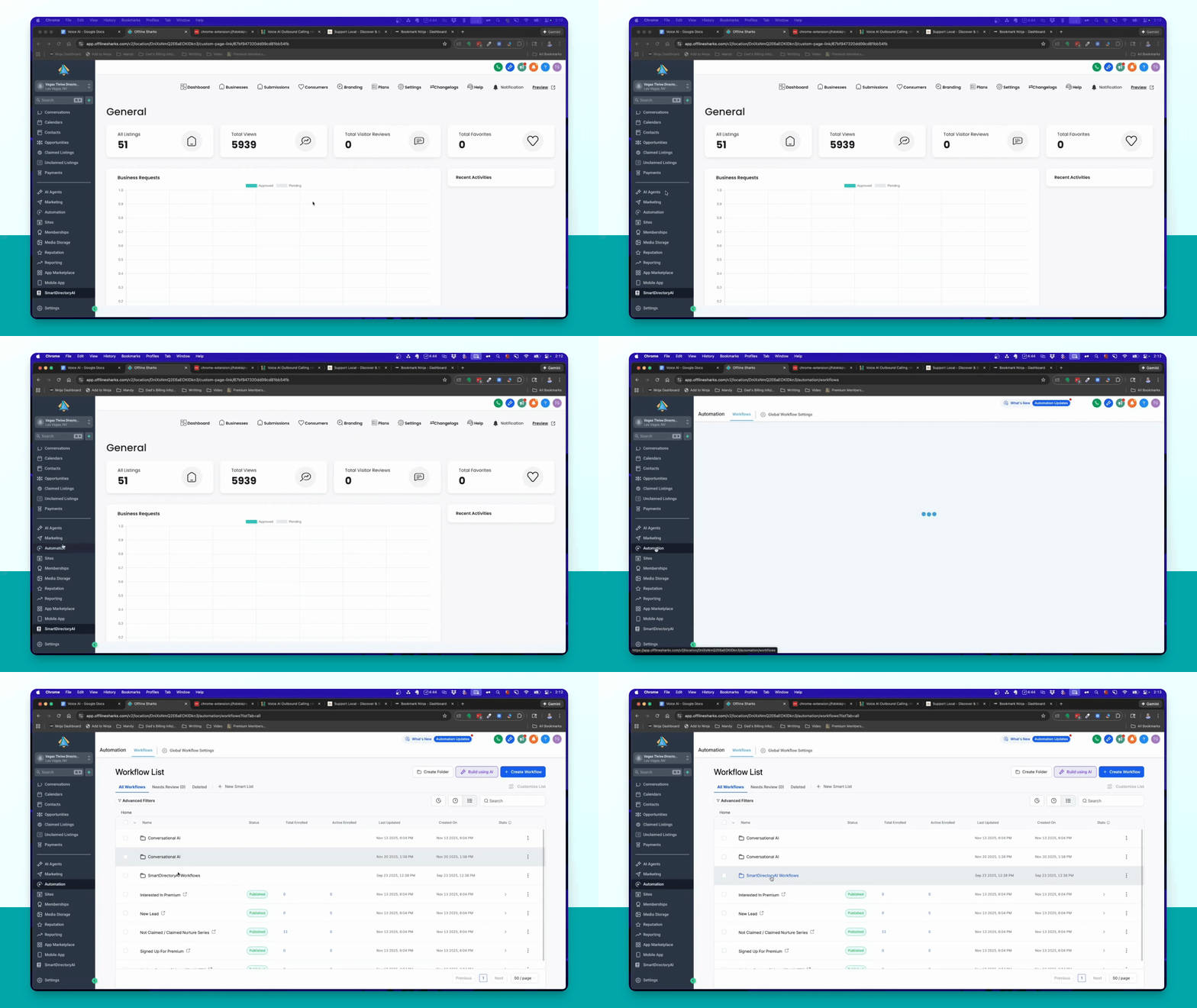
Step 2: Open Workflow Folder
Navigate to the Smart Directory AI Workflows folder.
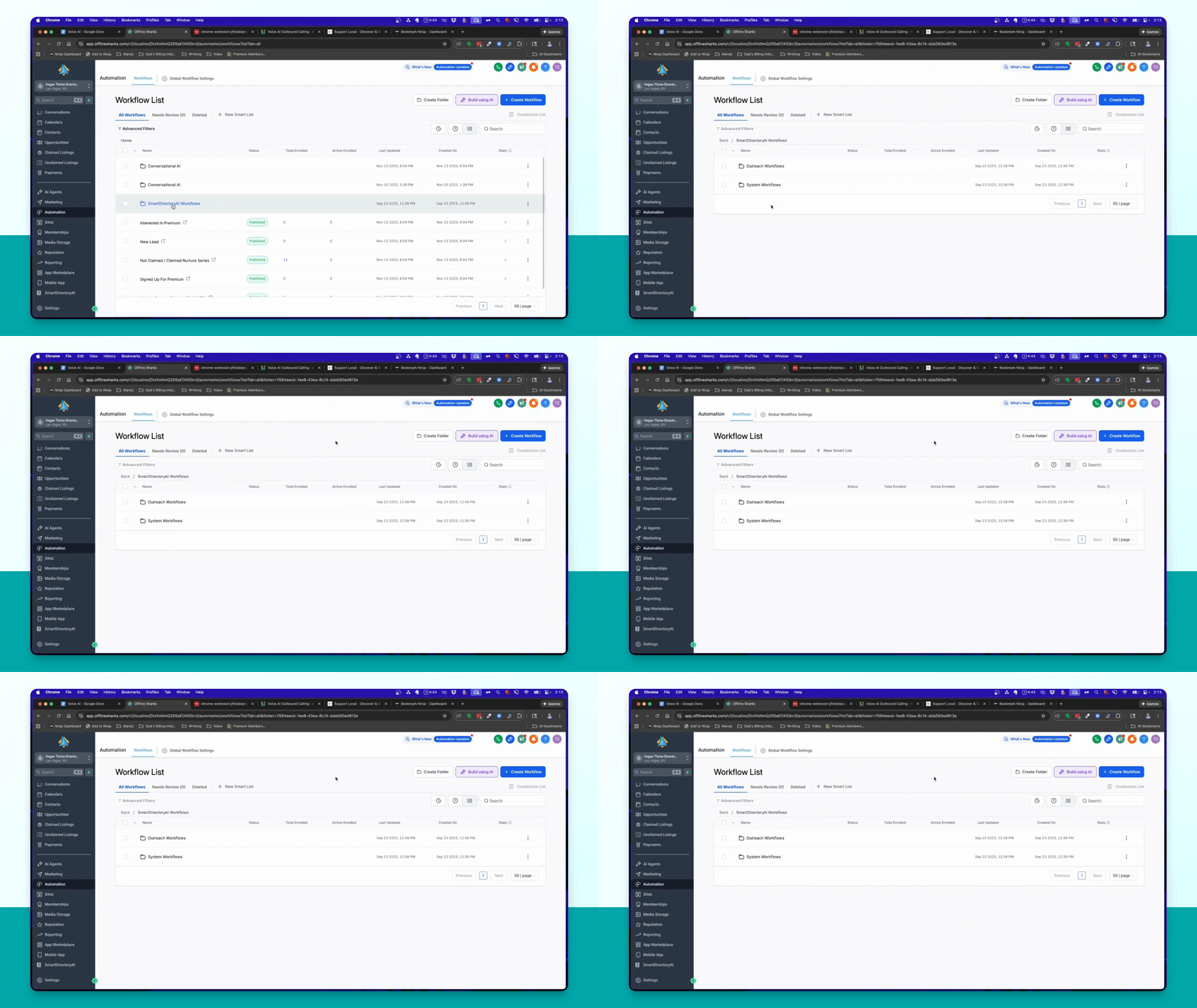
Step 3: Select Workflow
Find and click on the claim request approved workflow.
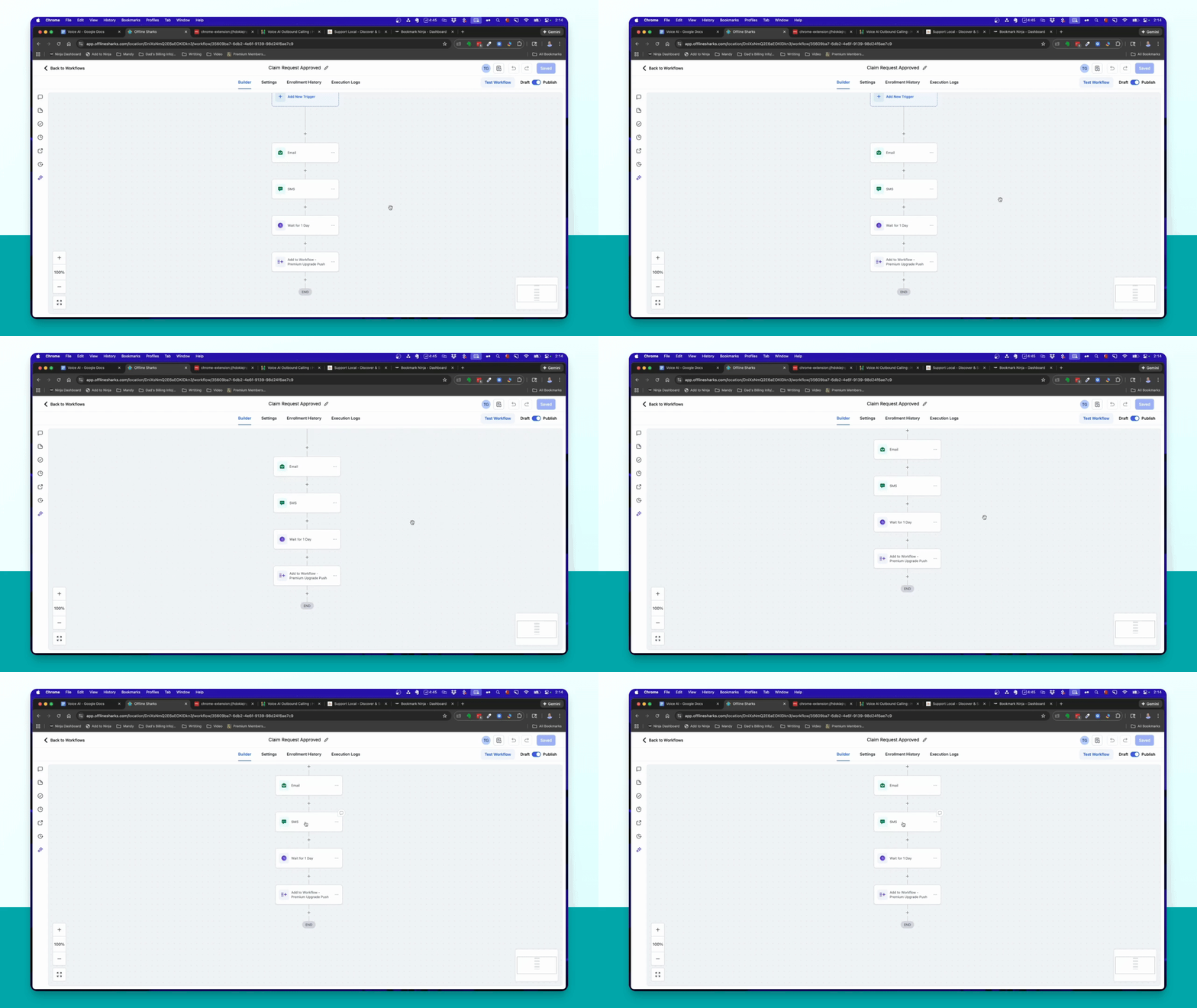
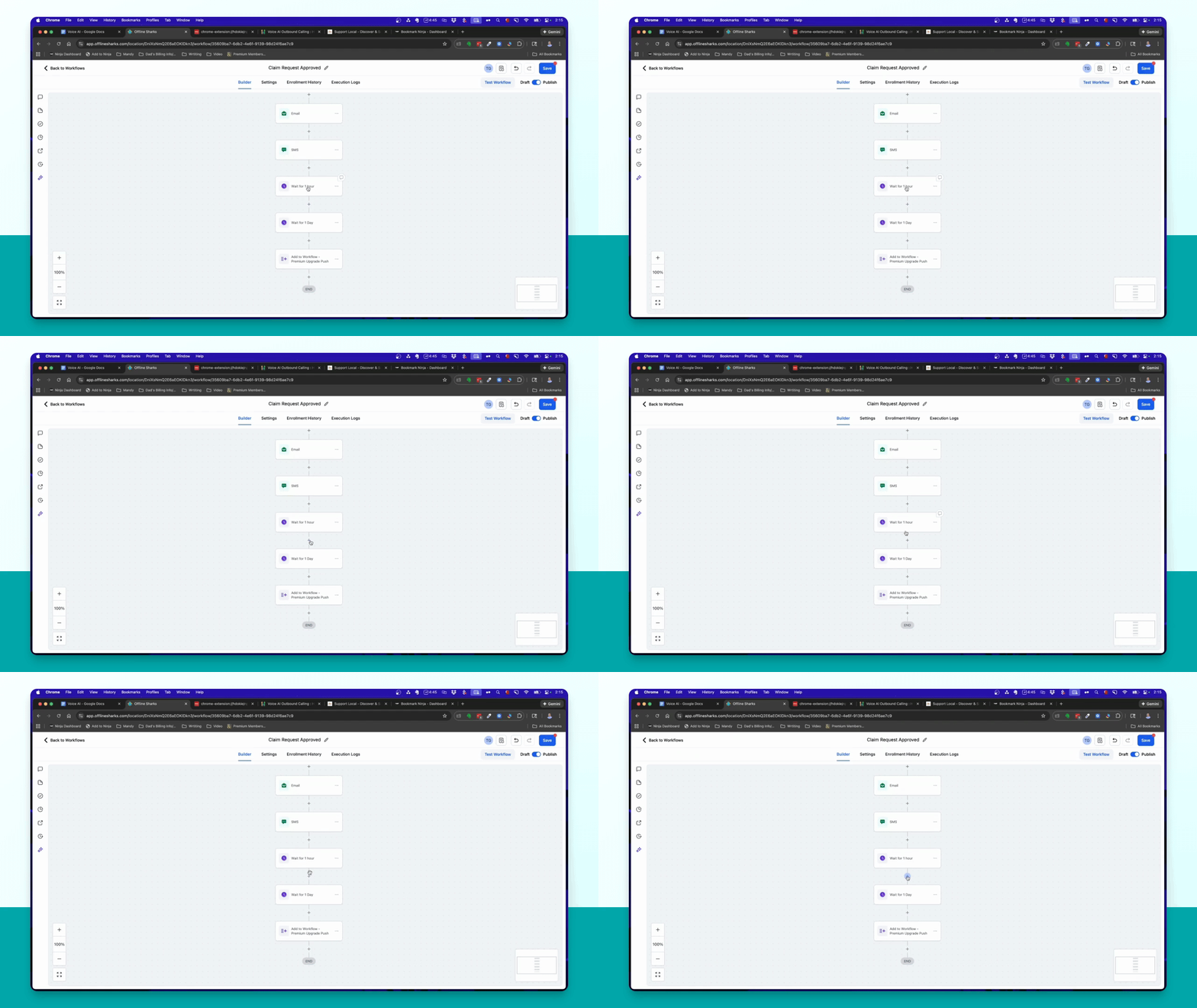
Step 4: Insert Wait Step
Click the plus sign under SMS and add a Wait action for one hour.
Step 5: Add Check Condition
Click the plus sign under the wait step and add an If Else condition to check for the tag.
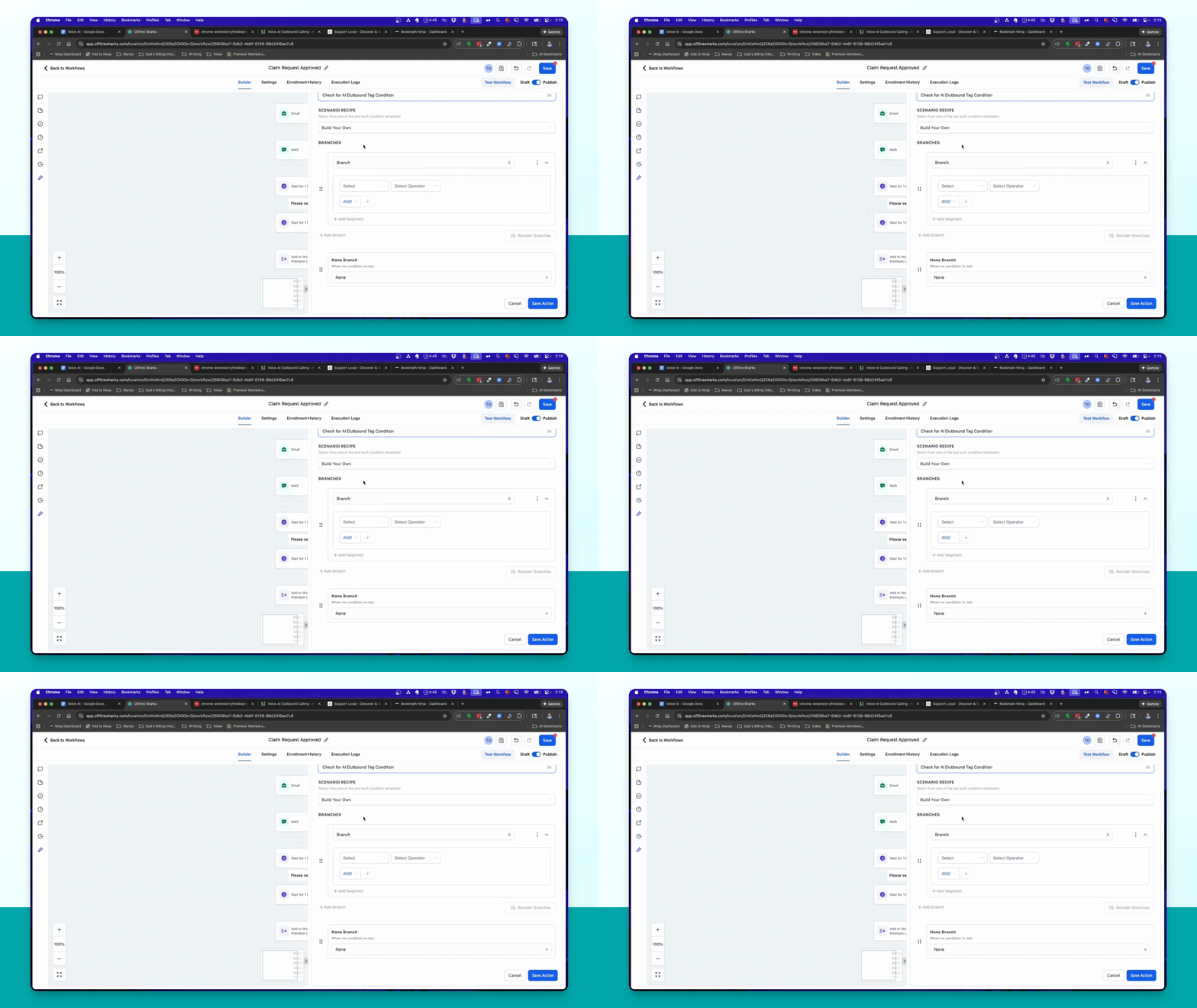
Step 6: Define Tag Check
Set the condition to check if the contact has the opt in_voice AI calls tag.
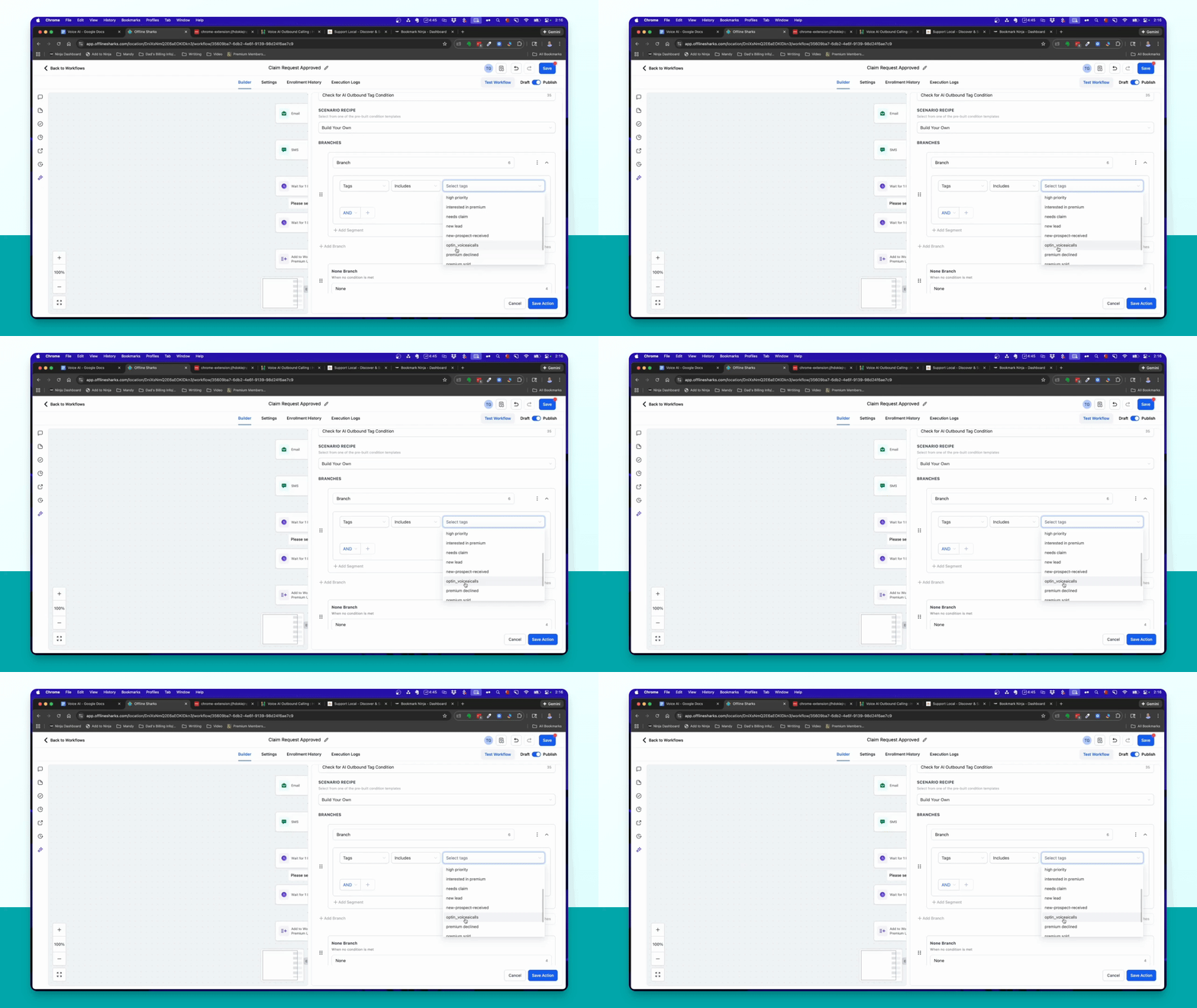
Step 7: Create Tag if Missing
If the tag is not found, create it by typing opt in_voice AI calls and clicking Add New Tag.
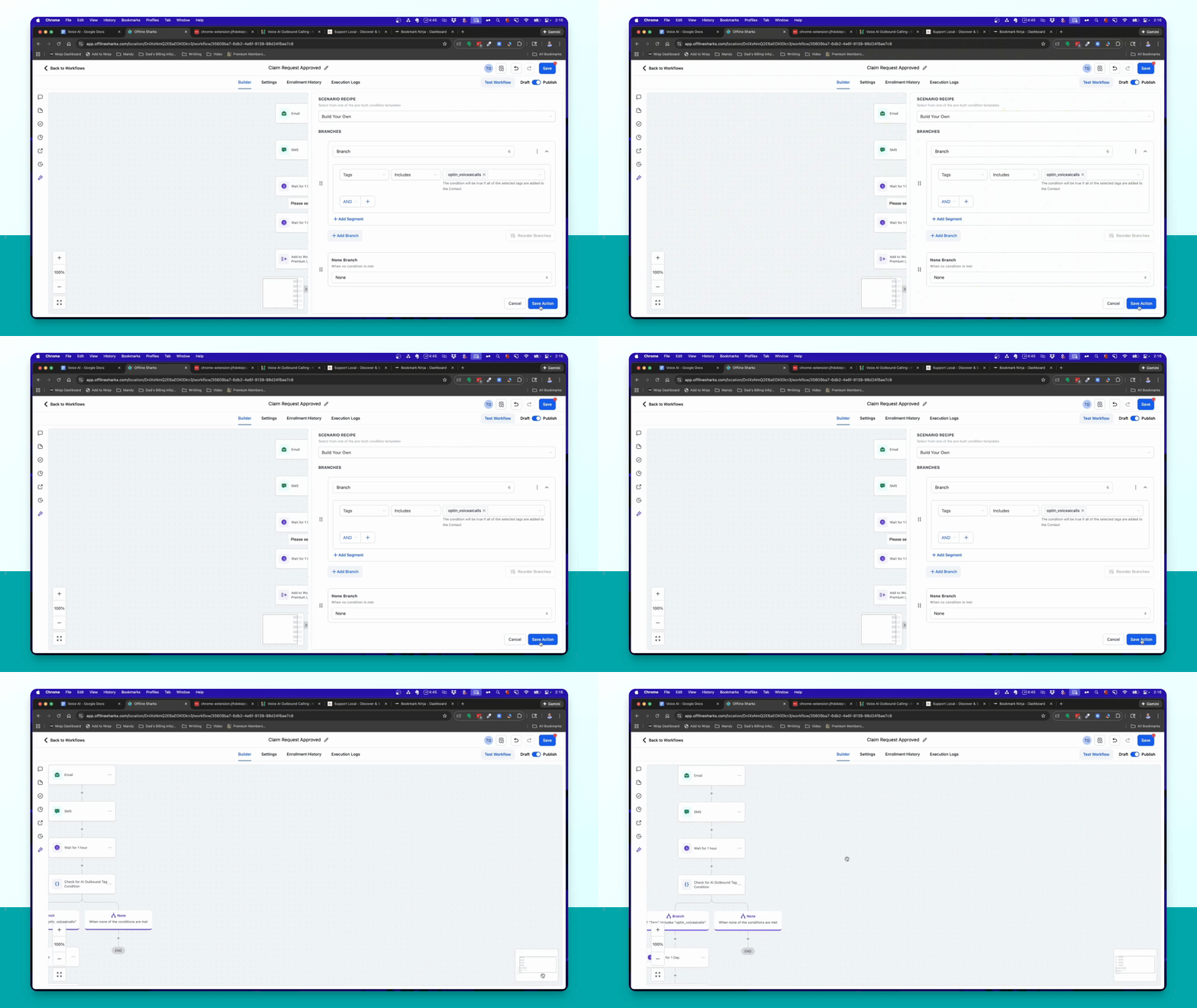
Step 8: Save Condition
Save the action to finalize the tag check condition.
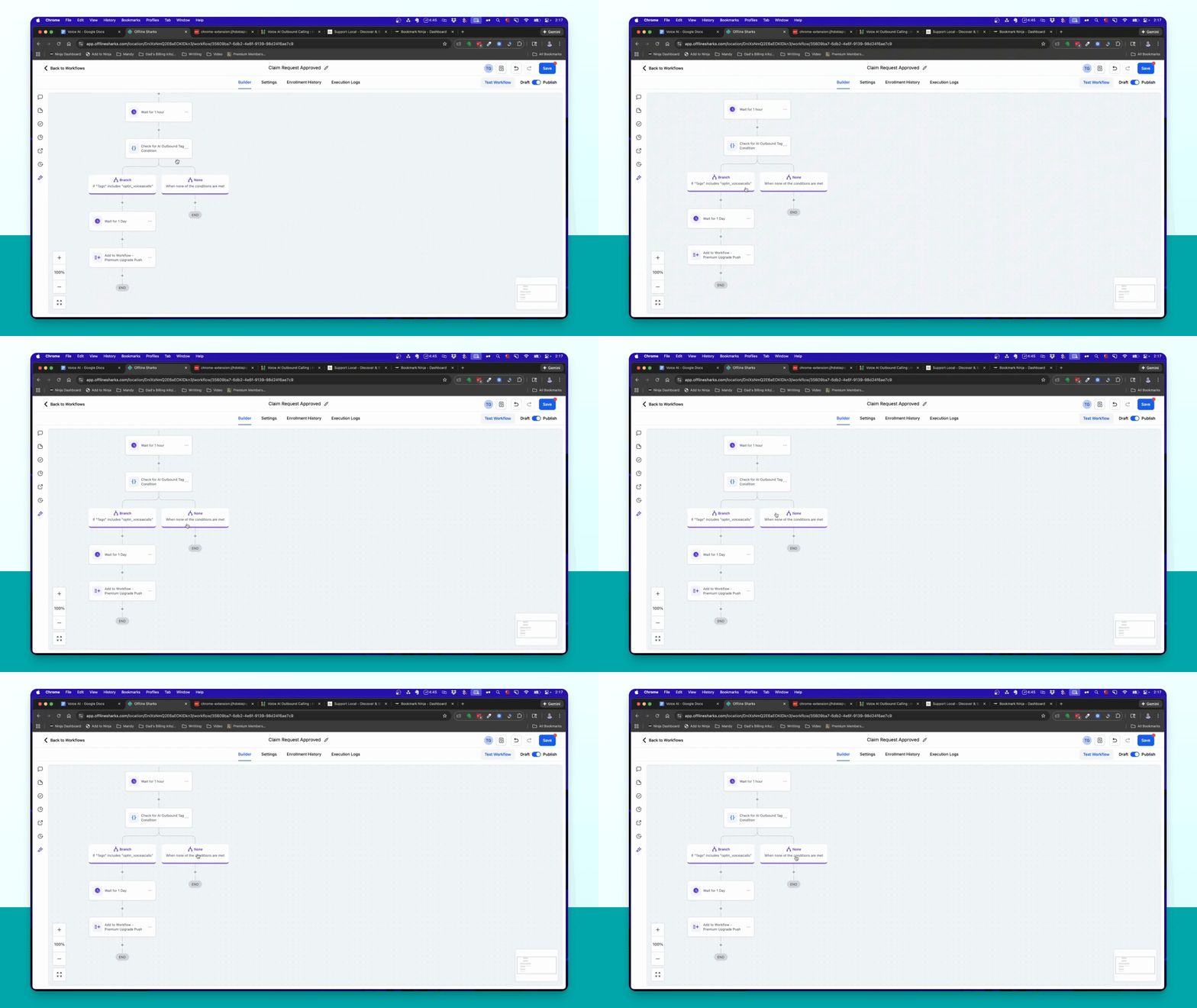
Step 9: Configure No Tag Action
If no tag is found, add a Go To action leading to the wait for one day step.
Step 10: Setup Outbound Call
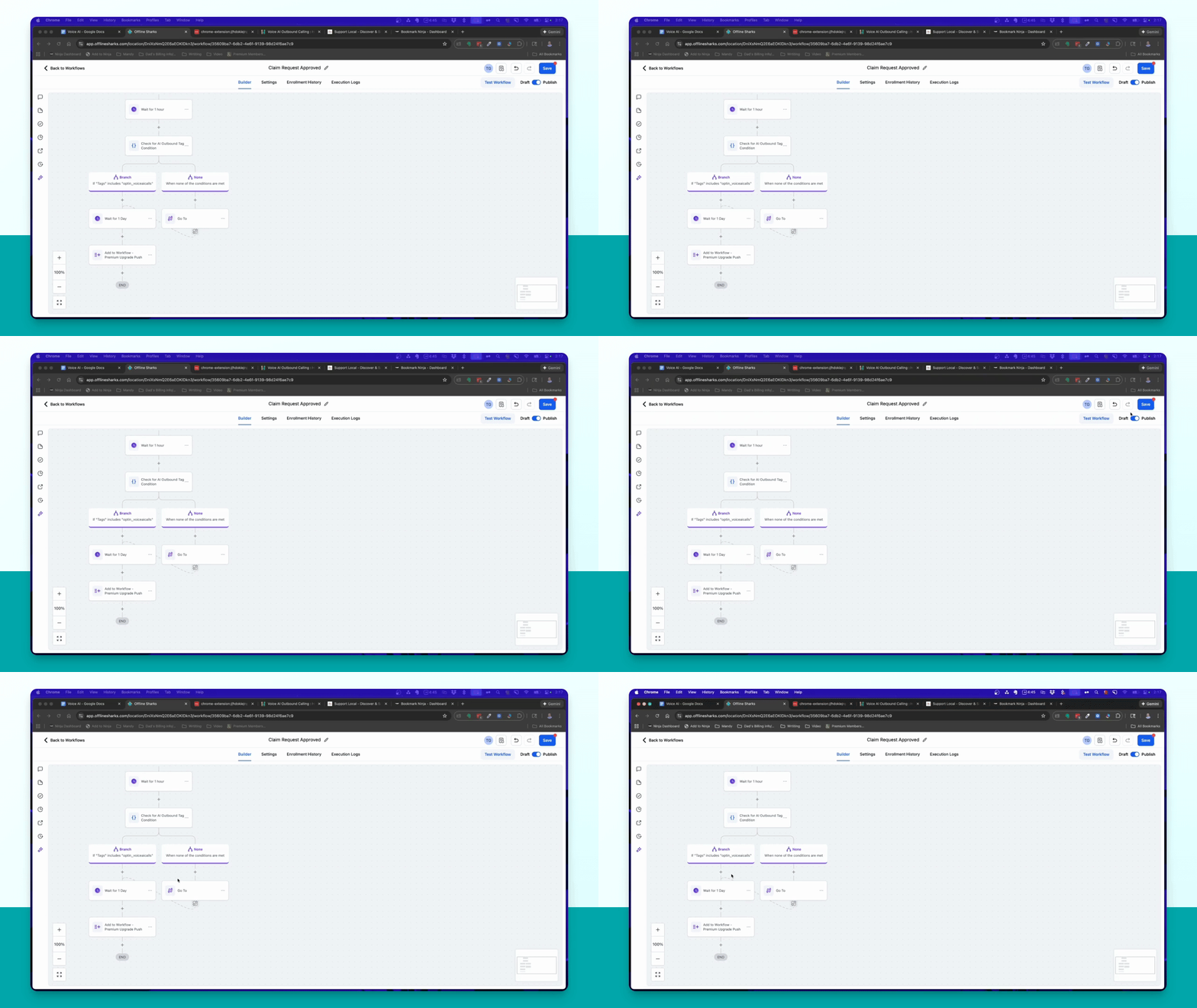
If the tag is present, add the Voice AI outbound call action and select the agent and phone number.
Step 11: Save Workflow
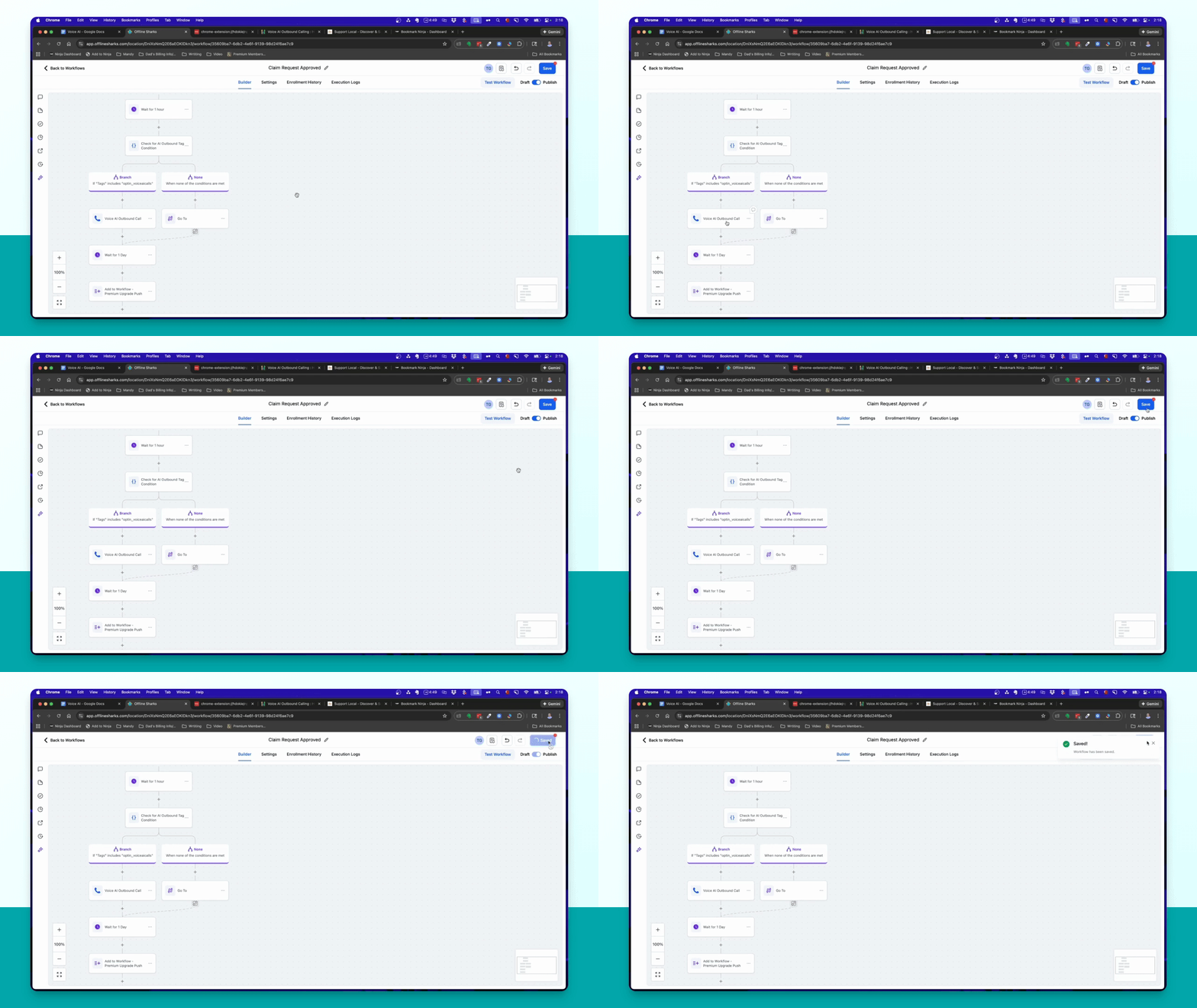
Click Save to ensure all changes are saved in the workflow.
Step 12: Review Workflow
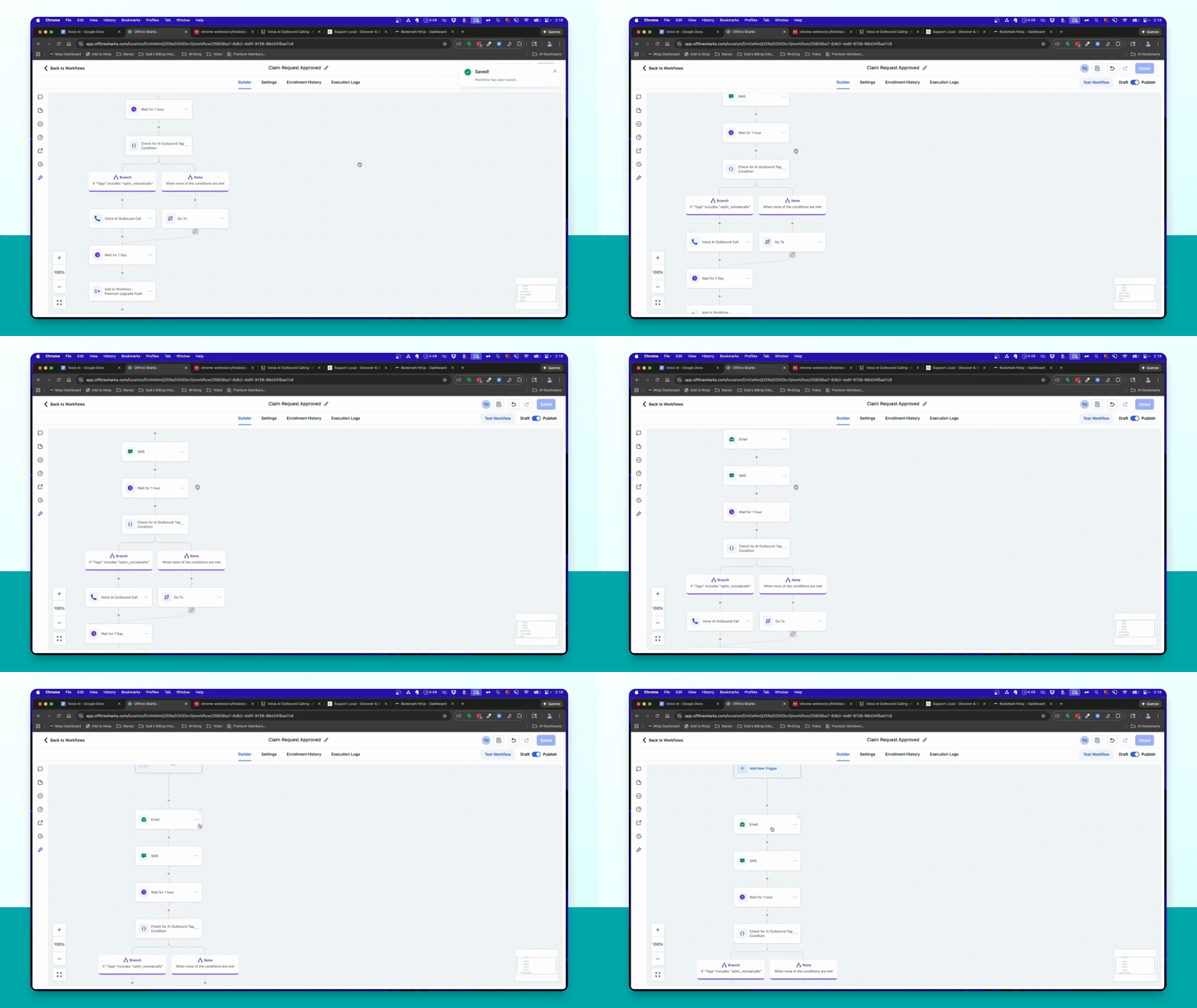
Verify that the workflow sends an email, SMS, waits an hour, and checks for the tag before proceeding.
More Information
For more information on Voice AI outbound calling, visit: https://help.gohighlevel.com/support/solutions/articles/155000006598-voice-ai-outbound-calling