Update Webhook URL / Mapping Reference to Publish Business Creation Workflow
Open your HighLevel dashboard and navigate to your SmartDirectoryAI sub-account where you've imported the Voice/Conversational AI snapshot.
In the left-hand menu, click on Automation.
Open the folder Conversational AI, and then open the Business Creation Workflow workflow.
Click on the Inbound Webhook trigger at the top of the workflow, and copy the webhook URL.
Now, in a new tab, open the New Business Webhook Starter workflow from the same folder.
Click the Webhook action at the top of the workflow.
Replace the webhook URL with the one you copied from the Business Creation Workflow.
Save and publish the New Business Webhook Starter workflow.
Click Test Workflow and test with yourself. (This is necessary for the next step.)
Close the New Business Webhook Starter workflow tab.
Back in the Business Creation Workflow, still in the Inbound Webhook trigger, click the dropdown box under Mapping Reference. If necessary, click to load new results.
You should see the an option to select the test fire you ran a moment ago in the other workflow. Select it. Then save the Inbound Webhook trigger step.
Save and publish the Business Creation Workflow.
Update Custom Values
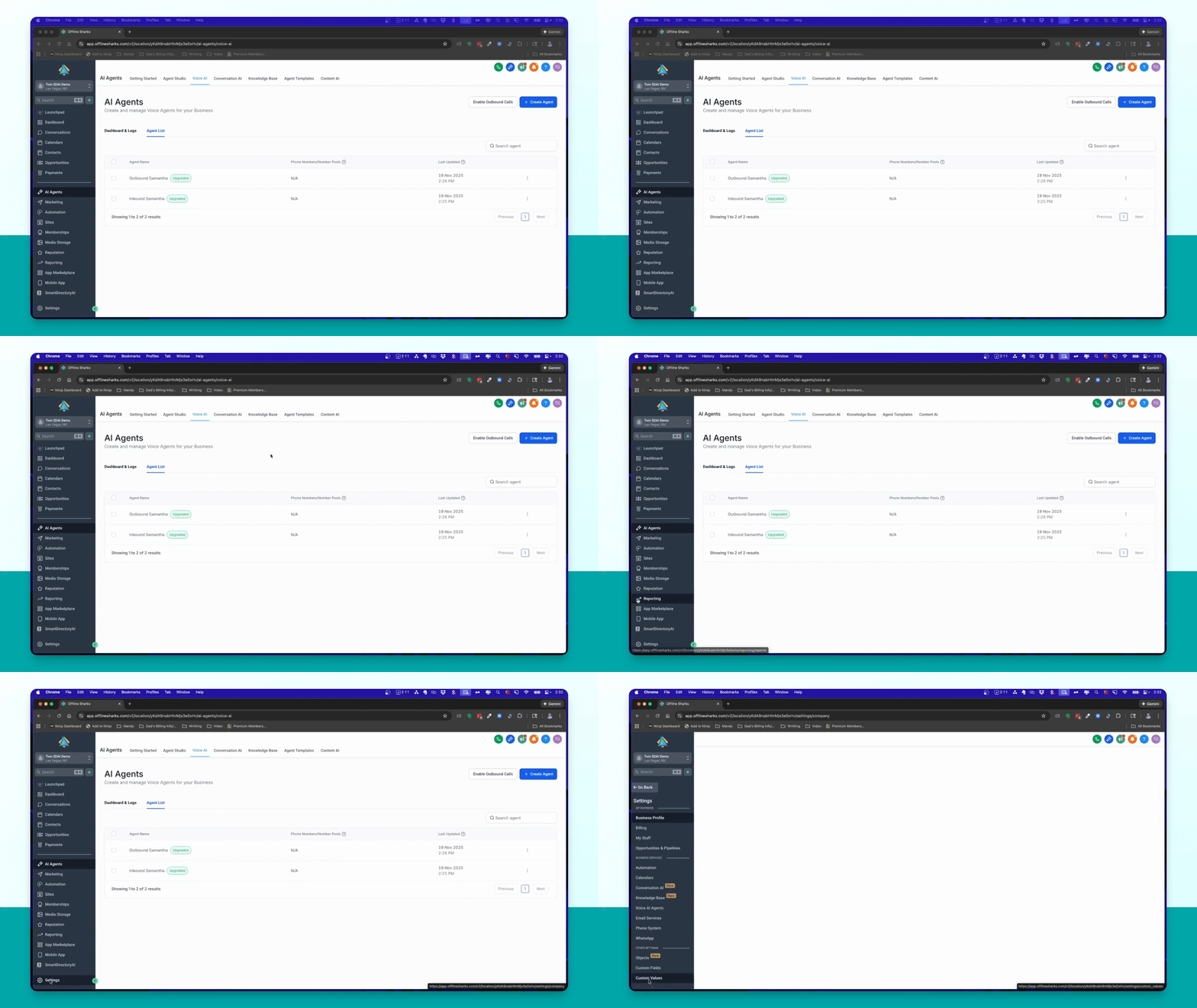
Step 1: Access Settings
In the left-hand menu, scroll down to Settings and click on it.
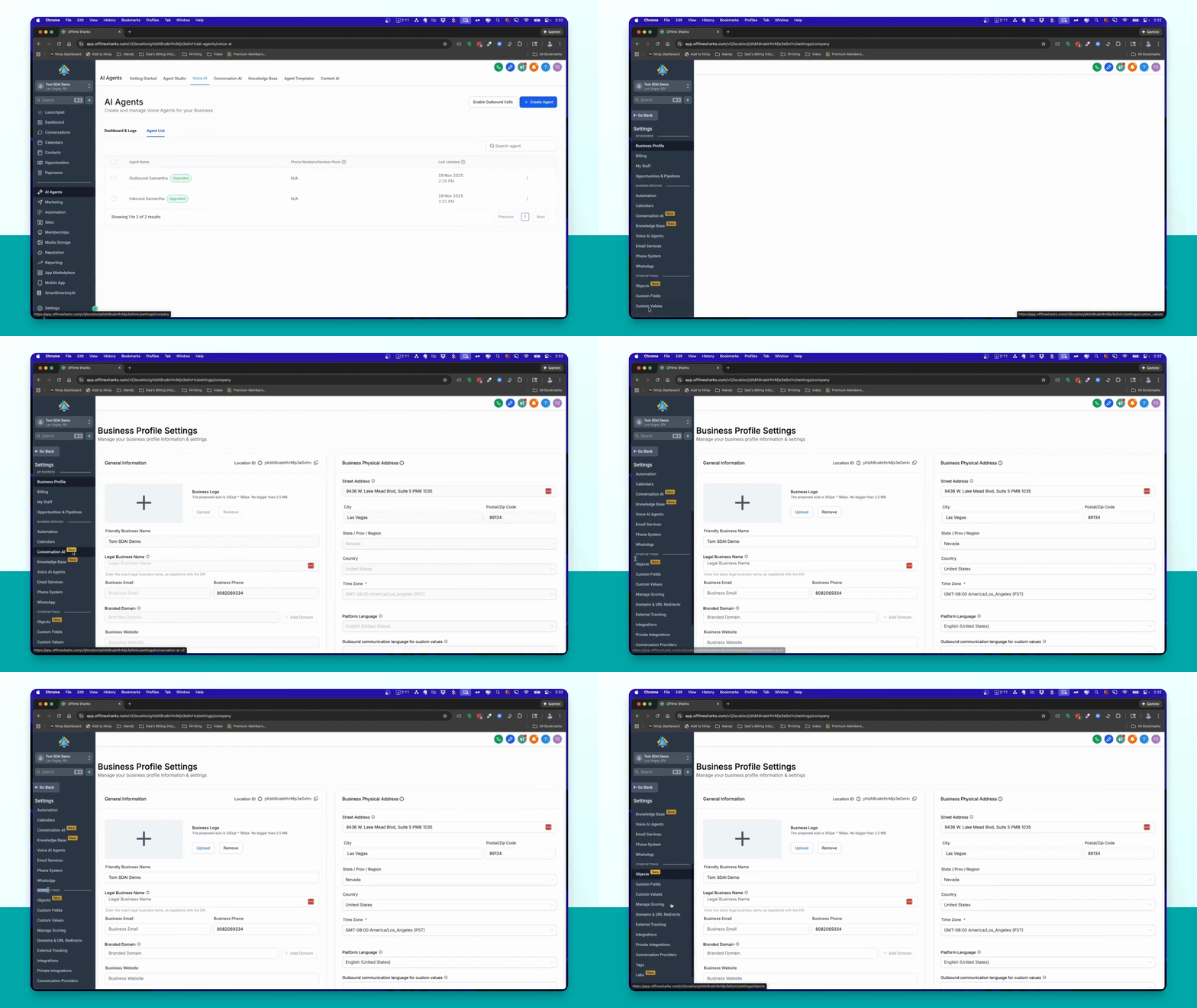
Step 2: Open Custom Values
Under Other Settings, click on Custom Values.
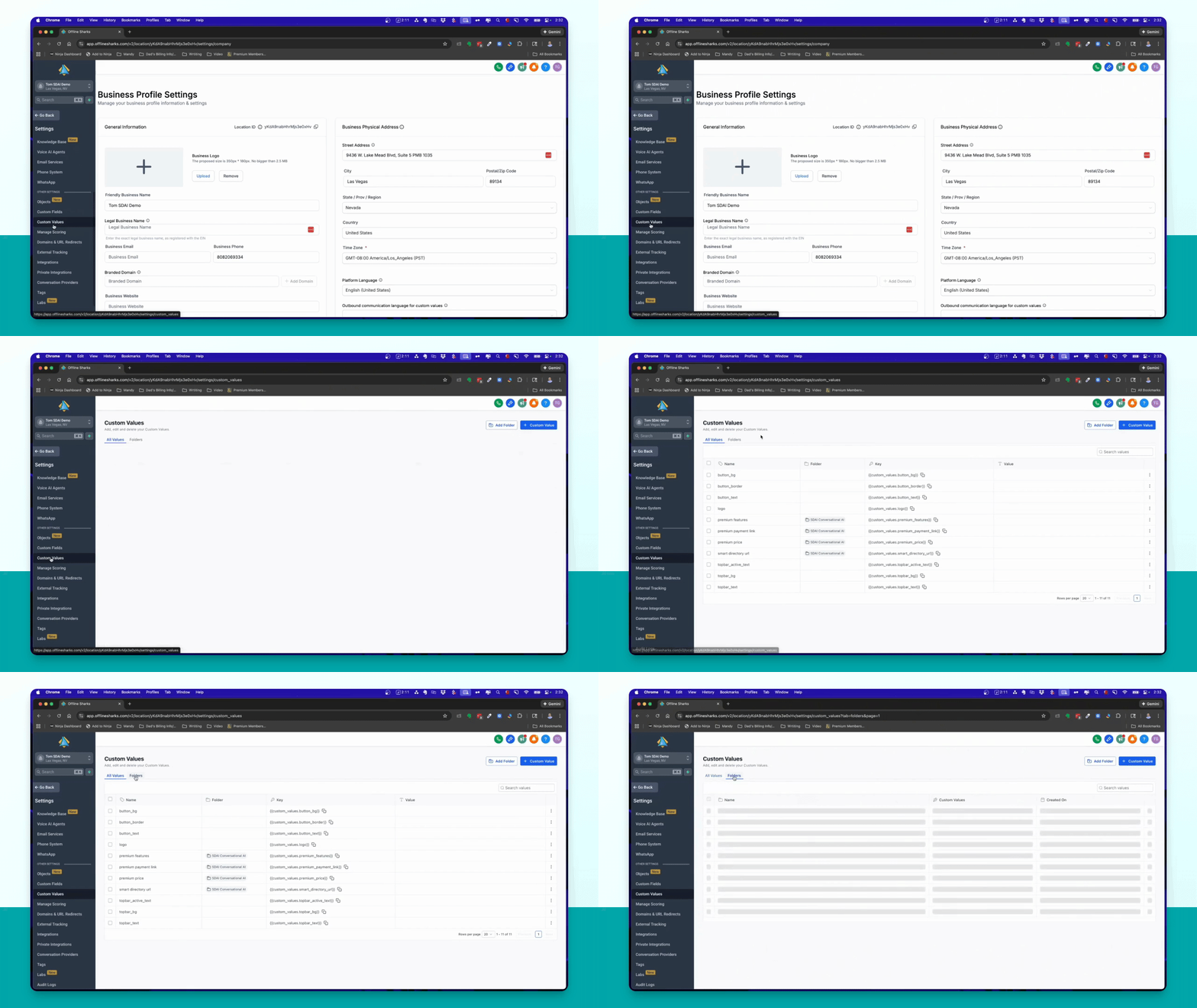
Step 3: Select Folder
Click on folders and select the SDAI conversational AI folder.
Step 4: Edit Smart Directory URL
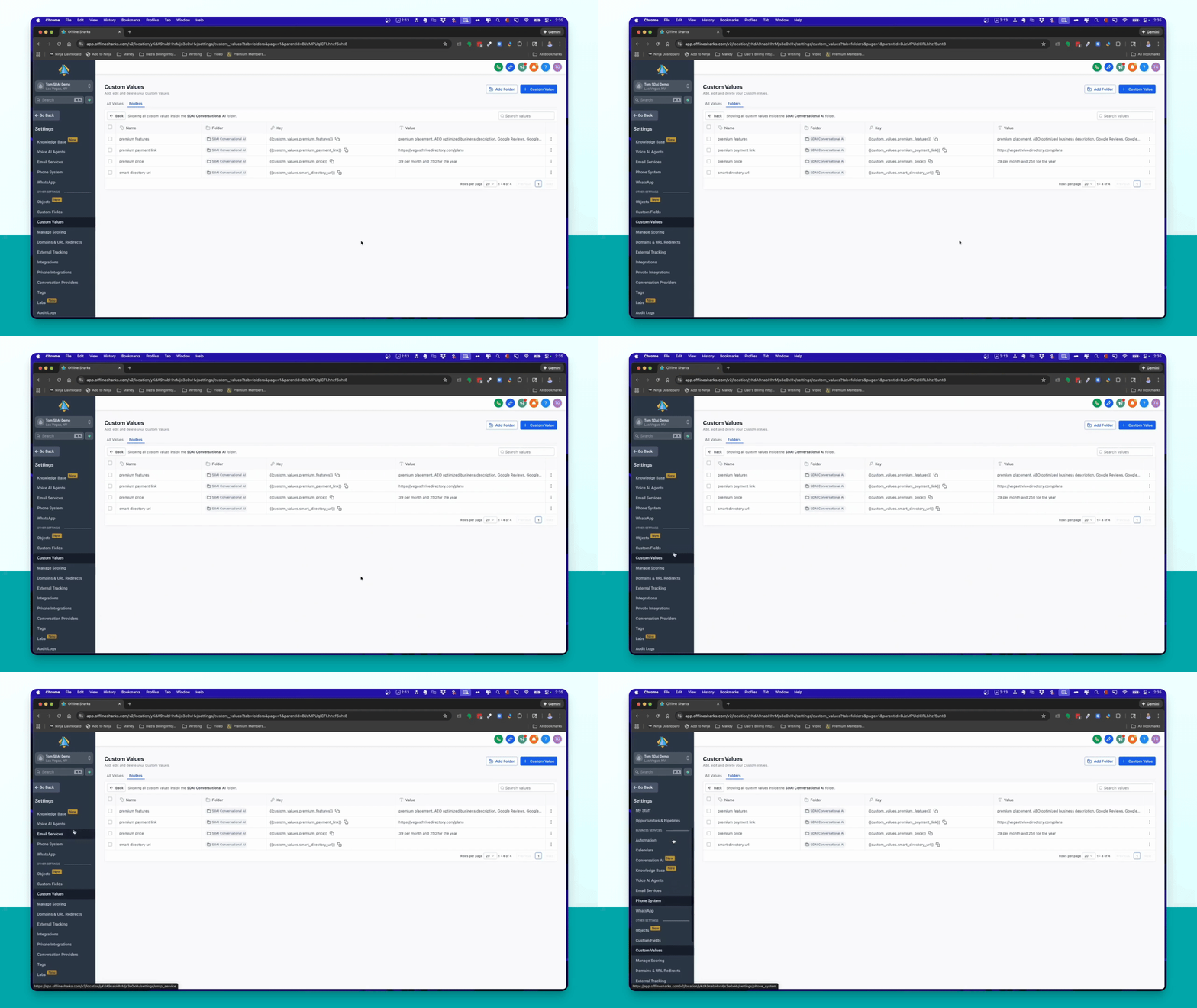
Click the three dots next to the Smart Directory URL, select Edit, enter your URL, and click Update.
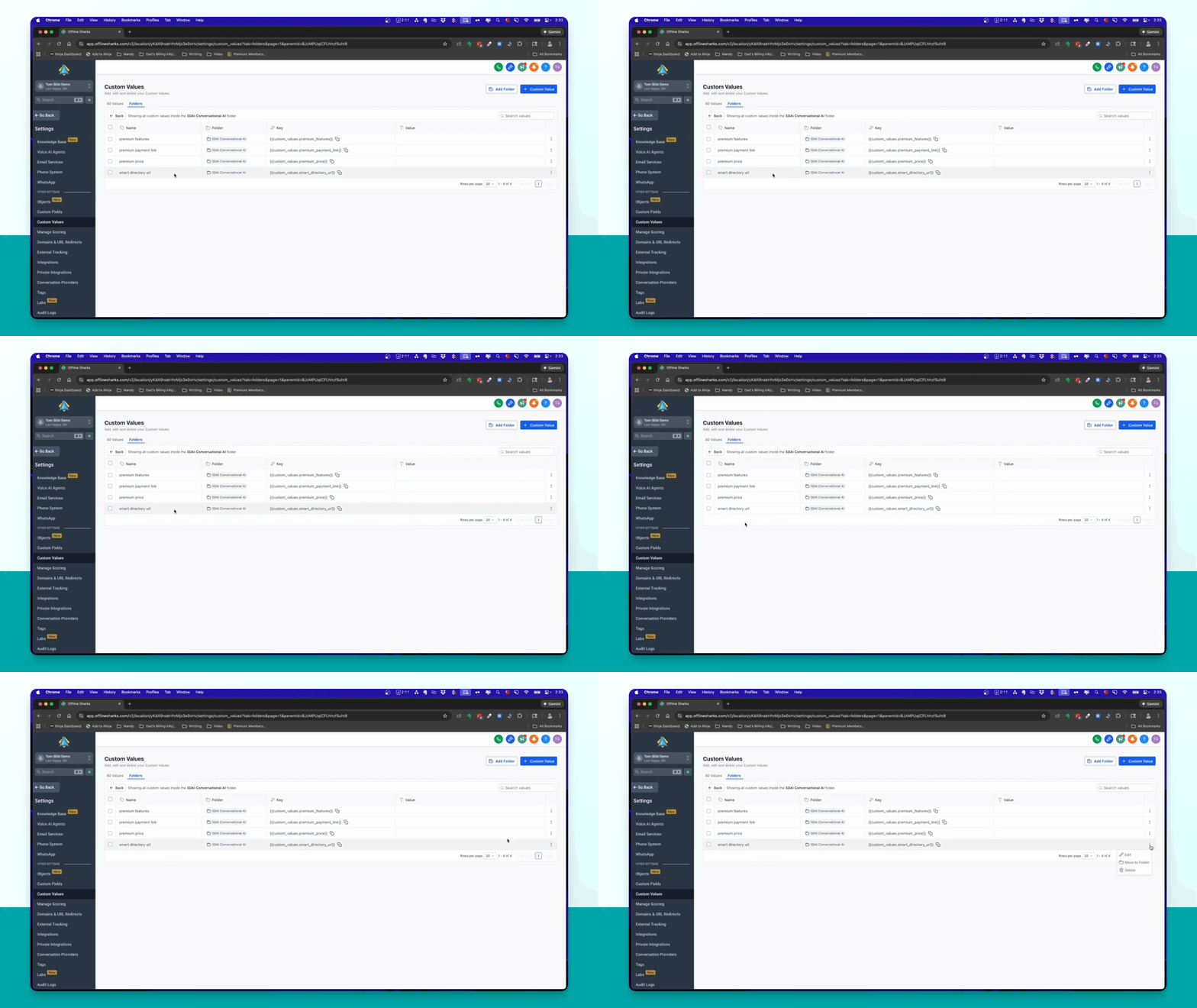
Step 5: Update Premium Pricing
Click the three dots, select Edit, enter your premium pricing, and click Update.
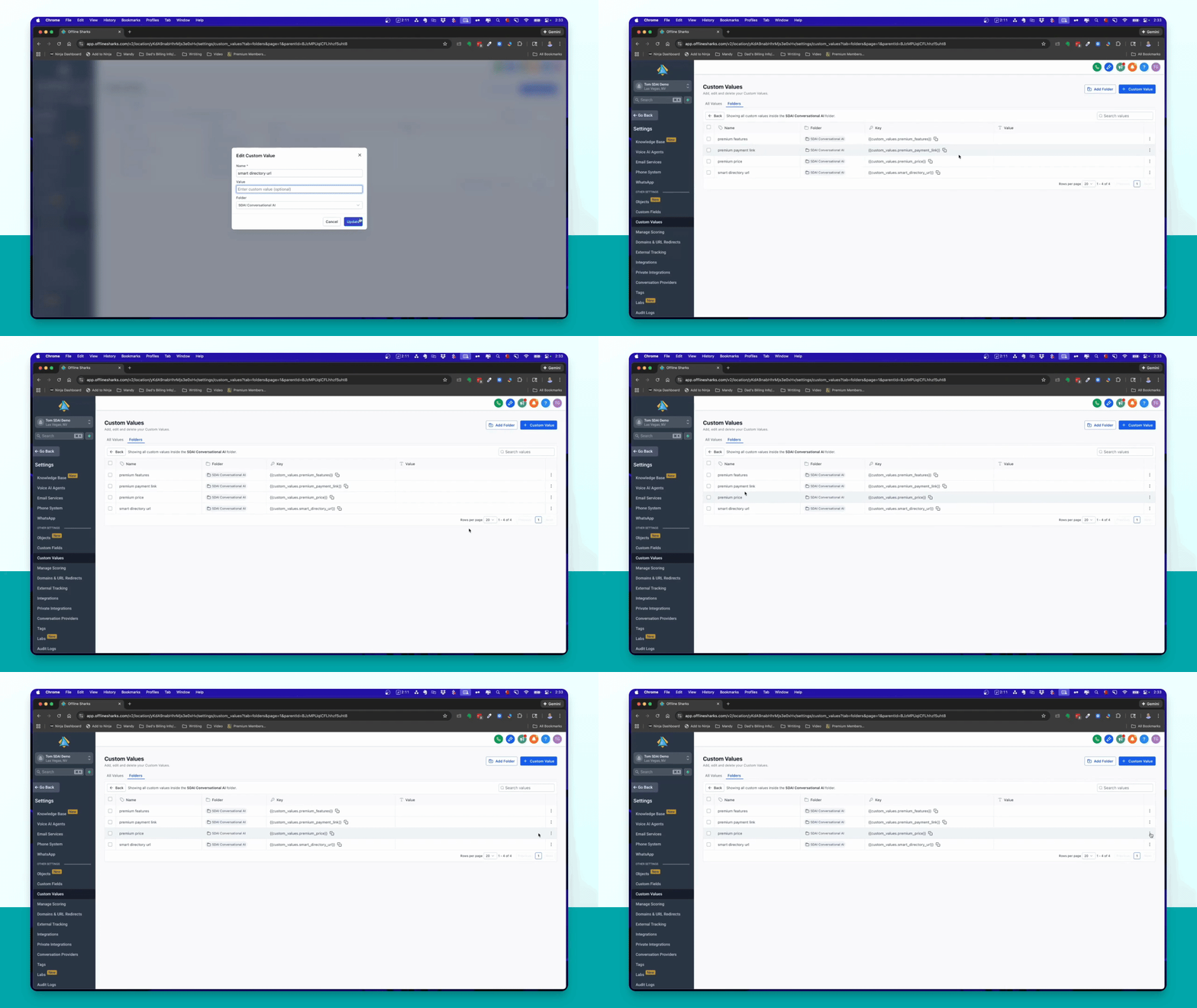
Step 6: Set Payment Link
Click the three dots, select Edit, paste the plans page URL, and click Update.
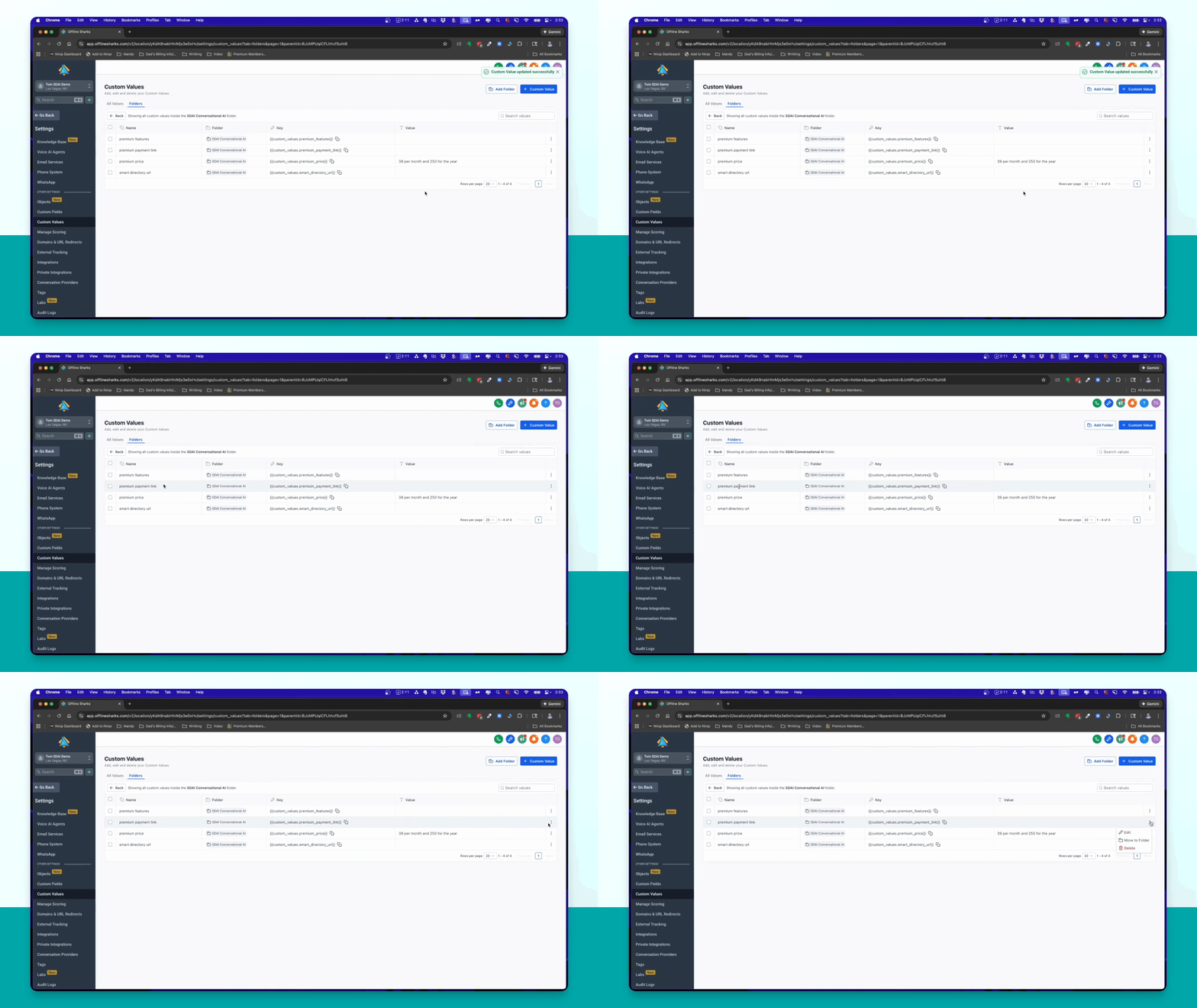
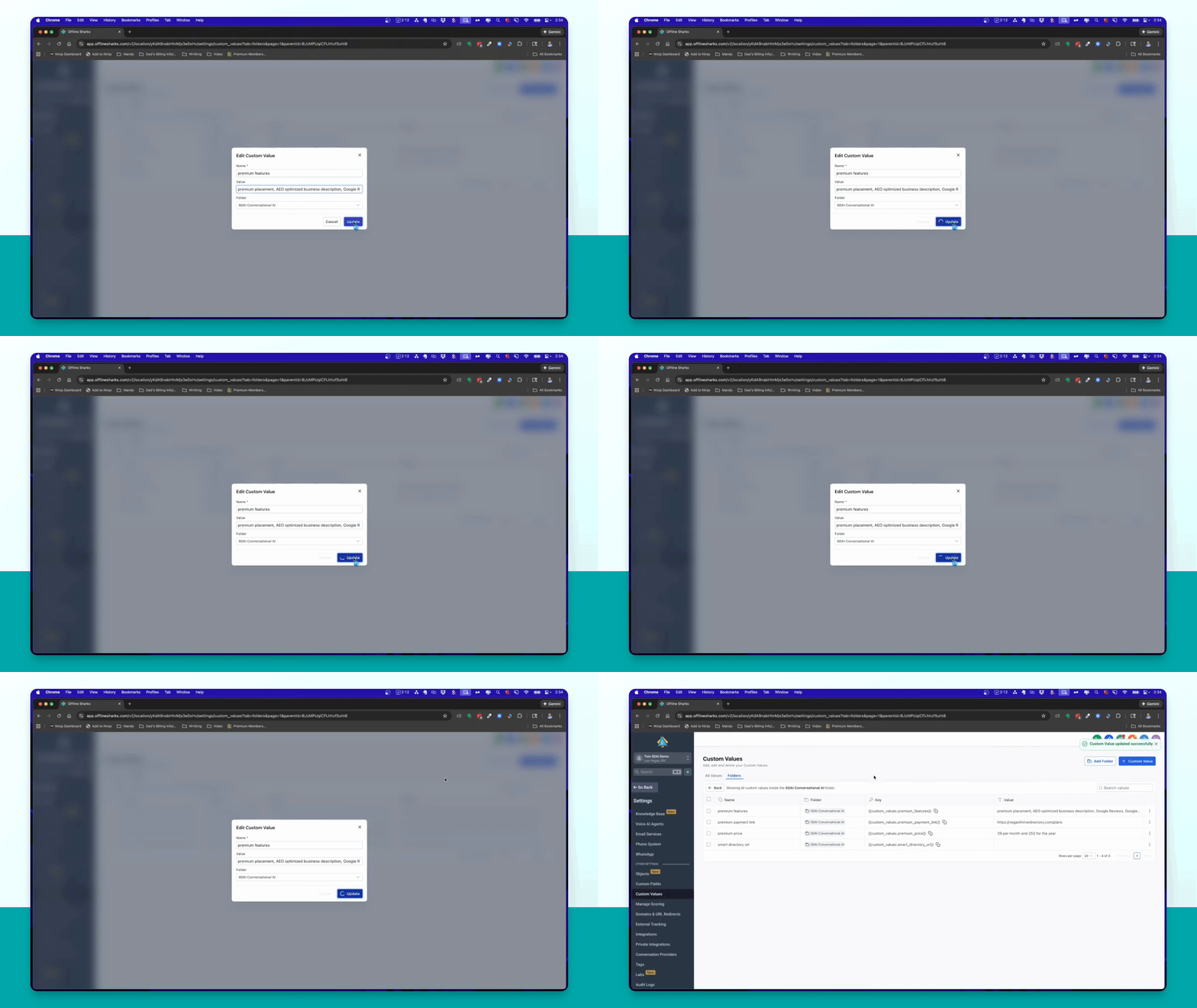
Step 7: Input Premium Features
Click the three dots, select Edit, input the premium features, and click Update.
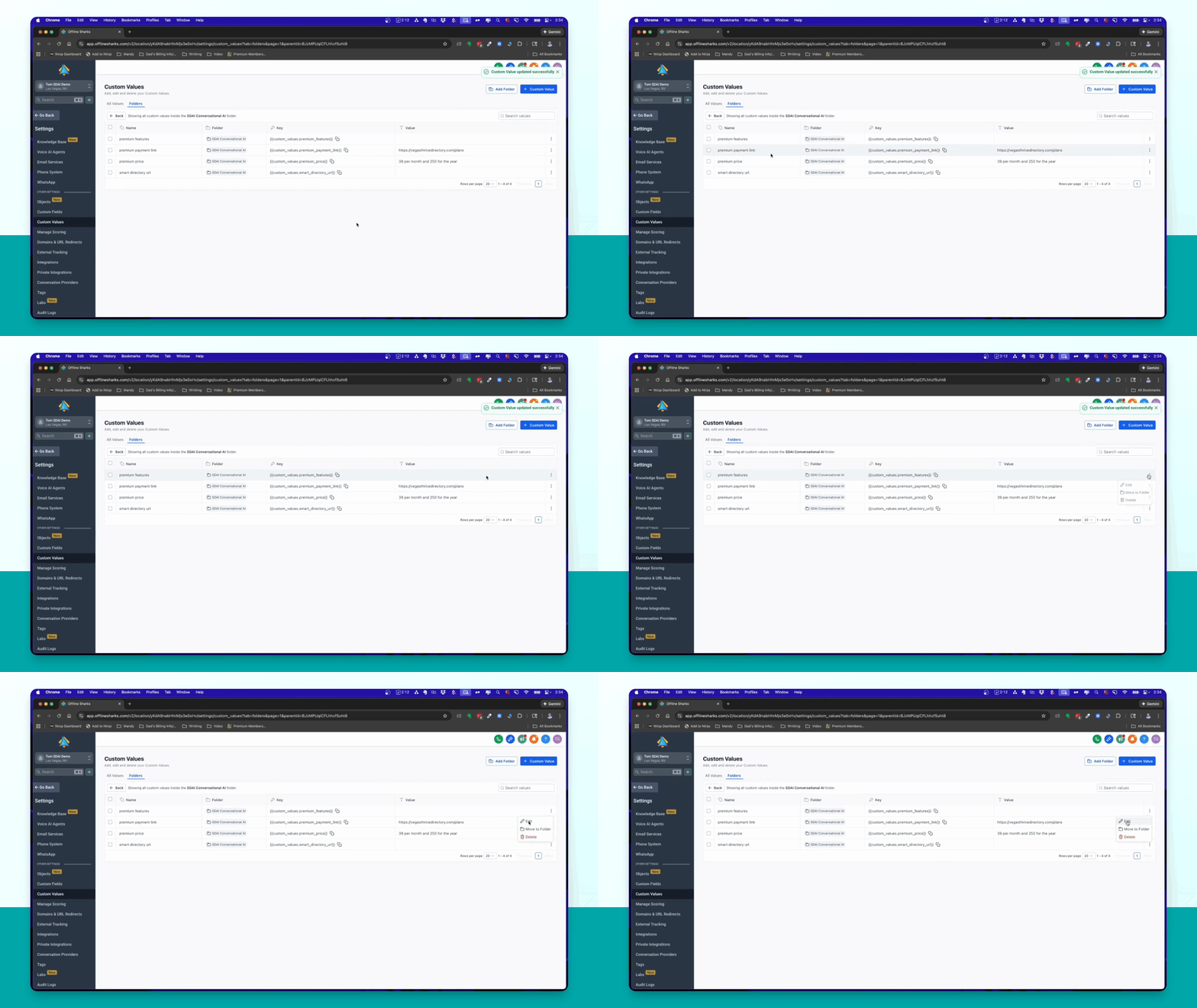
Step 8: Confirm Custom Values
After updating the four custom values, your AI agent will use this information to respond to queries.
Step 9: Check Business Name
Verify the Friendly Business Name matches your directory name in the business profile.