Let's do it together!
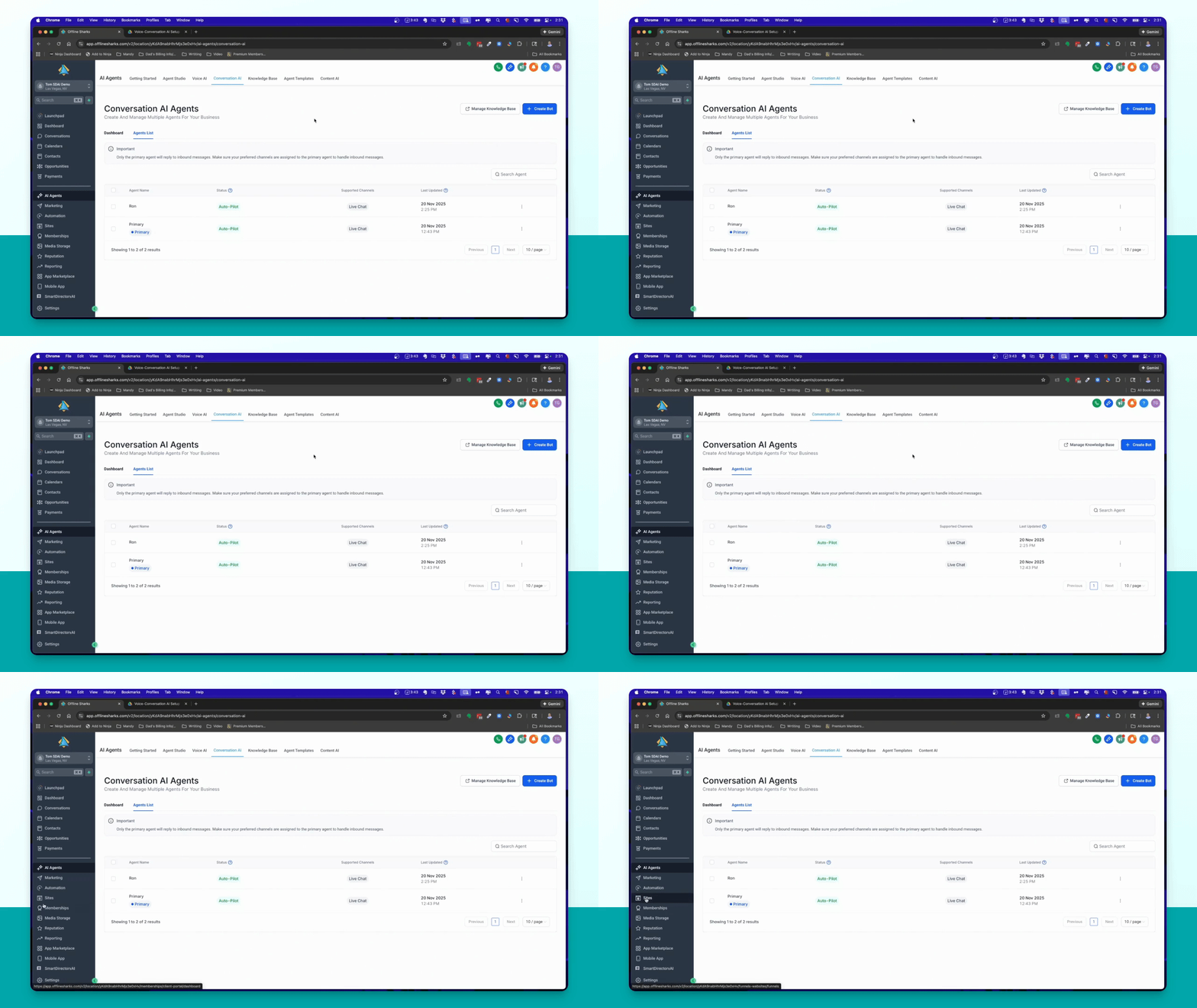
Step 1: Access Sites
Go to the left-hand menu and select Sites.
Step 2: Select Chat Widget
From the top menu, select Chat widget.
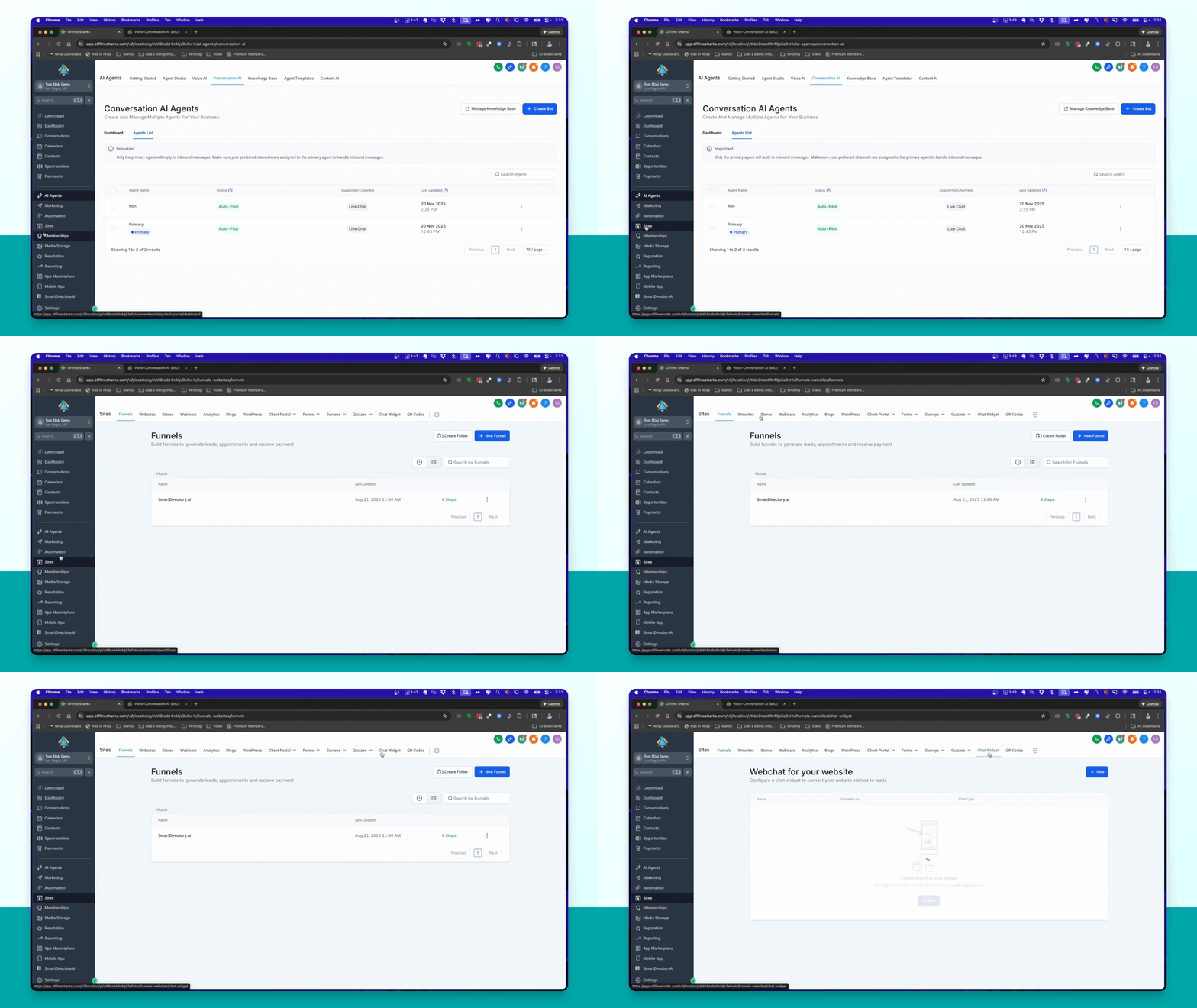
Step 3: Add New Widget
Click Add New to create a new chat widget.
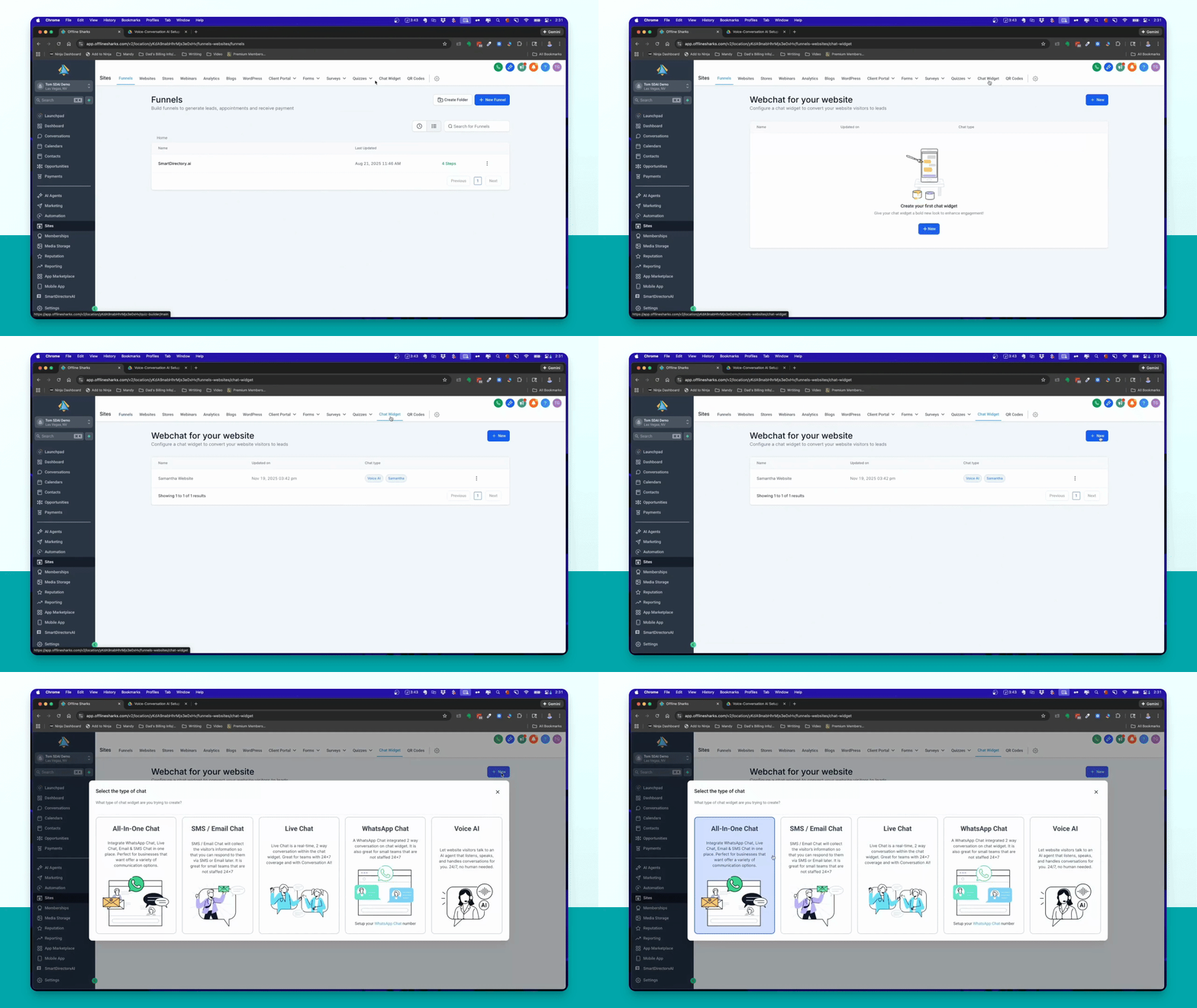
Step 4: Choose Chat Type
Select Live chat from the options provided.
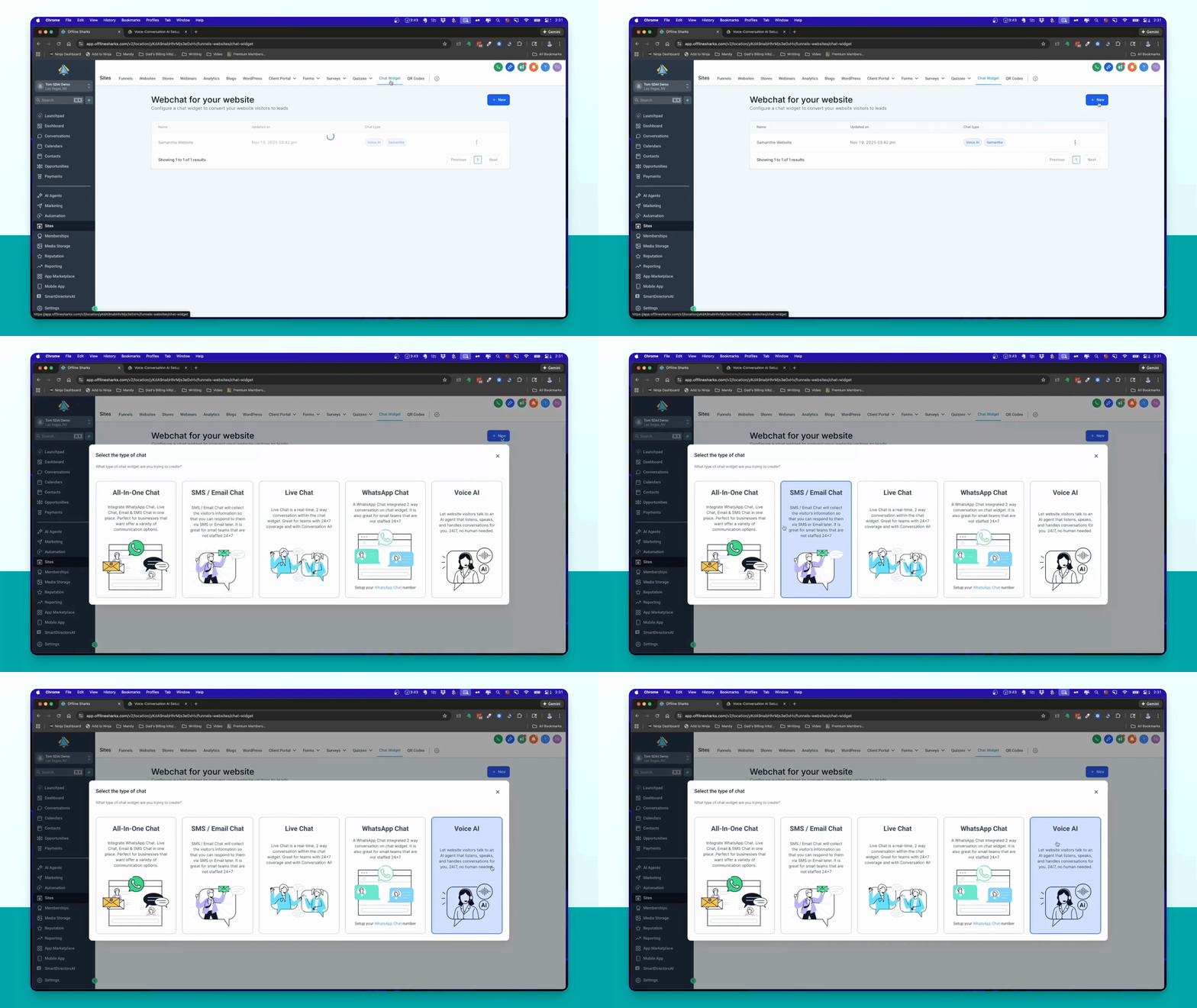
Step 5: Style Widget
Customize the widget by changing its name and style settings.
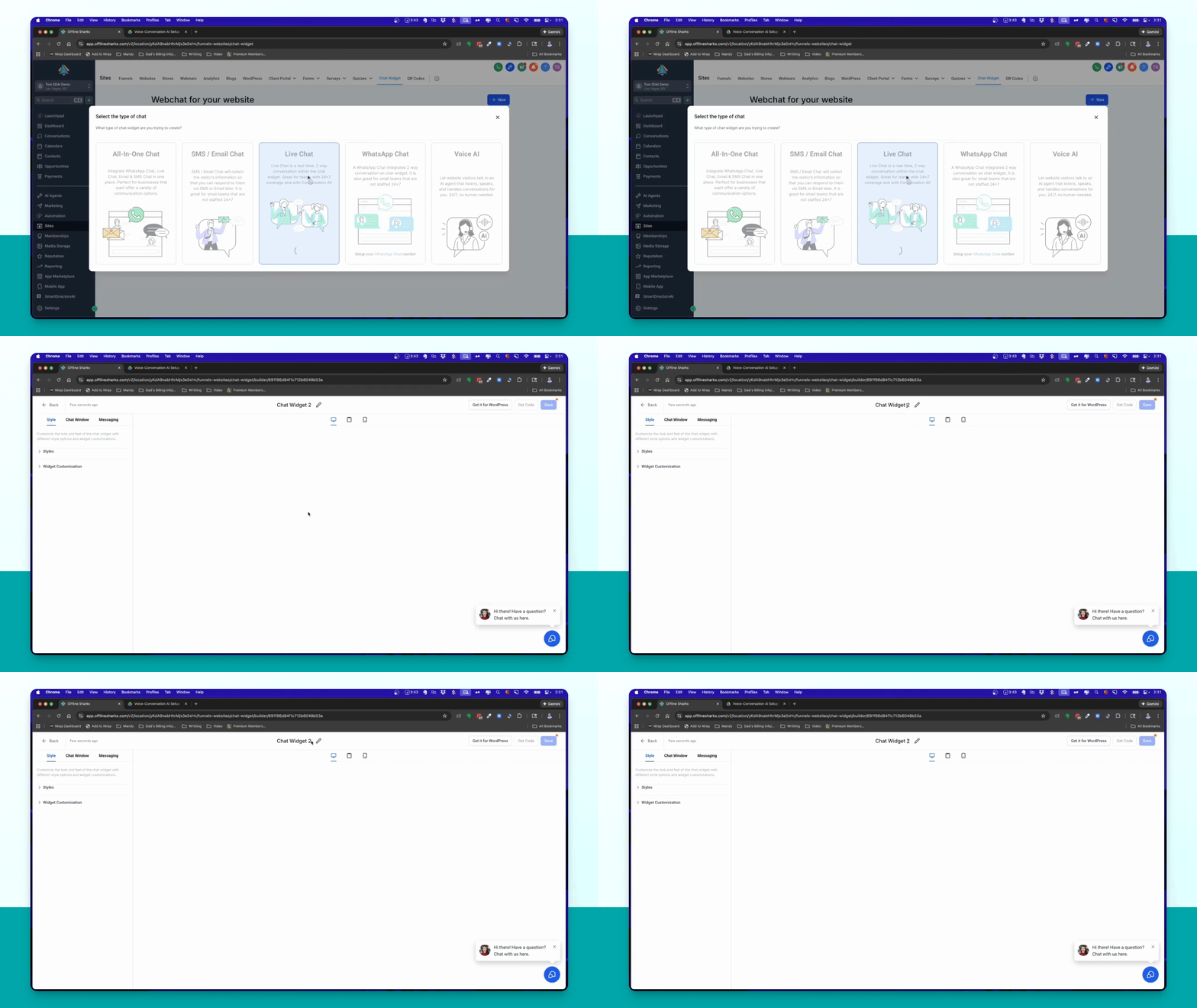
Step 6: Edit Messages
Edit the welcome message, custom greeting, and intro message as needed.
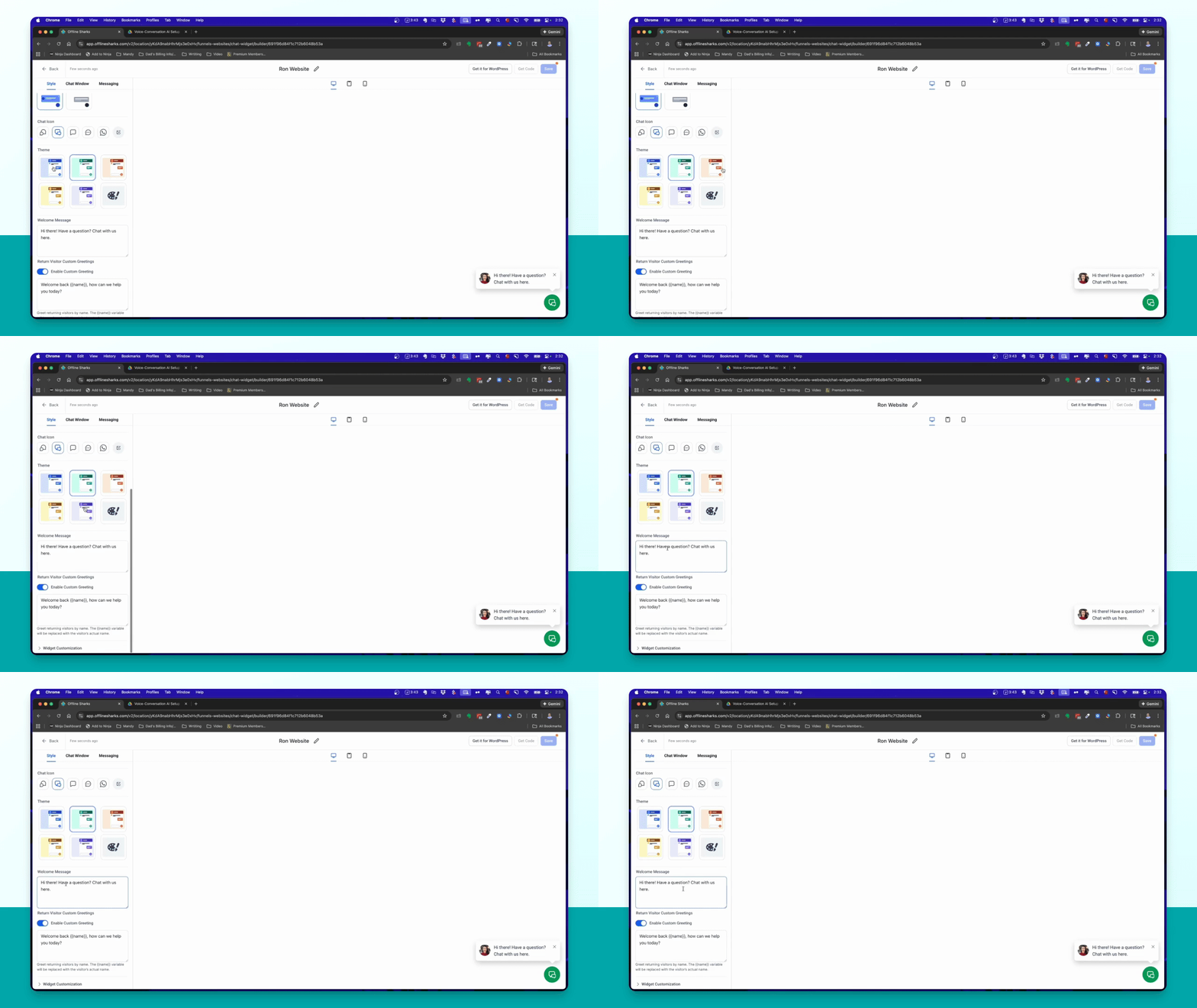
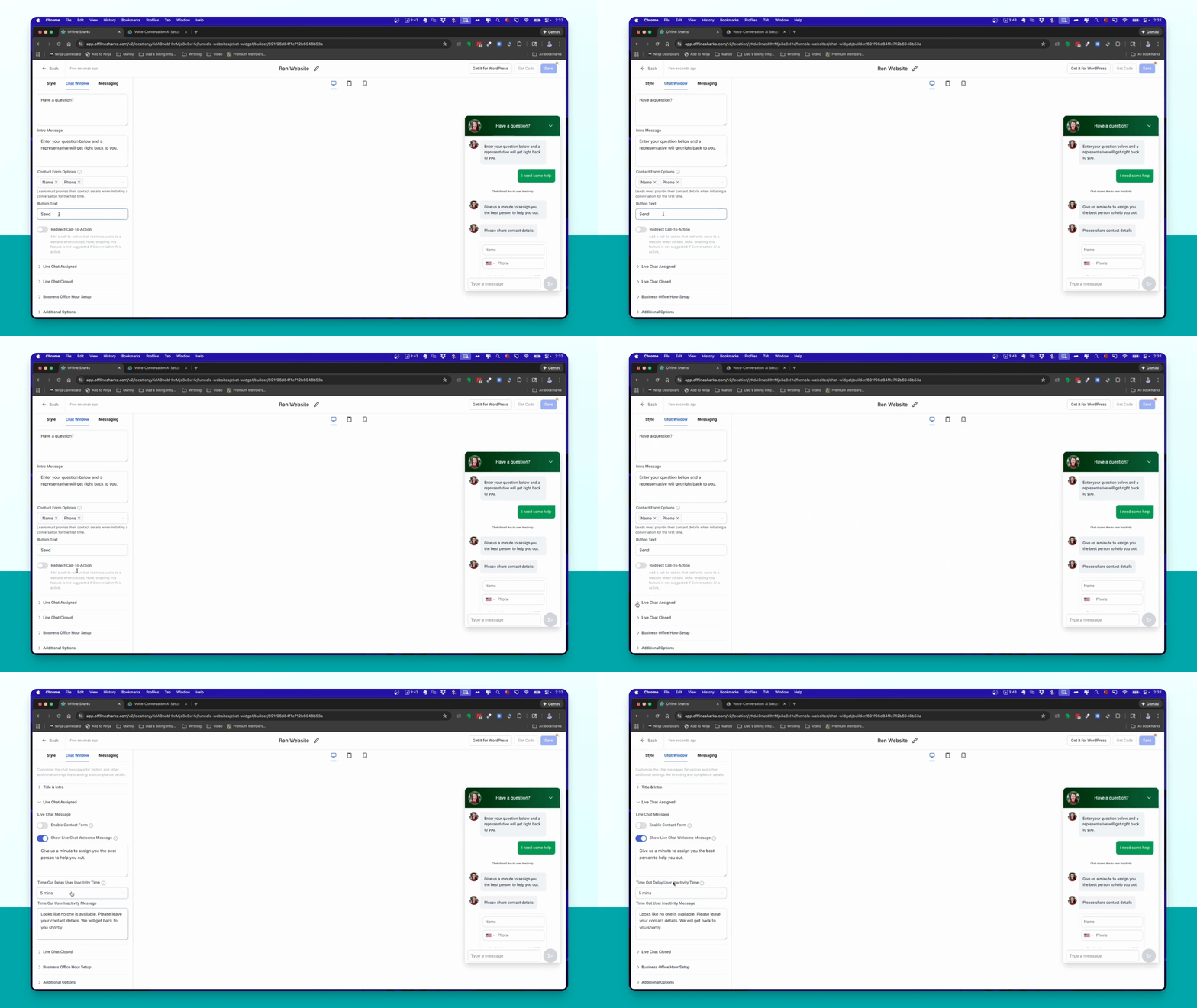
Step 7: Collect Information
Specify the information to collect, ensuring you require either an email or phone.
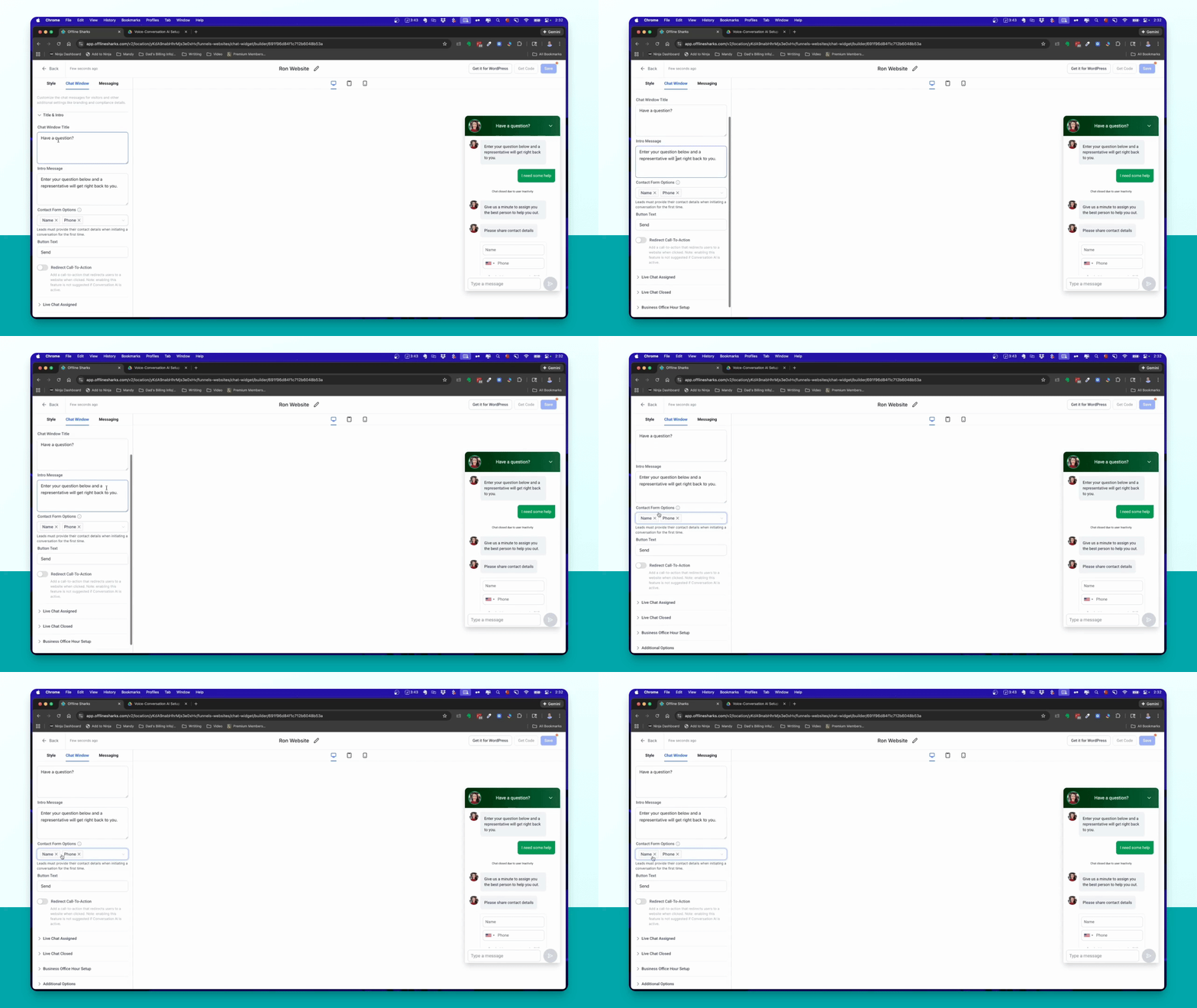
Step 8: Configure Chat Settings
Turn off the Live chat assigned option to ensure the AI works correctly.
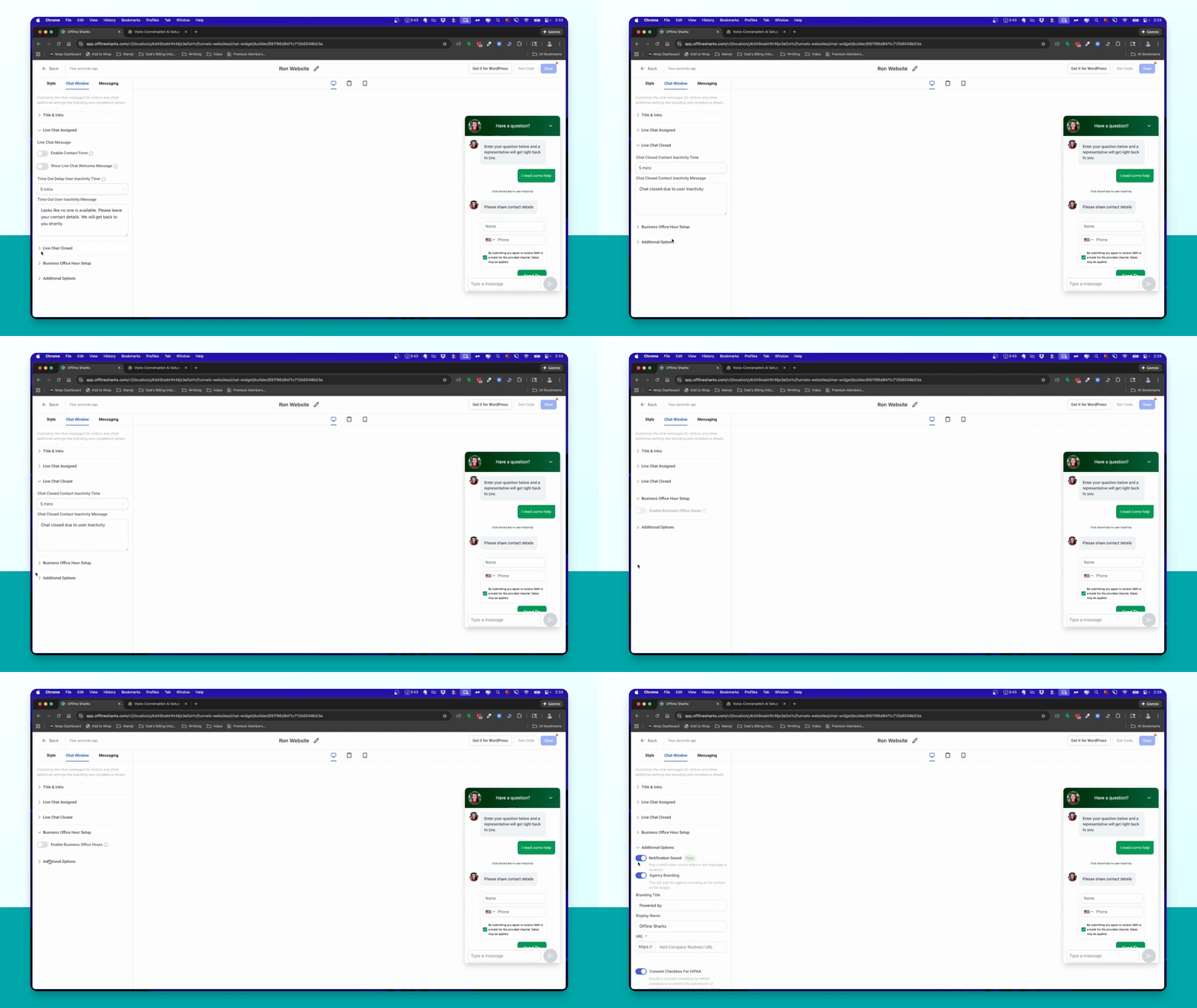
Step 9: Set Additional Options
Set office hours and customize the powered by text and URL.
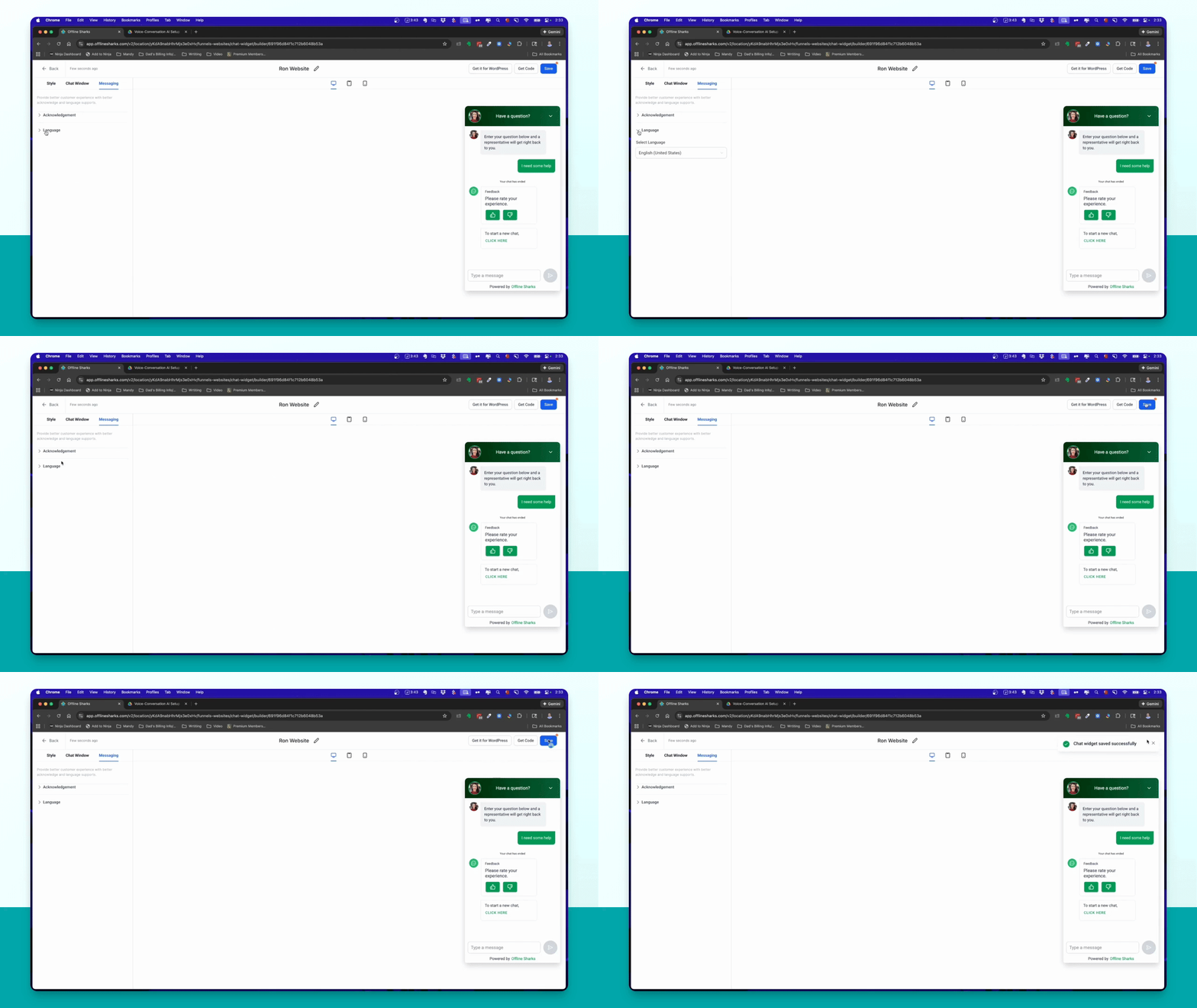
Step 10: Save and Get Code
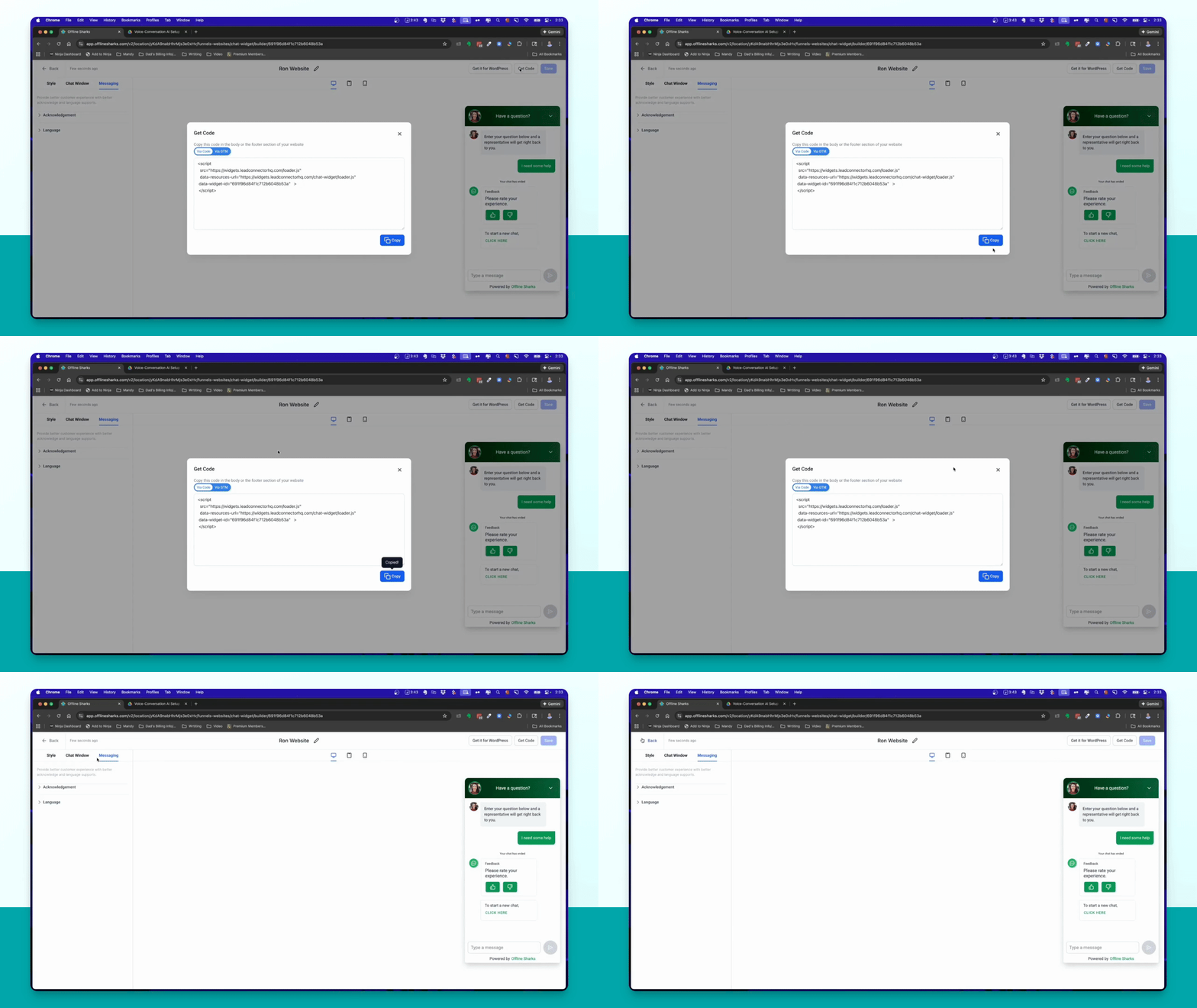
Click Save to store your settings, then click Get code.
Step 11: Add Code to Dashboard
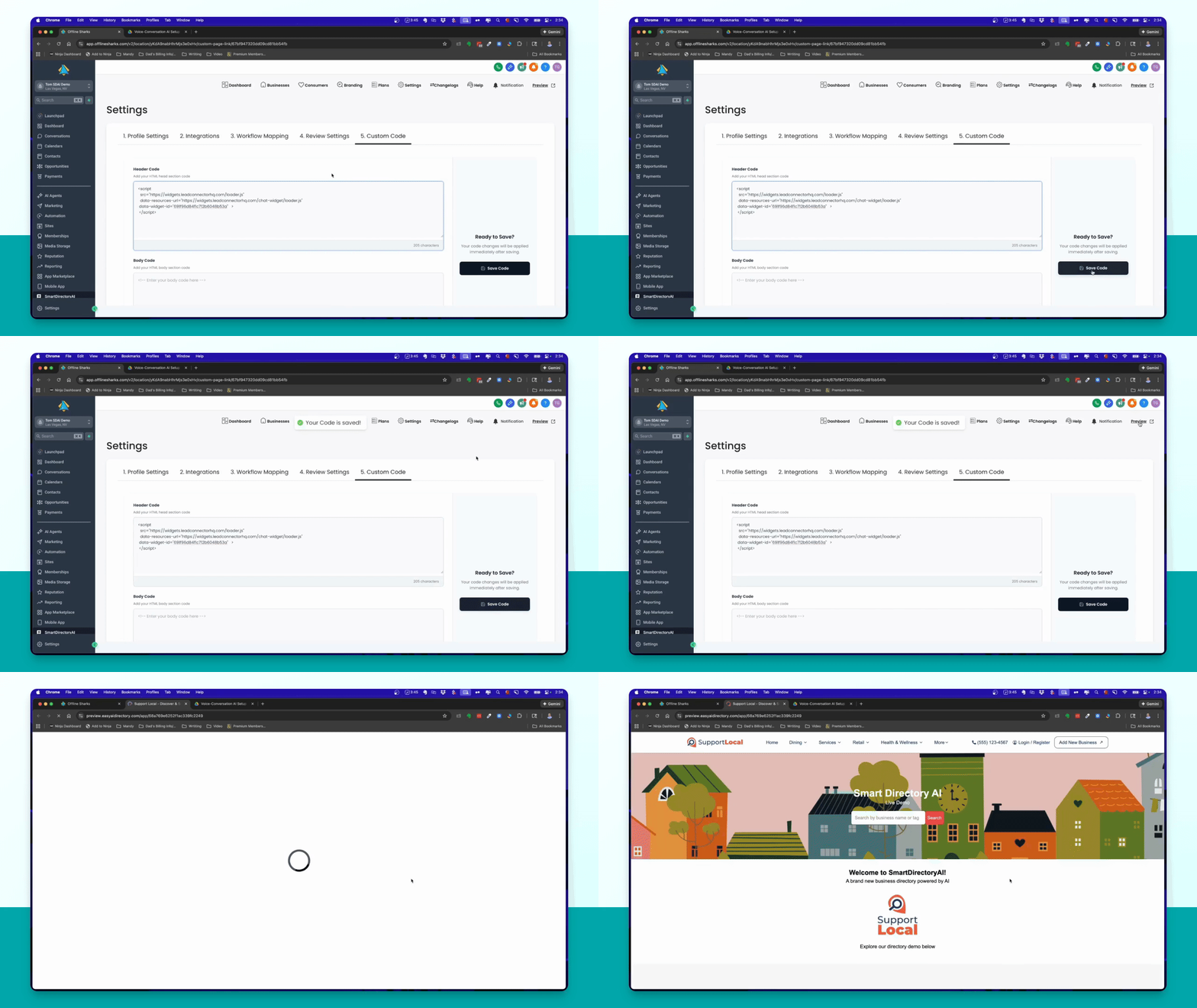
Go to the Smart Directory AI dashboard, navigate to Settings and then Custom code.
Step 12: Insert Widget Code
Delete any existing code and paste the new widget code, then click Save code.
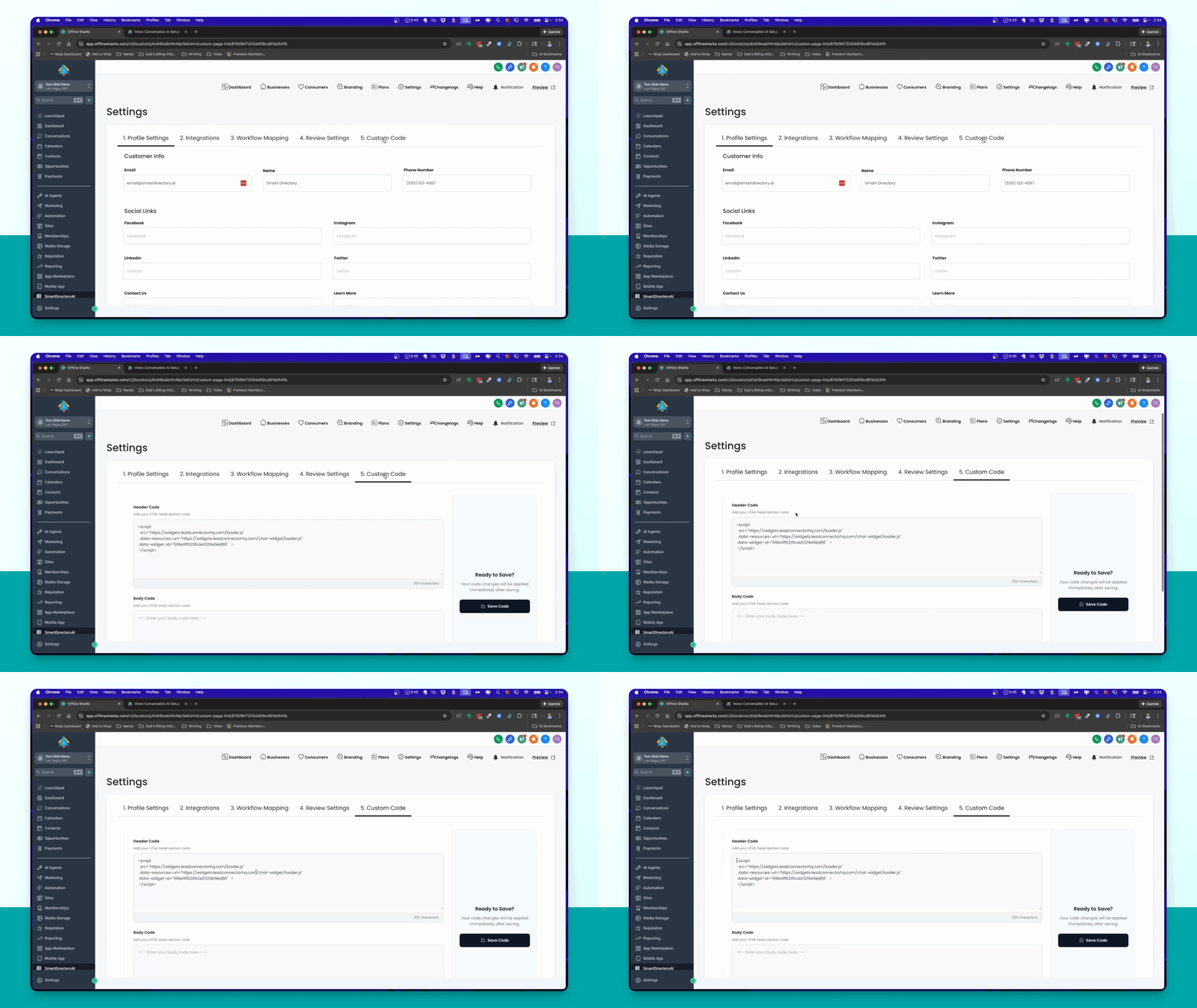
Step 13: Preview Site
Preview your site to see the newly integrated AI chat widget in action.