

This guide explains how a consumer can claim their business listing. Let's look at the steps:
Step 1: Go to Your Listing
Navigate to your business listing page as a consumer.
Step 2: Click Claim This Business
Click the claim this business button on your listing page.
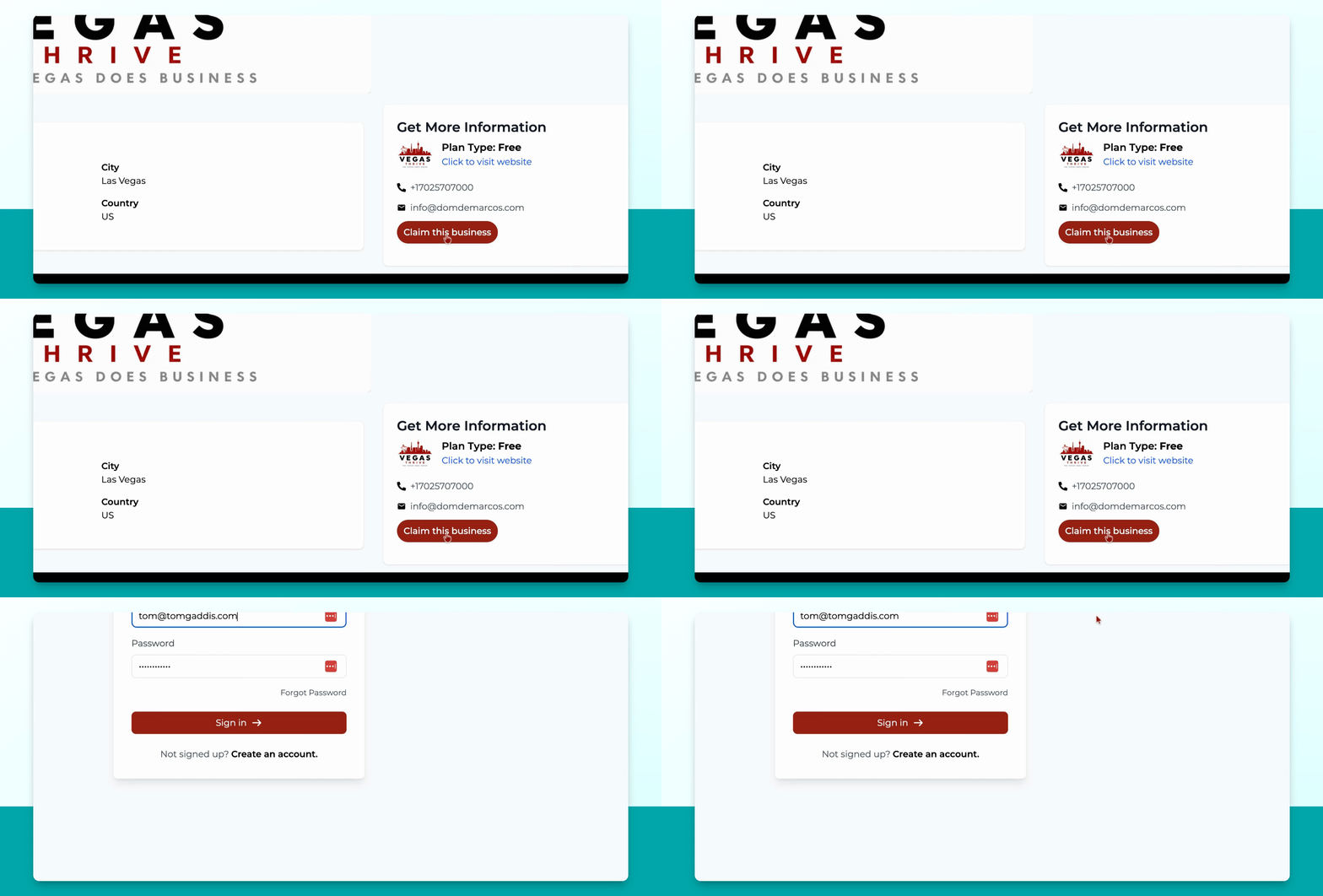
Step 3: Log In or Create an Account
If prompted, log into your existing consumer account or create a new one by entering your information.
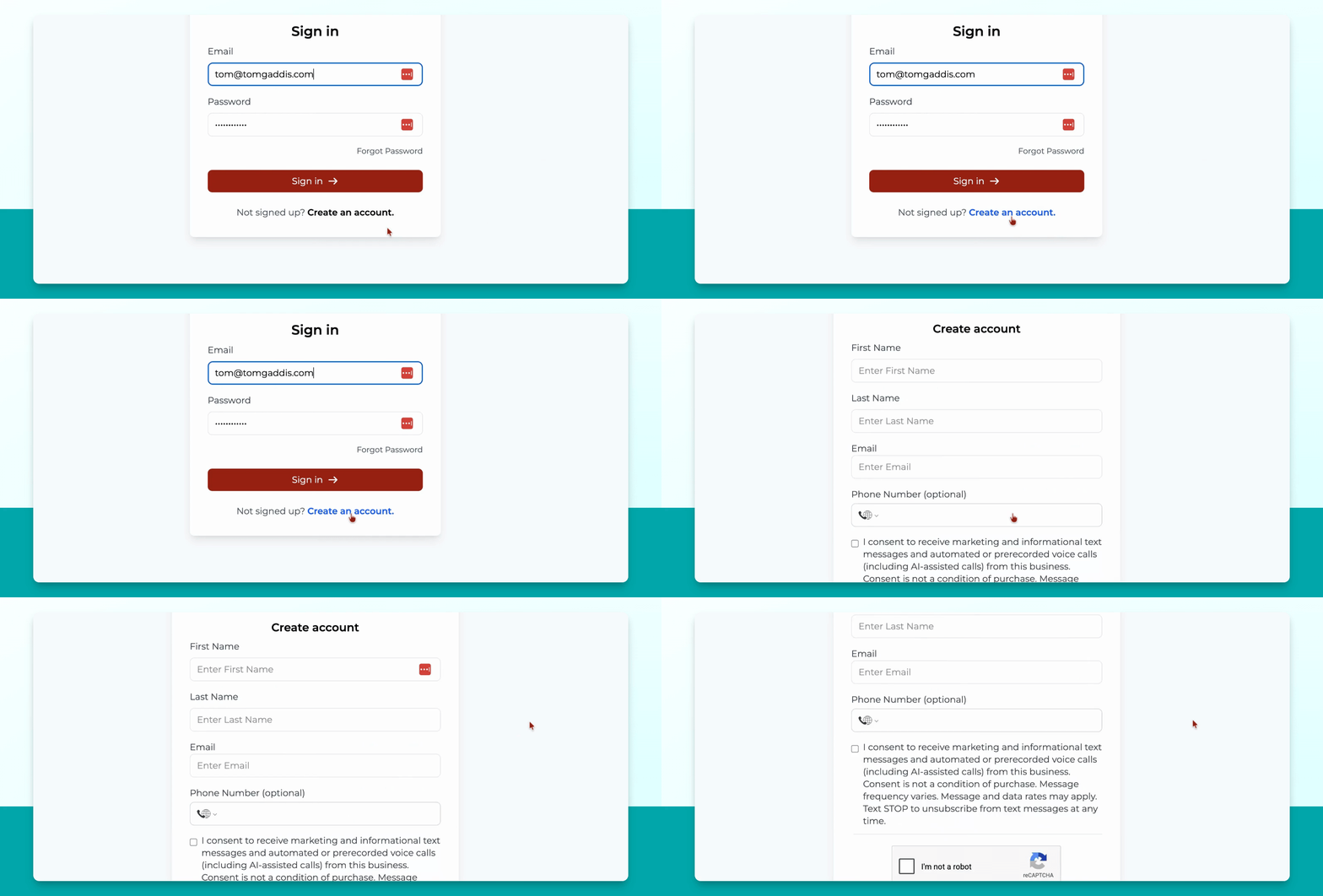
Step 4: Complete Account Creation
If creating a new account, check the consent box, complete the I'm not a robot verification, and click create an account.
Step 5: Check Your Email
After creating an account, you will receive an email with your login and password.
Step 6: Sign In to Your Account
If you already have an account, click sign in to access your existing consumer account.
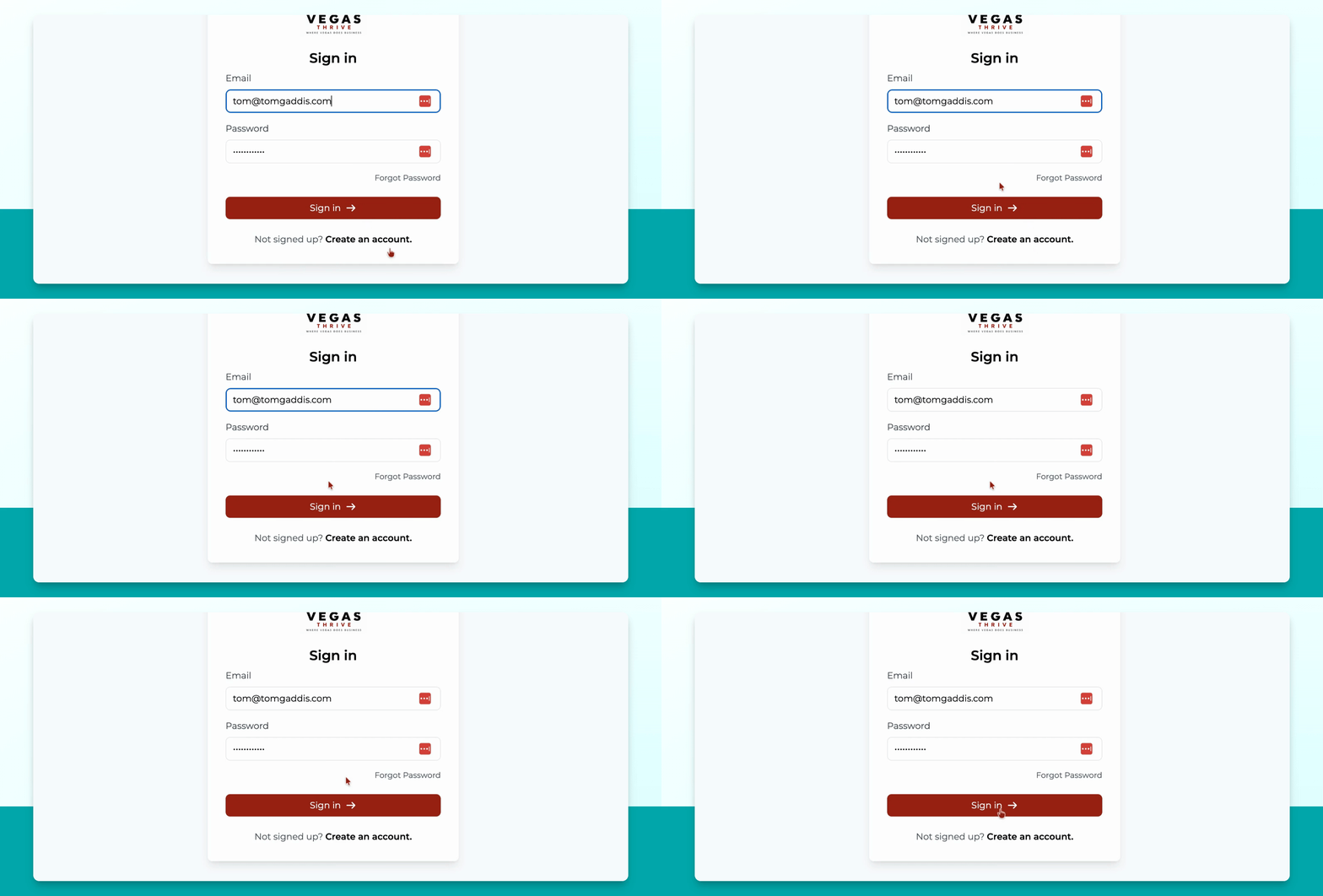
Step 7: Submit Claim Request
Once signed in, a claim request is submitted to the admin for your listing. You will be redirected to the upgrade page where you can view available premium packages.
Step 8: Choose to Upgrade or Wait
You can choose to upgrade your package or wait for the admin to approve your claim listing request.
Step 9: View Claim Status
Go to your profile under owned and check the listing requests section to see your business claim status.
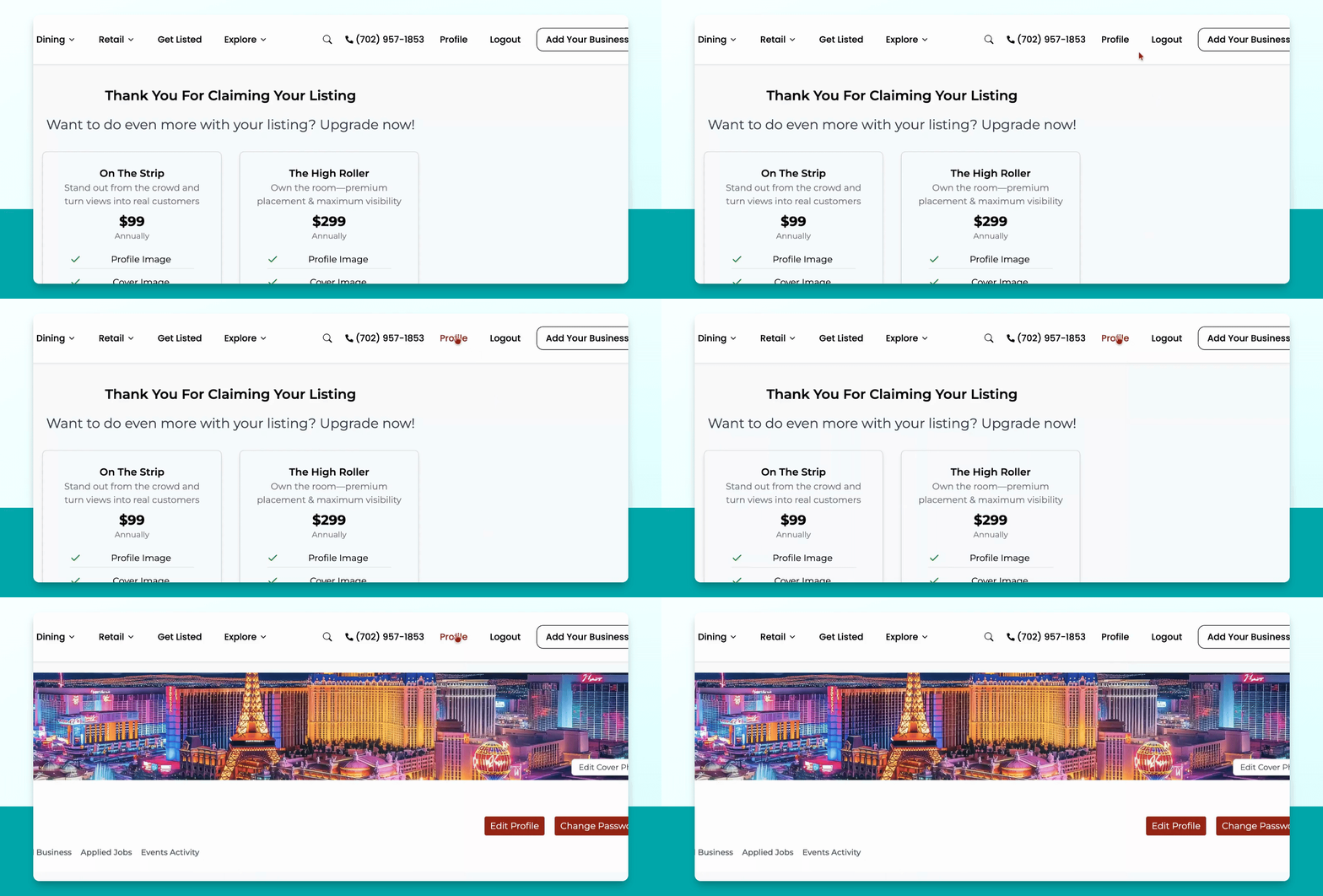
Your business will appear under listing requests until the admin approves it. Once approved, it will move to your owned businesses. While pending, you can withdraw or edit your request, but must wait for admin approval.