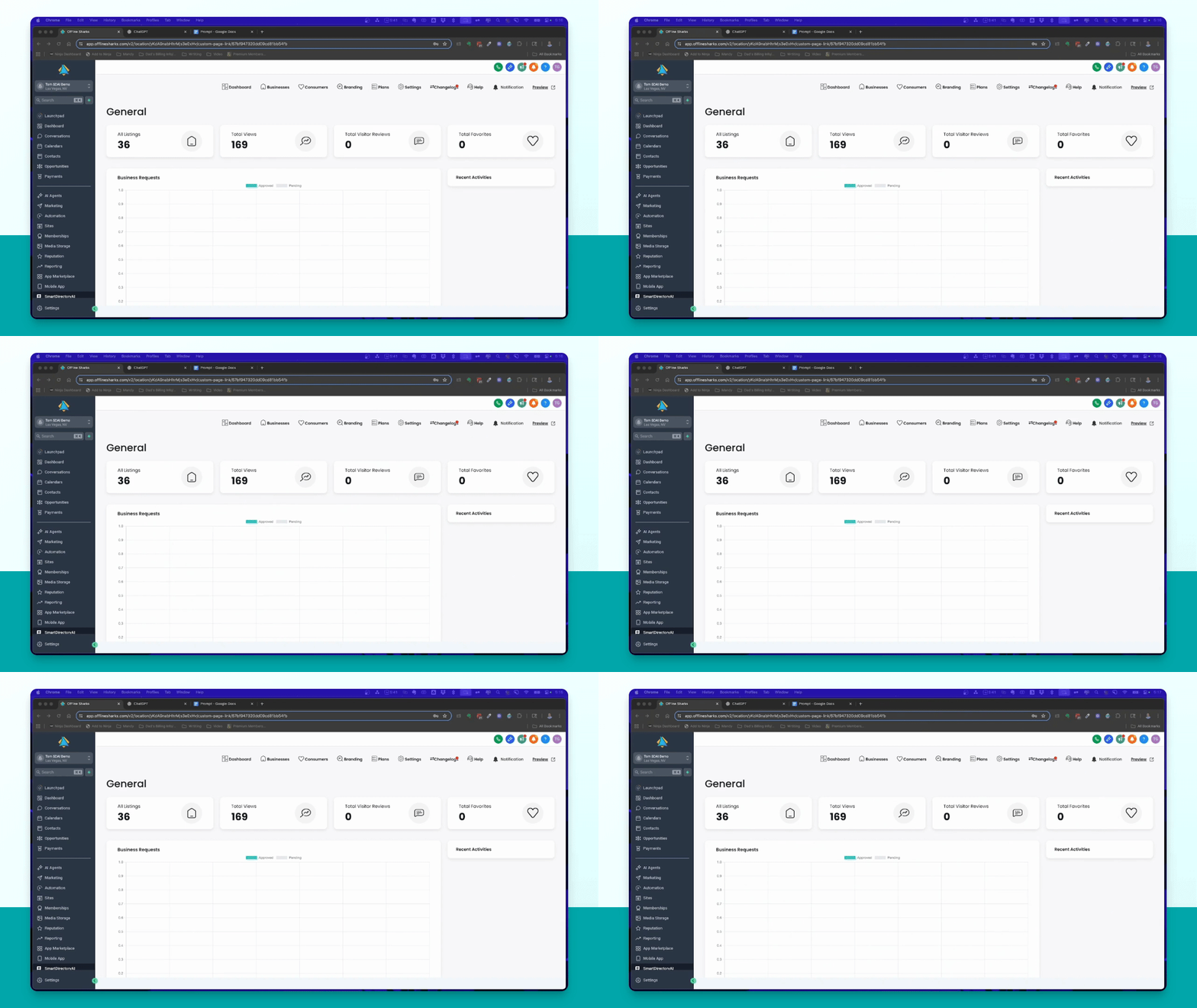
Let's do it together!
Step 1: Access Templates
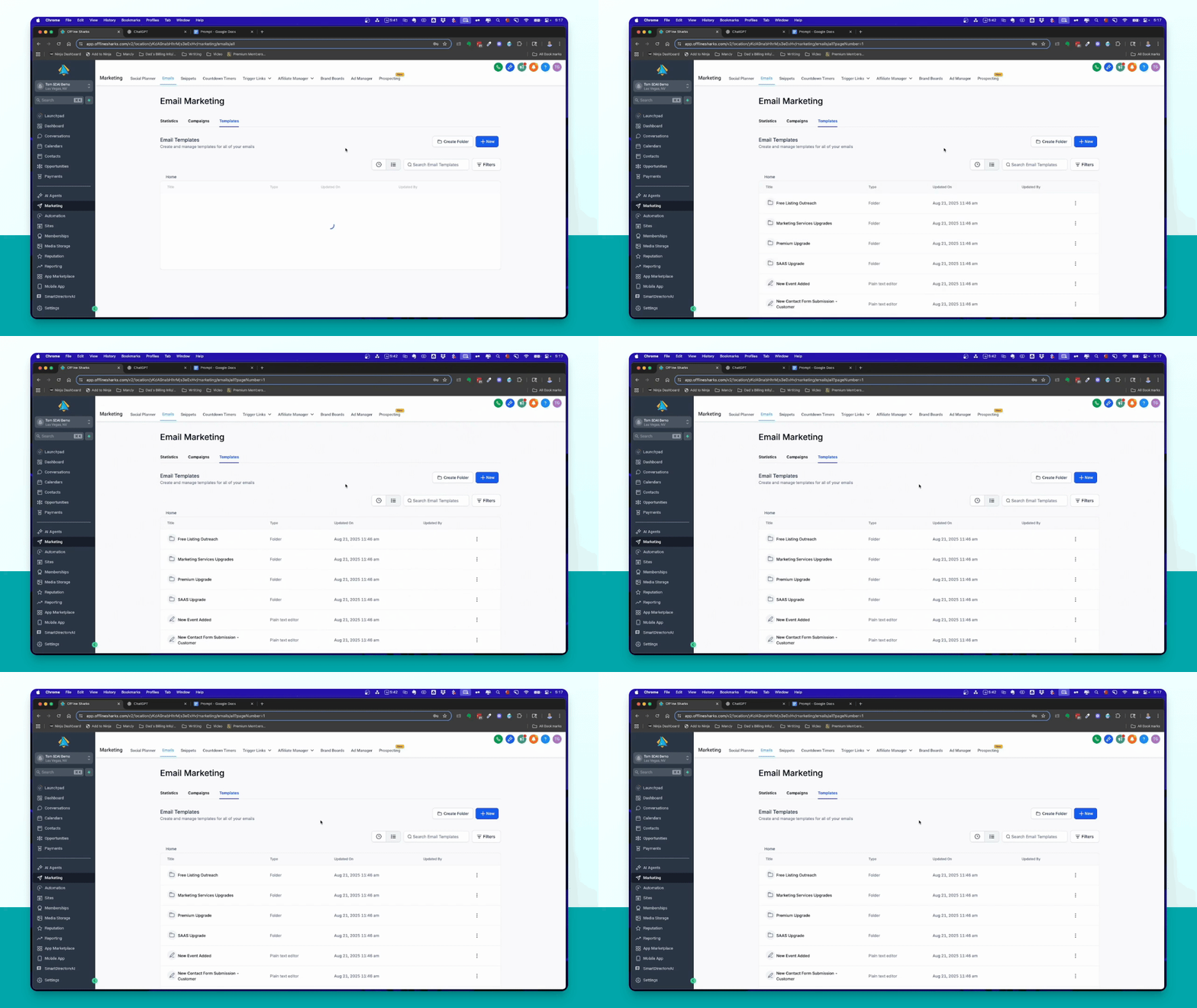
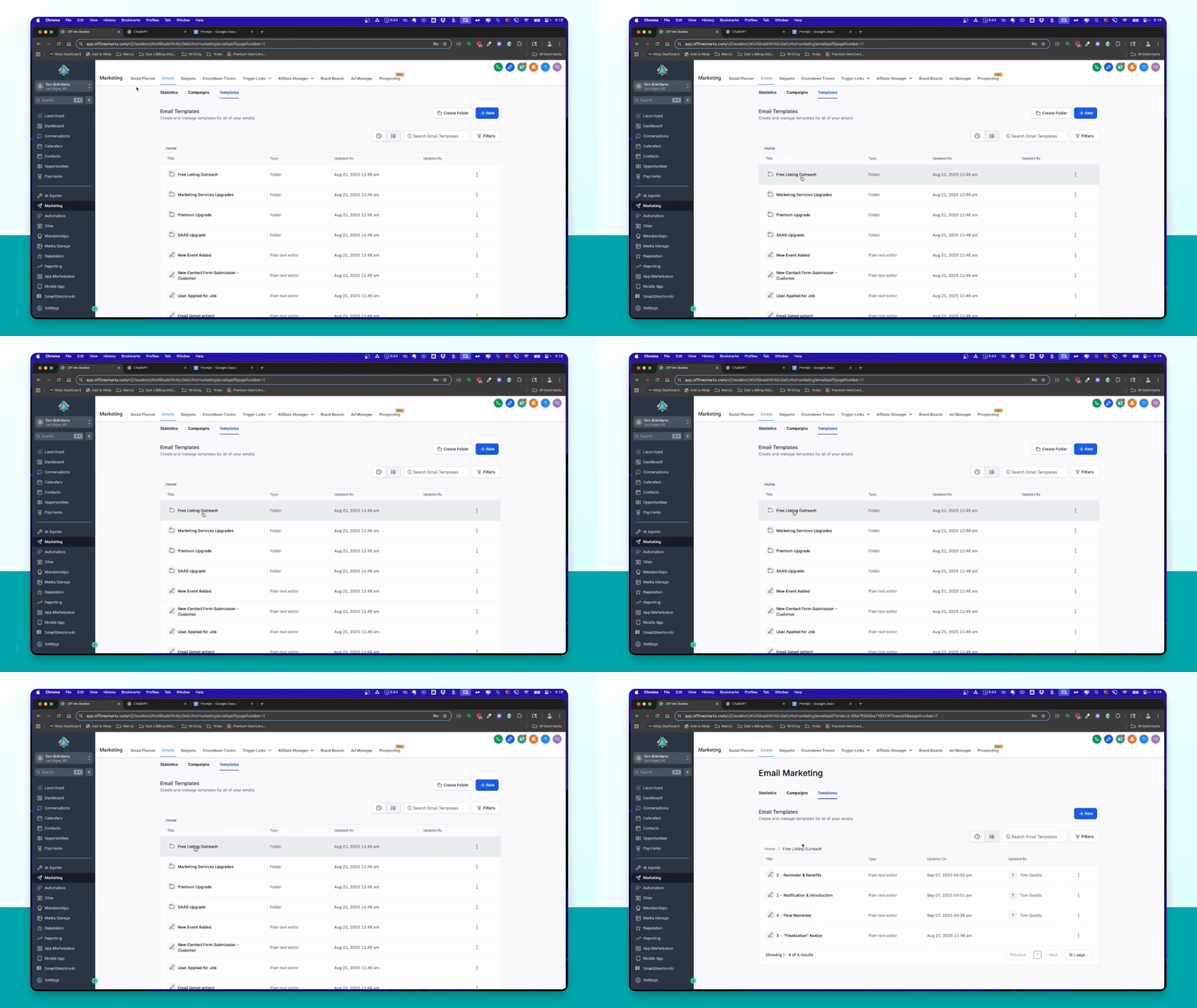
Open your Smart Directory AI site and navigate to Marketing Emails in the left-hand menu, then select Templates.
Step 2: Identify Emails
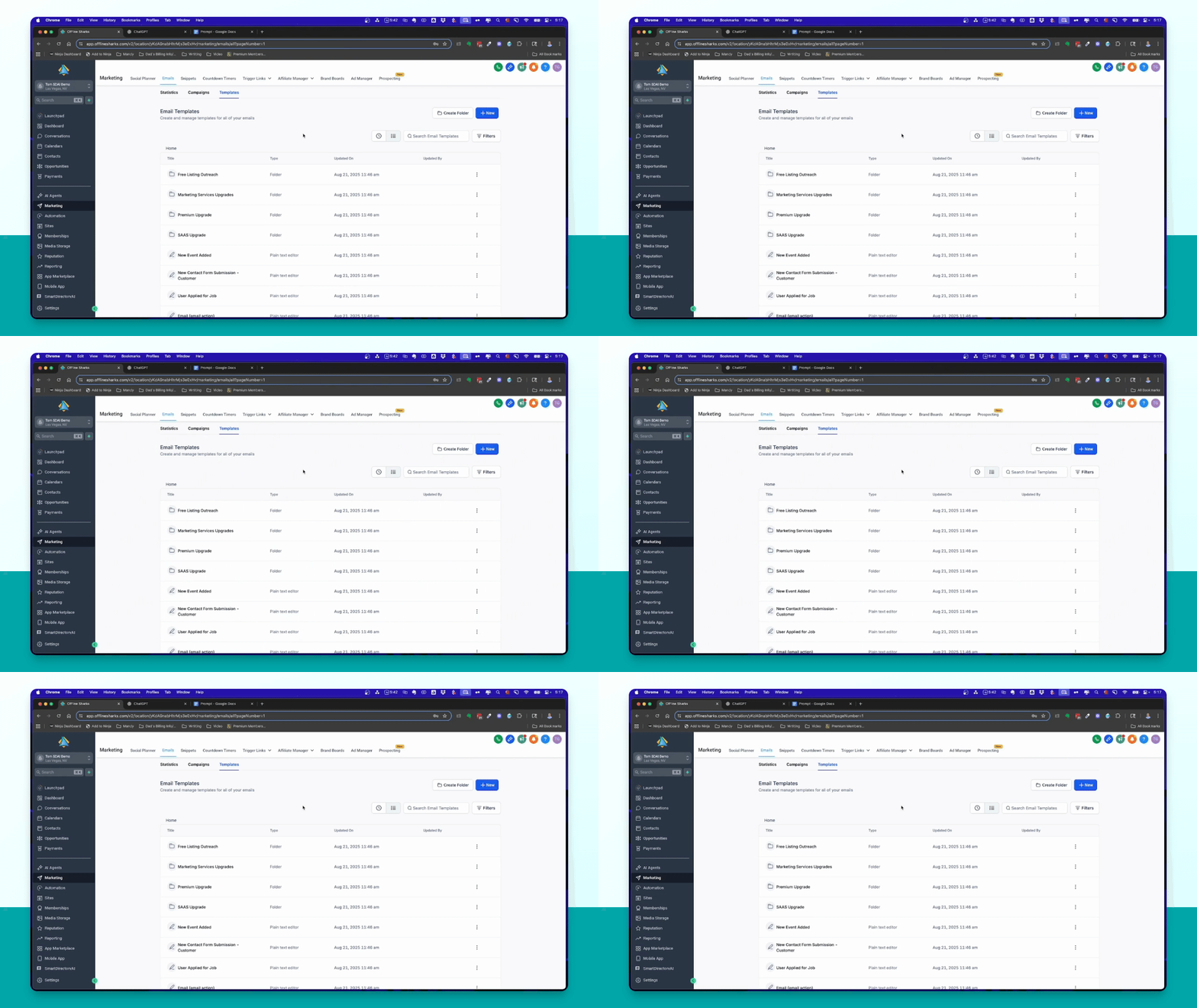
Identify the prospecting emails to customize: Free Listing, Marketing Services Upgrade, Premium Upgrade, SaaS Upgrade.
Step 3: Gather Information
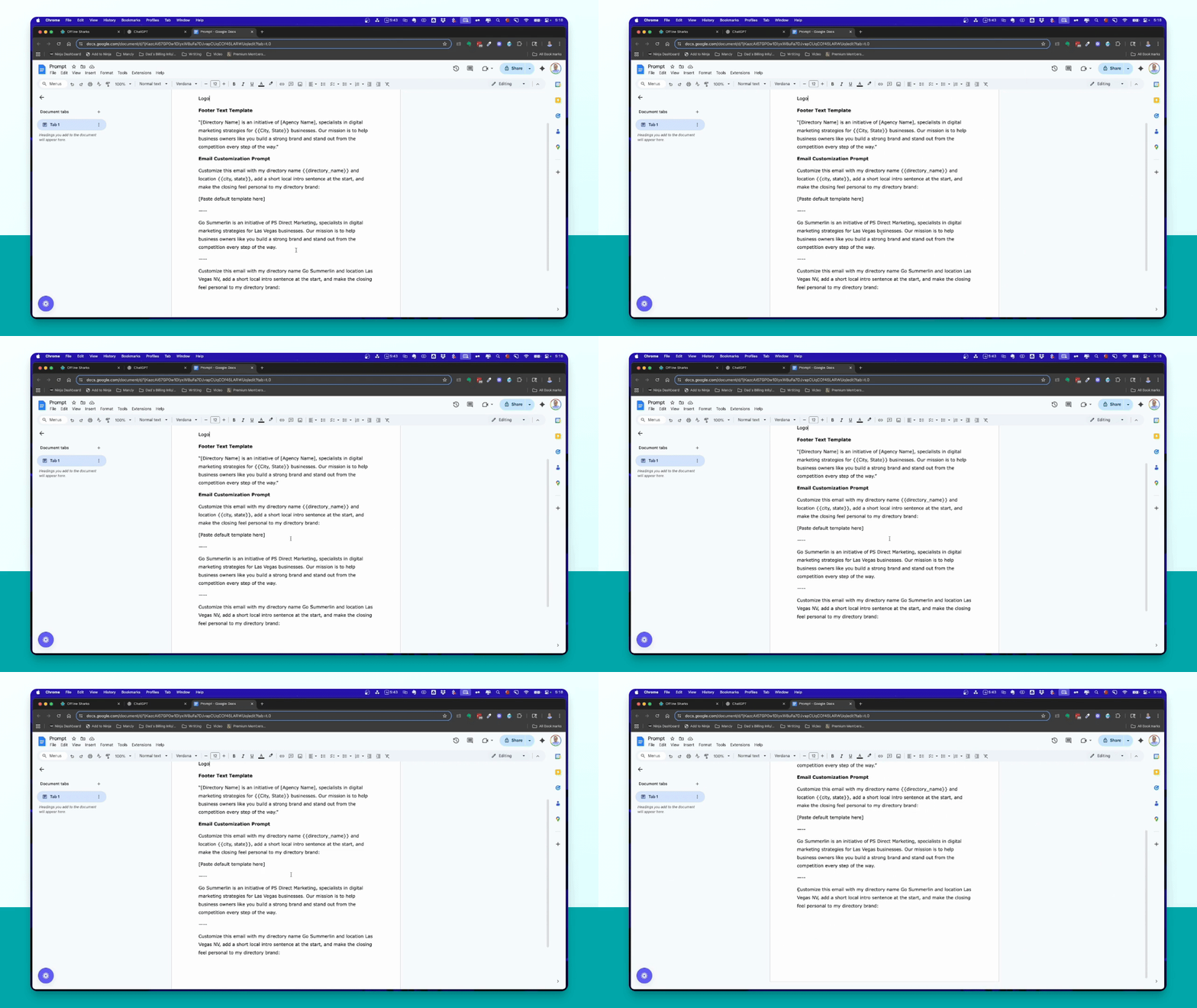
Prepare your directory name, target location, logo image, footer text template, and email customization prompt.
Step 4: Use AI Tool
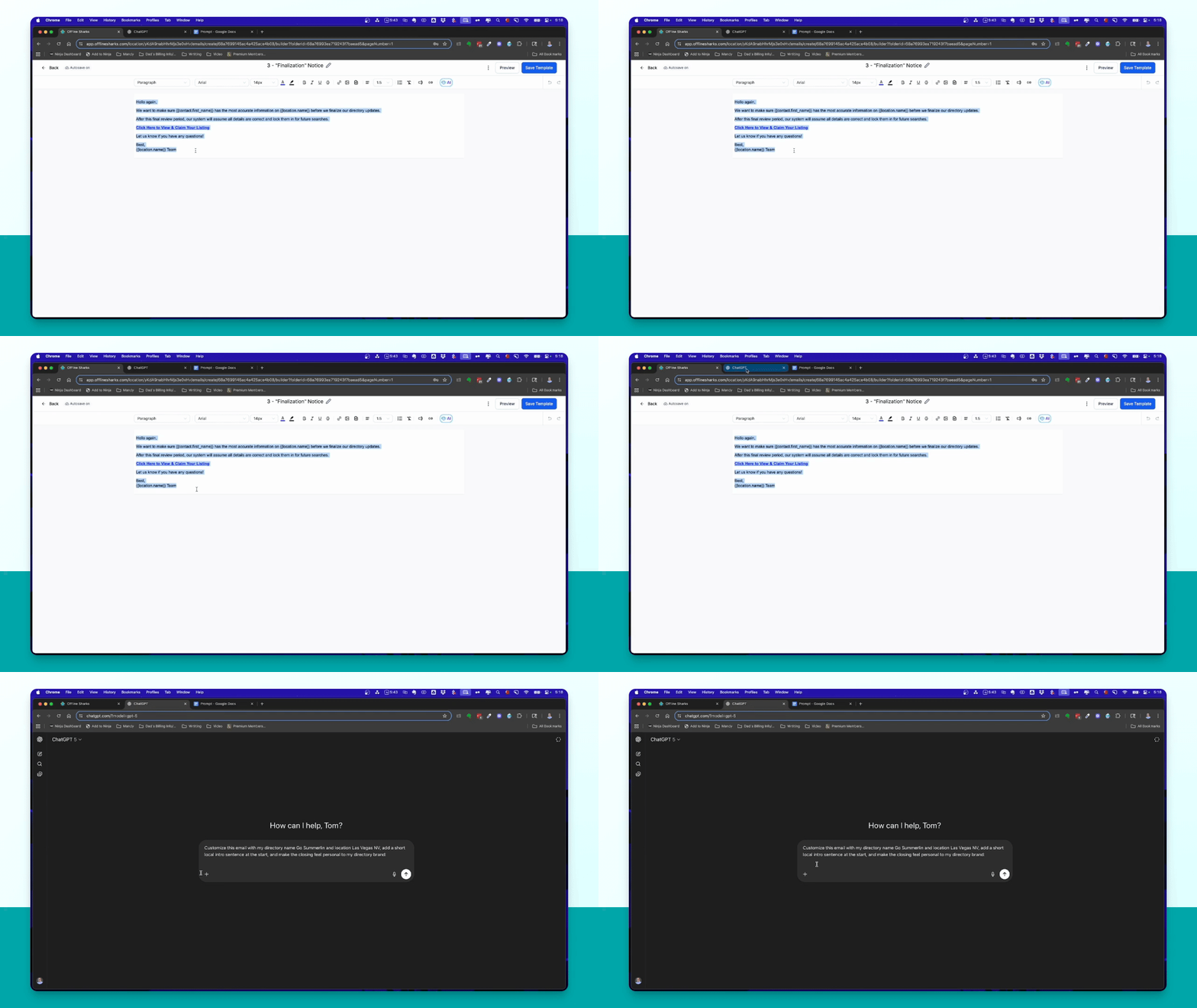
Copy the customization prompt and paste it into Chat GPT or your preferred AI tool.
Step 5: Edit First Email
Open the Free Listing Outreach email and copy its content for editing.
Step 6: Customize Email
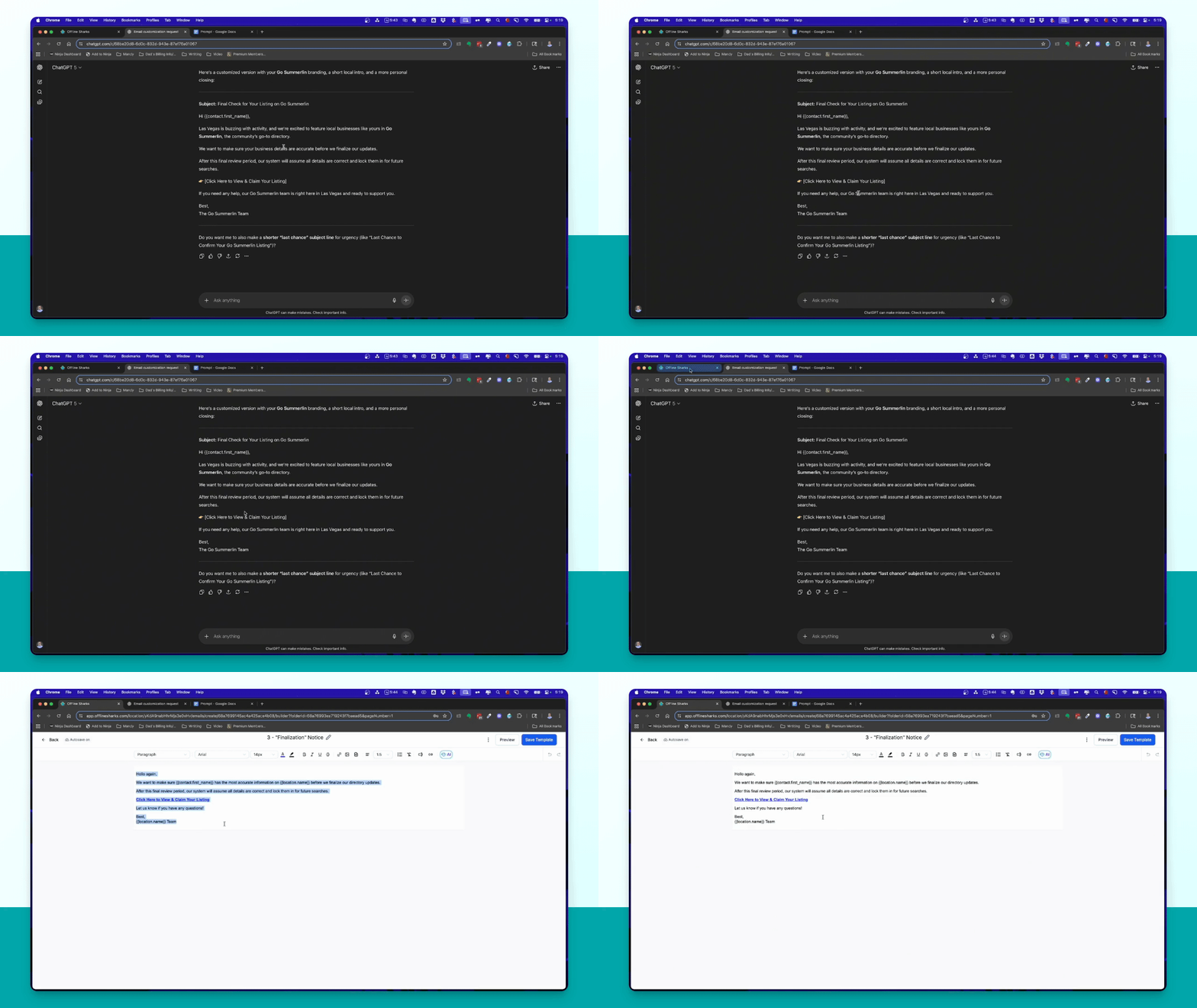
Paste the copied email content into Chat GPT and let it generate a customized version.
Step 7: Adjust Email Content
Copy everything above the custom value link and then everything below it, replacing the latter with your new content.
Step 8: Change Font
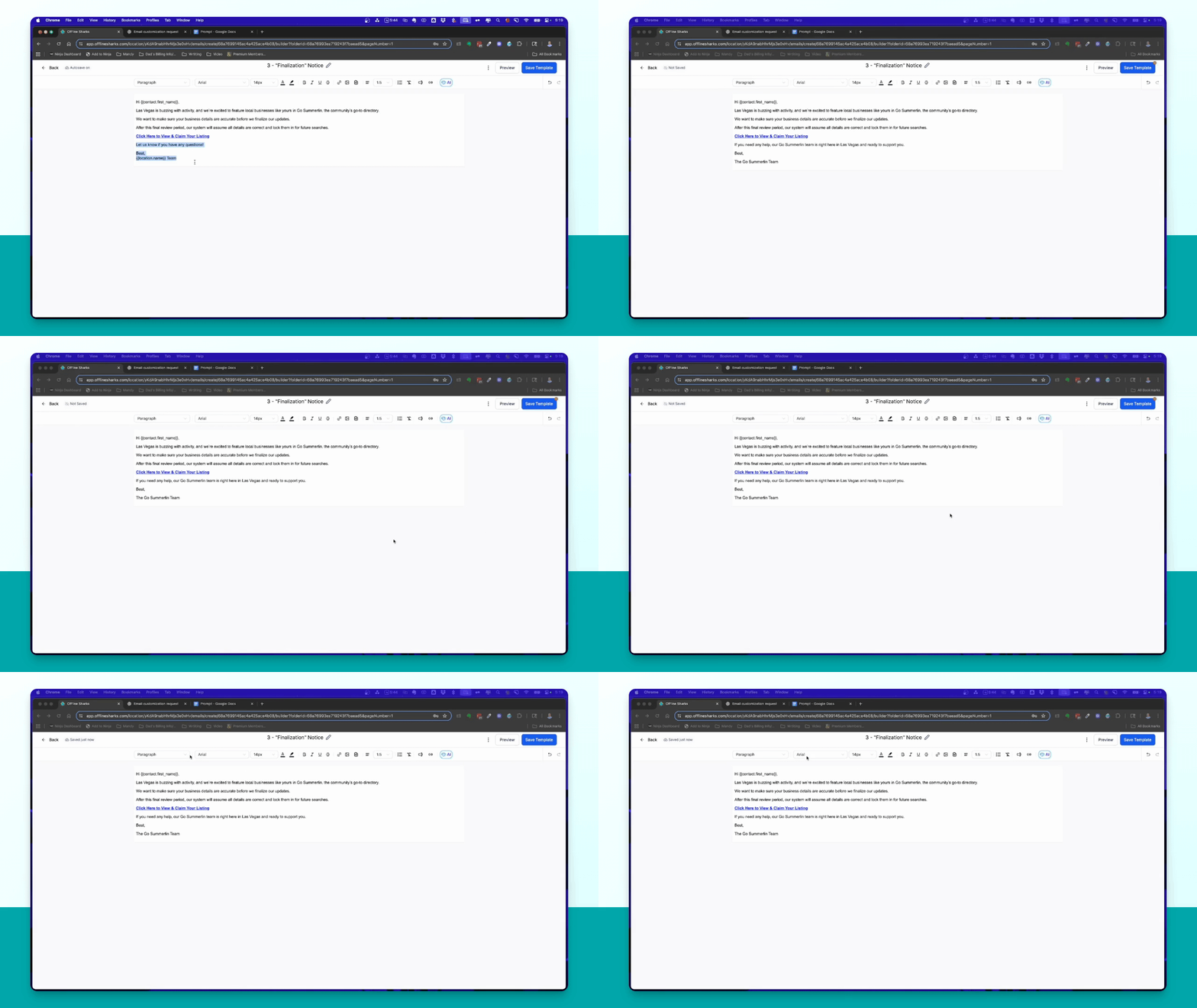
Select all content and change the font to Veranda, keeping the size at 14 points.
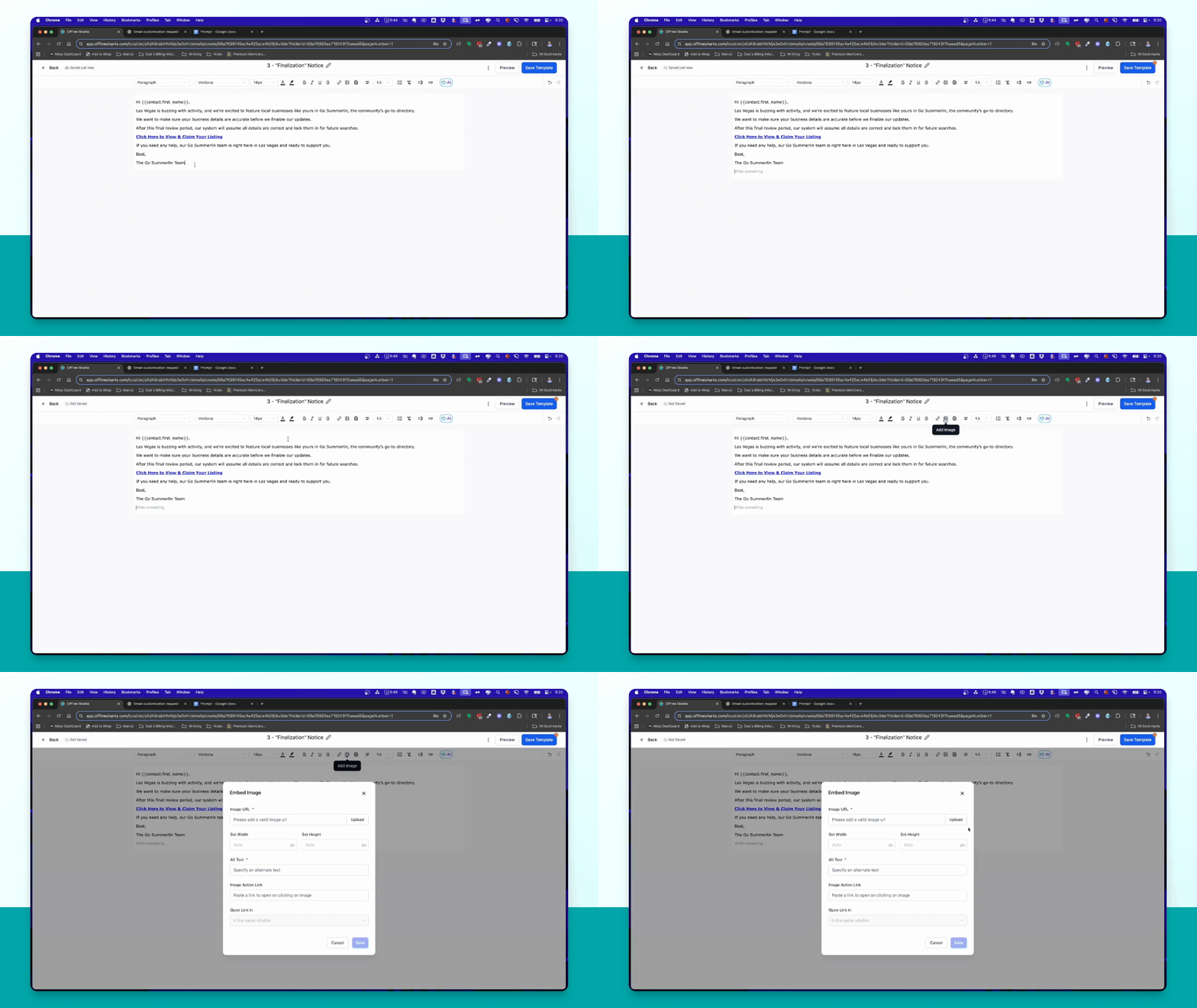
Step 9: Add Logo
Click Add Image to upload your logo and set its dimensions and alt text.
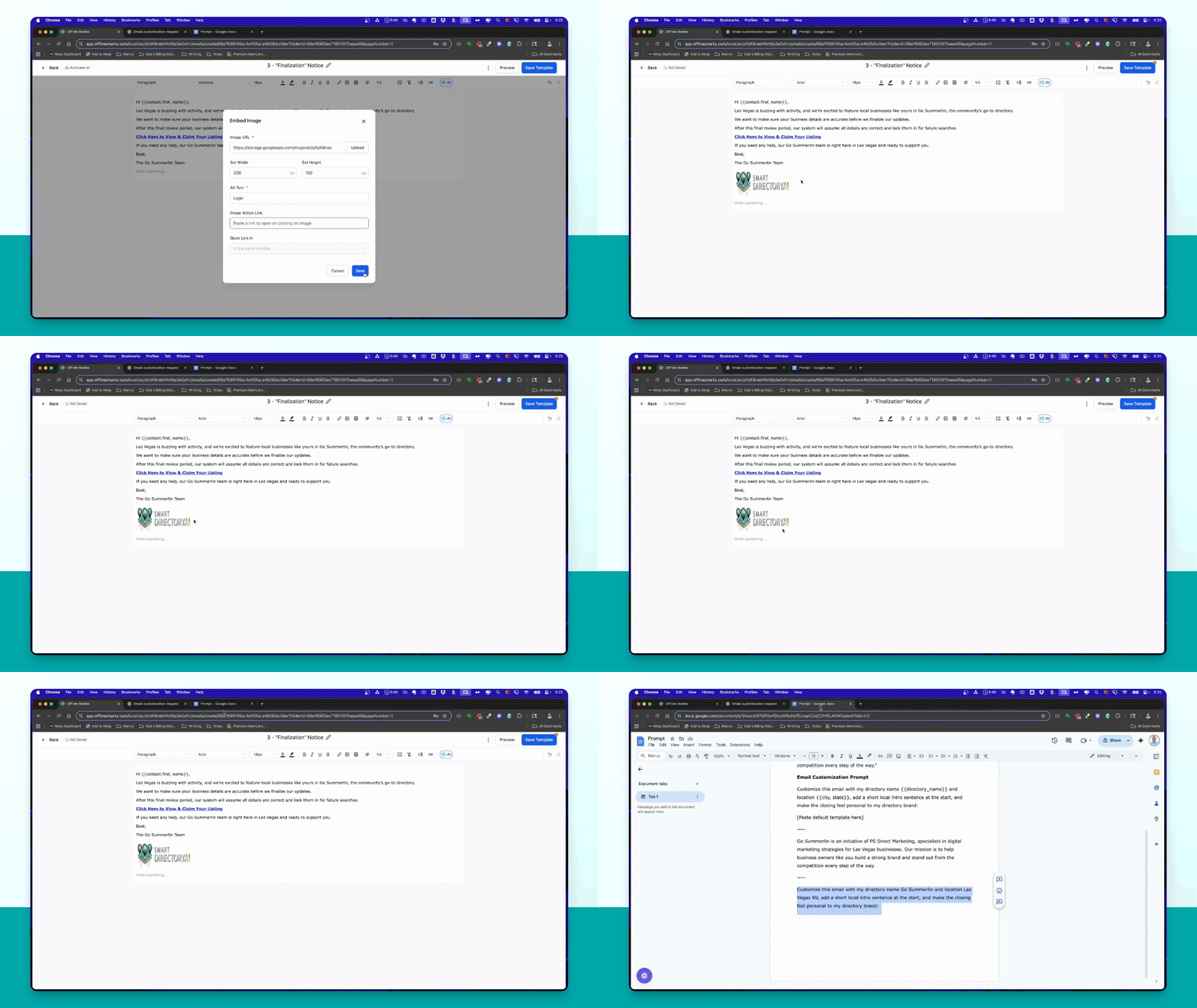
Step 10: Insert Footer Text
Copy the footer text from your document and paste it into the email.
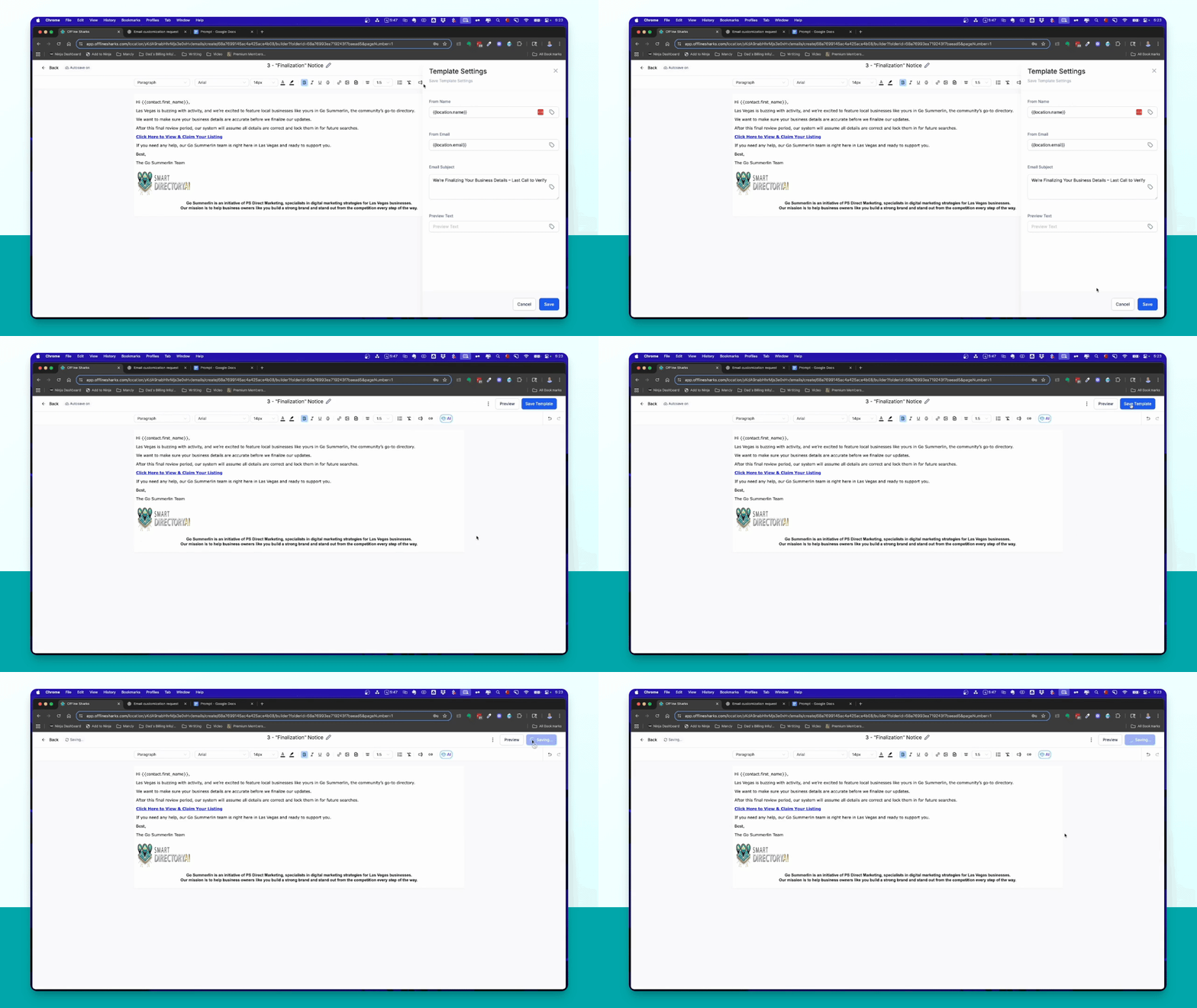
Step 11: Save Template
Click Save Template to apply your changes.
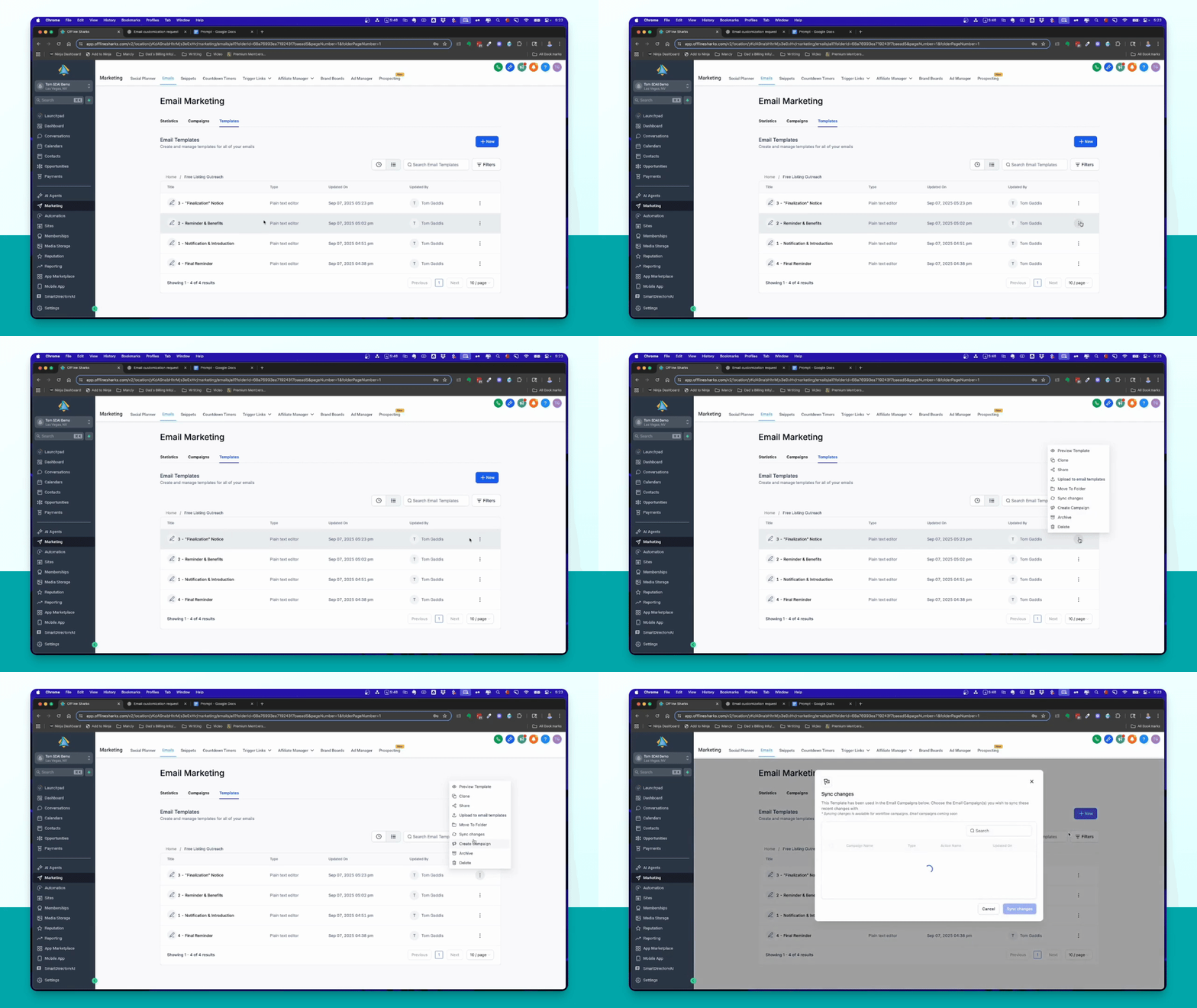
Step 12: Sync Changes
Click the dots and select Sync Changes to ensure your edits are updated.
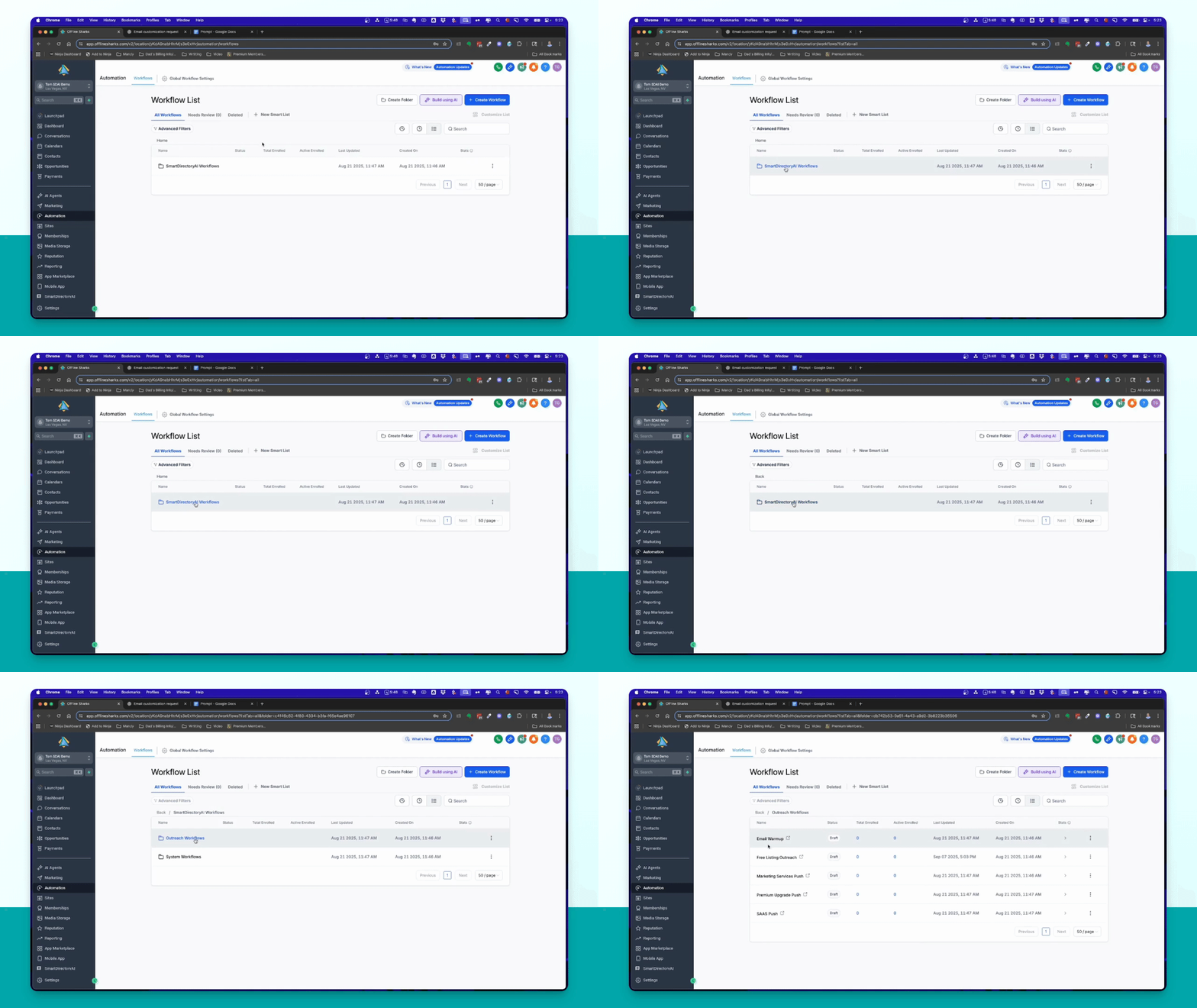
Step 13: Verify Edits
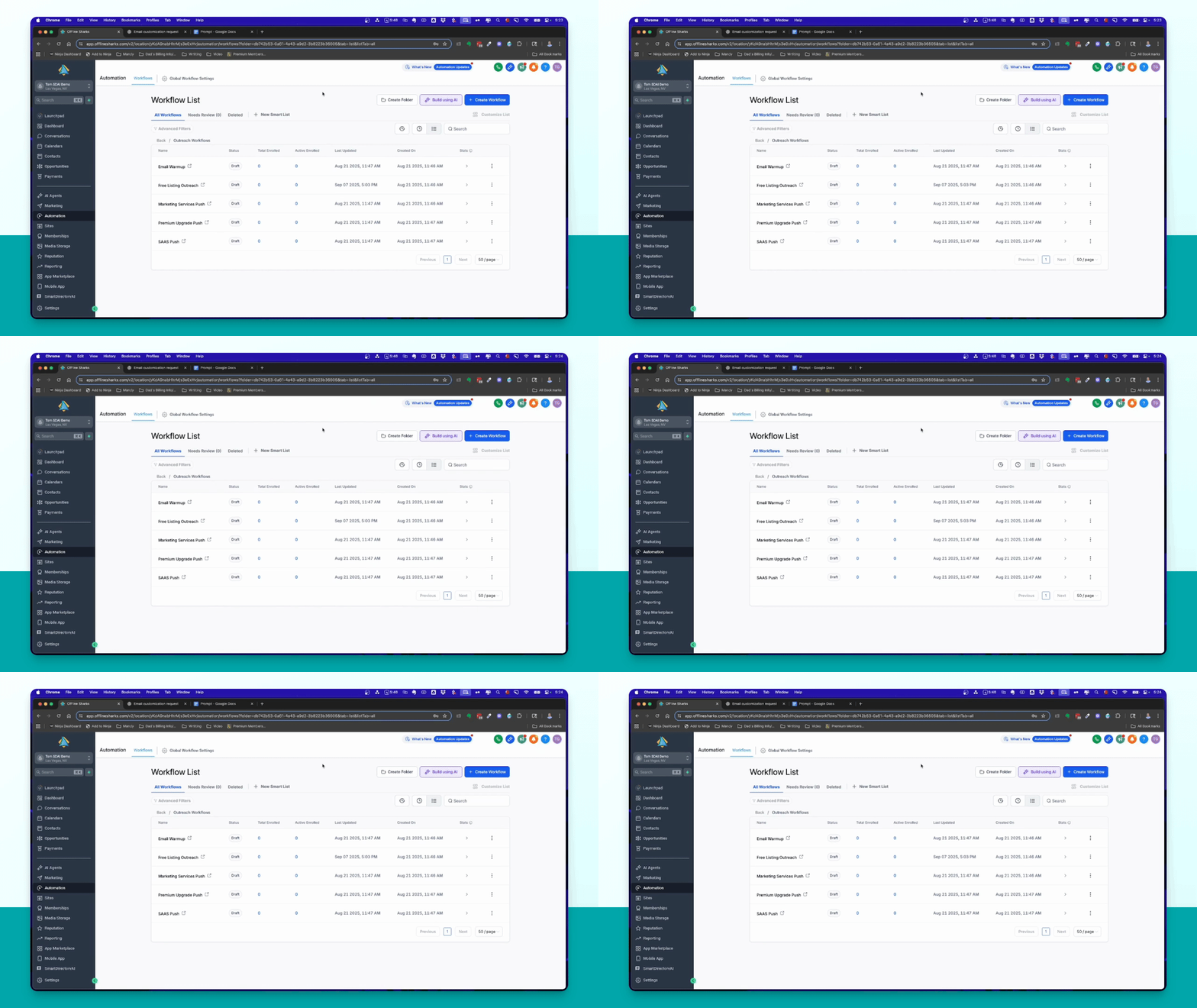
Go to Smart Directory Workflows and check that the email reflects your changes.
Step 14: Review Other Emails
Consider customizing the other outreach emails as needed.