

In this tutorial, we will explore how to set up notifications for your Conversations tab, located in the left-hand menu. This tab serves as the hub for your prospecting ecosystem, displaying responses from emails, SMS messages, phone calls, and other message platforms.
It's important to check the Conversations tab regularly and enable notifications so that users can be alerted whenever a new conversation starts. Let's look at the steps:
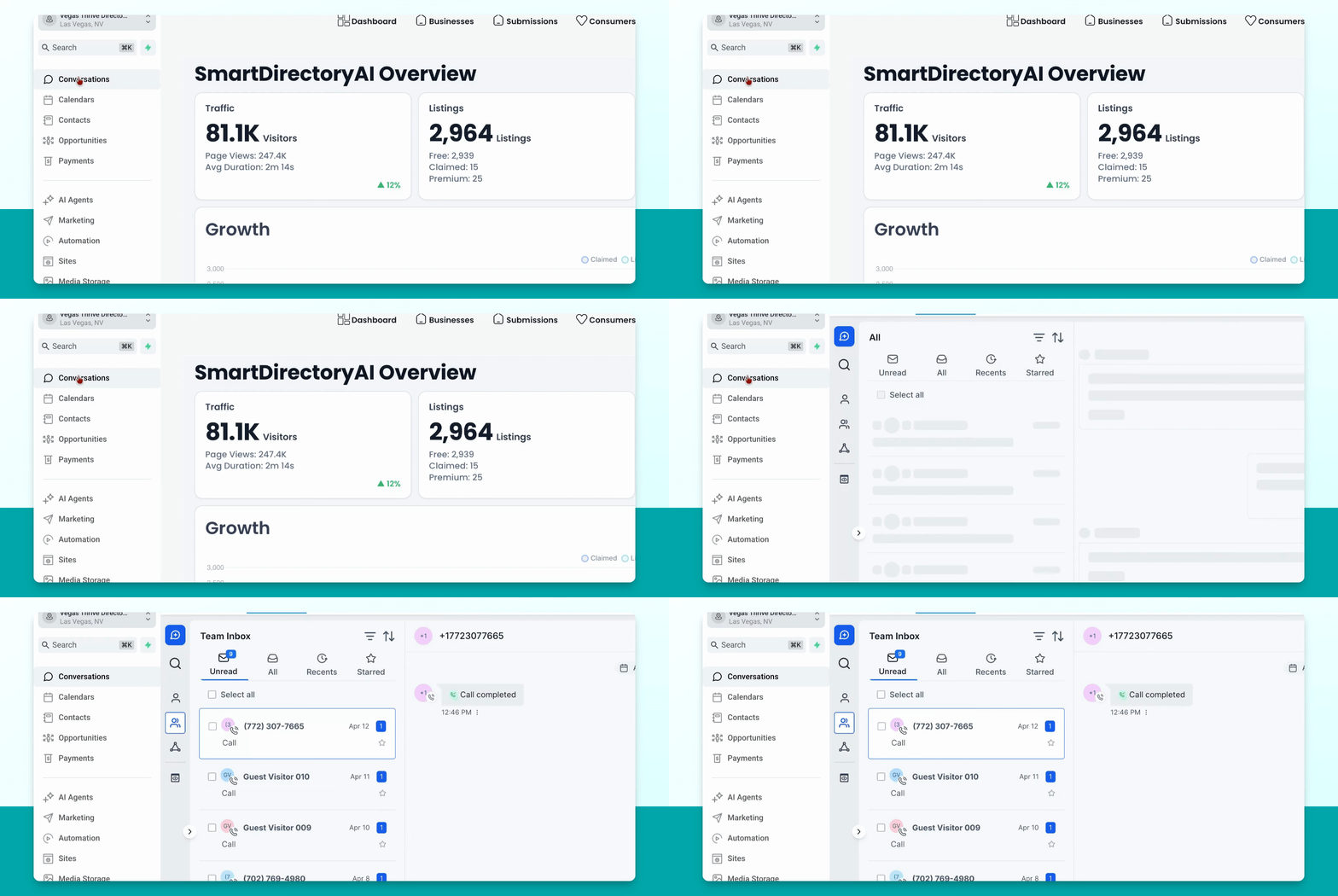
Step 1: Add User for Notifications
Ensure that the person you want to receive notifications is set up as a user. Navigate to Settings, click on My Staff, and check for the user with the desired email.
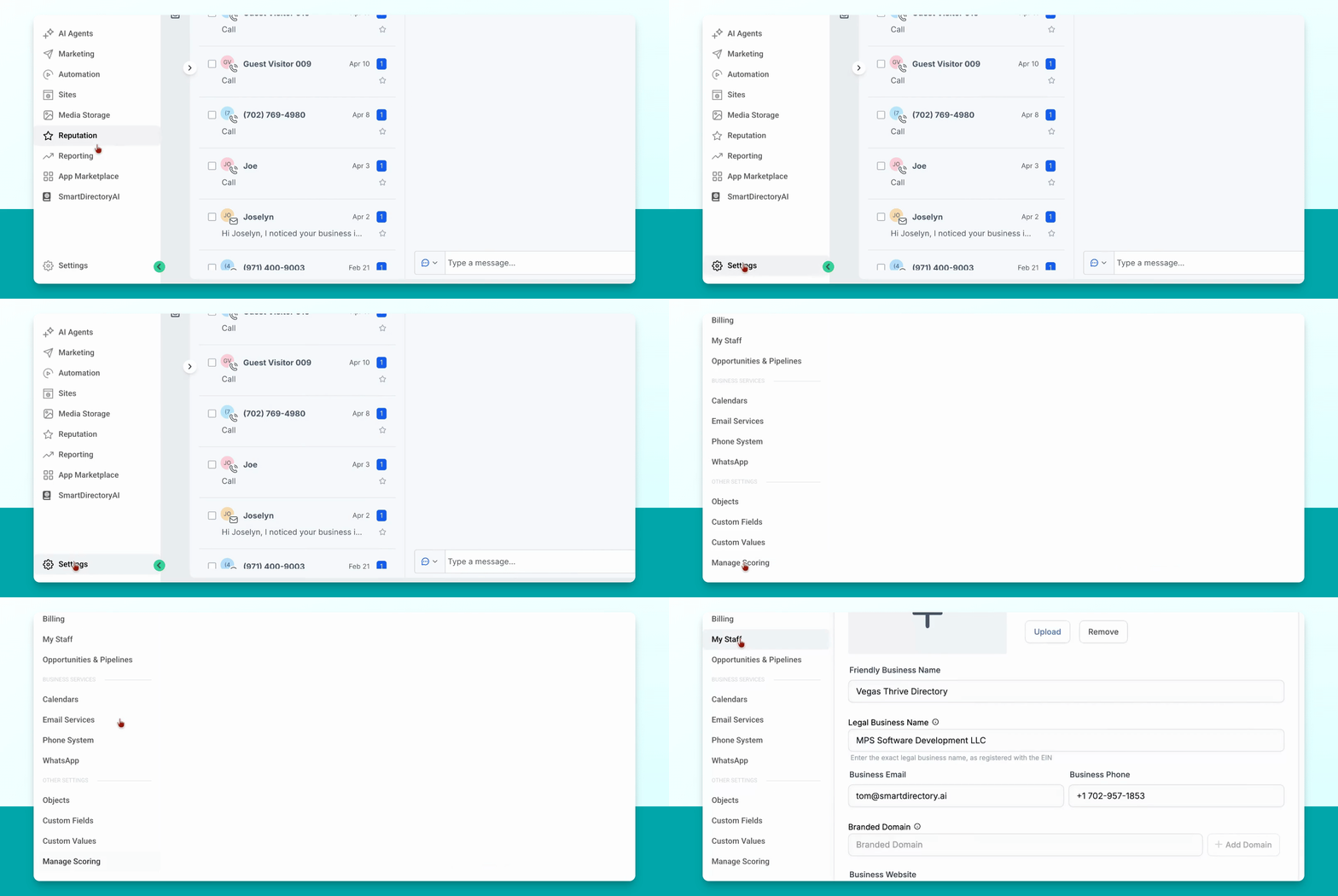
Step 2: Add User If Necessary
If the user is not listed, add them by clicking the blue button at the top.
Step 3: Configure Notifications
Once the user is confirmed, go back to Settings, click on My Profile, and select Notifications. Here you can set the notification preferences for users.
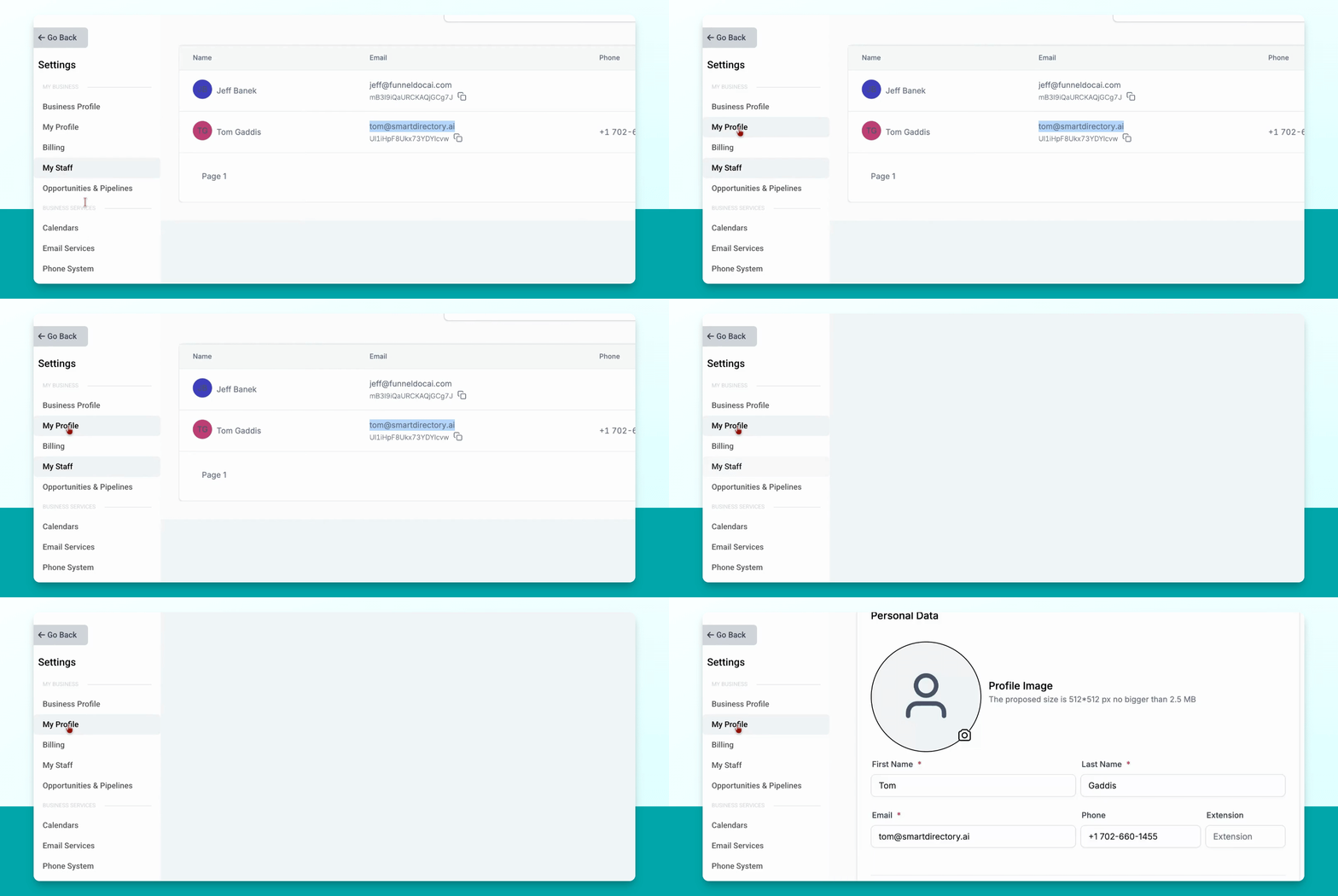
Step 4: Choose Notification Methods
In the notifications settings, check the top option to receive alerts for all new conversations and messages. By default, only the app notification is selected. If you want email alerts, check that option, and for SMS notifications, ensure the corresponding box is checked as well.
Step 5: Review Additional Settings
Scroll down to review other notification settings and customize them according to your preferences.
Step 6: Save Your Settings
After configuring the desired notifications, click Save to apply the changes.