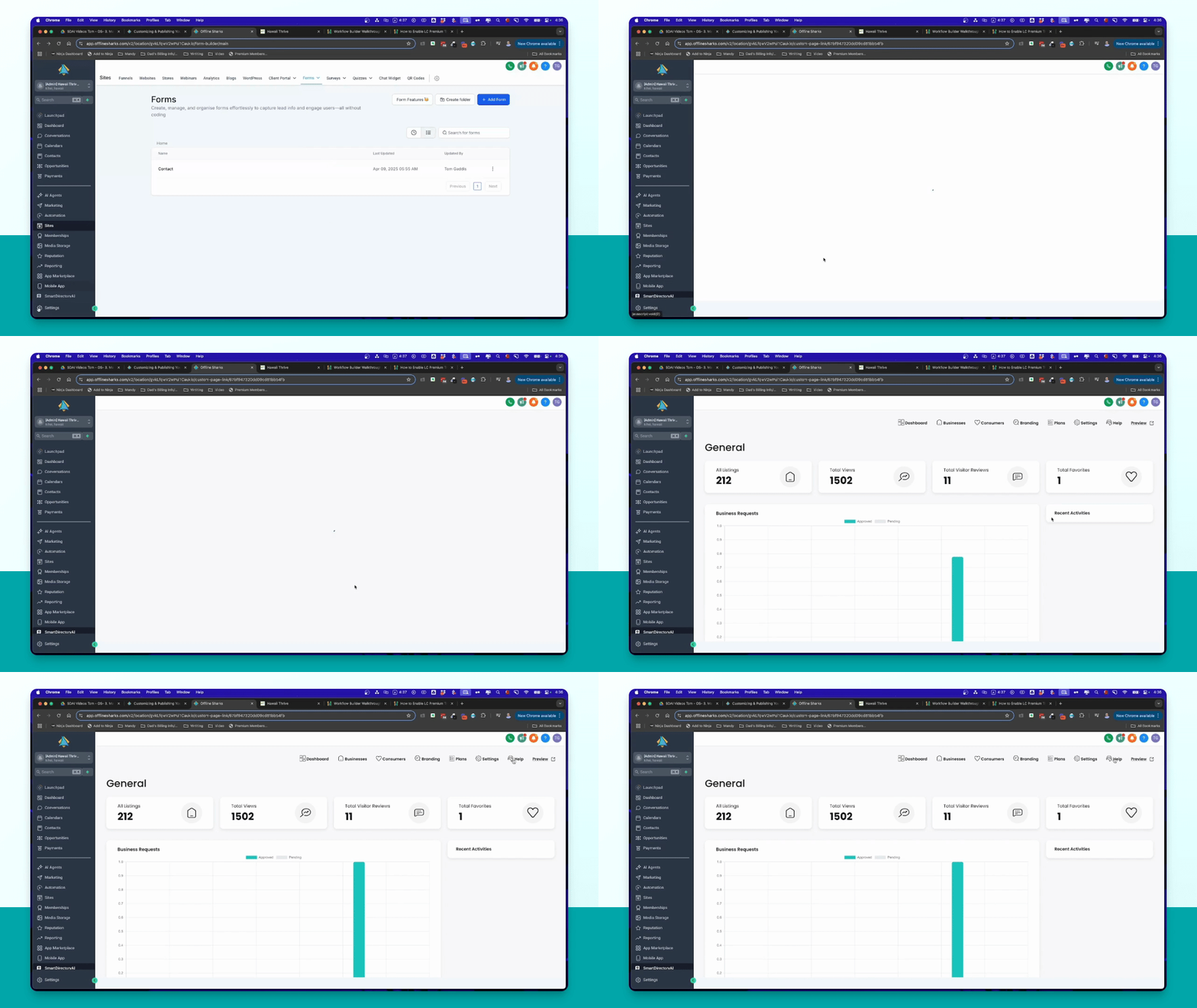
Let's do it together!
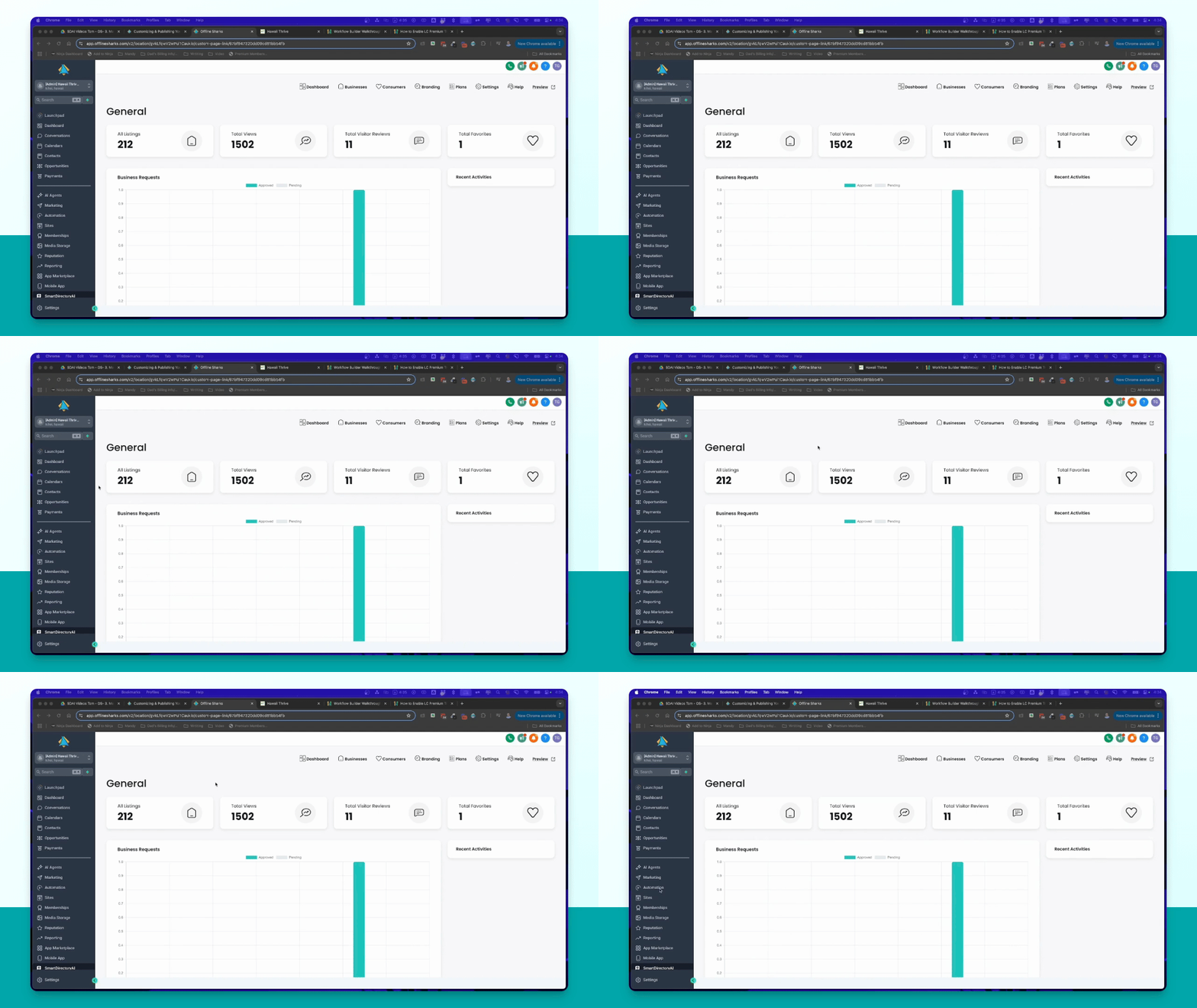
Step 1: Access Automation
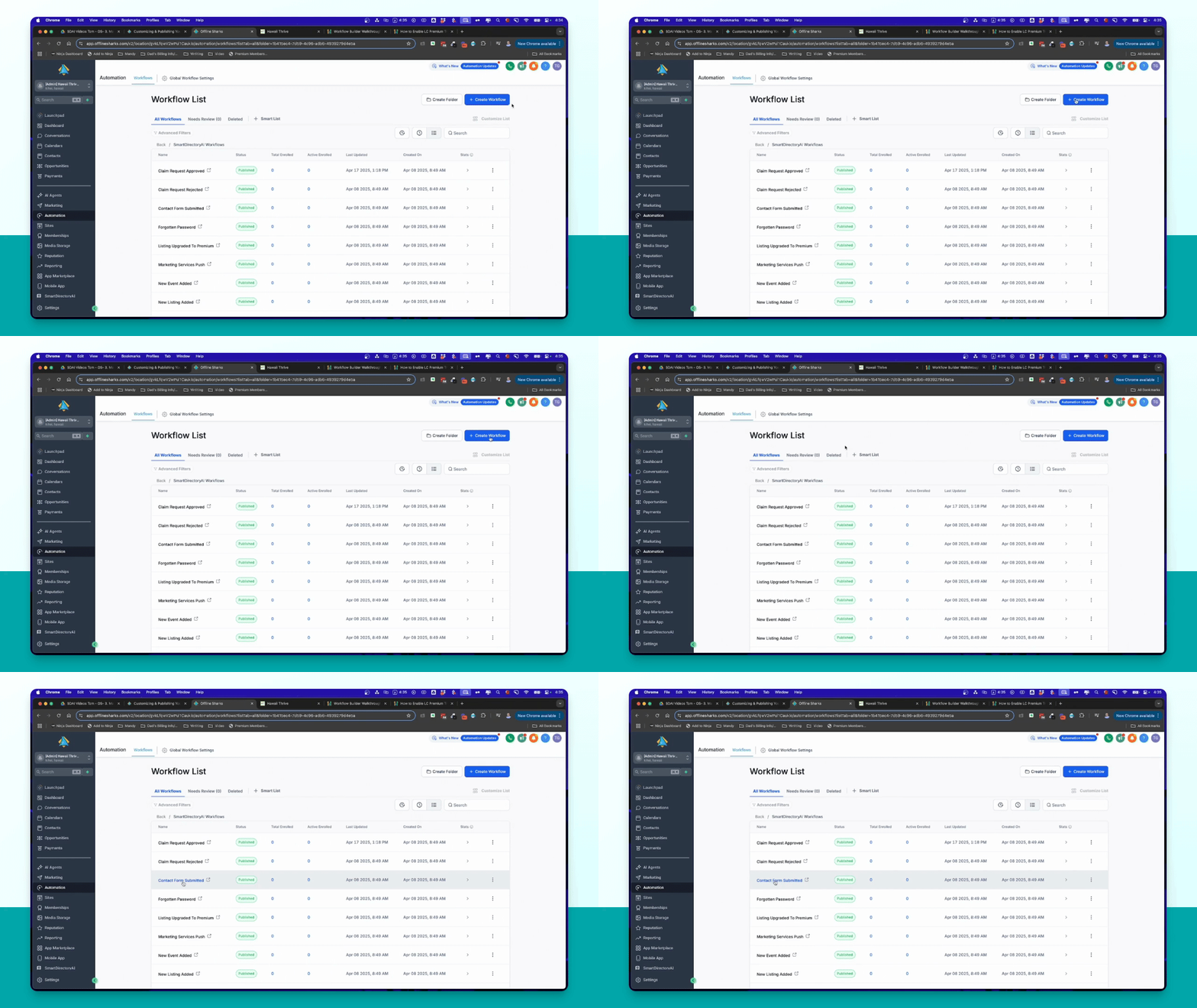
Go to the Automation section to view available workflows.
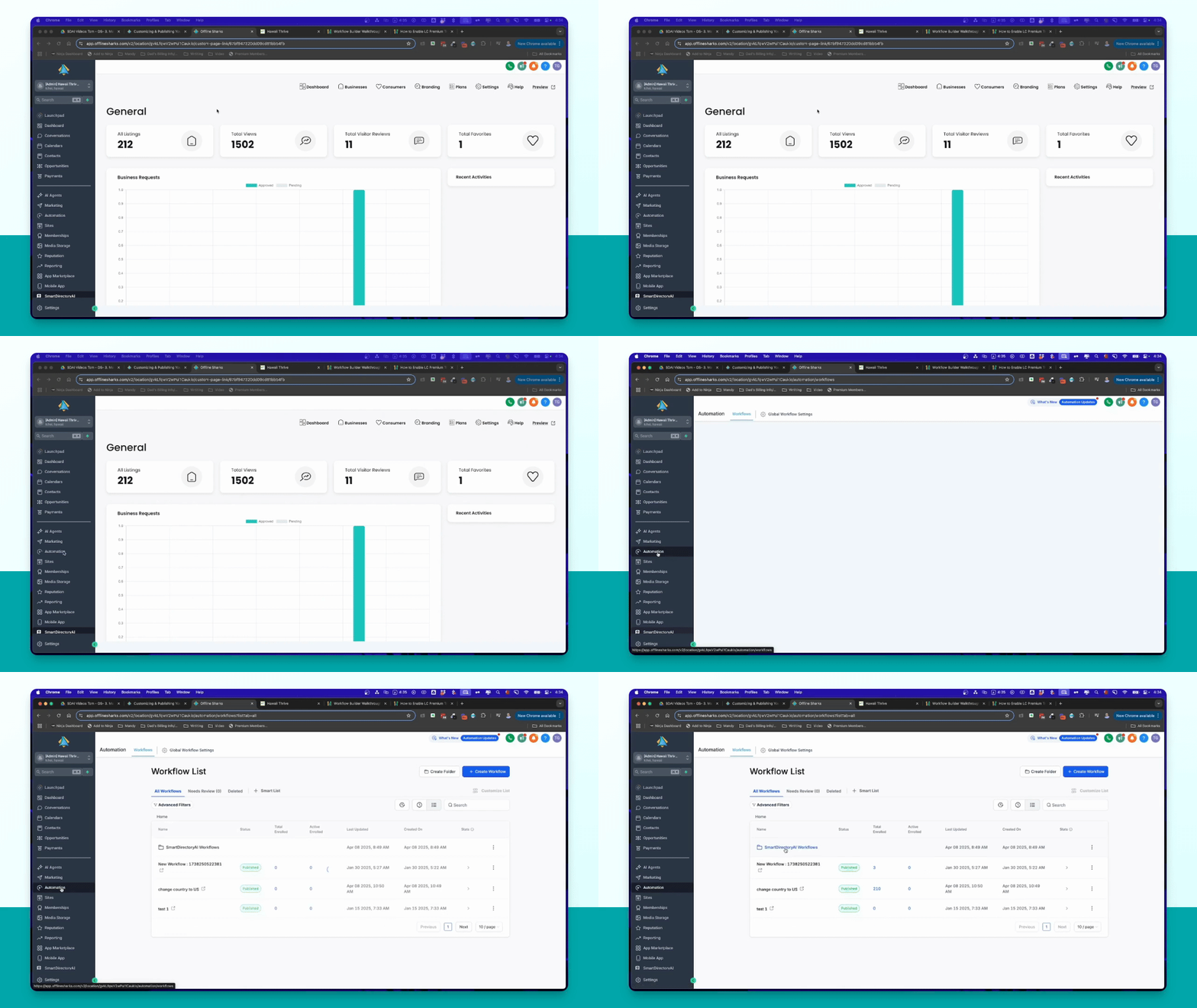
Step 2: Select Workflows
Choose the Smart Directory AI workflows from the list.
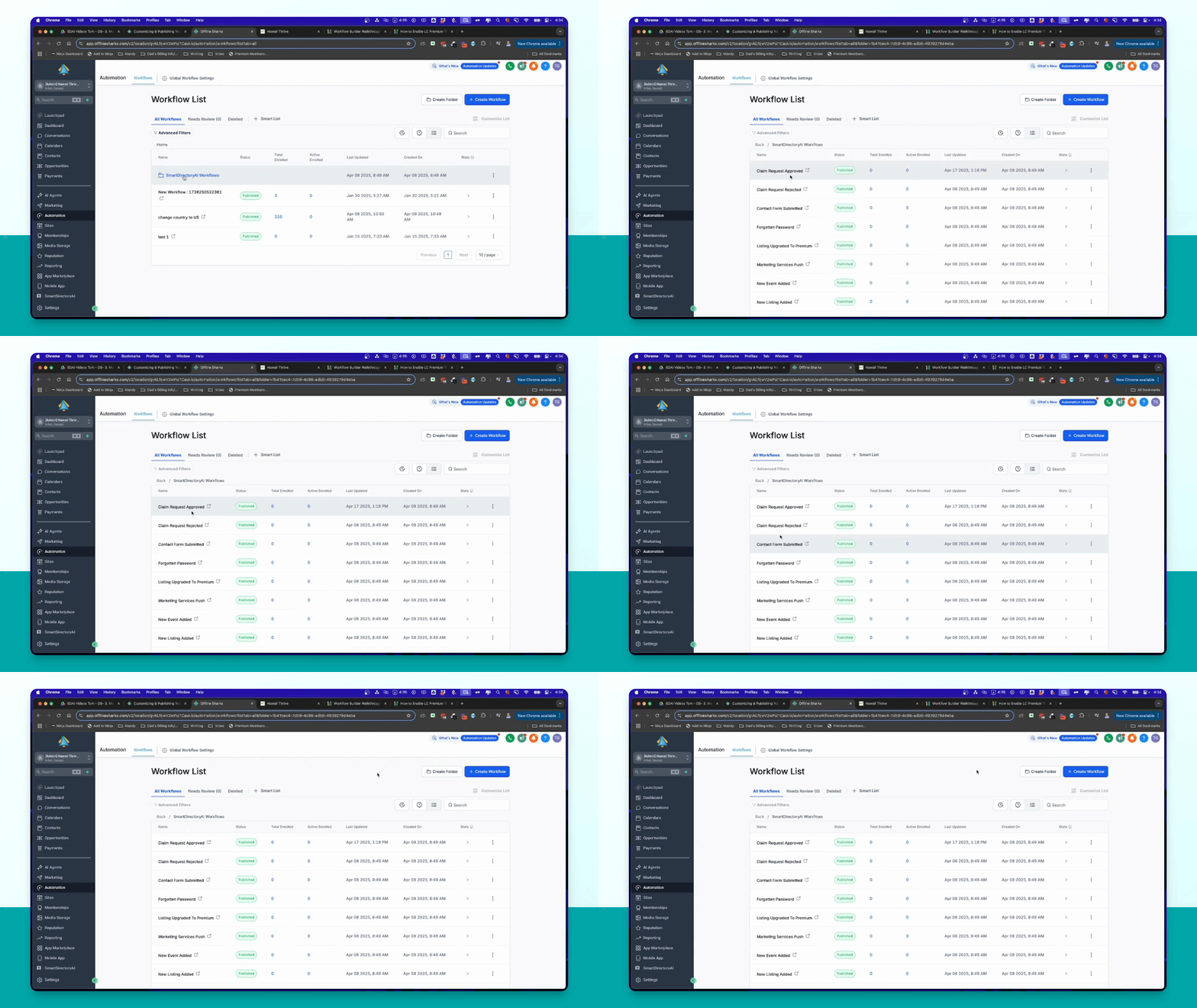
Step 3: Create Custom Workflows
If desired, create a custom workflow by clicking the blue button.
Step 4: Trigger on Form Submission
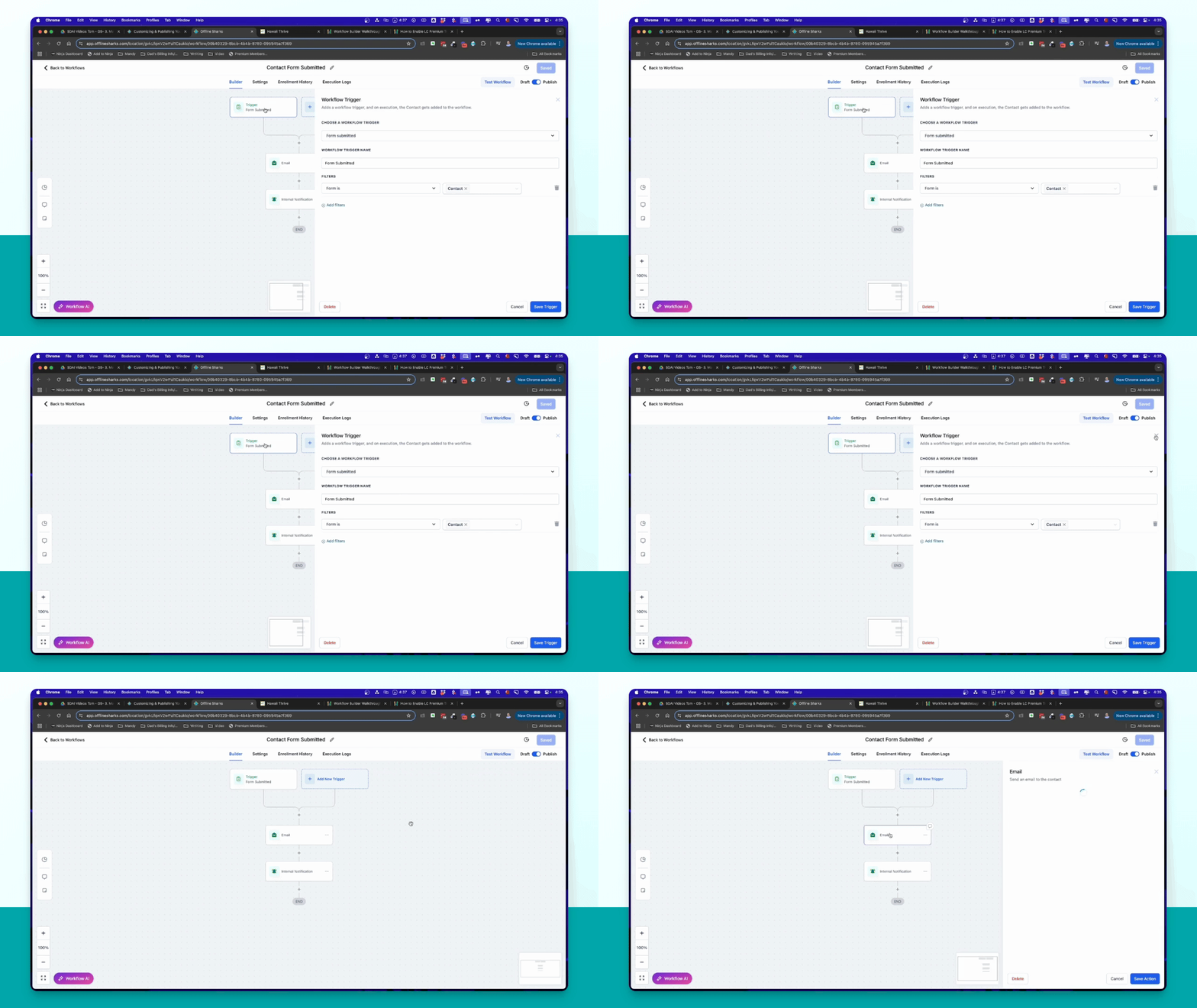
Understand that the workflow is triggered when the contact form is submitted.
Step 5: Email Notifications
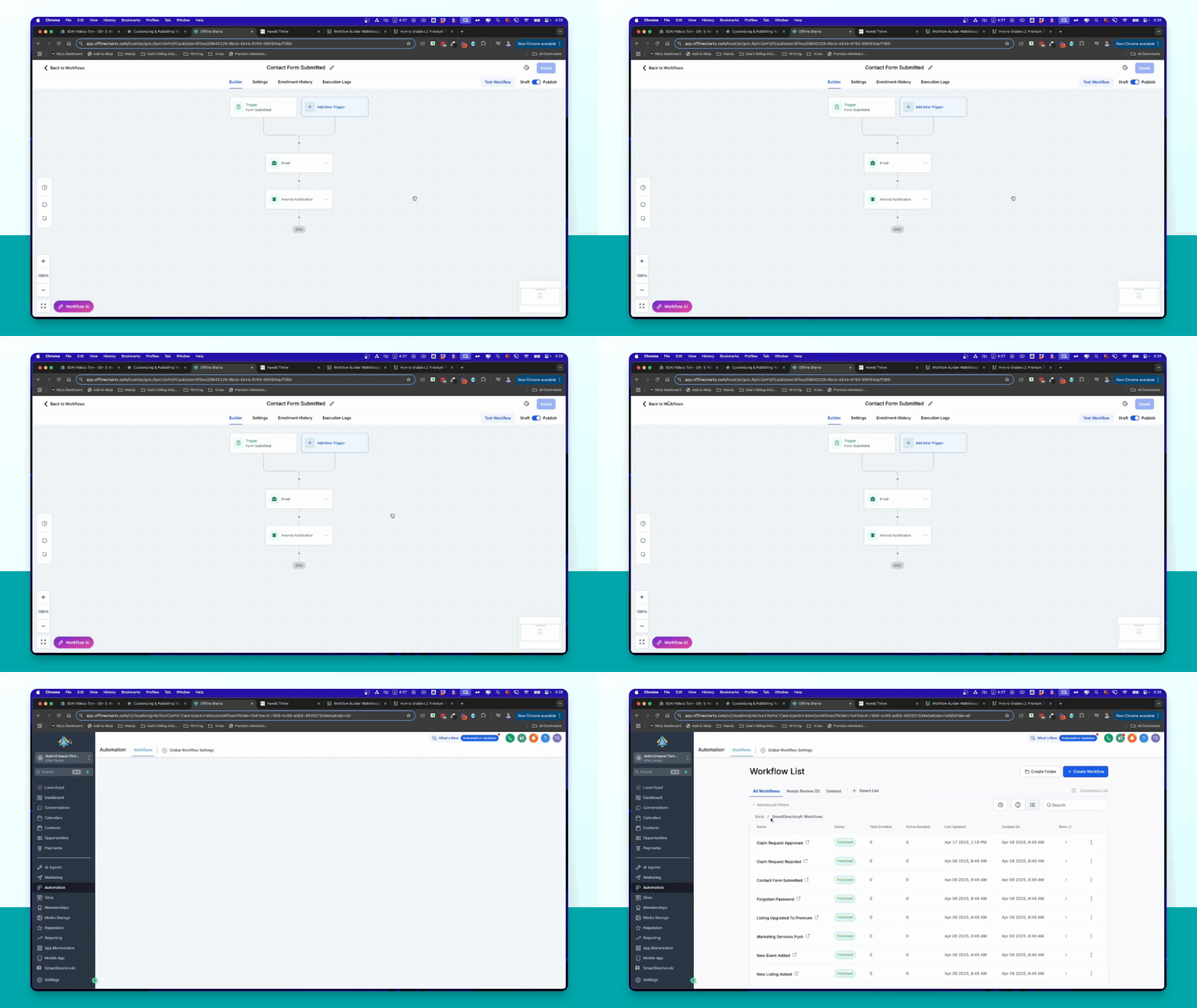
After submission, an email is sent to the user and an internal notification is sent to your team.
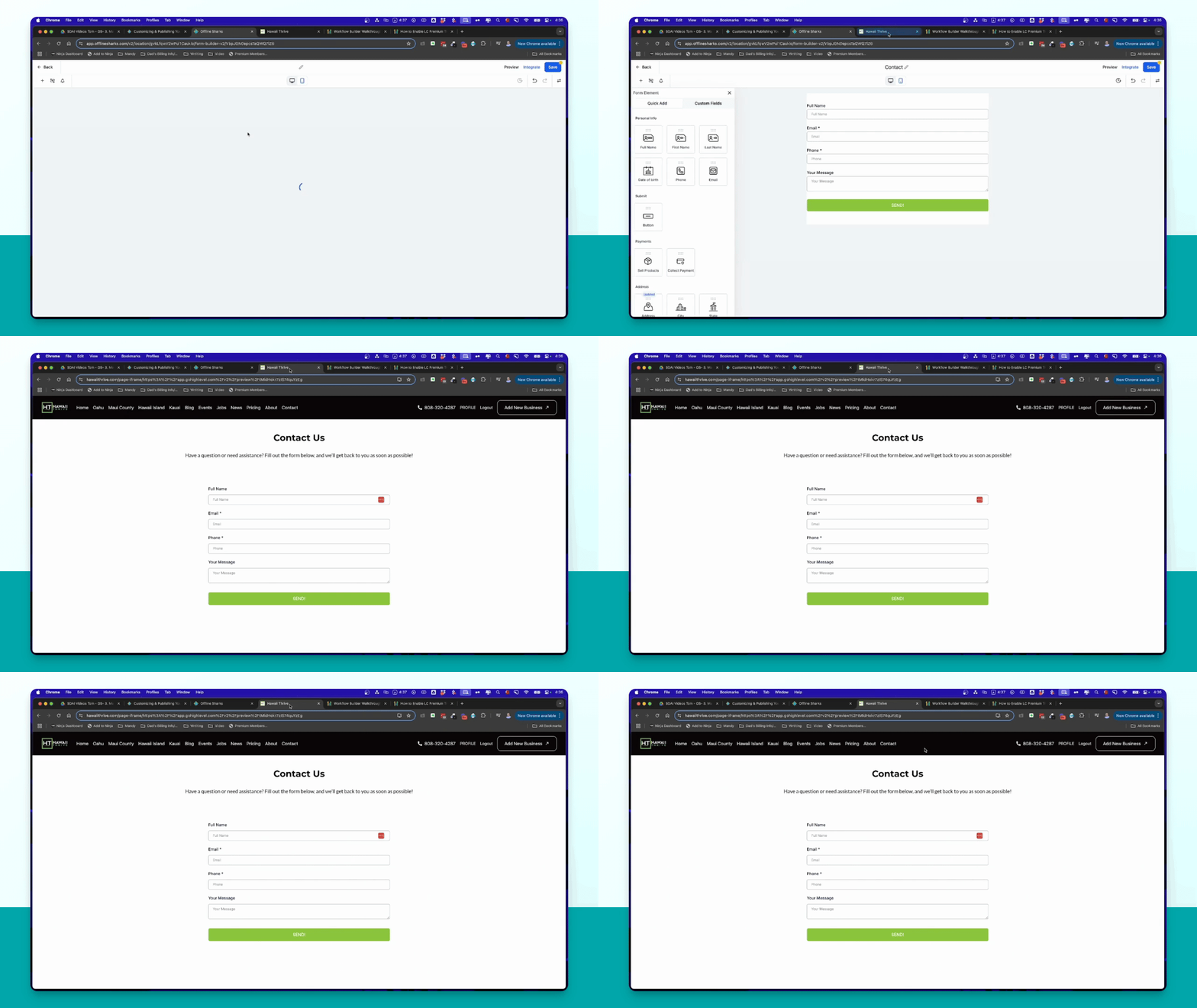
Step 6: Locate the Contact Form
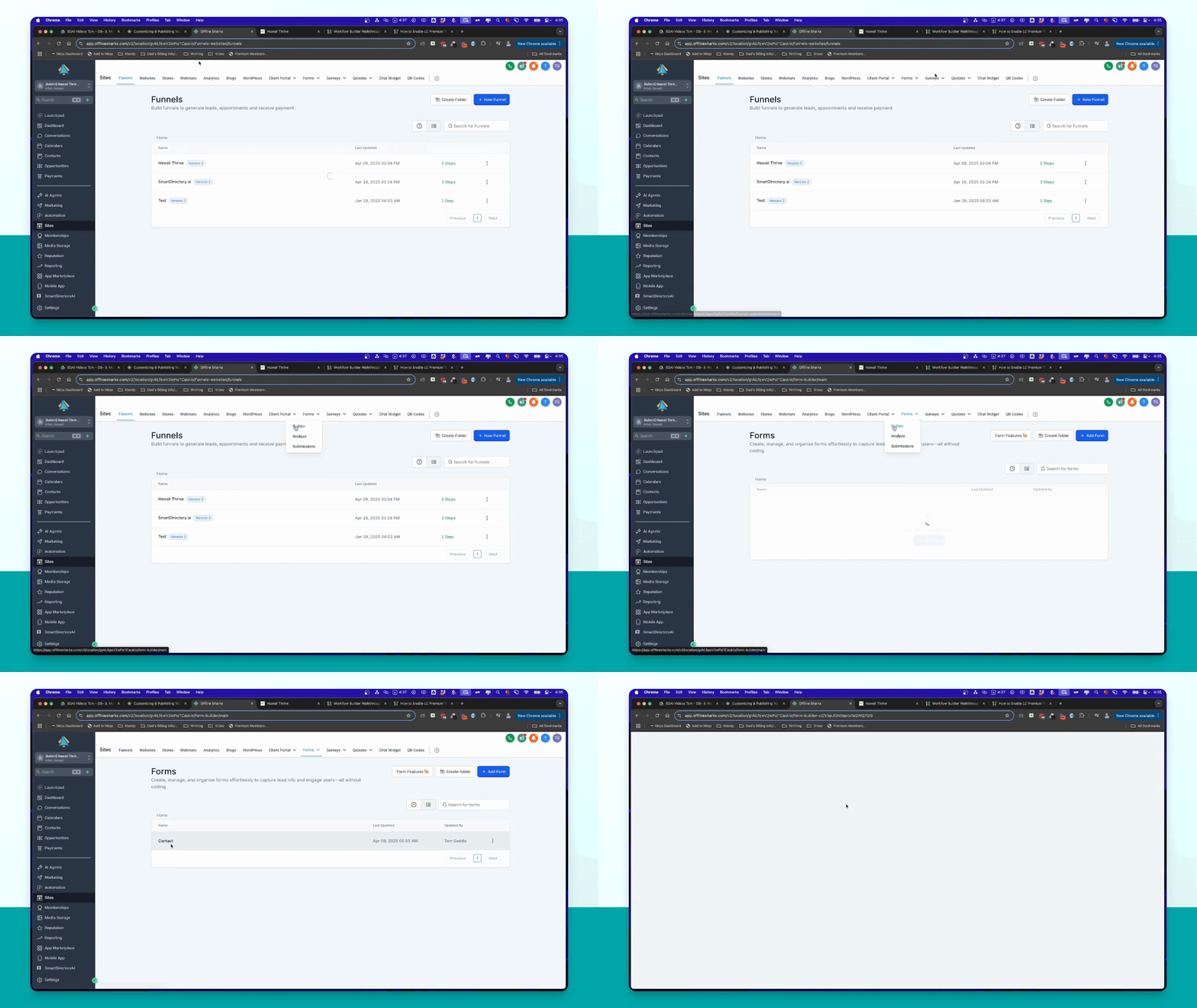
Find the contact form under Sites > Forms in the top menu.
Step 7: Access the Builder
In the builder, locate the Contact form for editing.
Step 8: Branding Management
Manage your branding within the Smart Directory AI dashboard.
Step 9: Seek Support
If you need help, use the support button or visit offline sharks.com support.