

You can update the payment method for your SmartDirectoryAI subscription at any time from within your account.
Updating Your Payment Method
Log in to your SmartDirectoryAI account.
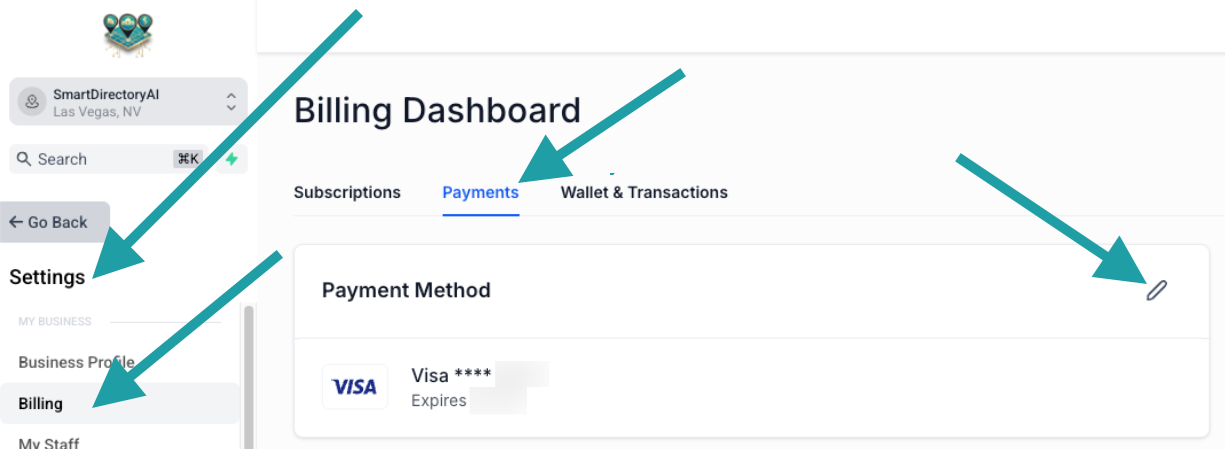
Click Settings in the left-hand menu.
Select Billing.
Click the Payments tab.
In the Payment Method box, click the pencil icon to edit.
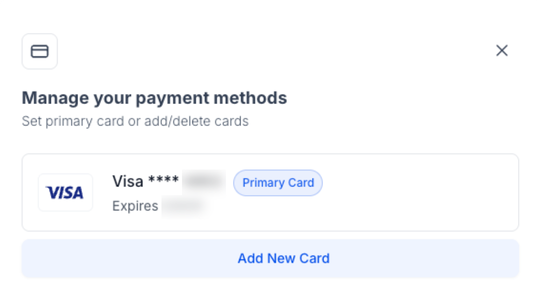
Click Add New Card.
Enter your new card information and save your changes.
Once you've added your new card, click the 3 dots icon, and select Set as Primary.
Your new payment method will be used for all future subscription renewals and usage-based charges.
Purchased SmartDirectoryAI before April 2026?
If you originally purchased SmartDirectoryAI before April 2026, your subscription may still be managed through our previous billing platform (Spiffy), rather than directly in your SmartDirectoryAI account.
If that's you, please see our article:
How to Update Your Payment Method in Spiffy
That article walks you through updating the payment method for legacy subscriptions.
Need Help?
If you're unable to update your payment method or aren't sure which billing system your account uses, our support team is happy to help. Submit a support ticket through the SmartDirectoryAI Help Center, and we'll get you taken care of.