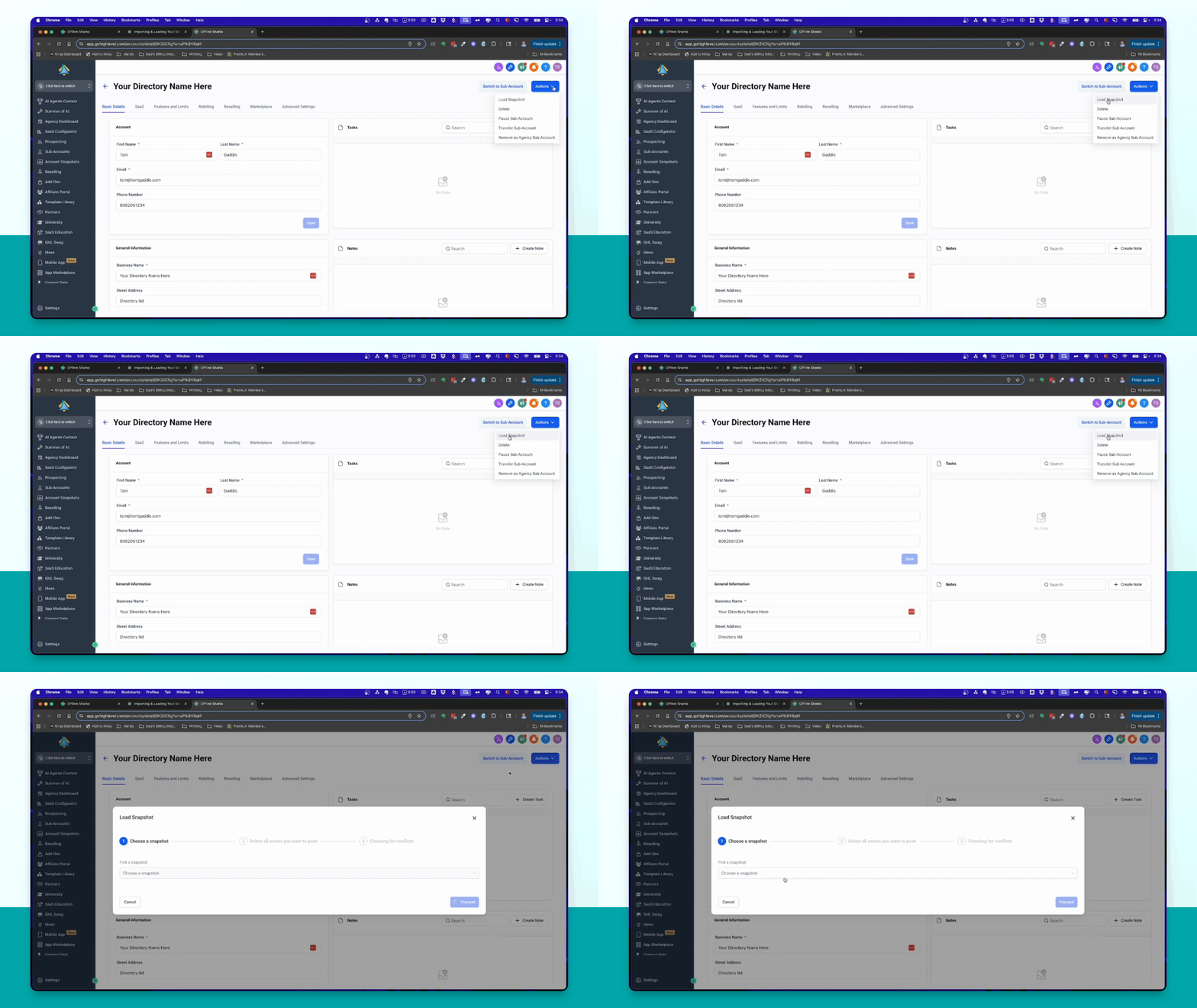
Resources
Click here to import your SmartDirectoryAI snapshot (last updated March 5, 2026).
Click here to get a 30 Day FREE Trial of HighLevel.
Let's do it together!
Step 1: Log In
Log into your Go High Level account to begin the setup process.
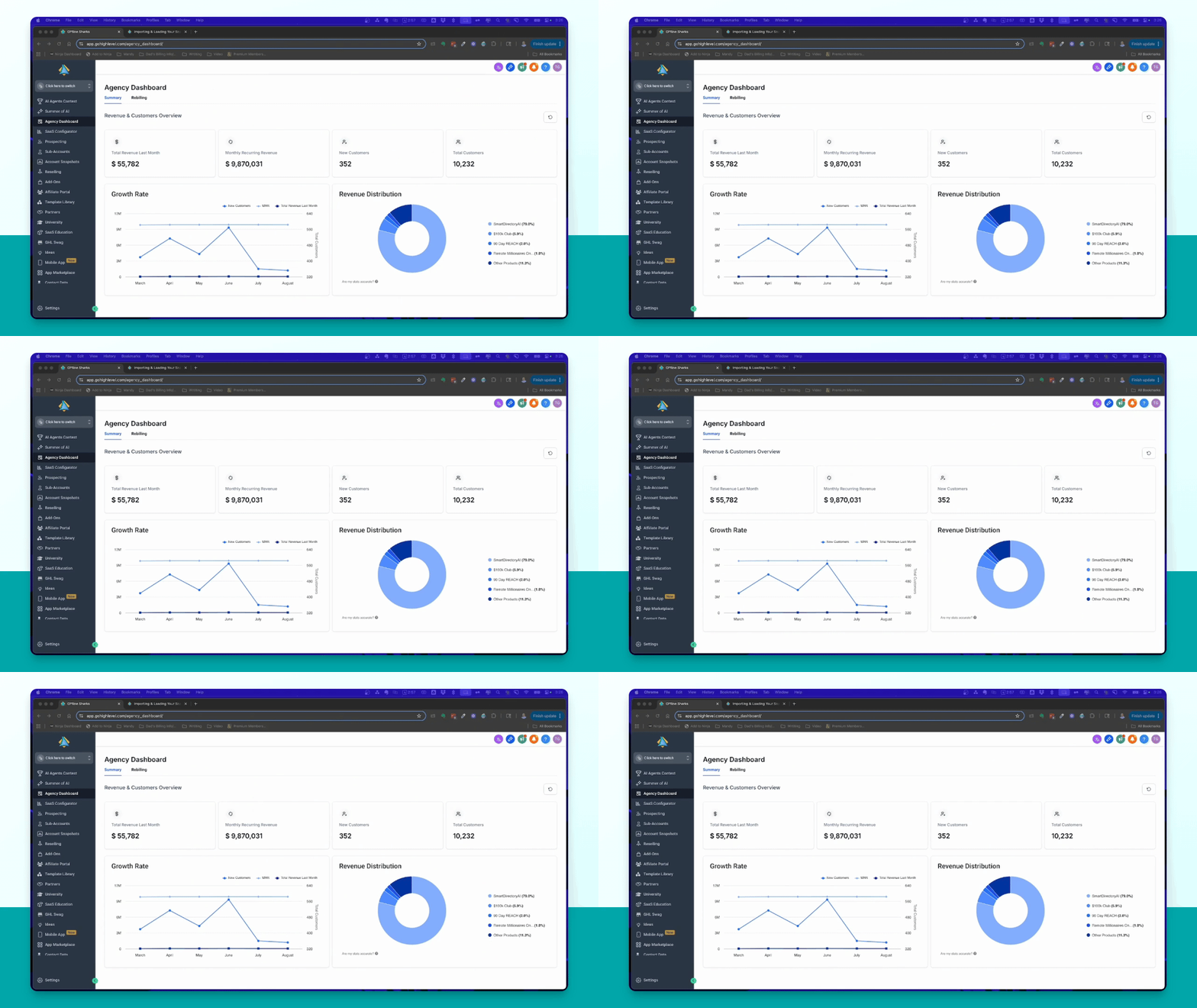
Step 2: Get a Trial
If you don’t have an account, click the link below the video to sign up for a 30-day free trial.
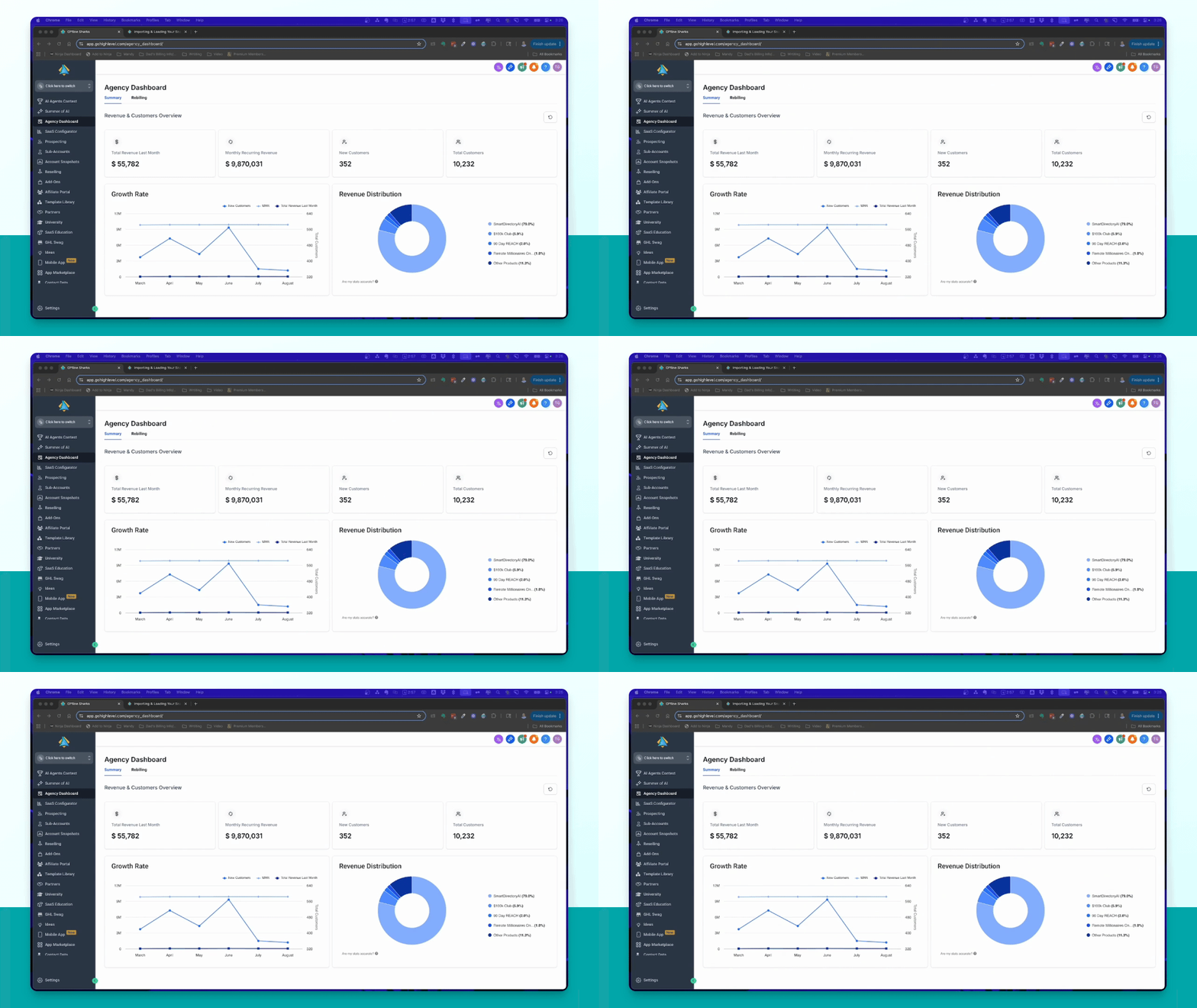
Step 3: Import Snapshot
Click the link below the video to import the Smart Directory AI snapshot into your account.
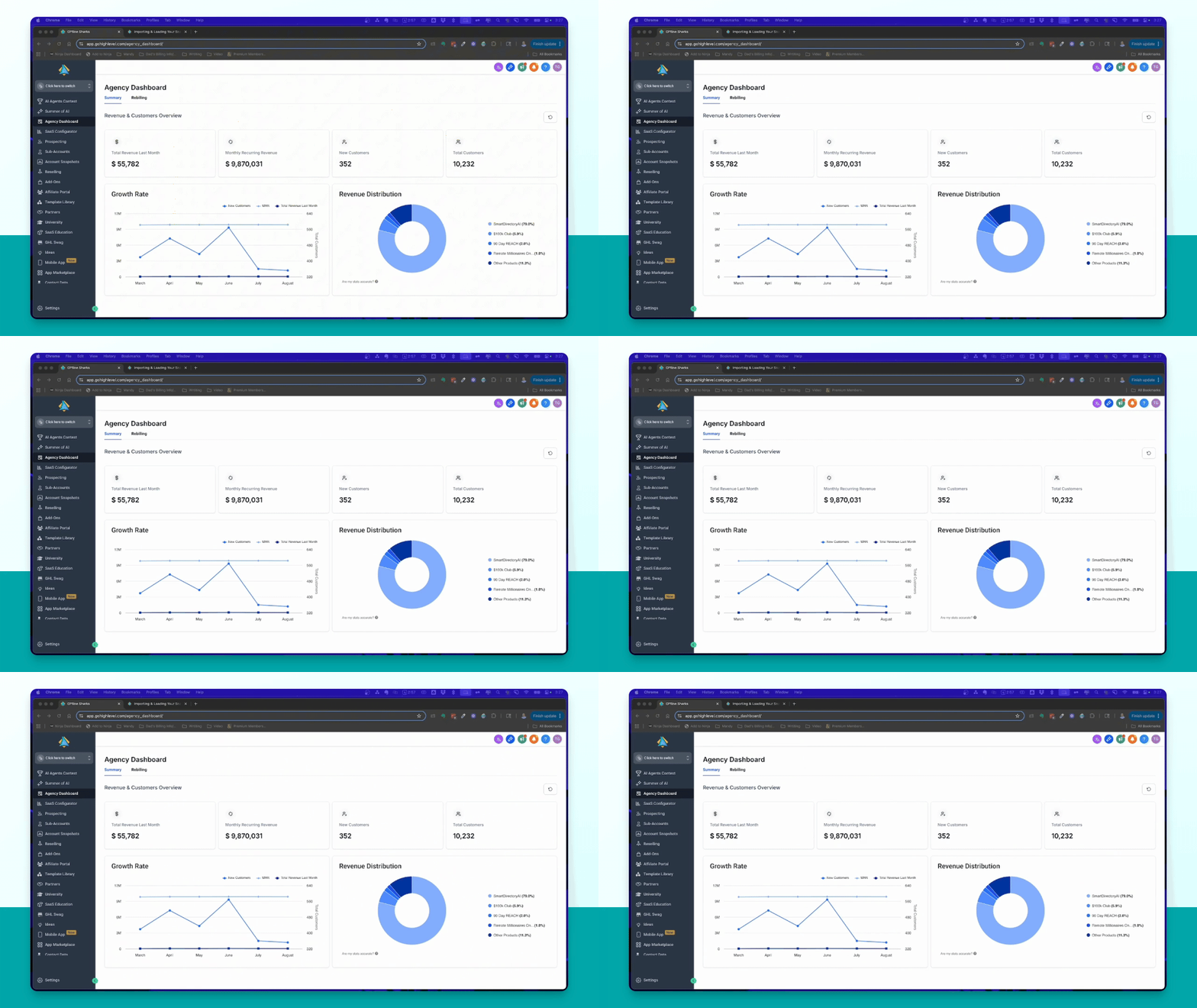
Step 4: Confirm Import
When prompted, click Yes, Import Now to start importing the snapshot.
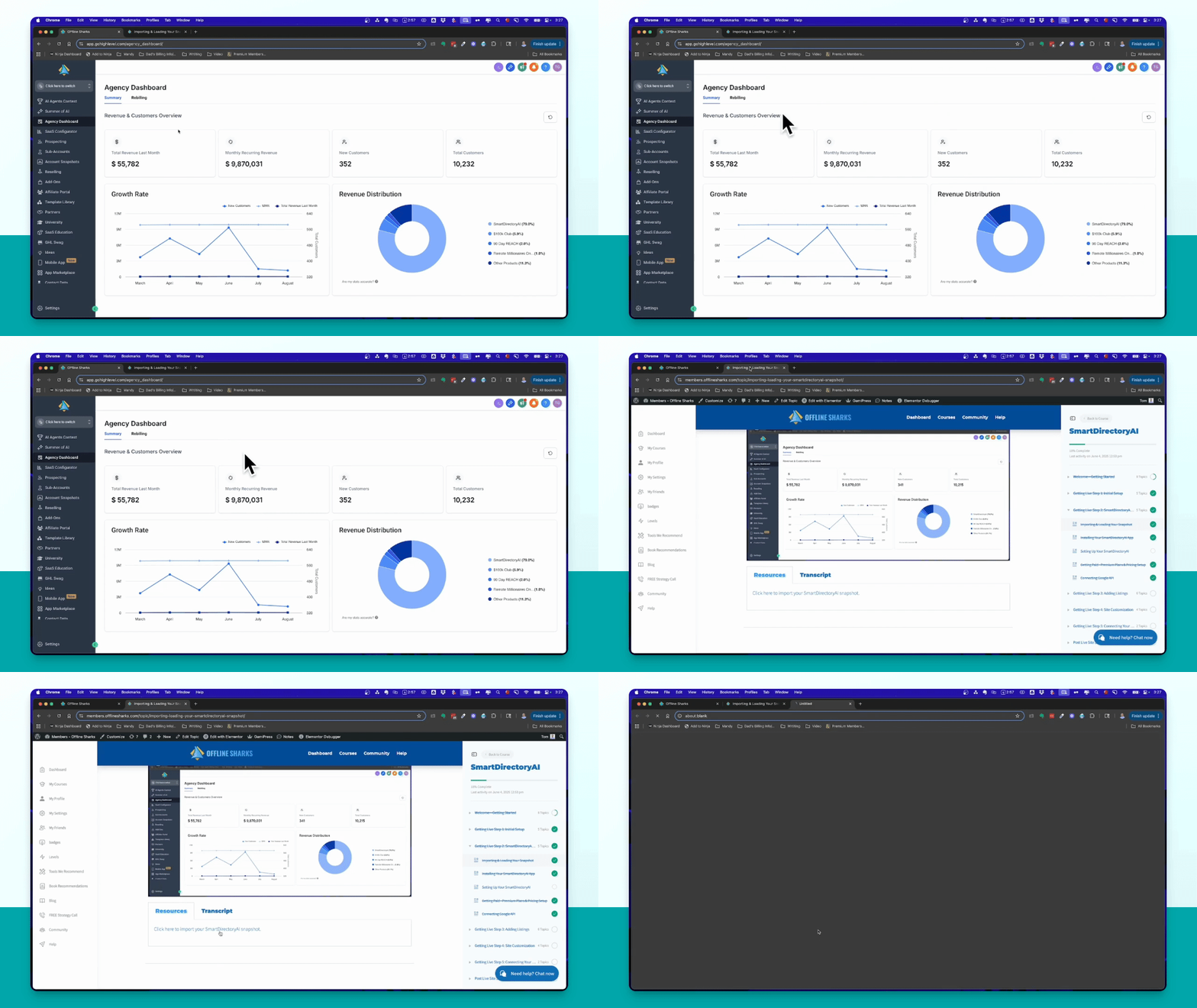
Step 5: View Imported Assets
After import, click on the snapshot to view all the imported assets, including email templates and forms.
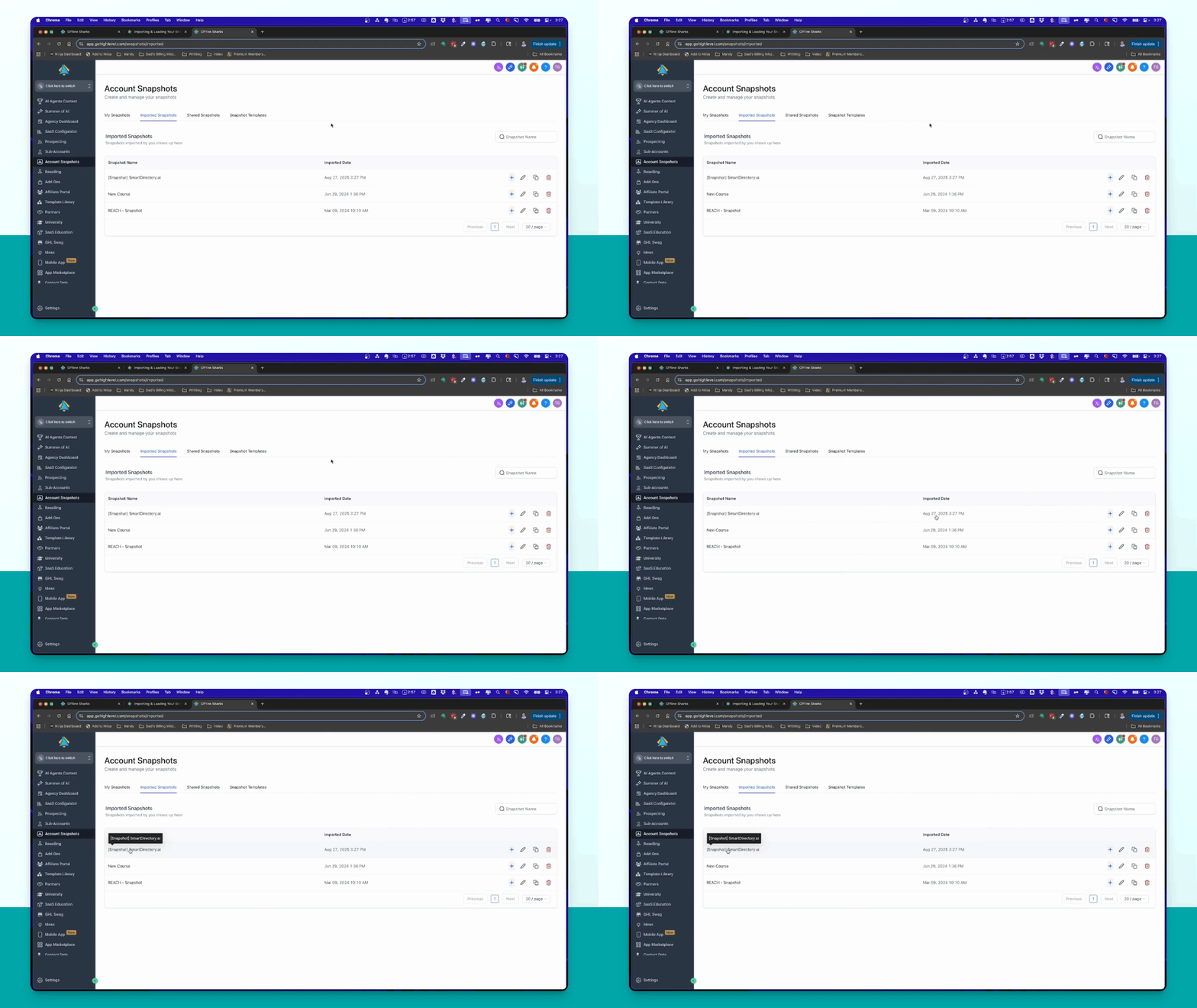
Step 6: Create Sub Account
Click on Sub Accounts and then Create Sub Account to separate Smart Directory AI assets.
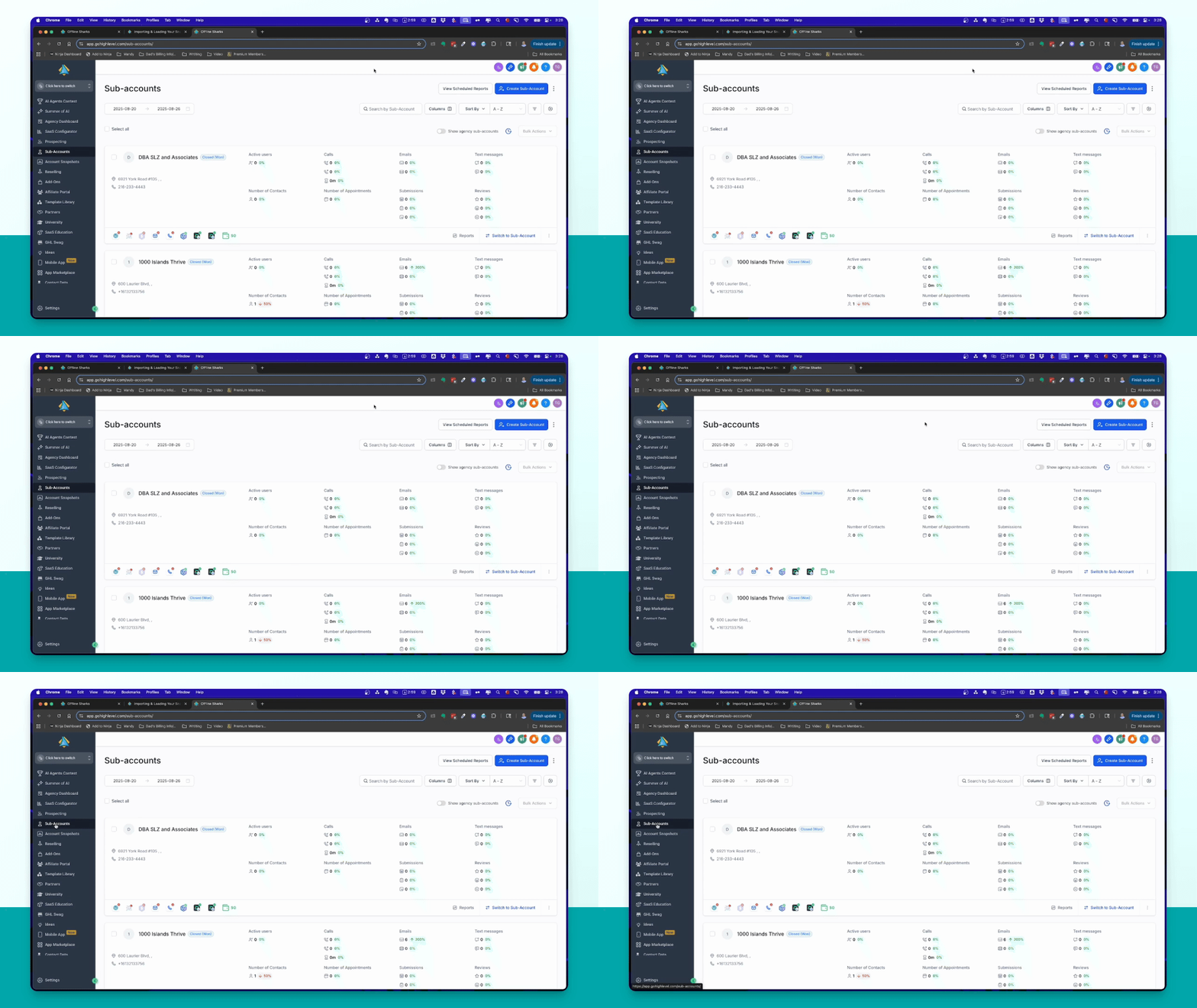
Step 7: Choose Account Type
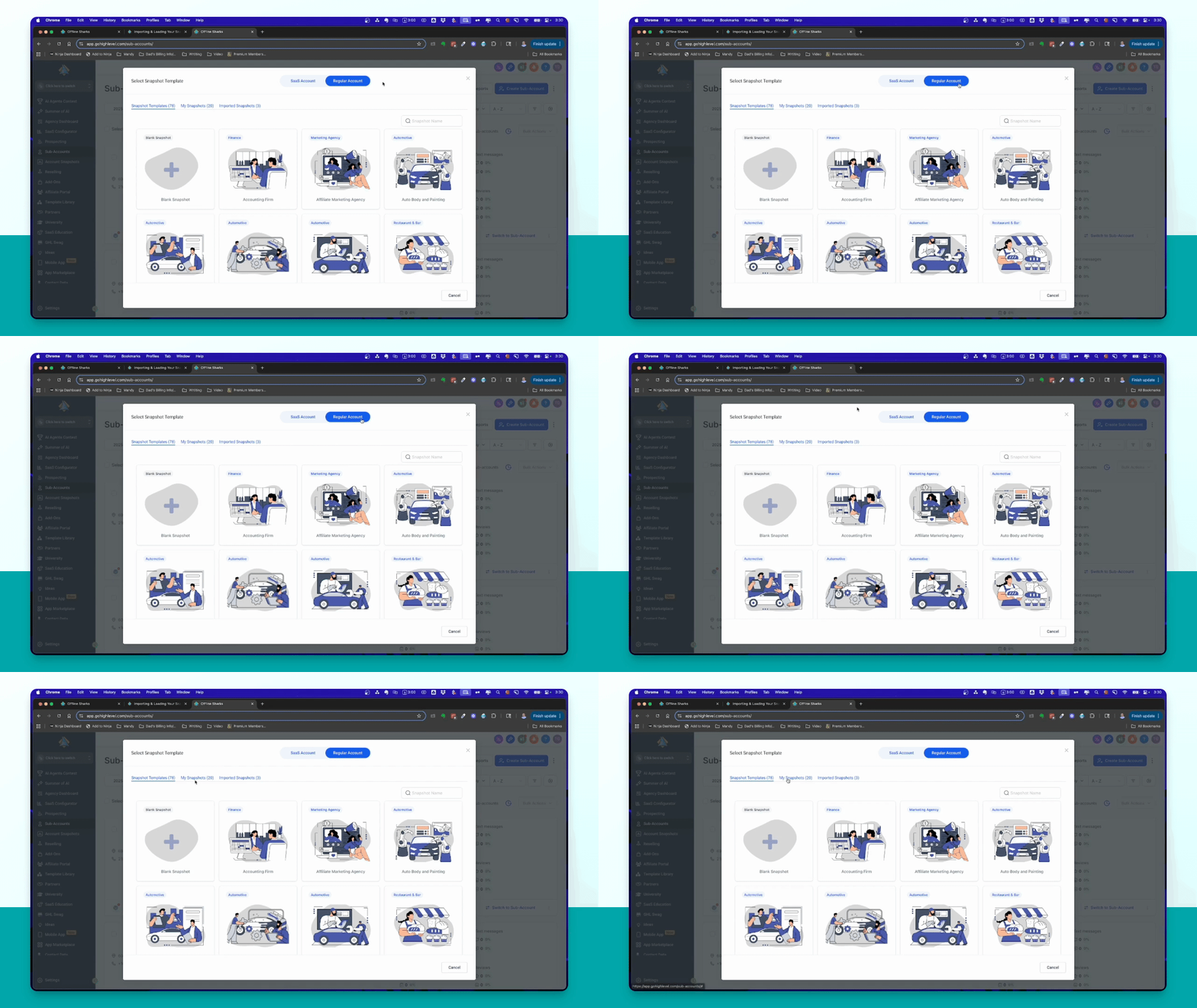
Select either a Regular Account or a SaaS Account. A regular account is sufficient.
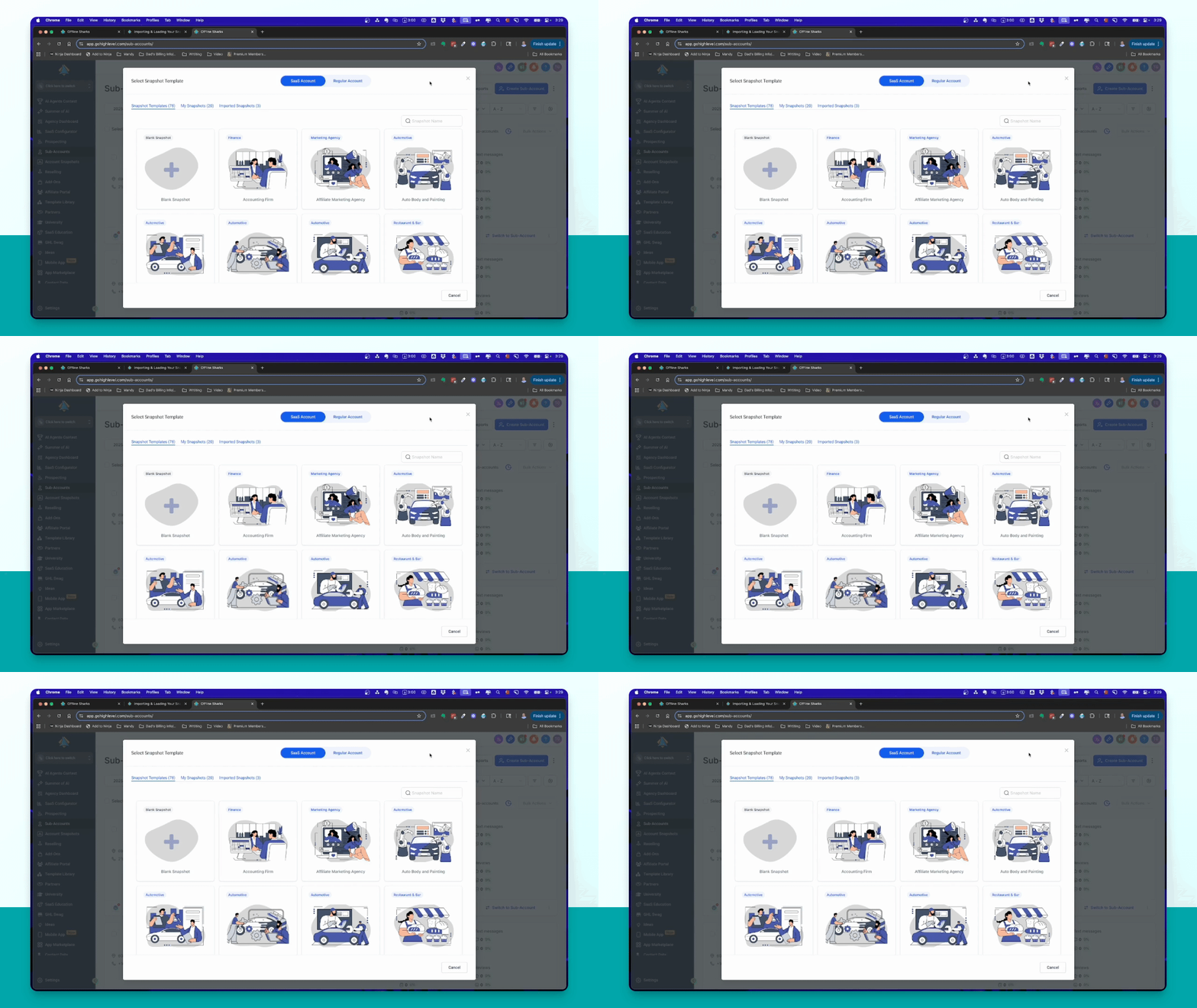
Step 8: Select Snapshot
Choose the imported Smart Directory AI snapshot and proceed to add your details.
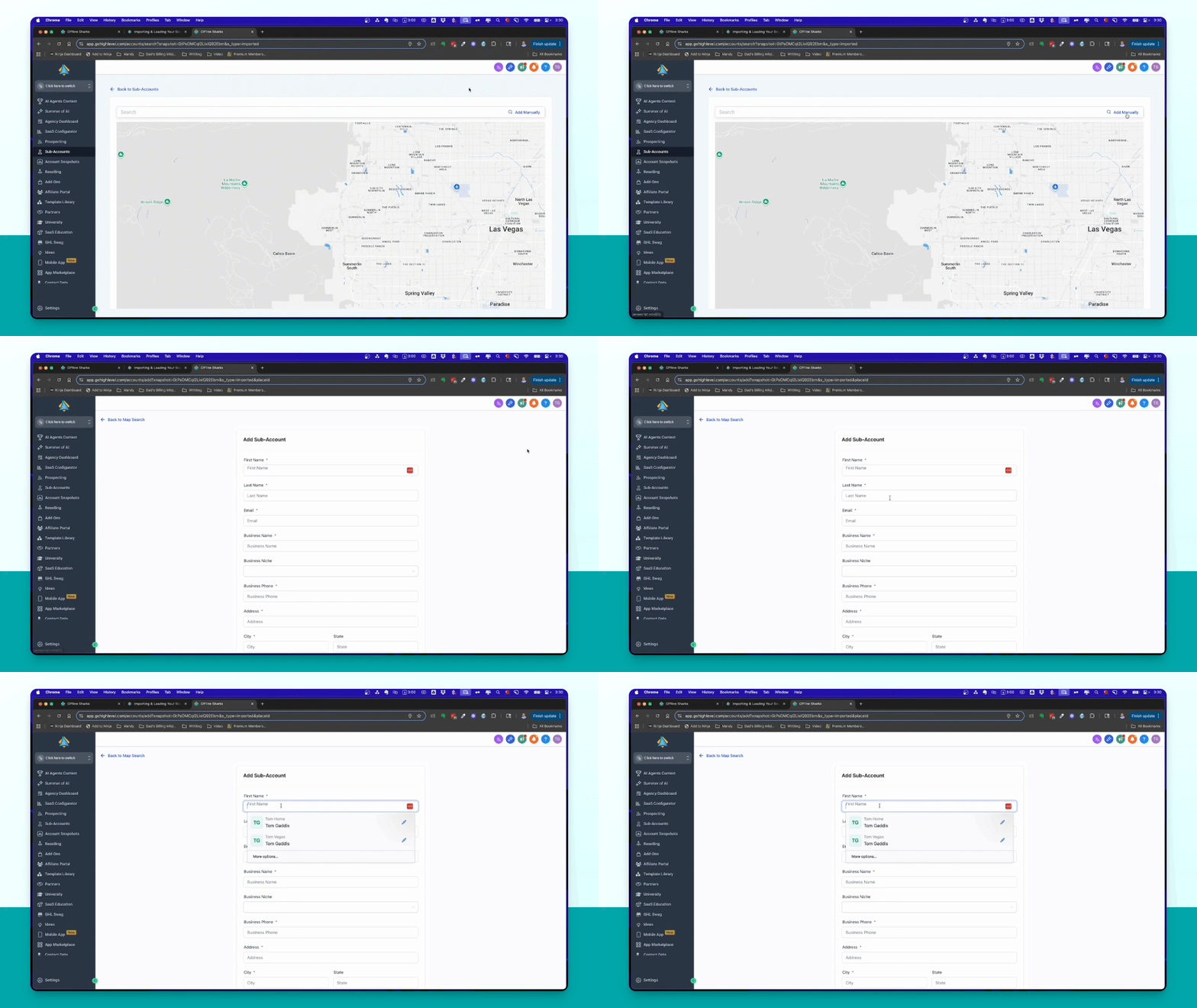
Step 9: Fill Out Information
Complete the form with your name, email, directory name, and other necessary details.
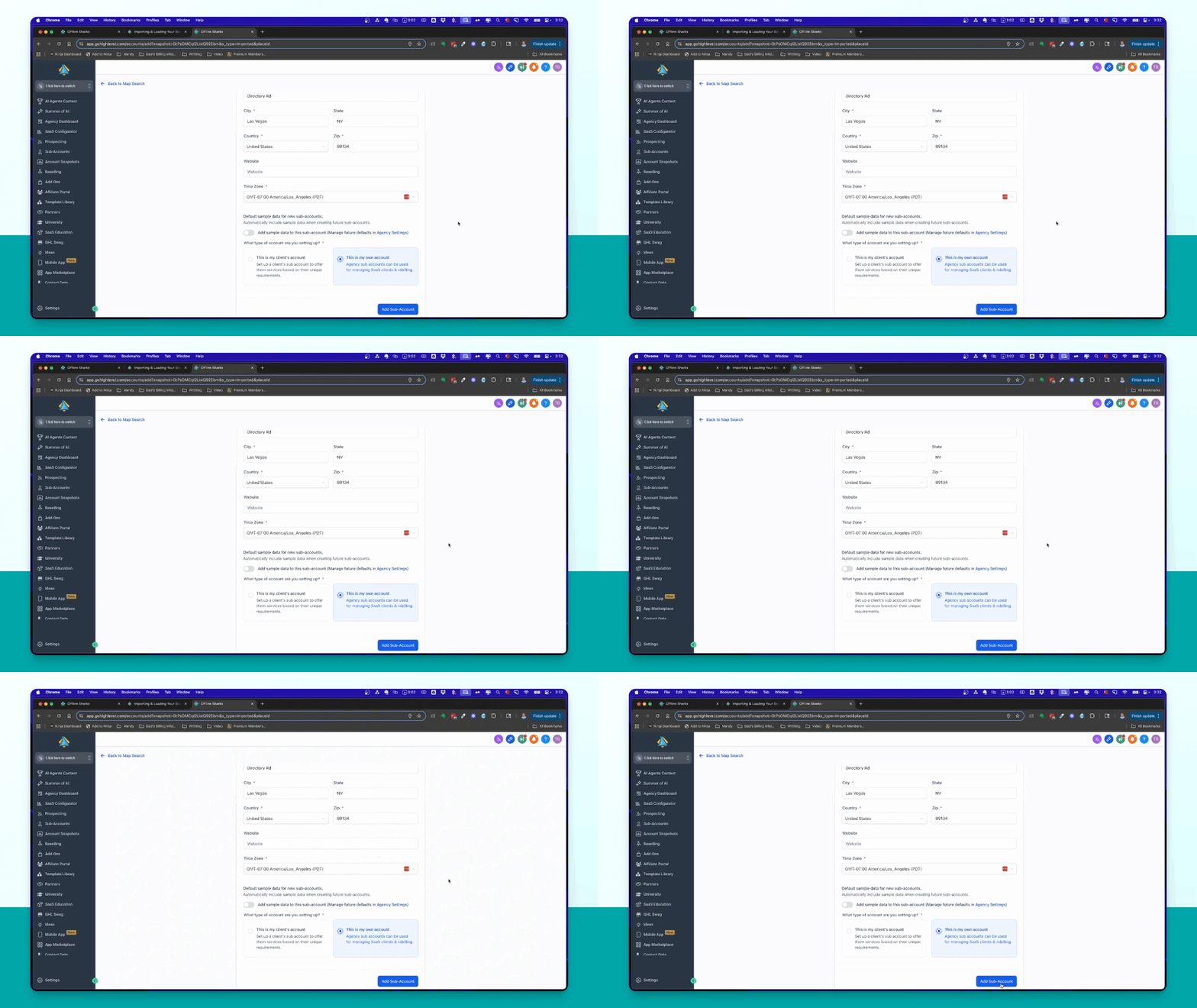
Step 10: Add Sub Account
Click Add Sub Account to create the account and install the snapshot.
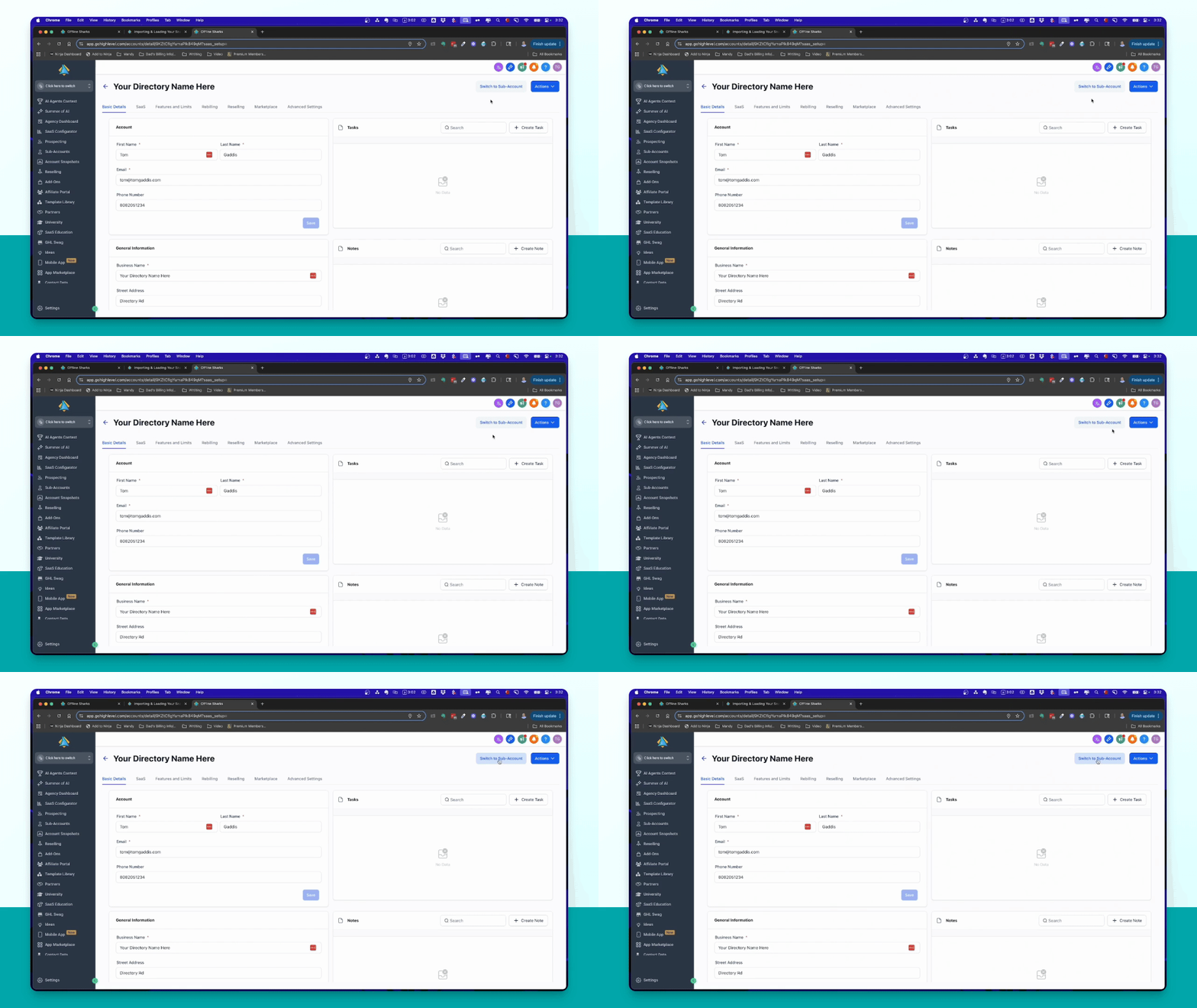
Step 11: Verify Installation
Switch to the created sub account and check under Automations for Smart Directory AI workflows.
Step 12: Existing Account Setup
To load the snapshot in an existing sub account, find the account, click Manage Client, and select Load Snapshot.
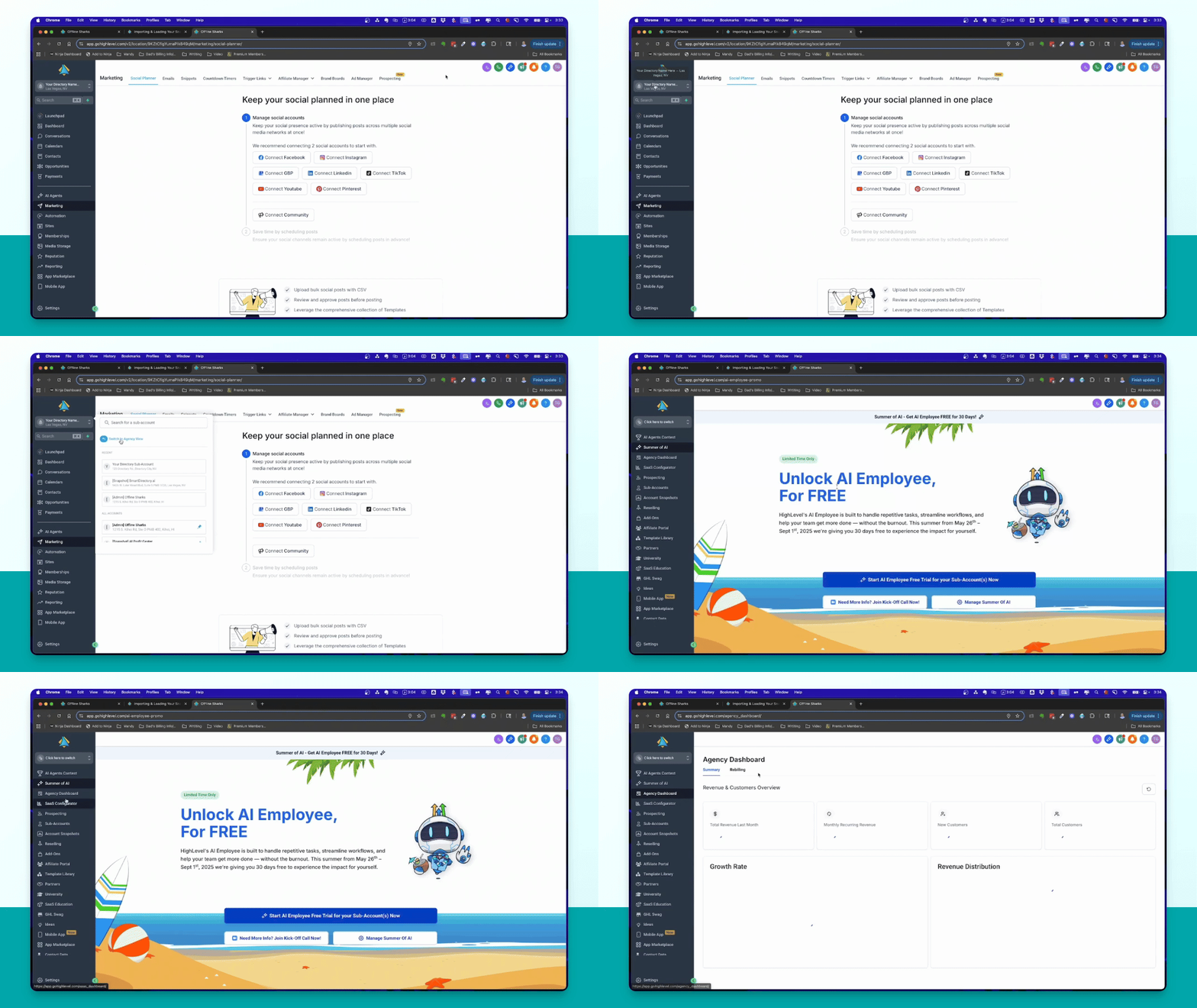
Step 13: Proceed with Installation
Select the Smart Directory AI snapshot and click Proceed to install it.